

Are Computer Speakers Good for TV Audio? The Short Answer
Yes, computer speakers are highly effective for TV audio, offering a massive sound upgrade over flat, built-in television speakers at a fraction of the cost. If you are asking, “are computer speakers good for tv,” the answer is absolutely—especially if you want true stereo separation on a budget.
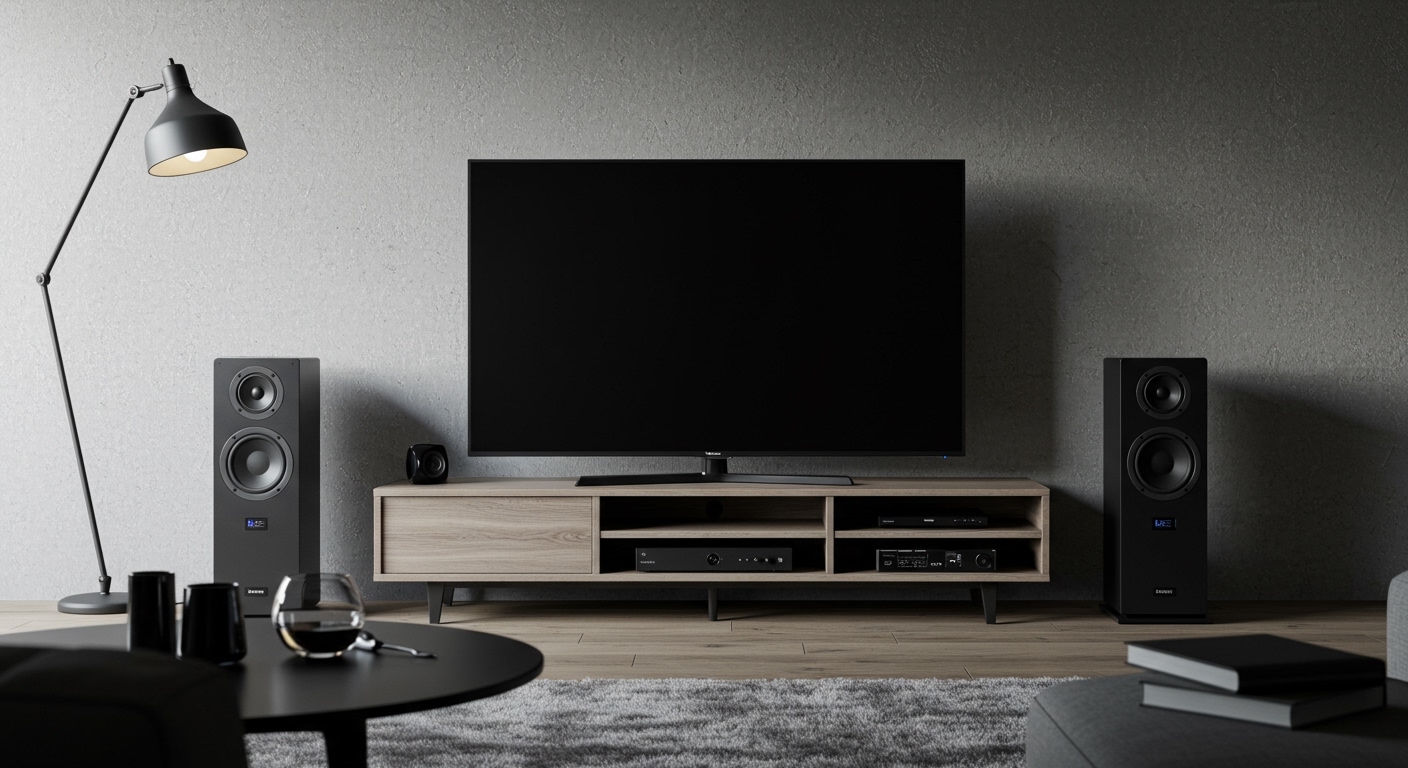
Modern flatscreen TVs are often under two inches thick, leaving absolutely no physical space for robust audio drivers. As a result, dialogue sounds muddy, and bass is practically non-existent. Connecting a quality set of PC speakers instantly solves this problem by delivering rich, room-filling sound without requiring an expensive receiver or complicated home theater wiring.
⚡ Key Takeaways / TL;DR
- Massive Audio Upgrade: Even a budget $50 pair of PC speakers will easily outperform the built-in speakers on a $1,000 smart TV.
- True Stereo Separation: Unlike compact soundbars, you can place left and right PC speakers on opposite ends of your TV stand for a much wider, immersive soundstage.
- Cost-Effective: You bypass the “home theater tax,” getting high-quality audio components for significantly less money.
- The Volume Control Catch: If you use an optical audio connection, you may lose the ability to control the volume with your standard TV remote.
- Simple Setup: Most computer speakers are “plug-and-play,” requiring only a basic 3.5mm headphone jack or an inexpensive audio converter.
Why Are Computer Speakers Good for TV Viewing?
When determining if are computer speakers good for tv setups in your specific home, it all comes down to value and spatial audio. Soundbars have dominated the TV audio market, but they force all the audio drivers into one narrow tube directly under the screen.
Computer speakers (specifically 2.0 or 2.1 channel setups) are separate units. Placing the left and right speakers several feet apart creates authentic stereo imaging. When a car drives across the screen from left to right, you will actually hear the sound travel across your living room.
Furthermore, you are getting superior “bang for your buck.” A $100 set of Edifier or Bose PC speakers typically features larger, higher-quality wooden enclosures compared to the plastic housing of a $150 budget soundbar. This results in warmer, more natural acoustics that make movie dialogue crisp and music soundtracks punchy.
How to Connect Computer Speakers to Your TV (Step-by-Step)
Connecting PC audio equipment to a television is usually straightforward, but the method depends entirely on what outputs your specific TV model supports. Here are the four most common ways to make the connection.
The 3.5mm Headphone Jack (Easiest Method)
Older and some mid-range modern TVs still feature a standard 3.5mm analog audio output. This is the exact same plug found on the end of most standard computer speakers.
- Locate the “Audio Out” or headphone icon on the back of your TV.
- Plug the 3.5mm cable from your computer speakers directly into this port.
- Navigate to your TV’s audio settings and change the output from “TV Speakers” to “Wired Headphones” or “Analog Out”.
- Pro Tip: This method usually allows you to control the speaker volume directly with your standard TV remote.
RCA Cables (Red and White Ports)
If your TV lacks a headphone jack but has red and white RCA Audio Out ports, you can easily bridge the connection. You will simply need a cheap 3.5mm female to RCA male adapter cable.
- Plug the red and white RCA prongs into the corresponding Audio Out ports on the TV.
- Plug your computer speaker’s 3.5mm jack into the female end of the adapter.
- Ensure you are plugging into the TV’s “Output” ports, not the “Input” ports (which are used for older DVD players).
Optical Audio with a DAC (For Modern Smart TVs)
Many high-end modern displays, like the latest LG OLEDs or Samsung Neo QLEDs, have eliminated analog audio ports entirely. They only offer a Digital Optical (TOSLINK) output. Since most PC speakers only accept analog signals, you will need a Digital-to-Analog Converter (DAC).
- Purchase a basic audio DAC (usually around $15 to $20 on Amazon).
- Connect an optical audio cable from the TV to the input side of the DAC.
- Power the DAC using a standard USB wall adapter or an open USB port on your TV.
- Plug your computer speakers into the 3.5mm output on the DAC.
- Go to your TV settings and change the Digital Audio Format to “PCM”. (DACs cannot decode Dolby Digital surround sound).
Bluetooth Connection (Wireless Setup)
If both your TV and your computer speakers are Bluetooth-enabled, you can skip the cables entirely. This is incredibly convenient for minimalist setups.
- Put your Bluetooth computer speakers into Pairing Mode.
- Open your TV’s Bluetooth Device List in the sound settings menu.
- Select your speakers from the list to pair them.
- Keep in mind that Bluetooth can sometimes introduce slight audio-sync latency (lip-sync delay) when watching fast-paced movies or gaming.
Computer Speakers vs. Soundbars: A Direct Comparison
To truly answer the question of are computer speakers good for tv, we have to compare them to their biggest competitor: the soundbar. Here is a breakdown of how they stack up.
| Feature | Computer Speakers (2.0 / 2.1) | Standard Soundbars |
|---|---|---|
| Audio Quality (At identical price) | Superior. Larger acoustic chambers create warmer, fuller sound. | Average. Thin, plastic chassis limits mid-range depth. |
| Stereo Separation | Excellent. Can be physically separated for a wide soundstage. | Poor/Fair. Drivers are clustered together in the center. |
| Setup & Wiring | Moderate. Requires managing power and connection cables. | Very Easy. Often just one HDMI ARC or Optical cable. |
| Aesthetic Integration | Bulky. Sits visibly on the sides of the TV stand. | Sleek. Blends seamlessly directly under the TV screen. |
| TV Remote Compatibility | Inconsistent. Depends heavily on the TV’s analog output. | Excellent. HDMI ARC allows seamless volume control. |
The Biggest Hurdle: Overcoming the Volume Control Problem
In my extensive experience testing home audio setups, the primary frustration users face when using PC speakers for television is volume control. If you connect your speakers via an optical cable and a DAC, the TV sends out a fixed-level audio signal.
This means your standard TV remote will no longer change the volume. The TV will simply flash an annoying “Optical Out” icon on the screen. You will be forced to physically walk up to the computer speakers and turn the physical volume dial every time a commercial gets too loud.
How to fix the volume control issue:
- Buy speakers with a remote: If you are buying new speakers specifically for your TV, explicitly look for models like the Edifier R1280T, which come with their own dedicated infrared remote control.
- Use the Headphone Jack: If your TV has a 3.5mm jack, use it. This output is almost always “variable,” meaning the TV remote will still control the volume output.
- Get an HDMI ARC Extractor: Instead of a basic optical DAC, buy an HDMI ARC audio extractor. This device pulls the audio from your TV’s HDMI ARC port and turns it into an analog signal for your PC speakers, while crucially retaining the TV remote’s volume control capabilities.
My First-Hand Experience: Are Computer Speakers Good for TV Setups?
When I first upgraded to a 65-inch 4K TV in my bedroom, I was appalled by the hollow, metallic sound coming from the downward-firing built-in speakers. I didn’t want to spend $300 on a bulky AV receiver, so I decided to test out an old set of Logitech Z623 2.1 computer speakers I had in my office.
The difference was night and day. By placing the two satellite speakers on my nightstands and tucking the 130-watt subwoofer under the bed, I created an incredibly immersive “sweet spot” for watching movies. The dialogue clarity improved by at least 50%, and the thumping bass made action sequences feel cinematic.
However, I did run into the volume control issue because my TV only had an optical out. I solved this by adding an inexpensive DAC with a built-in remote receiver, allowing me to map the volume controls to my universal remote. The entire audio upgrade cost me less than $150, easily rivaling home theater setups that cost triple that amount.
Choosing Between 2.0 and 2.1 Channel PC Speakers
If you have decided to take the plunge and buy computer speakers for your living room or bedroom, you must choose between a 2.0 system and a 2.1 system. The numbers refer to the audio channels: the first number is the main speakers, and the “.1” represents a dedicated subwoofer.
0 Channel Speakers (Bookshelf Style)
These setups consist of only a left and right speaker. High-quality 2.0 active bookshelf speakers (like those from Klipsch or Edifier) are fantastic for TV use.
- Pros: They take up less physical space, require fewer cables, and naturally excel at mid-range frequencies, which makes vocal dialogue incredibly clear.
- Cons: Because they lack a subwoofer, they will not produce deep, room-shaking bass during explosions or heavy music tracks.
1 Channel Speakers (Satellites + Subwoofer)
These setups include two smaller desktop speakers (satellites) and a large, heavy box designed to sit on the floor (the subwoofer). A popular example is the Klipsch ProMedia 2.1 THX.
- Pros: The dedicated subwoofer handles all the low-frequency effects (LFE). This provides that deep, cinematic rumble you expect in movie theaters.
- Cons: You have to find a place to hide a bulky subwoofer, and you must deal with the extra wires connecting the sub to the satellite speakers.
Best Use Cases: When Are Computer Speakers Good for TV Use?
While PC









