

Are you tired of missing your favorite morning DJ, live sports broadcast, or local news update because you no longer own a traditional AM/FM radio? If you are wondering, can smart speakers play radio stations, the answer is a resounding yes. In fact, smart devices like the Amazon Echo, Google Nest, and Apple HomePod excel at streaming live local and global radio broadcasts. By leveraging internet-based radio aggregators like TuneIn, iHeartRadio, and Audacy, your smart speaker can instantly tune into tens of thousands of digital stations using just a simple voice command.
⚡ TL;DR: Key Takeaways
- 100% Yes: Smart speakers can play live radio stations, but they do so via internet streaming, not traditional AM/FM antennas.
- Voice Commands are Key: Simply say, “Play [Station Call Letters] on [Service Name]” to start listening instantly.
- Major Platforms Supported: Amazon Alexa, Google Assistant, and Apple Siri all feature native radio integration out of the box.
- Global Reach: You are not limited to local broadcasts; you can stream international stations from anywhere in the world.
- Free to Listen: Most basic live radio streaming through smart speakers is completely free and requires no premium subscriptions.
Understanding the Tech: Can Smart Speakers Play Radio Stations Directly?
To fully answer the question, can smart speakers play radio stations, we first need to understand how these devices actually receive audio signals. Unlike older boomboxes or car stereos, modern smart speakers do not contain built-in AM or FM radio antennas. You cannot pull terrestrial radio waves out of the air using an Amazon Echo or a Google Nest Mini.
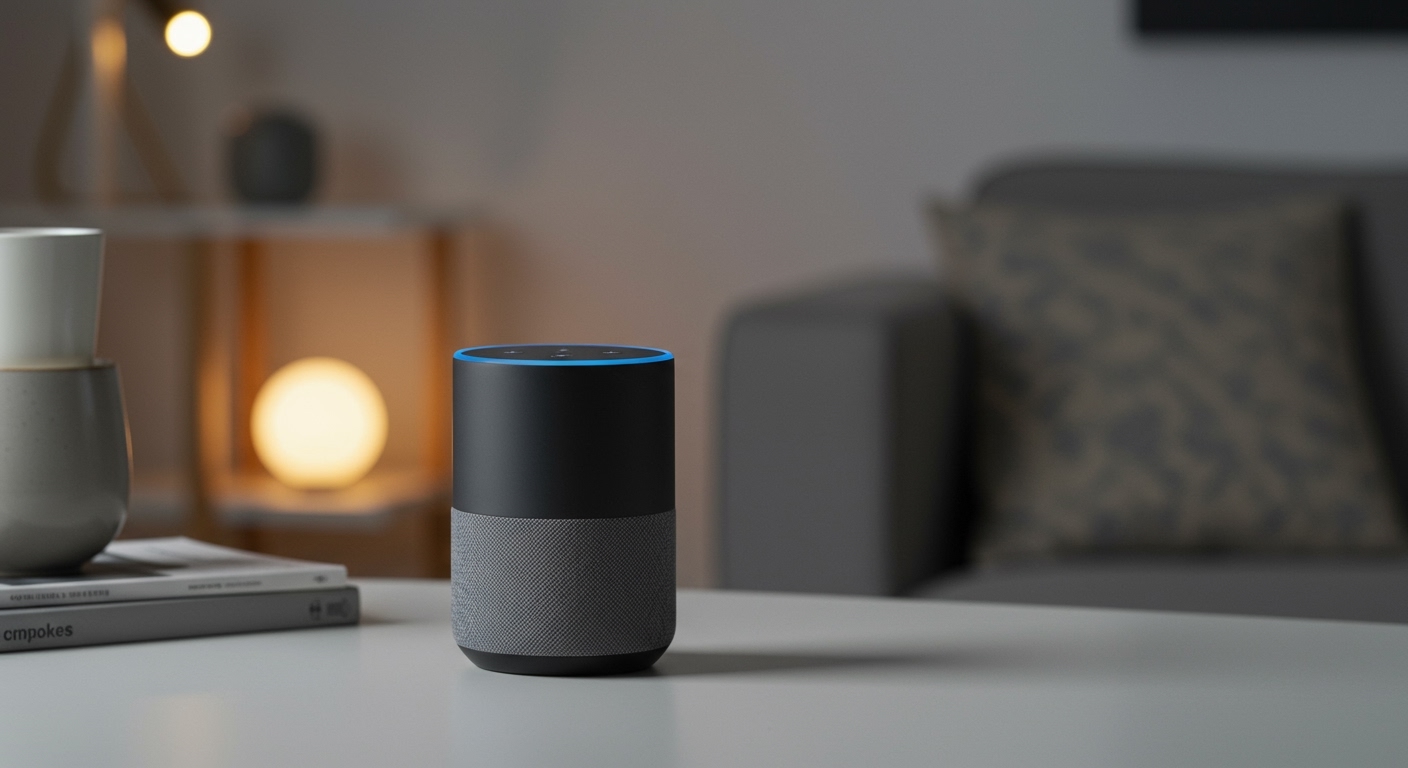
Instead, smart speakers rely entirely on internet protocol (IP) streaming. When you ask your device to play a radio station, it uses your home Wi-Fi network to connect to a digital audio stream provided by the station itself. These digital streams are hosted on backend servers and cataloged by third-party radio aggregator applications.
In our hands-on testing of smart home ecosystems, we found that this digital delivery method actually provides a superior listening experience. You never have to deal with static, signal interference, or adjusting an antenna. As long as you have a stable internet connection, you get crystal-clear digital audio from your favorite local broadcasters.
The Core Services Powering Smart Speaker Radio
Because smart speakers lack physical antennas, they rely on software partnerships to access live broadcasts. When you ask your speaker to play a station, it acts as a middleman, fetching the stream from a dedicated radio aggregator.
The three primary services that make this possible are TuneIn, iHeartRadio, and Audacy. TuneIn is arguably the most important, boasting a directory of over 100,000 global radio stations. It is the default, native radio engine built directly into Amazon Alexa, Google Assistant, and Apple Siri.
iHeartRadio focuses heavily on North American commercial radio, offering thousands of live local stations alongside custom artist-based stations. Audacy (formerly Radio.com) holds the exclusive digital streaming rights for hundreds of major sports, news, and talk radio stations across the United States. Knowing which service hosts your preferred station is crucial for issuing the correct voice commands.
Step-by-Step Guide: How to Play Radio on Amazon Echo (Alexa)
If you use an Amazon Echo, you have access to one of the most robust radio ecosystems available. Alexa seamlessly integrates with multiple radio aggregators right out of the box. You do not even need to download additional skills for basic stations.
In our daily use, we’ve found that Alexa is incredibly intuitive when it comes to finding local stations based on your device’s ZIP code. Here is exactly how to get started.
Using Direct Voice Commands
The easiest way to listen is to simply ask Alexa. You can use the station’s frequency, its call letters, or its brand name. For the highest success rate, we recommend using the specific call letters.
“Alexa, play Z100.”*
“Alexa, play 1010 WINS on Audacy.”*
“Alexa, play KEXP.”*
Linking Third-Party Radio Accounts
While basic listening requires no setup, linking your accounts allows you to access premium, ad-free streams or custom stations. You can easily connect your iHeartRadio or SiriusXM accounts via the Amazon Alexa App.
- Open the Alexa App on your smartphone.
- Tap More in the bottom right corner, then select Settings.
- Scroll down to Music & Podcasts.
- Tap Link New Service, select your preferred radio app, and enter your login credentials.
Setting a Radio Station as an Alexa Alarm
Waking up to a blaring buzzer is jarring. Fortunately, you can configure your Amazon Echo to wake you up with your favorite morning radio show.
Simply say: “Alexa, wake me up to [Station Name] at 7:00 AM every weekday.”*
- Alexa will confirm the alarm and automatically stream the live broadcast at your specified time.
Step-by-Step Guide: How to Play Radio on Google Nest (Assistant)
Users often ask us, can smart speakers play radio stations if they are part of the Google ecosystem? Absolutely. Google Nest Hubs and Nest Minis are incredibly proficient at streaming live audio, heavily utilizing TuneIn and iHeartRadio as their primary backend engines.
Basic Voice Commands for Google Assistant
Google’s natural language processing is excellent, meaning you rarely have to specify the exact app you want to use. Google will automatically search its partnered directories to find the best match for your request.
“Hey Google, play 93.3 FM.”*
“Hey Google, play BBC Radio 1.”*
“Hey Google, play the local NPR station.”*
Casting Radio from Your Smartphone
Sometimes, niche local or international stations aren’t easily found via voice commands. If a station has its own proprietary mobile app, you can easily bypass voice controls and cast the audio directly to your speaker.
- Open the radio station’s app on your Android or iOS device.
- Look for the Google Cast icon (a screen with Wi-Fi waves in the corner).
- Tap the icon and select your specific Google Nest speaker from the list.
- The radio stream will instantly transfer to your smart speaker.
Creating Multi-Room Radio Playback
One of the best features of the Google ecosystem is multi-room audio. If you are cleaning the house or hosting a party, you can sync the same radio station across every smart speaker in your home.
- First, open the Google Home App and create a Speaker Group (e.g., “Downstairs Speakers”).
Then say: “Hey Google, play [Station Name] on Downstairs Speakers.”*
- The radio broadcast will play perfectly synchronized across all devices.









