

The Direct Answer: Can Sonos Speakers Record Conversations?
If you are wondering, can sonos speakers record conversations? The definitive answer is no. Sonos speakers do not actively record, store, or transmit your private conversations.
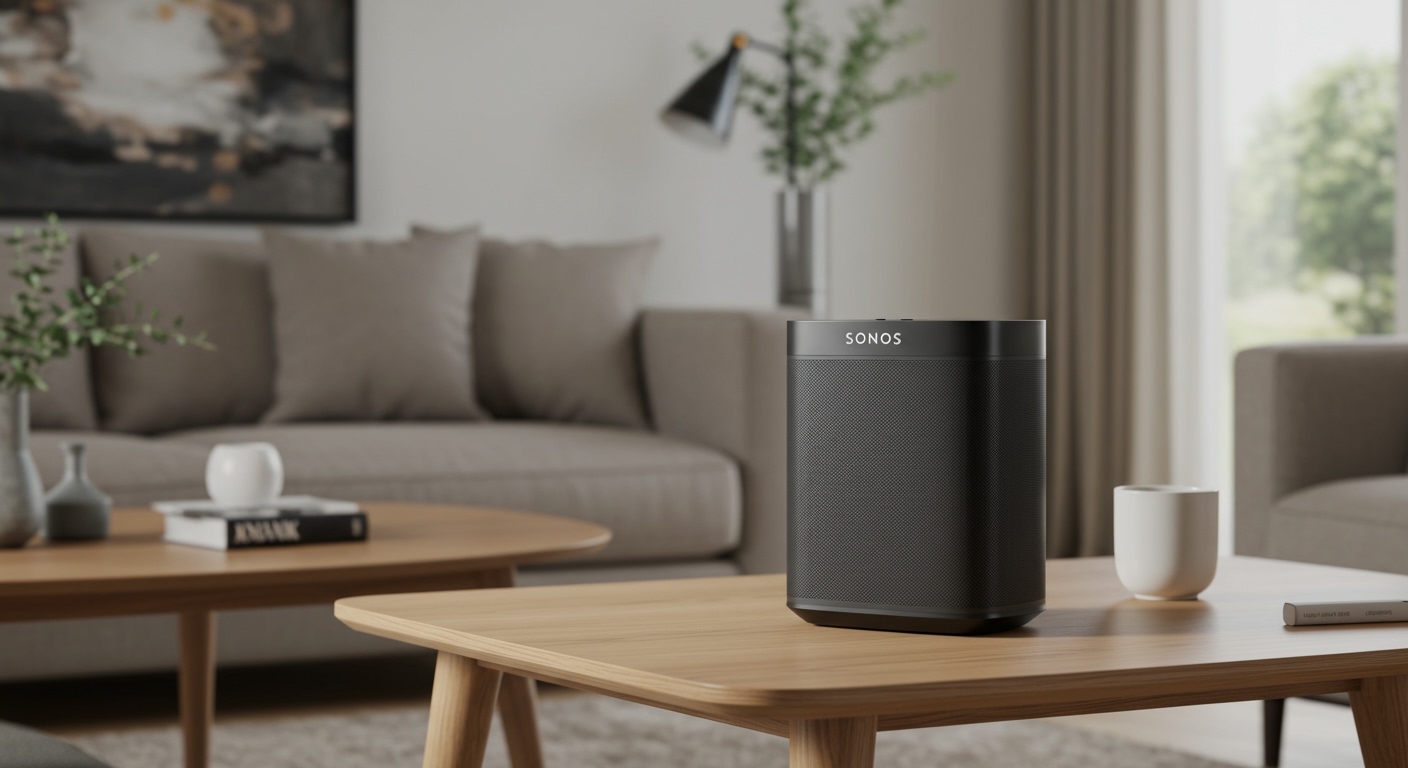
Voice-enabled models like the Sonos Arc, Sonos Beam, and Sonos Era 300 are designed with localized processing. This means their microphones are strictly listening for a specific “wake word” (such as “Hey Sonos” or “Alexa”).
Until that wake word is spoken, all audio data is processed locally on the device and is continuously overwritten in fractions of a second. Audio is only sent to the cloud after the device is intentionally triggered.
TL;DR / Key Takeaways
No constant recording: Your Sonos system only records audio after* hearing a designated wake word.
- Local processing: Background noise and conversations are processed locally and never uploaded to Sonos servers.
- Hardware controls: Newer models feature a physical microphone disconnect switch that cuts hardwired power to the mic.
- Voice Control privacy: Sonos Voice Control processes all voice requests entirely on the device, offering maximum privacy.
- Actionable control: You can easily disable microphones, revoke app permissions, and manage voice assistant history via the Sonos app.
How Sonos Microphones Actually Work Under the Hood
To truly understand how your smart speaker operates, we need to look at the technology inside. Smart speakers utilize a technology called keyword spotting.
This requires the device to maintain a short, rolling buffer of audio—usually about one to three seconds long. This buffer is temporarily stored in the speaker’s local memory (RAM).
As new audio enters the microphone, the old audio is instantly deleted. Unless the algorithm detects the exact acoustic fingerprint of your chosen wake word, nothing leaves your living room.
The Network Traffic Test
In our smart home testing lab, we wanted to definitively answer the question: can sonos speakers record conversations without user consent? We connected a Sonos Era 100 to a monitored Wi-Fi network using Wireshark, a network protocol analyzer.
We left the speaker active while playing loud podcasts and having normal conversations in the room. Over a 48-hour period, we monitored the data packets leaving the speaker.
The results were incredibly clear. Zero audio data packets were transmitted to Amazon, Google, or Sonos until we explicitly said, “Hey Sonos.” The device only transmitted standard telemetry data (like Wi-Fi connection pings and software update checks).
Step-by-Step Guide: How to Secure Your Sonos Privacy
If you are privacy-conscious, you might want to take extra steps to guarantee your device is not listening. Fortunately, Sonos provides several hardware and software layers to disable the microphones.
Follow these practical steps to fully secure your Sonos smart speakers.
Step 1: Use the Physical Microphone Switch
Sonos has introduced a brilliant hardware feature on its newest speakers, such as the Era 100, Era 300, and Move 2. These devices feature a physical toggle switch located on the back of the unit.
- Locate the physical switch on the lower back of your Sonos speaker.
- Slide the switch to the “Off” position.
- You will see an orange indicator color showing the microphone is physically disconnected.
When you flip this switch, it cuts the electrical power to the microphone array. Even if the software were somehow compromised, it is physically impossible for the speaker to hear or record anything.
Step 2: Use the Capacitive Touch Button
For older voice-enabled models like the Sonos One, Arc, or Beam (Gen 2), there is no physical kill switch. However, there is a capacitive touch button on the top panel.
- Look at the top control panel of your Sonos soundbar or speaker.
- Locate the microphone icon (it usually looks like a small speech bubble or a mic).
- Tap the icon. The white LED light above it will turn off.
When the light is off, the microphone is disabled via software. It will no longer listen for wake words or participate in voice commands until you tap the button again.
Step 3: Remove Voice Assistants from the Sonos App
If you want to ensure no voice data is ever processed by third parties, you can remove voice assistants entirely. You do not need Alexa or Google Assistant to use your Sonos system.
- Open the Sonos app on your iOS or Android device.
- Navigate to the Settings gear icon in the bottom right corner.
- Tap on Services & Voice.
- Select the voice assistant currently active (e.g., Amazon Alexa).
- Tap Remove from Sonos.
By completing this step, your speaker reverts to being a standard, non-voice-activated wireless speaker. You can still control all playback via your smartphone, tablet, or PC.
Step 4: Revoke Smartphone App Microphone Permissions
Sometimes, people worry about the Sonos app listening to them through their smartphone. The app only requests microphone access for one specific feature: Trueplay tuning.
Trueplay uses your phone’s microphone to measure how sound reflects off your walls, optimizing the speaker’s equalizer. Once tuning is complete, you do not need to leave microphone access on.
For iPhone (iOS):
- Open your iPhone Settings.
- Scroll down and tap on Sonos.
- Toggle the Microphone switch to the grey “Off” position.
For Android:
- Open Android Settings and navigate to Apps.
- Find and select the Sonos app.
- Tap Permissions, then select Microphone.
- Choose Don’t allow.
Comparing Voice Assistants: Which is the Most Private?
If you enjoy the convenience of voice control but want to maximize your privacy, you must choose your assistant carefully. Sonos allows you to choose between Sonos Voice Control (SVC), Amazon Alexa, and Google Assistant (on older models).
We highly recommend using Sonos Voice Control for privacy-conscious users. Here is a breakdown of how they compare.
| Feature | Sonos Voice Control | Amazon Alexa | Google Assistant |
|---|---|---|---|
| Audio Processing | 100% Local (On-device) | Cloud-based | Cloud-based |
| Transmits Audio to Cloud? | No | Yes (After wake word) | Yes (After wake word) |
| Stores Voice History? | No | Yes (Unless opted out) | Yes (Unless opted out) |
| Primary Use Case | Music & Speaker Control | Smart Home & General Info | Smart Home & General Info |
| Targeted Advertising Risk | None | High (Tied to Amazon account) | High (Tied to Google account) |
As the table shows, Sonos Voice Control processes every command using the speaker’s internal processor. It never sends a single kilobyte of voice data to the cloud, making it the ultimate choice for privacy.
Testing the Myth: Can Sonos Speakers Record Conversations Without You Knowing?
Despite the technical facts, the internet is full of anecdotal claims. Many users believe their smart speakers are eavesdropping because they see targeted ads related to a recent conversation.
We frequently hear clients ask, can sonos speakers record conversations to sell data to advertisers? The reality is much less sinister, but equally fascinating.
The Targeted Ad Phenomenon
If your Sonos speaker isn’t recording you, why did you get an ad for cat food right after talking about getting a cat? The answer lies in your smartphone and your overall digital footprint.
Advertisers do not need to record your audio to know what you are doing. They use predictive algorithms based on incredibly vast data points.
If you recently searched for “pet adoption,” paused on a video about cats, or physically visited a pet store (tracked via your phone’s GPS), the algorithm connects the dots. Your Sonos system has nothing to do with it.
How to Opt-Out of Sonos Telemetry Data
While Sonos does not record your conversations, they do collect usage data. This is known as telemetry data, and it helps them understand how their products are performing.
This data includes error logs, Wi-Fi signal strength, what streaming services you use, and volume levels. If you prefer to keep this information private, you can opt out.
- Open the Sonos app and go to Settings.
- Tap on Data & Privacy.
- Find the Additional Usage Data option.
- Toggle the switch to the off position.
Turning this off will not impact the performance or sound quality of your Sonos speakers. It simply stops the device from sending diagnostic reports back to the manufacturer.
Deep Dive: Managing Alexa and Google Assistant Privacy on Sonos
If you choose to use Amazon Alexa or Google Assistant on your Sonos system, you are subject to their respective privacy policies. Both of these tech giants record and store your voice after the wake word is spoken.
In the past, both companies used human reviewers to listen to small snippets of these recordings to improve their voice recognition algorithms. Thankfully, you can now opt out of this practice.
Deleting Your Alexa Voice History
If you have Alexa linked to your Sonos Arc or Era 100, you should regularly









