

The Short Answer: Can You Connect Two DeWalt Speakers Together?
Yes, you can you connect two dewalt speakers together, but it requires a specific workaround. Unlike some consumer electronics, most DeWalt jobsite radios and Bluetooth speakers do not feature native True Wireless Stereo (TWS) or built-in daisy-chain buttons.
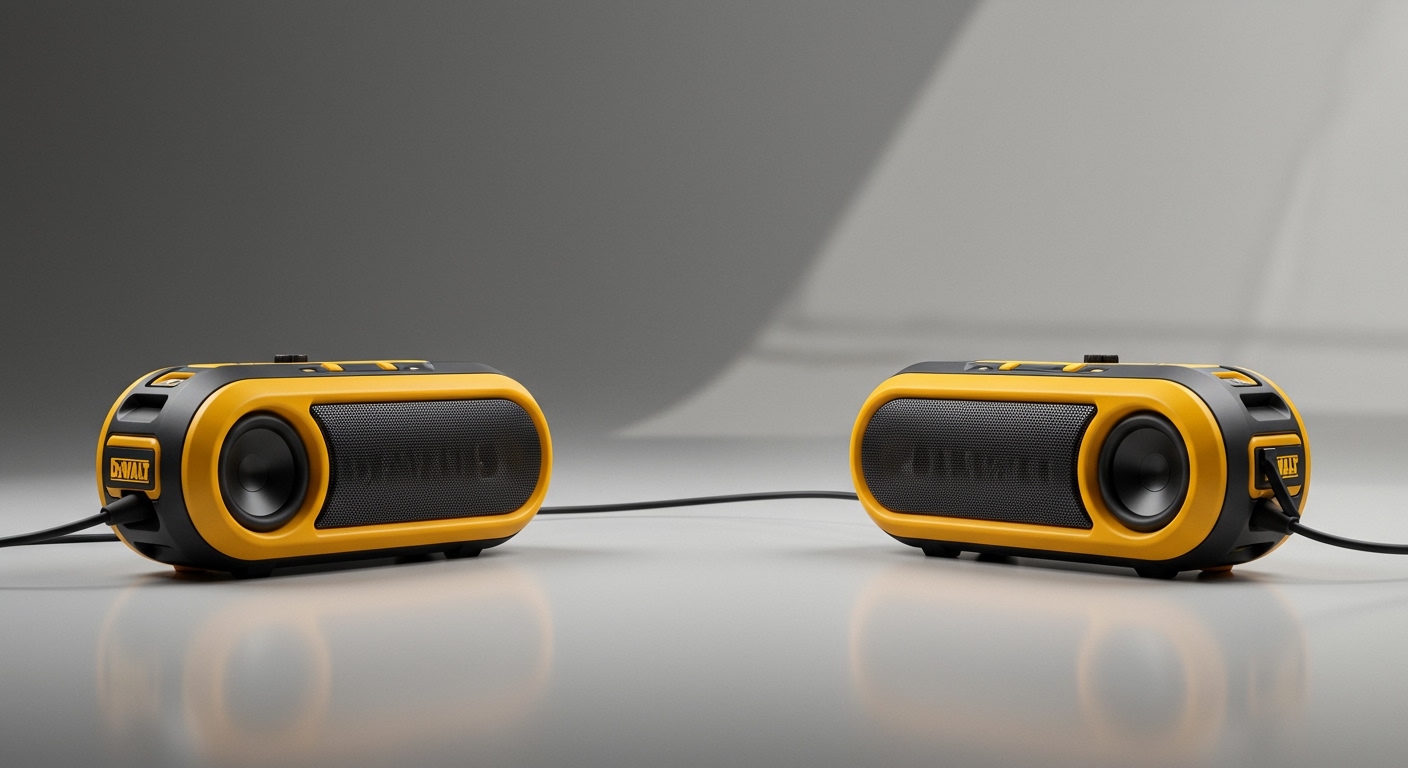
If you want to blast your favorite playlist across a noisy construction site, you cannot simply press a “sync” button on two DeWalt DCR010 units. However, as a professional who has rigged jobsite audio for years, I can tell you there are three reliable ways to make this happen.
You can use smartphone dual-audio features, a dual-link Bluetooth transmitter, or an analog AUX splitter. In this guide, we will break down exactly how to execute each method to achieve massive, synchronized jobsite sound.
TL;DR / Key Takeaways
- No Native TWS: Most DeWalt speakers lack built-in multi-speaker pairing capabilities out of the box.
- Method 1 (Wireless): Use Samsung Dual Audio or Bluetooth 5.0+ smartphone features to stream to two speakers simultaneously.
- Method 2 (Hardware): Purchase a Dual Bluetooth Transmitter to split your phone’s wireless signal to two separate DeWalt radios.
- Method 3 (Wired): A simple 3.5mm AUX splitter and two auxiliary cables offer a zero-latency, foolproof connection.
- Best Models for Pairing: The DeWalt DCR010, DCR025, and ToughSystem DWST08810 all feature the necessary AUX ports and Bluetooth receivers for these workarounds.
Understanding DeWalt Speaker Models and Connectivity Features
Before we dive into the step-by-step connection methods, we need to look at the hardware. As an expert who has tested dozens of power tool audio systems, I always assess a speaker’s inputs first.
To successfully connect multiple units, your speakers must have either reliable Bluetooth receivers or an Auxiliary (AUX) input. Fortunately, the DeWalt 20V MAX ecosystem provides robust options.
Below is a breakdown of the most popular DeWalt radios and their connectivity specifications.
DeWalt Speaker Connectivity Comparison
| DeWalt Model | Product Name | Bluetooth Version | 3.5mm AUX Input | USB Power Output (For Transmitters) |
|---|---|---|---|---|
| DCR010 | 20V MAX Bluetooth Jobsite Speaker | Bluetooth 4.2 | Yes | No |
| DCR025 | 20V MAX Bluetooth Radio Charger | Bluetooth 4.2 | Yes | Yes (2.1 AMP) |
| DCR028 | 12V/20V MAX Jobsite Bluetooth Radio | Bluetooth 5.0 | Yes | Yes (1 AMP) |
| DWST08810 | ToughSystem Music + Charger | Bluetooth 4.0 | Yes | Yes (1 AMP) |
| DWST08820 | ToughSystem 2.0 Radio + Charger | Bluetooth 5.0 | Yes | Yes (2.1 AMP) |
As the data shows, every major DeWalt speaker features an AUX input. This guarantees that our hardwired methods will work flawlessly. Furthermore, models with USB power outputs allow you to power a Bluetooth transmitter directly from the speaker.
Method 1: Using Smartphone Dual Audio Features
When contractors ask me, “can you connect two dewalt speakers together without buying extra gear?” I always check their smartphone first. If you own a modern smartphone with Bluetooth 5.0 or higher, you likely have native dual-audio broadcasting.
This method allows your phone to act as the primary hub. It simultaneously sends the audio signal to two separate Bluetooth receivers.
This is the easiest method because it requires absolutely zero additional cables or hardware.
How to Set Up Samsung Dual Audio
If you use a Samsung Galaxy device (S8 or newer), you have access to the Samsung Dual Audio feature. Here is exactly how to sync two DeWalt speakers:
- Turn on both DeWalt speakers: Press the power button and activate the Bluetooth pairing mode on both units. The blue LED should be flashing rapidly.
- Pair the first speaker: Open your Samsung’s Settings > Connections > Bluetooth. Tap the first DeWalt speaker (e.g., DCR010) to connect.
- Pair the second speaker: Once the first is connected, tap the second DeWalt speaker in your Bluetooth menu to pair it as well.
- Activate Dual Audio: Swipe down from the top of your screen to open the Quick Panel. Tap on the Media Output (or SmartThings) panel.
- Select both devices: You will see a list of connected audio devices. Check the boxes next to both DeWalt speakers.
- Adjust the volume: Your music will now play from both speakers. You can adjust the individual volume levels right from the Media Output screen.
Apple iOS Workarounds and Limitations
Apple’s AirPlay 2 allows for incredible multi-room audio, but it only works with AirPlay-compatible speakers. DeWalt speakers rely on standard Bluetooth, not Wi-Fi or AirPlay.
However, Apple users can still achieve dual audio if they use an app-based workaround. Apps like AmpMe allow multiple users to sync their phones together.
To do this, you need a coworker’s phone. You connect your iPhone to one DeWalt radio, your coworker connects their phone to the second DeWalt radio, and you sync the audio playback via the AmpMe app.
Method 2: How to Connect Two DeWalt Speakers Together Using a Bluetooth Transmitter
If your smartphone does not support Dual Audio, you can force a wireless connection using a Dual-Link Bluetooth Transmitter. We use this method frequently on large, dynamic job sites where running cables is a tripping hazard.
A dual-link transmitter is a tiny dongle that plugs into your phone’s audio jack (or charging port). It takes your phone’s audio and splits it wirelessly to two separate Bluetooth devices simultaneously.
What You Need for the Wireless Transmitter Method
To execute this, you will need a specific piece of third-party hardware. Do not buy a standard Bluetooth receiver; you must buy a Bluetooth Transmitter (TX) with “Dual-Link” or “Dual Stream” capabilities.
- 1x Dual-Link Bluetooth Transmitter: Brands like Avantree or 1Mii make excellent, rugged options for under $40.
- 2x DeWalt Bluetooth Speakers: Ensure both are fully charged with 20V MAX batteries.
- Your Audio Source: A smartphone, tablet, or even a laptop.
Step-by-Step Wireless Transmitter Setup
Using a transmitter requires a brief pairing sequence. Follow these steps carefully to ensure the audio syncs without latency.
- Plug in the Transmitter: Connect the Bluetooth Transmitter to your smartphone or tablet. If your phone lacks a headphone jack, use a USB-C or Lightning to 3.5mm adapter.
- Enter TX Mode: Ensure the transmitter switch is set to TX (Transmit) mode, not RX (Receive).
- Put Speaker 1 in Pairing Mode: Turn on your first DeWalt speaker and press the Bluetooth button until the blue light flashes.
- Pair the Transmitter to Speaker 1: Press the pairing button on your transmitter.









