

Can You Have 4 Sonos Speakers in One Room?
Yes, you can absolutely have 4 Sonos speakers in one physical room. You can configure them as a home theater surround system (like a soundbar, subwoofer, and two rears), group multiple stereo pairs together for room-filling music, or use a Sonos Amp to power four passive architectural speakers.
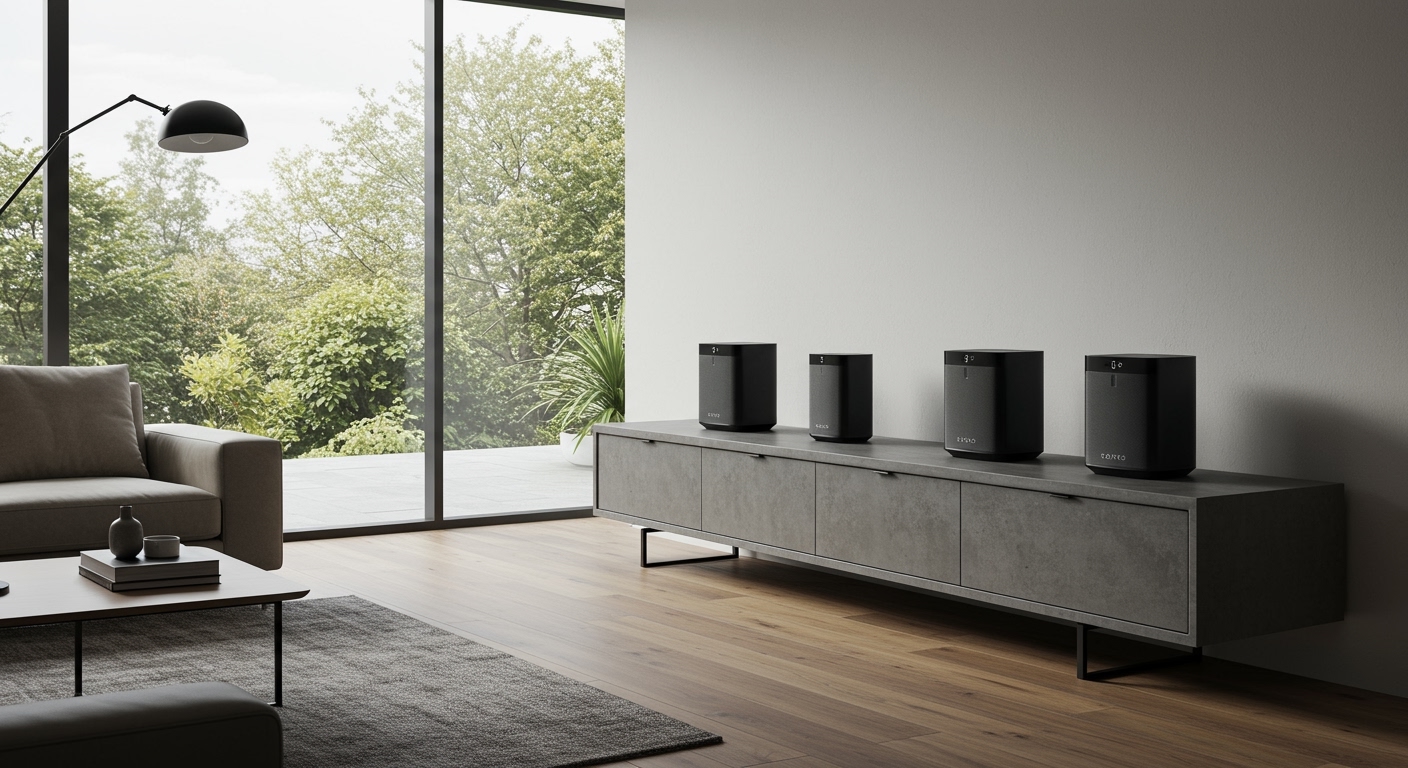
However, the Sonos app handles these configurations differently. Understanding the difference between “grouping,” “pairing,” and “bonding” is crucial to getting the best audio experience without network lag or unwanted echoes.
TL;DR / Key Takeaways
- Four speakers are fully supported: You can place four or more Sonos speakers in a single room.
- Home Theater (Bonding): A soundbar, a subwoofer, and two surround speakers act as one cohesive “Sonos Room.”
- Music Mode (Grouping): You can link multiple standalone speakers or stereo pairs to play the same audio simultaneously.
- The Sonos Amp Route: One Sonos Amp can safely power up to four 8-ohm passive speakers (like in-ceiling or in-wall models).
- Network limitations: Running multiple wireless speakers in close proximity requires a strong Wi-Fi connection to prevent audio dropouts.
- Trueplay Tuning: Essential for 4-speaker setups to prevent overlapping bass frequencies and acoustic muddiness.
How “Rooms” Actually Work in the Sonos Ecosystem
To fully answer whether can you have 4 sonos speakers in one room, we must separate your physical room from a digital “Sonos Room.” The Sonos software uses the term “Room” to describe a standalone audio zone.
If you place four individual Sonos Era 100 speakers in your living room without grouping them, the app will view them as four separate rooms (e.g., Living Room 1, Living Room 2). This allows you to play different songs on each speaker.
However, if you want them to play together, you must digitally combine them. Sonos offers three distinct ways to combine speakers: Pairing, Bonding, and Grouping. Choosing the right method dictates how your 4-speaker setup will perform.
Best Ways to Configure 4 Sonos Speakers in One Room
Depending on whether your primary goal is watching movies or listening to immersive music, here are the four optimal configurations.
Method 1: The Ultimate Home Theater Setup (Bonding)
The most common reason people want four speakers in one room is for a surround sound home theater. In the Sonos app, this process is called “Bonding.”
When you bond speakers, they stop acting independently and become a single, unified system. A classic 4-speaker home theater consists of one Sonos Arc or Beam, one Sonos Sub, and two surround speakers (like the Sonos Era 300s).
The system delegates specific audio channels to each speaker. The soundbar handles vocals and front-left/right action, the subwoofer handles the low-frequency effects (LFE), and the rears handle surround and spatial audio.
Method 2: Grouping Two Stereo Pairs (Music Focus)
If your goal is pure, room-filling music for a large open-concept space, using two sets of stereo pairs is incredible. I frequently set this up for clients with massive basement entertainment areas.
First, you “Pair” two speakers (creating a Left and Right channel) and name it “Basement Front.” Then, you pair the other two and name it “Basement Back.” Finally, you “Group” these two pairs together in the app.
When grouped, both pairs play the exact same left/right stereo audio. Note that Sonos does not currently support true 4-channel quadraphonic audio for music; it simply duplicates the stereo stage.
Method 3: The Sonos Amp with 4 Architectural Speakers
For a clean, minimalist aesthetic, many users opt for architectural speakers. If you are wondering can you have 4 sonos speakers in one room without cluttering your floor space, the Sonos Amp is your answer.
A single Sonos Amp is highly versatile and is engineered to power up to two pairs (four total) of 8-ohm passive speakers wired in parallel. This is the industry standard for in-ceiling kitchen setups or large dining rooms.
Because the four speakers are hardwired to a single Amp, they act as one “Room” in the app. You will not have independent volume control over each individual speaker, but they will play in perfect, zero-latency sync.
Method 4: Four Standalone Speakers in a Group (Party Mode)
Sometimes you just want to scatter audio evenly across a massive room without worrying about stereo imaging. You can place four individual speakers (like the Sonos Roam or Move 2) in the four corners of your space.
In the app, you leave them as individual mono speakers and simply group them together using the “Group” button on the Now Playing screen.
This is highly effective for parties where people are moving around constantly. Everyone gets the same audio mix regardless of where they are standing, preventing the “sweet spot” limitation of stereo pairing.
Comparing Configurations for 4 Sonos Speakers in One Room
To help you decide the best approach for your home, here is a breakdown of how the different 4-speaker setups compare.
| Setup Configuration | Primary Use Case | Sonos App Label | Audio Output Format | Latency Risk |
|---|---|---|---|---|
| Soundbar + Sub + 2 Rears | Movies, TV, Gaming | Single “Room” (Bonded) | Dolby Atmos / 5.1 Surround | Extremely Low |
| Two Stereo Pairs | Critical Music Listening | Two “Rooms” (Grouped) | Duplicated Stereo (2.0) | Low to Medium |
| Sonos Amp + 4 Passives | Ambient Music, Aesthetics | Single “Room” (Wired) | Stereo or Dual-Mono | Zero (Hardwired) |
| 4 Individual Speakers | Parties, Background Audio | Four “Rooms” (Grouped) | Quad-Mono | Medium |
Step-by-Step Guide: How to Setup 4 Sonos Speakers in One Room
Setting up multiple speakers in close proximity requires careful attention to the app configuration. Here is the exact process I use when installing a 4-speaker system.
Step 1: Initial Placement and Power
Physical placement dictates your acoustic success. Keep your speakers at least 6 to 12 inches away from walls to prevent muddy bass reflection.
Plug all four speakers into power. Wait for the status light on each speaker to flash green, indicating they are ready to be added to your network.
Avoid placing speakers in tight cabinets or behind thick furniture. Wireless speakers rely on clear Wi-Fi signals to stay in sync.
Step 2: Adding Speakers to the Sonos App
Open the Sonos app on your smartphone. Navigate to the Settings gear icon, select System, and tap Add Product.
Follow the on-screen prompts to connect the first speaker to your Wi-Fi network. The app will ask you to name the room (e.g., “Living Room 1”).
Repeat this exact process for the remaining three speakers. By the end of this step, you will have four independent “Rooms” showing in your app.
Step 3: Creating Pairs or Home Theater Bonds
Now we need to combine them logically. If you are building a home theater, tap on the room containing your Soundbar. Select Set Up Surrounds and follow the prompts to bond your two rear speakers. Then select Connect Sub to add the fourth speaker.
If you are building a music setup, tap on “Living Room 1”, select Set Up Stereo Pair, and choose “Living Room 2” as the partner. Repeat this for the third and fourth speakers to create your second stereo pair.
Take your time during this step to ensure the app correctly identifies which speaker is the Left channel and which is the Right channel.
Step 4: Grouping the Rooms Together (For Music)
If you chose the stereo pair route, you currently have two separate rooms in your app. To make all four speakers play simultaneously, tap the System icon (the three overlapping bars) at the bottom of the screen.
Tap the Group button next to your first stereo pair. Check the bubble next to your second stereo pair and hit Apply.
You will now see a combined volume slider for the whole group, as well as individual sliders if









