

Yes, you can talk to Sonos speakers directly if you own a model with a built-in microphone, such as the Sonos Era 300, Sonos Arc, or Sonos Roam. By enabling Sonos Voice Control, Amazon Alexa, or Google Assistant, you can use simple voice commands to play music, skip tracks, adjust volume, and even control smart home devices. If your specific speaker does not have a microphone, you can still control it via voice by pairing it with a separate smart device like an Amazon Echo or Google Nest Mini.
⚡ TL;DR / KEY TAKEAWAYS
- Microphone Required: You can only talk directly to Sonos speakers that have built-in microphones (e.g., Sonos One, Beam, Arc, Move, Roam, and Era series).
- Multiple Assistants: Choose between Sonos Voice Control (SVC) for fast, private music control, Amazon Alexa for smart home management, or Google Assistant (on older models).
- Local Processing: Sonos Voice Control processes your voice locally on the device, ensuring your audio is never recorded or sent to the cloud.
- Non-Mic Workarounds: Speakers without mics (like the Sonos Five or Ray) can be voice-controlled using a connected third-party smart speaker or your smartphone.
- Physical Privacy: Newer models feature a physical hardware switch that completely disconnects the microphone for absolute privacy.
Yes, You Can Talk to Sonos Speakers: Here is How It Works
If you are wondering, can you talk to sonos speakers, the answer is a resounding yes, provided you have the right hardware. Sonos transformed its lineup from standard wireless audio devices into highly capable smart speakers. This means you do not need to reach for your smartphone every time you want to skip a song.
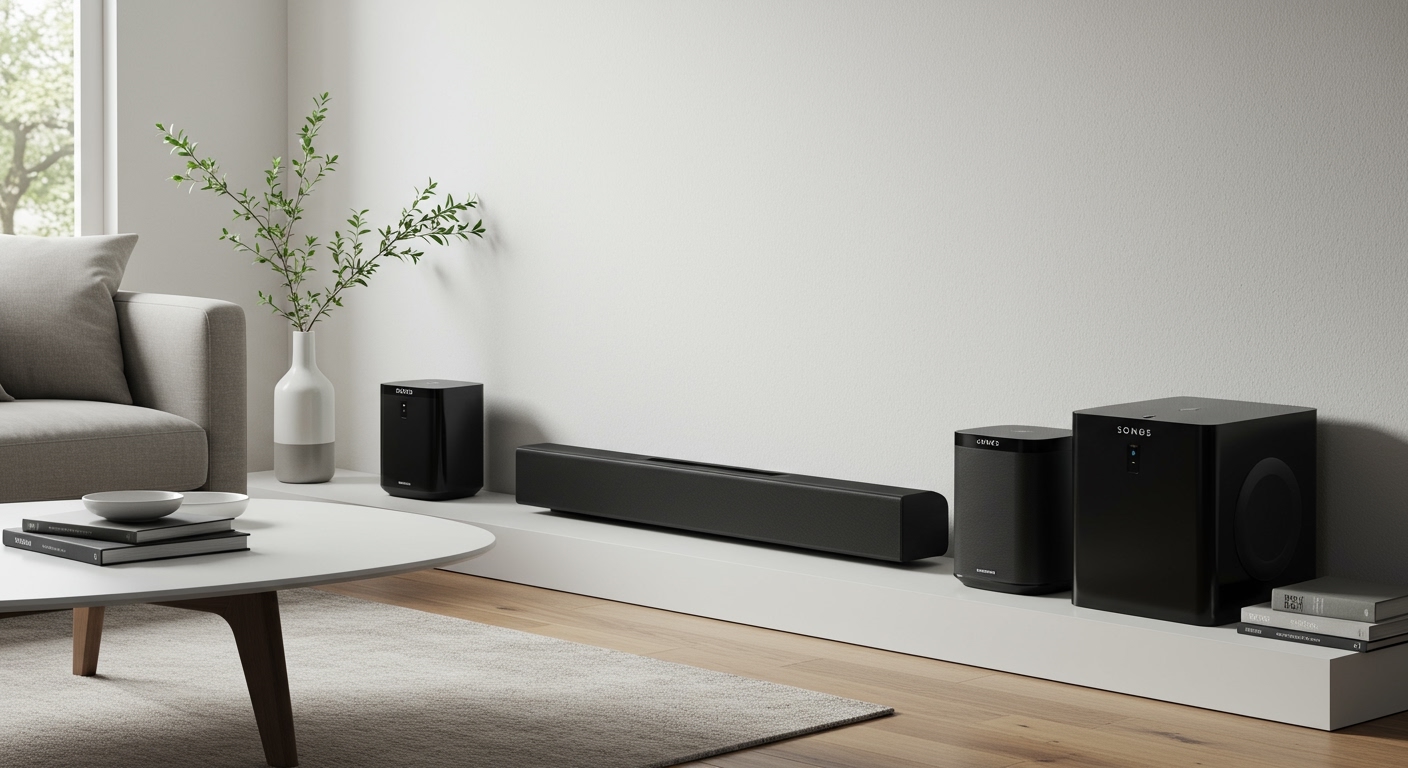
However, not every speaker in the Sonos ecosystem supports direct voice input. To talk to your system, the specific speaker must have an integrated far-field microphone array. These microphones are designed to pick up your voice from across the room, even when loud music is playing.
When I first set up my Sonos Arc soundbar, I was amazed at how easily the microphones isolated my voice over the sound of an action movie. The system uses advanced noise-cancellation technology to listen for your chosen wake word. Once the wake word is detected, the speaker processes your request and executes the command instantly.
Which Sonos Speakers Have Microphones?
To use voice commands directly, you need one of the following microphone-enabled devices:
- Home Theater: Sonos Arc, Sonos Beam (Gen 1 and Gen 2)
- Premium Audio: Sonos Era 300, Sonos Era 100
- Portable Speakers: Sonos Move, Sonos Move 2, Sonos Roam, Sonos Roam 2
- Legacy Models: Sonos One (Gen 1 and Gen 2)
Which Sonos Speakers Do NOT Have Microphones?
If you own the following models, you cannot talk to them directly:
- Sonos Five (and the older Play:5)
- Sonos One SL (The “SL” stands for Speechless)
- Sonos Ray (Entry-level soundbar)
- Sonos Sub and Sonos Sub Mini (Subwoofers do not require mics)
Which Voice Assistants Can You Use on Sonos?
Sonos is unique in the smart audio market because it operates as an open platform. Unlike an Apple HomePod or Google Nest Audio, you are not locked into a single ecosystem. You can choose the voice assistant that best fits your lifestyle.
You can even run Sonos Voice Control and Amazon Alexa simultaneously on the same speaker. This is a massive advantage for users who want secure music control and robust smart home automation in one package. Below is a breakdown of the assistants you can use.
Sonos Voice Control (SVC)
Launched in 2022, Sonos Voice Control is the company’s proprietary assistant. It is specifically designed for fast, accurate control of your audio system. The wake word is simply, “Hey Sonos.”
The biggest advantage of SVC is privacy and speed. Every voice command is processed locally on the speaker’s hardware. Nothing is ever sent to the cloud, meaning your conversations are never recorded or stored.
Amazon Alexa
Amazon Alexa is fully integrated into the Sonos platform. When you add Alexa to your speaker, it functions almost identically to an Amazon Echo device. You can ask for weather updates, set timers, and control your smart lighting.
Alexa on Sonos also supports drop-in features and announcements. This makes it an incredibly powerful tool for families looking to build a connected smart home.
Google Assistant
Google Assistant is available on older smart speakers like the Sonos One, Beam, Arc, and original Roam. However, due to ongoing legal disputes between Sonos and Google, Google Assistant is not natively supported on newer models like the Era 100, Era 300, or Move 2.
If you have a compatible older model, Google Assistant provides excellent search capabilities and deep integration with Google Home devices. For newer speakers, you must use a separate Google Nest device to cast commands to your Sonos system.
Apple Siri (Via AirPlay 2)
While you cannot install Siri directly onto a Sonos speaker, you can absolutely use Siri to control them. Because modern Sonos devices support Apple AirPlay 2, you can use your iPhone, Apple Watch, or HomePod to send music to your setup.
You simply add your speakers to the Apple Home app. From there, you can say, “Hey Siri, play jazz in the Living Room,” and Siri will route the audio directly to your Sonos devices.
Voice Assistant Comparison Summary
| Feature / Assistant | Sonos Voice Control | Amazon Alexa | Google Assistant | Apple Siri (AirPlay) |
|---|---|---|---|---|
| Primary Use Case | Music & Grouping | Smart Home & General Info | Smart Home & Search | Apple Music Integration |
| Data Privacy | High (Local Processing) | Medium (Cloud Processing) | Medium (Cloud Processing) | High (Apple Privacy) |
| Requires Mic on Sonos? | Yes | Yes | Yes (On older models) | No (Uses Apple Device mic) |
| Simultaneous Use | Works alongside Alexa | Works alongside SVC | Must be used exclusively | Works alongside all |
| Era 100/300 Support | Yes | Yes | No | Yes (via Apple Device) |
How to Set Up Voice Control: Can You Talk to Sonos Speakers Easily?
If you want to know can you talk to sonos speakers without a complicated setup, you will be pleased with the modern Sonos App. The process takes less than five minutes and requires no technical expertise.
Before starting, ensure your speaker is plugged in, connected to your Wi-Fi network, and updated to the latest firmware. You will also need the login credentials for whichever music service (like Spotify or Apple Music) you plan to use.
Step 1: Open the Sonos App and Access Settings
Open the Sonos App on your iOS or Android device. Tap the Settings gear icon, typically located in the top right or bottom right corner depending on your app version.
Navigate to the System tab. Here, you will see a list of all the rooms and speakers currently active on your network.
Step 2: Select Your Target Speaker
Scroll down and tap on the specific room or speaker where you want to enable voice control. Once inside the speaker’s specific settings menu, look for the section labeled Voice.
Tap on Add a Voice Assistant. The app will present you with a list of available assistants compatible with that specific speaker model.
Step 3: Choose and Authorize Your Assistant
Select your preferred assistant (e.g., Sonos Voice Control or Amazon Alexa). If you choose SVC, the setup is nearly instantaneous as it requires no third-party account linking.
If you choose Alexa or Google Assistant, the app will redirect you to their respective login pages. You will need to enter your Amazon or Google credentials and grant Sonos permission to access your profile.
Step 4: Set Your Default Music Service
For voice commands to work seamlessly, you must designate a default music service. In the Sonos App, go to Services & Voice, select your assistant, and choose your preferred streaming platform.
If you skip this step, the assistant might default to a service you don’t use, resulting in an error when you ask for a specific song. Sonos Voice Control works best with Apple Music, Amazon Music, Deezer, and Pandora (Note: SVC currently does not support direct voice requests for Spotify).
Step 5: Test the Microphone
Once the setup is complete, look at your physical speaker. Ensure the microphone status light (a









