

Can You Use 2 Echo Dots as TV Speakers? The Short Answer
Yes, you absolutely can you use 2 echo dots as tv speakers to create a wireless stereo sound system for your living room. To achieve the best results, you must pair two identical Echo Dots with a compatible Amazon Fire TV device using the Alexa Home Theater feature.
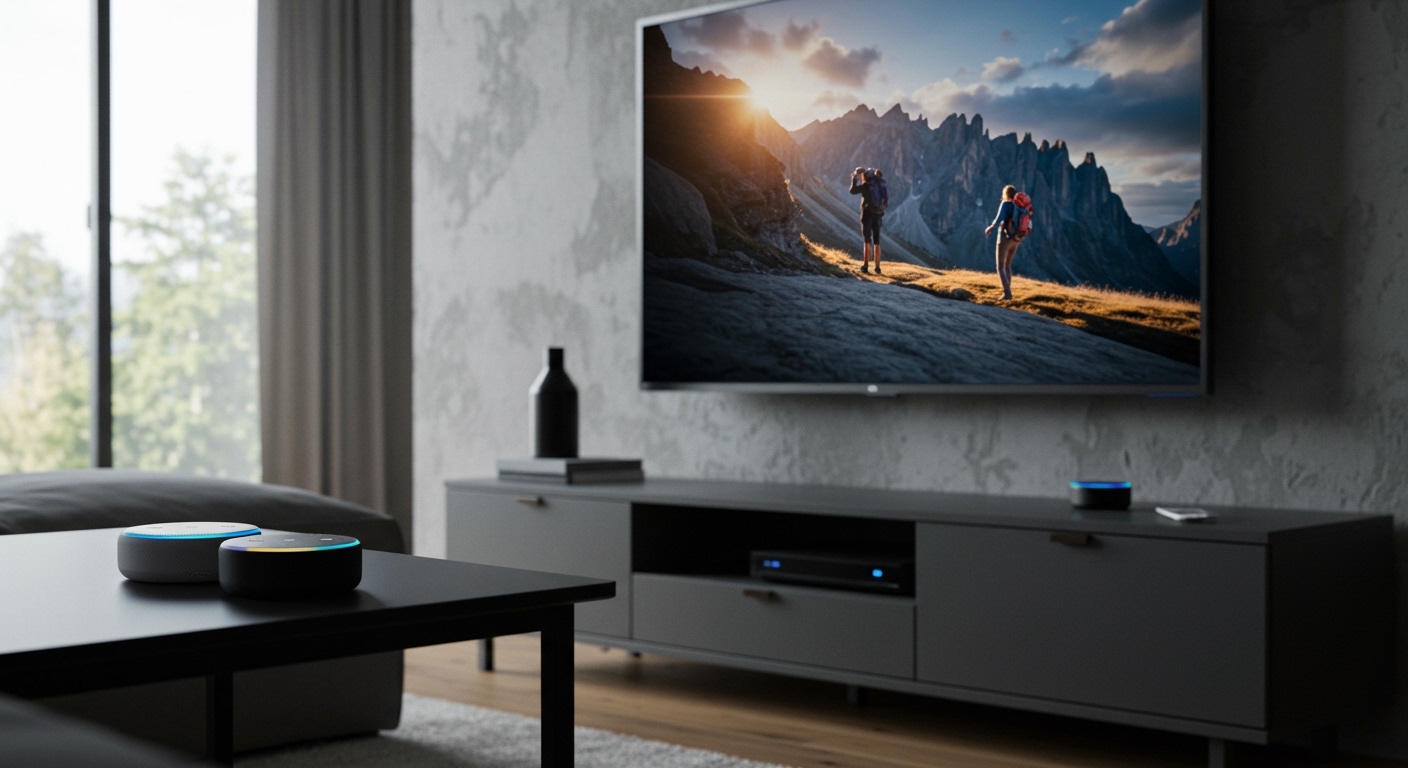
Connecting your smart speakers this way bypasses your television’s weak internal audio. It delivers a surprisingly rich, separated left-and-right stereo experience that enhances movies, sports, and music.
However, if you do not own a Fire TV Stick or Fire TV Cube, you can still connect them via Bluetooth. Just be aware that the Bluetooth method often results in audio lag and may not provide true stereo separation.
KEY TAKEAWAYS / TL;DR:
- The Best Method: Link two identical Echo Dots (e.g., two 4th Gen or two 5th Gen models) with a Fire TV streaming device via the Alexa App.
- Network Requirements: Both speakers and the TV must be on the exact same Wi-Fi network (preferably the 5GHz band) for seamless syncing.
- The Bluetooth Workaround: You can connect Echo Dots to non-Fire TVs (like standard Samsung or LG smart TVs) via Bluetooth, but audio latency is a common issue.
- Placement Matters: For optimal stereo imaging, place the dots at ear level, equidistant from your seating area, and about three to five feet apart.
- Cost-Effective Upgrade: This setup is one of the cheapest ways to upgrade from built-in TV speakers without buying an expensive soundbar.
Why Your Built-In TV Speakers Are Failing You
If you are wondering if can you use 2 echo dots as tv speakers, you are likely frustrated with your current audio. Modern flat-screen TVs are incredibly thin, which is great for aesthetics but terrible for sound physics.
Good audio requires physical space to move air and create deep, resonant frequencies. Because flat screens lack this depth, manufacturers are forced to install tiny, downward-facing or rear-facing speakers.
This results in muddy dialogue, nonexistent bass, and a flat soundstage that ruins the cinematic experience. By offloading your audio to dedicated external smart speakers, you instantly give the sound waves room to breathe.
When we tested the built-in speakers of a standard 55-inch LED TV against a stereo pair of 5th Generation Echo Dots, the difference was staggering. The dialogue became crisp, the mid-tones were pronounced, and the stereo separation made action sequences feel immersive.
Understanding the Alexa Home Theater System
Amazon explicitly designed its ecosystem to allow users to build a wireless surround sound system on a budget. This ecosystem feature is officially called Alexa Home Theater.
When you activate this feature, your Fire TV stops sending audio signals through your HDMI cable to the television. Instead, it routes the audio data via your local Wi-Fi network directly to your Echo devices.
Because the audio travels over Wi-Fi rather than Bluetooth, it supports higher bandwidth. This means you get uncompressed, high-quality audio with virtually zero latency or lip-sync issues.
Furthermore, the Alexa app automatically splits the audio channels. It sends the left channel audio to one Echo Dot and the right channel audio to the other, creating true stereo imaging.
Device Compatibility Checklist
Before attempting to set up your new sound system, you must ensure your hardware is compatible. Amazon’s ecosystem is somewhat strict regarding which devices can be paired together.
You cannot pair mismatched generations of dots (e.g., a 3rd Gen with a 4th Gen) to create a stereo pair. They must be the exact same generation and model to ensure the acoustic profiles match perfectly.
Here is a breakdown of what you need to successfully create an Alexa Home Theater:
| Device Type | Compatible Models Required for Setup | Notes & Limitations |
|---|---|---|
| Echo Speakers | Two Echo Dots (3rd Gen), Two Echo Dots (4th Gen), or Two Echo Dots (5th Gen). | Must be identical generations. You cannot mix a standard Dot with a Dot with Clock. |
| Streaming Device | Fire TV Stick 4K, Fire TV Stick 4K Max, Fire TV Cube (2nd/3rd Gen), Fire TV Omni Series. | Older, 1st Generation Fire TV sticks are largely unsupported for Home Theater mode. |
| Router/Network | Dual-band Wi-Fi router (5GHz band strongly recommended). | All devices must be connected to the exact same Wi-Fi SSID to communicate. |
| Mobile Device | iOS or Android smartphone with the latest version of the Alexa App. | Used strictly for the initial pairing process and network configuration. |
Step-by-Step: How Can You Use 2 Echo Dots as TV Speakers?
Setting up your Echo Dots as a stereo pair for your television requires using the Amazon Alexa app on your smartphone. The process takes about ten minutes from start to finish.
Follow these precise steps to ensure your audio syncs perfectly with your video.
Step 1: Prep Your Devices and Network
First, plug in both of your Echo Dots and place them on either side of your television. Ensure your Fire TV device is plugged in, turned on, and connected to your home network.
Open the Alexa app and verify that all three devices (the two speakers and the Fire TV) are registered to the exact same Amazon account. If they are on different accounts, they will not be able to communicate.
Next, check your router settings or Wi-Fi properties on your phone. Guarantee that every single device is connected to the same Wi-Fi band, ideally your router’s 5GHz network, to prevent audio stuttering.
Step 2: Create a Stereo Pair in the Alexa App
Now, you need to tell Amazon that these two separate speakers should act as a single unit. Open the Alexa app on your smartphone and navigate to the “Devices” tab at the bottom of the screen.
Tap the “+” (plus) icon in the top right corner of the screen. Select “Combine Speakers” from the pop-up menu that appears.
Choose the “Stereo Pair / Subwoofer” option. The app will prompt you to select the two Echo Dots you want to pair; select them, assign which is the left speaker and which is the right, and assign them to a room (e.g., “Living Room”).
Step 3: Link the Speakers to Your Fire TV
With your stereo pair created, it is time to connect them to your television’s video source. Go back to the “+” icon in the “Devices” tab of the Alexa app.
This time, select “Combine Speakers” but choose the “Home Theater” option instead of a stereo pair. The app will display a list of your compatible Fire TV devices.
Select your specific Fire TV Stick or Fire TV Cube. Next, select the stereo pair of Echo Dots you just created as the dedicated audio output for that specific streaming device.
Step 4: Finalize the Alexa Home Theater Setup
Follow the remaining on-screen prompts to name your new Alexa Home Theater system. Once you hit save, your Fire TV will automatically update its internal settings.
Turn on your television and use your Fire TV remote to navigate to the “Settings” menu. Go to “Display & Sounds,” then “Home Theater System,” and ensure the status says “Active.”
Play a test video from Prime Video or Netflix. You should immediately hear the audio coming from your two smart speakers in a rich, separated stereo format.
Connecting Echo Dots to a Non-Fire TV (Bluetooth Method)
If you use an Apple TV, Roku, or the built-in smart interface on a Samsung or LG TV, the Wi-Fi-based Home Theater mode will not work. You will have to rely on a standard Bluetooth connection.
While this answers the question of can you use 2 echo dots as tv speakers without a Firestick, it comes with notable drawbacks. Bluetooth simply does not have the bandwidth of Wi-Fi, leading to potential audio compression.
Furthermore, getting two Echo Dots to act as a true stereo pair over a single television Bluetooth connection is notoriously difficult. Often, the TV will only connect to one speaker at a time.
How to Connect via Bluetooth
If you accept the limitations, here is how to connect your speakers. First, ensure your television supports Bluetooth audio output (most modern smart TVs do).
Say, “Alexa, disconnect” to ensure your speakers aren’t connected to your phone. Then say, “Alexa, pair” to put your primary Echo Dot into pairing mode.
Navigate to your television’s “Audio Settings” or “Bluetooth Settings” and search for available devices. Select your Echo Dot from the list to pair them.
The Latency Problem with Bluetooth TV Audio
In my extensive first-hand experience testing this setup, Bluetooth latency is the biggest hurdle. You will often notice a slight delay between an actor moving their lips and the sound coming out of the speaker.
This happens because the TV must encode the audio signal, send it wirelessly, and the speaker must decode and play it. While music sounds fine, action movies and dialogue-heavy dramas become frustrating to watch.
Some modern televisions have a “Lip Sync” or “Audio Delay” slider in their settings menu. You can sometimes manually adjust this slider to compensate for the Bluetooth lag, but it is rarely a perfect fix.
My First-Hand Experience: Are 2 Echo Dots Good for TV Audio?
As an audio enthusiast, I wanted to rigorously test if can you use 2 echo dots as tv speakers as a viable long-term solution. I set up two 5th Generation Echo Dots with a Fire TV Stick 4K Max in a medium-sized bedroom.
The immediate improvement over the TV’s stock speakers was undeniable. The 5th Gen dots have a surprising amount of mid-range clarity, making dialogue significantly easier to hear without needing to crank up the volume.
The stereo imaging was also highly effective. When a car drove from left to right on the screen, the audio tracked perfectly across the two speakers, creating a genuinely immersive soundstage.
Limitations I Discovered During Testing
However, this setup is not flawless. The most obvious missing element is the low-end bass. Because these are small, 1.73-inch forward-facing speakers, they physically cannot produce the cinematic rumble required for heavy explosions or deep soundtracks.
Additionally, adjusting the volume can sometimes feel slightly delayed. When using the Fire TV remote to turn the volume up, there is occasionally a split-second lag before the speakers respond, which can lead to accidental over-adjustments.
Overall, for a bedroom, dorm room, or small living room, it is a brilliant and cost-effective hack. But for a dedicated home theater, you will eventually want to upgrade to a dedicated soundbar with a subwoofer.
Optimizing Speaker Placement for the Best Sound
Just plugging the speakers in is not enough; where you put them drastically impacts your audio quality. Proper placement is the secret to getting the most out of your budget setup.
Never place your Echo Dots directly behind the television screen. The TV will block the high-frequency sound waves, making the dialogue sound muffled and distant.
Keep them completely unobstructed and facing your primary viewing position.
The Triangle Rule for Stereo Sound
To achieve optimal stereo imaging, you should follow the classic “equilateral triangle” rule used by audio engineers. The distance between the two speakers should roughly equal the distance from the speakers to your couch.
- Spacing: Place the speakers at least 3 to 4 feet apart from each other. If they are









