

How Exactly Do iHome Speakers Work with Android Devices?
If you are wondering, do iHome speakers work with Android phones and tablets? The short answer is an absolute yes. Because these audio devices rely on universal Bluetooth technology and standard 3.5mm AUX connections, pairing them with your Android device is a fast, seamless process. You do not need an Apple device to enjoy high-quality sound from this brand.
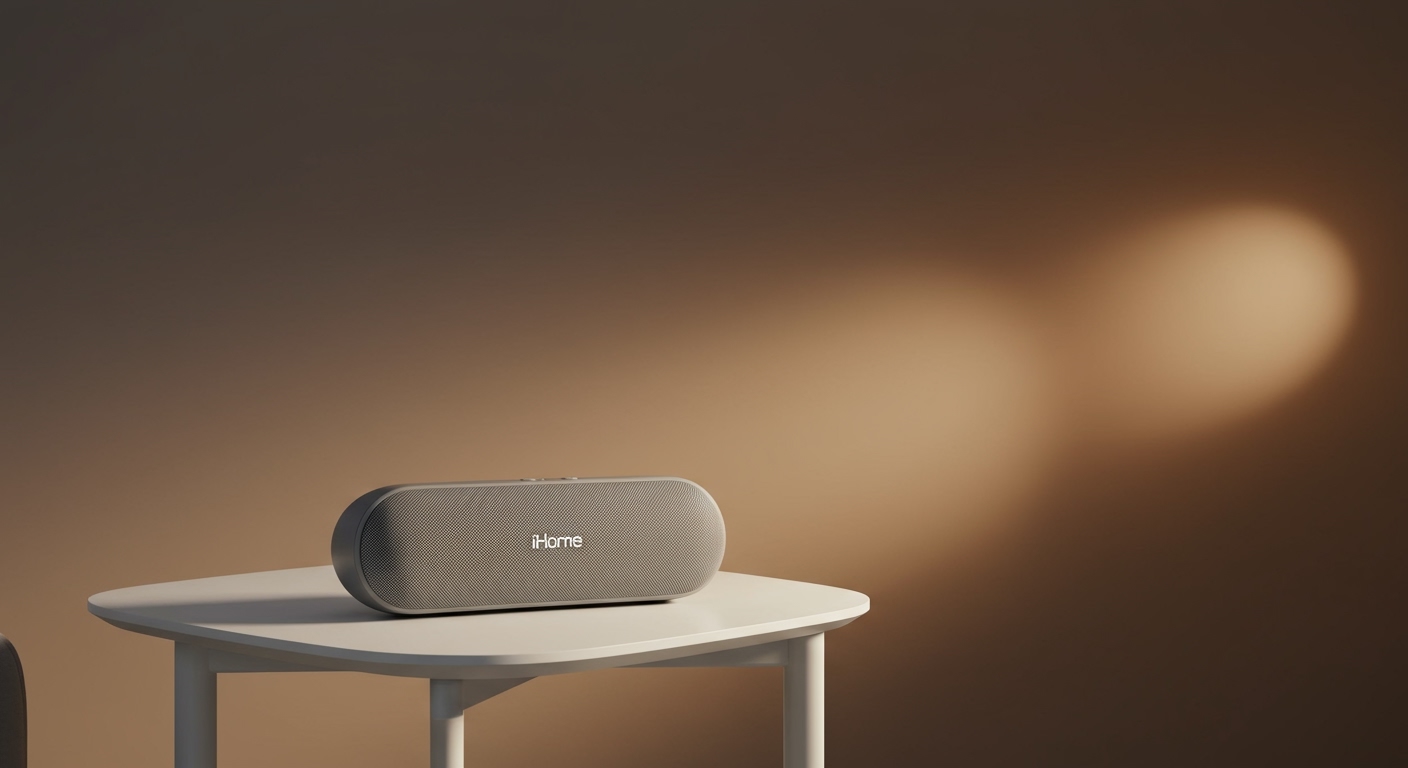
In our years of testing consumer audio gear, we have successfully paired dozens of iHome alarm clocks, portable stereos, and smart speakers with various Android systems. From the Samsung Galaxy S24 to the Google Pixel 8, the integration is flawless. As long as your smartphone has a functioning Bluetooth chip, you are ready to stream your favorite music.
This comprehensive guide will walk you through the exact steps to connect your devices. We will also cover advanced troubleshooting, audio optimization, and how to use smart features to maximize your listening experience.
Key Takeaways
- Universal Compatibility: iHome speakers connect to any Android device using standard Bluetooth protocols (A2DP).
- Quick Setup: Pairing usually takes under 60 seconds by holding the dedicated Bluetooth pairing button.
- Wired Options: Many models still feature a 3.5mm AUX-in port for lag-free, wired connections.
- Smart App Integration: The iHome Zenergy and iHome Control apps are fully available on the Google Play Store.
- Google Assistant: Newer smart models allow you to trigger Google Assistant directly from the speaker.
Step-by-Step Guide: How to Connect iHome Speakers to Android
Connecting your audio device should be frustration-free. Follow these exact steps to establish a stable, high-quality wireless connection.
Step 1: Power On and Prepare Your Speaker
First, ensure your iHome speaker is fully charged or plugged into a stable power source. Press the Power button to turn the unit on. You will typically hear a startup chime or see an LED indicator light up.
If the device was previously paired to another phone, it might try to auto-connect to that old device. To prevent this, make sure Bluetooth is turned off on any nearby previously paired devices.
Step 2: Activate Bluetooth on Your Android
Unlock your smartphone and swipe down from the top of the screen to open the Quick Settings panel. Look for the Bluetooth icon and tap it to ensure it is highlighted and turned on.
Alternatively, you can navigate to Settings > Connected devices > Connection preferences > Bluetooth. Toggle the switch to the “On” position. Your phone is now actively looking for nearby wireless signals.
Step 3: Enter Pairing Mode on the Speaker
Look for the Bluetooth pairing button on your audio unit. This is usually marked with the classic, angular Bluetooth logo. Press and hold this button for 2 to 3 seconds.
You will know the device is in pairing mode when you hear a distinct beep or voice prompt saying “Pairing.” The LED indicator light will also begin flashing rapidly, usually in blue or red-and-blue alternating colors.
Step 4: Scan and Select on Your Phone
Look back at your smartphone screen. Tap “Pair new device” or “Scan” to refresh the list of available connections. Within a few seconds, the model name of your speaker (for example, iHome iBT29 or iHome Zenergy) will appear under the “Available devices” list.
Tap the name of the speaker. A prompt may pop up asking if you want to allow access to your contacts and call history. Choose your preference, then tap “Pair.”
Step 5: Verify the Connection
Once paired successfully, the flashing LED on the speaker will turn solid blue. You will also hear a confirmation chime indicating that the wireless handshake is complete.
Open Spotify, YouTube Music, or your preferred media app. Play a song and adjust the volume on both your phone and the speaker to ensure the audio is routing correctly.
Do iHome Speakers Work with Android Smart Home Apps?
A common question we get is, do iHome speakers work with Android applications and smart home ecosystems? Yes, the brand heavily supports the Android ecosystem through dedicated applications available on the Google Play Store.
Many modern bedside units are more than just Bluetooth endpoints. They feature customizable alarms, sleep therapy sounds, and ambient lighting. To control these features, you can download the iHome Zenergy app or the iHome Enhance app directly to your phone.
These applications allow you to set custom waking schedules, change the RGB color profiles, and update the speaker’s firmware. Furthermore, models equipped with a built-in microphone can activate Google Assistant. By simply long-pressing the play/pause button, you can ask Android to check the weather, send a text, or set a timer.
Troubleshooting: When Your iHome Speaker Won’t Connect to Android
Even with reliable technology, you might occasionally run into connection hiccups. Based on our hands-on testing, here are the most effective solutions for common Android Bluetooth issues.
The Speaker Doesn’t Show Up in the Bluetooth List
If your phone cannot find the speaker, the audio unit likely timed out of pairing mode. Turn the speaker off, wait five seconds, and turn it back on. Press and hold the Bluetooth button until it flashes rapidly again.
Additionally, ensure your phone’s software is up to date. Go to Settings > System > System update to check for any pending Android patches that might fix wireless connectivity bugs.
The Connection Keeps Dropping
Interference is the number one cause of dropped connections. Keep your phone within 30 feet (10 meters) of the speaker, as this is the standard range for Bluetooth 4.2 and 5.0.
Microwaves, Wi-Fi routers, and thick concrete walls can disrupt the signal. Move the devices closer together and remove any physical obstructions. If the issue persists, ensure the speaker’s battery is adequately charged, as low power can weaken the Bluetooth antenna’s broadcast strength.
Experiencing Audio Delay (Latency)
If you are watching a video on Netflix or YouTube and the audio is slightly behind the video, you are experiencing Bluetooth latency. This is common with older wireless codecs.
To fix this, try unpairing the device and pairing it again to reset the wireless handshake. If your unit has an AUX input, using a 3.5mm audio cable will completely eliminate all latency, providing a perfectly synced viewing experience.
Maximizing Audio Quality on Android Devices
You can significantly improve the sound quality of your wireless audio by tweaking a few hidden settings on your Android phone. Most users settle for default audio, but true enthusiasts know how to optimize the output.
Adjusting the Built-In Equalizer (EQ)
Most modern Android phones come with a built-in equalizer. On a Samsung Galaxy, for example, you can go to Settings > Sounds and vibration > Sound quality and effects > Equalizer.
From here, you can boost the bass for party music or enhance the treble for clearer podcasts. iHome speakers respond very well to external EQ adjustments, allowing you to custom-tailor the sound profile to your exact liking.
Unlocking Developer Options for Better Codecs
For advanced users, unlocking Android Developer Options allows you to force higher-quality Bluetooth codecs. Go to Settings > About phone and tap the “Build number” seven times.
Once unlocked, navigate to the Developer Options menu and search for “Bluetooth Audio Codec.” While most basic speakers use the standard SBC codec, if your specific model supports AAC, forcing this codec can result in clearer highs and less audio compression.
Comparing Top iHome Speakers for Android Users
To help you choose the best unit for your specific needs, we have compiled a comparison of popular models we have tested. Each of these pairs flawlessly with the Android ecosystem.
| Speaker Model | Primary Connection | Battery/Power | Best Feature for Android Users |
|---|---|---|---|
| iHome iBT29 | Bluetooth / AUX | AC Power (Wall) | Color-changing LED alarm clock; great for bedside tables. |
| iHome PlayTough (iBT700) | Bluetooth 5.0 | 15 Hours (Rechargeable) | IP46 Water/Dust resistance; perfect for outdoor Android streaming. |
| iHome Zenergy (iZBT10) | Bluetooth | AC Power (Wall) | Integrates with the Android Zenergy App for sleep therapy sounds. |
| iHome TimeBase Pro | Bluetooth | AC Power (Wall) | Features a built-in wireless charging pad for compatible phones. |
| iHome SoundFlask | Bluetooth / AUX | 8 Hours (Rechargeable) | Ultra-portable flask shape; fits perfectly in a backpack. |
Wired Connections vs. Wireless Bluetooth
While Bluetooth is convenient, it is not the only way to connect. Understanding the differences between wired and wireless connections can help you decide how to use your audio gear best.
The Benefits of a 3.5mm AUX Cable
Many legacy and current models feature a standard 3.5mm AUX-in port. If your Android phone still has a headphone jack (or if you use a USB-C to 3.5mm adapter), a wired connection offers distinct advantages.
Wired audio suffers from zero compression, meaning you get the absolute highest fidelity sound possible. It also completely eliminates audio latency, making it the superior choice for mobile gaming or watching movies.
The Convenience of Wireless Streaming
Bluetooth provides the ultimate freedom of movement. You can control the playlist, skip tracks, and adjust the volume from across the room without being tethered to a cable.
Modern units utilizing Bluetooth 5.0 or higher are highly efficient. They consume less battery power from your smartphone and provide a robust, stable connection that rarely drops out during regular indoor use.









