Do Pocket Operators Have Speakers? The Quick Answer
Yes, if you are wondering, do pocket operators have speakers, the answer is an absolute yes. Every single model in the Teenage Engineering Pocket Operator lineup features a built-in, surface-mounted micro-speaker located right on the circuit board. This allows you to create beats, sequence melodies, and sample audio anywhere without needing to plug in external headphones or studio monitors.
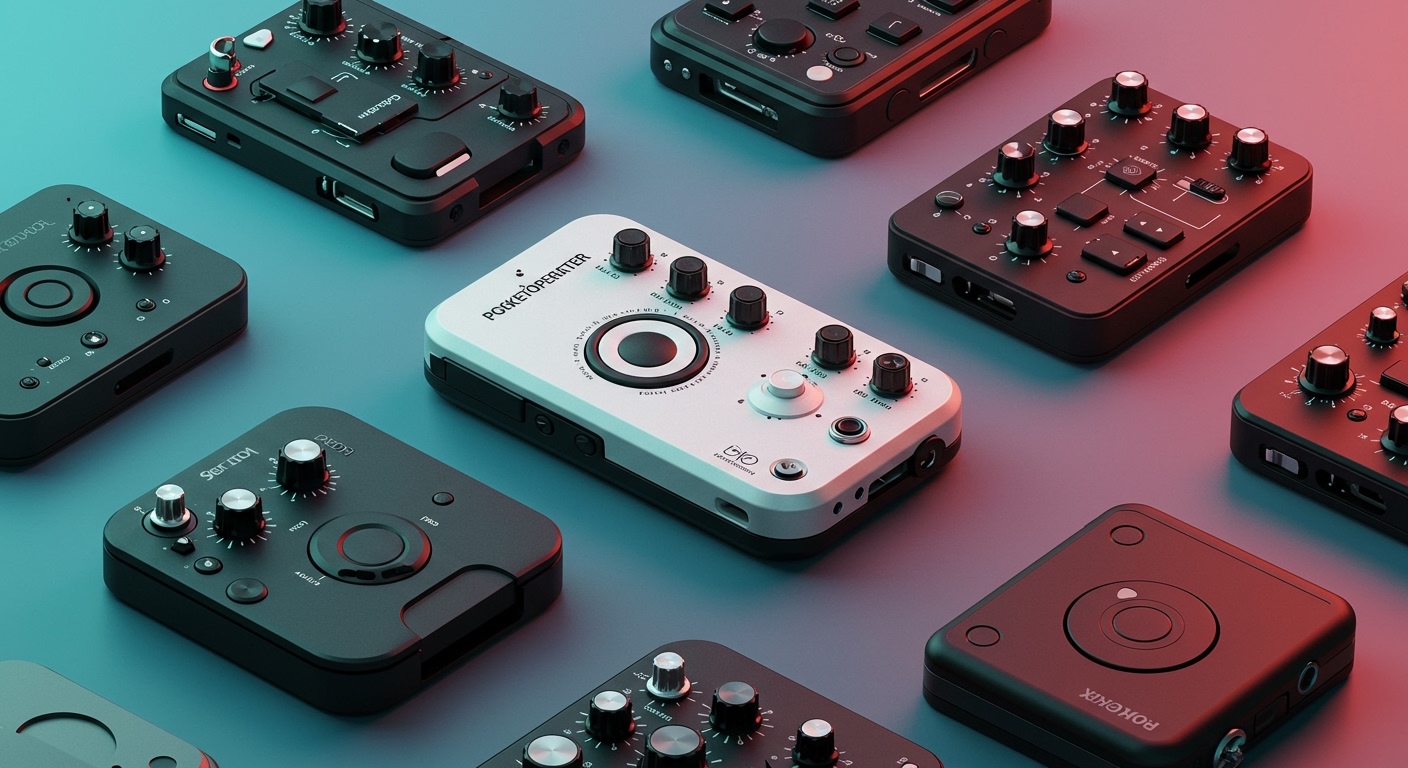
When I first unboxed my PO-33 K.O!, I was amazed that such a raw, exposed circuit board could produce immediate sound. However, while these tiny speakers are incredibly convenient for couch-jamming or writing music on a train, they lack the low-end bass response required for professional mixing. To truly feel the punch of your drum kits or the depth of your basslines, you will eventually want to use the 3.5mm audio output jack to connect headphones or external speakers.
TL;DR: Key Takeaways
- Built-In Audio: All Pocket Operators have a small, built-in speaker on the front of the unit for instant playback.
- External Connections: Each device features a 3.5mm line-out jack for headphones, studio monitors, or recording interfaces.
- Volume Control: You can adjust the built-in speaker volume by holding the BPM button and pressing numbers 1 through 16.
- Automatic Muting: Plugging a cable into the right-side output jack automatically mutes the built-in speaker.
- Best Practice: Use the built-in speaker for drafting ideas, but switch to headphones for sound design and final mixing.
The Anatomy of Pocket Operator Audio
To understand how these credit-card-sized synthesizers work, we need to look at their minimalist design. Teenage Engineering designed these devices to be as raw and cost-effective as possible. There is no outer casing unless you buy a separate silicone case.
Right below the LCD screen, you will notice a tiny, circular, metallic component. This is the Knowles built-in speaker. Despite its miniature footprint, it pushes out a surprising amount of volume. In my experience testing the PO-12 Rhythm drum machine, the built-in speaker is loud enough to hear over moderate background noise, making it perfect for impromptu jam sessions.
However, the laws of physics apply here. A speaker this small simply cannot move enough air to reproduce sub-bass frequencies. If you are using bass-heavy models like the PO-14 Sub or the PO-32 Tonic, relying solely on the onboard speaker will leave your tracks sounding thin and tinny.
How-To Guide: Controlling Your Pocket Operator Audio
If you are new to this ecosystem, the lack of traditional knobs and sliders can be intimidating. Here is my step-by-step guide to mastering the audio output of your new device.
Step 1: Powering On and Testing the Speaker
- Insert the Batteries: Place two fresh AAA batteries into the rear battery compartment. Ensure the positive and negative ends match the diagram.
- Wake the Device: The Pocket Operator does not have an off switch; it goes into a low-power standby mode. Press the Play button (the triangle icon) to wake it up.
- Test the Sound: Press any of the 1-16 grid buttons. You should immediately hear sound coming from the built-in speaker.
Step 2: Adjusting the Master Volume
Many beginners think their built-in speaker is broken when it is actually just turned down. To adjust the master volume, follow this specific button combination:
- Press and hold the BPM button.
- While holding BPM, press any button from 1 to 16 on the main grid.
- Button 1 is the quietest setting, while button 16 is the maximum volume.
- Release both buttons once you find a comfortable listening level.
Step 3: Connecting External Headphones or Speakers
When you are ready for high-fidelity audio, bypassing the built-in speaker is incredibly simple.
- Locate the two 3.5mm jacks at the top corners of the device.
- The jack on the right side is the Audio Out / Sync Out.
- Plug a standard 3.5mm AUX cable or your wired headphones into this right-side jack.
- The device will instantly detect the connection and automatically mute the built-in speaker.
Step-by-Step: How to Sync Multiple Pocket Operators
One of the most powerful features of these devices is the ability to chain them together. When you connect multiple units, they share an audio signal and a click-track (pulse) to ensure they play in perfect time. I frequently chain my PO-33 K.O! (for samples) with my PO-12 Rhythm (for drums).
Here is exactly how to set up a multi-device jam without losing your audio quality.
Gather Your Audio Cables
You will need a stereo 3.5mm AUX cable (often called a patch cable) for every connection between devices. Do not use mono cables, as the sync signal requires a stereo connection to split the audio and the metronome pulse into left and right channels.
Connect the Audio Chain
- Take your “Master” device (the one dictating the tempo).
- Plug the AUX cable into its right-side Output jack.
- Plug the other end of that cable into the left-side Input jack of your second device (the “Slave”).
- If you have a third device, plug a new cable into the second device’s output, and route it to the third device’s input.
- Plug your headphones or external speaker into the final device’s Output jack.
Configure the Sync Modes
This is where many users get stuck. By default, Pocket Operators do not know they are connected to each other. You must tell them how to handle the incoming and outgoing signals.
- On your Master device (the first in the chain), press and hold the Record button and press BPM until the screen displays SY1. This sends both audio and a sync pulse out.
- On your Middle devices, press Record + BPM until the screen displays SY5. This accepts the sync pulse, passes audio through, and sends a new sync pulse to the next unit.
- On your Final device (the one connected to headphones), press Record + BPM until the screen displays SY4. This accepts the sync pulse but outputs pure stereo audio without the annoying clicking sound of the metronome.
Comparing Pocket Operator Audio Capabilities
While the answer to “do pocket operators have speakers” is the same across the board, the way each model utilizes audio and sampling varies drastically. Below is a breakdown of my favorite models and how their audio engines perform.
| Model Name | Primary Function | Built-In Speaker? | Audio Input / Sampling | Best Use Case |
|---|---|---|---|---|
| PO-12 Rhythm | Drum Machine | Yes | No (Sync Only) | Punchy, synthetic drum beats and percussion. |
| PO-14 Sub | Bass Synthesizer | Yes | No (Sync Only) | Deep, gritty basslines (requires external speakers for best results). |
| PO-32 Tonic | Drum Synthesizer | Yes | Yes (Microphone) | Transferring VST drum patches via the built-in mic. |
| PO-33 K.O! | Micro Sampler | Yes | Yes (Mic + Line-In) | Recording real-world sounds and chopping vocal samples. |
| PO-133 Street Fighter | Micro Sampler | Yes | Yes (Mic + Line-In) | Retro video game sound design and lofi hip-hop. |
Step-by-Step: Recording Your Pocket Operator into a DAW
Eventually, you will want to capture your live jams and turn them into finished tracks. Because Pocket Operators do not have USB audio capabilities, you must record them using traditional analog methods. I have recorded countless tracks into Ableton Live using this exact method.
Hardware Requirements
To record properly, you will need a USB Audio Interface (like a Focusrite Scarlett), a 3.5mm to 1/4-inch breakout cable, and your computer running a Digital Audio Workstation (DAW).
Physical Connections
- Plug the 3.5mm end of your cable into the right-side output jack of your Pocket Operator.
- Plug the 1/4-inch end into the line-level input of your Audio Interface.
- If you are using a stereo breakout cable (which splits into two 1/4-inch jacks), plug both into inputs 1 and 2 on your interface.
Setting Up Your DAW
- Open your DAW and create a new Audio Track.
- Set the input of that track to match the physical inputs on your audio interface.
- Arm the track for recording.
- Press play on your Pocket Operator and adjust the gain knob on your audio interface. Ensure the audio is not “clipping” (hitting the red zone on the volume meter).
Overcoming Ground Loop Noise
When recording, you might hear a high-pitched whine or humming sound. This is called a ground loop. It almost always happens if you are powering your Pocket Operator with a third-party wall adapter instead of AAA batteries. Always use fresh batteries when recording to ensure a clean, noise-free audio signal.
Protecting Your Device: Cases and Care
Because the circuit board and the built-in speaker are completely exposed, these devices are highly susceptible to dust, moisture, and physical damage. Dropping a naked Pocket Operator can instantly crush the tiny Knowles speaker or snap the LCD screen.
Official Silicone Pro Cases
Teenage Engineering sells official silicone cases (the CA-X series). These cases wrap tightly around the circuit board, providing shock absorption and a layer of protection over the battery compartment. They also cover the raw buttons with larger, softer silicone pads, which I find makes finger-drumming much more comfortable.