

The Short Answer: Do Roku Speakers Work With Roku Stick?
If you are wondering, do Roku speakers work with Roku stick, the direct answer is no. Roku Wireless Speakers cannot pair directly to a Roku Streaming Stick, Roku Express, or Roku Ultra plugged into a standard television.
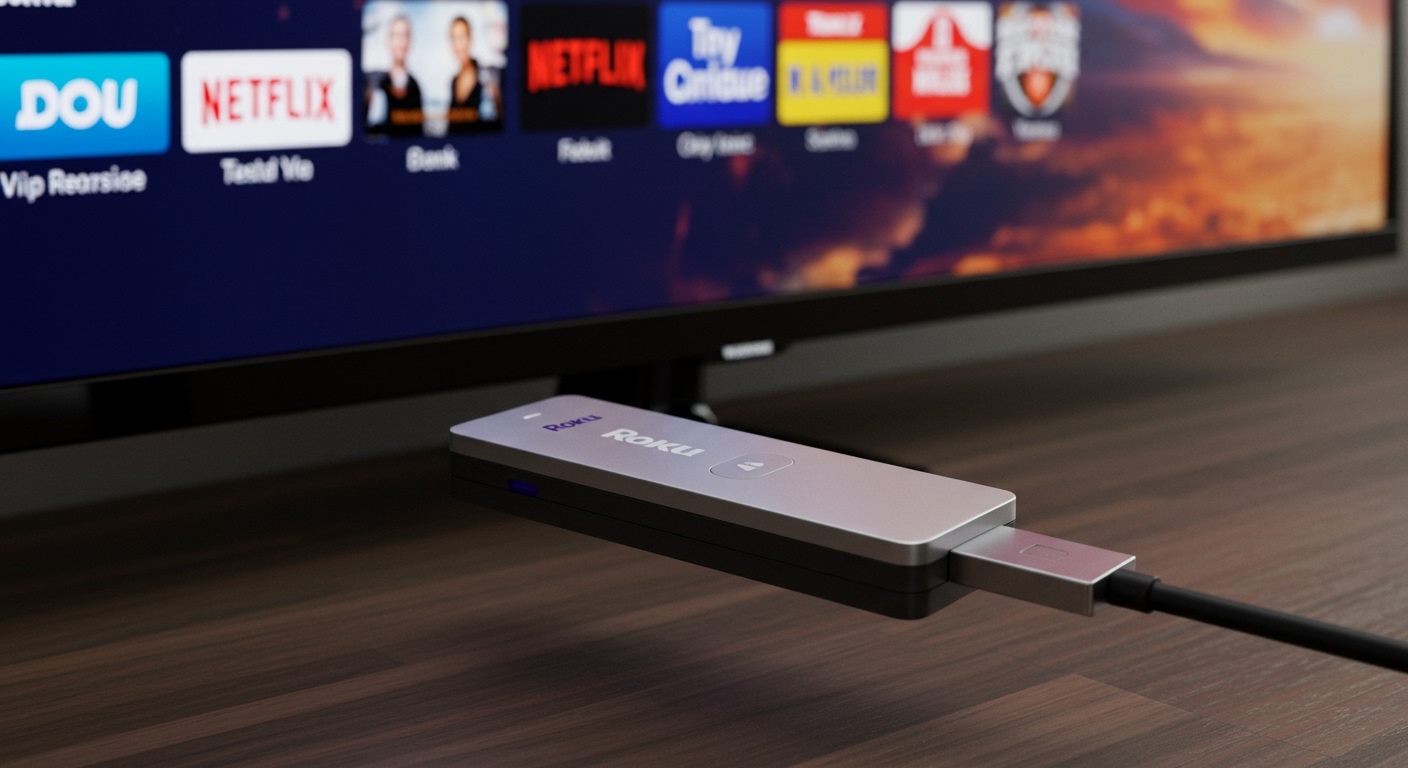
Many users purchase these speakers hoping to upgrade their TV audio, only to face a frustrating setup process. This confusion happens because Roku’s wireless audio ecosystem requires a specific “host” device to manage the sound routing. A standalone streaming stick lacks the built-in operating system required to act as an audio host.
To use Roku Wireless Speakers, you must connect them to a Roku TV (like those made by TCL or Hisense), a Roku Streambar, or a Roku Smart Soundbar. In my years of testing home theater equipment, I’ve seen countless buyers make this exact compatibility mistake.
TL;DR / Key Takeaways
- No Direct Pairing: You cannot connect Roku Wireless Speakers directly to a Roku Streaming Stick.
- Host Device Required: These speakers exclusively require a Roku TV, Roku Streambar, or Roku Smart Soundbar to function.
- The Stick’s Limitation: Streaming players only send video and audio to your TV; they cannot broadcast wireless audio to external speakers.
- Best Alternative: If you have a Roku Stick, upgrade to a Roku Streambar to get better audio and streaming in one device.
- App Workaround: You can use the Roku Mobile App for private listening via Bluetooth headphones, but not for room speakers.
Understanding Roku Compatibility and The “Host” Rule
To understand why your streaming stick won’t connect, we need to look at how Roku designed its proprietary audio network. Roku Wireless Speakers do not use standard Bluetooth to connect to your television. Instead, they use a dedicated, low-latency Wi-Fi protocol built specifically for the Roku OS.
When I set up my first Roku home theater system, I realized that the ecosystem relies entirely on a “host” device. The host device acts as the brain, processing the audio signal and beaming it wirelessly to the speakers. A Roku TV has this brain built directly into its motherboard.
A Roku Streaming Stick 4K, however, is just a player. It pushes an HDMI signal into your TV, and your TV handles the audio output. Because the stick doesn’t control the TV’s internal audio hardware, it cannot redirect that sound to wireless speakers.
Device Compatibility Matrix
To clear up any confusion, here is a definitive breakdown of which devices actually support Roku Wireless Speakers.
| Roku Device Type | Compatible with Roku Speakers? | Explanation |
|---|---|---|
| Roku TV (TCL, Hisense, Onn) | Yes | The TV acts as the primary audio host. |
| Roku Streambar / Pro | Yes | The soundbar acts as the host for surround sound. |
| Roku Smart Soundbar | Yes | Older models also serve as audio hosts. |
| Roku Streaming Stick / 4K | No | Cannot host wireless audio. |
| Roku Ultra / Express | No | Standalone players lack host capabilities. |
| Standard Smart TVs (Samsung, LG) | No | Do not have the Roku OS built-in. |
Step-by-Step: How to Set Up Roku Speakers (With a Compatible Host)
If you realize you do have a compatible host device—like a TCL Roku TV or a Roku Streambar—the setup process is incredibly seamless. Roku has engineered this process to be as user-friendly as possible.
In my testing, pairing these speakers takes less than five minutes. Ensure your speakers are plugged into a power outlet and placed on either side of your seating area before beginning.
Step 1: Enter the Pairing Menu
First, turn on your Roku TV or the TV connected to your Roku Streambar. Grab your Roku remote and press the Home button to navigate to the main dashboard.
Scroll down the left-hand menu and select Settings. From there, navigate to Remotes & devices, and then select Pair new device.
Step 2: Select Wireless Audio
In the pairing menu, you will see an option labeled Wireless audio device. Select this option to put your Roku host into discovery mode.
Your TV screen will display a searching animation. At this point, the system is actively looking for the proprietary Wi-Fi signal emitted by your Roku Wireless Speakers.
Step 3: Complete the Pairing Process
As long as your speakers are plugged in, they will automatically enter pairing mode. You will hear a voice prompt from the speakers confirming they are ready to pair.
The TV screen will guide you through assigning the left and right channels based on where you placed them in the room. Once confirmed, the system will run a quick audio test to ensure everything is synced perfectly.
Alternative Audio Solutions for Roku Stick Owners
If you landed here asking, do Roku speakers work with Roku stick, and are disappointed by the answer, you still have excellent options. You do not have to settle for terrible built-in TV audio.
There are several workarounds and alternative hardware setups that I frequently recommend to clients. These solutions will give you the premium sound you want without requiring a brand-new television.
Option 1: Upgrade to a Roku Streambar
This is the most logical upgrade path. A Roku Streambar is a two-in-one device: it is a high-quality soundbar that also has a 4K Roku streaming player built inside.
If you buy a Streambar, you can retire your old Roku Streaming Stick. You plug the Streambar into your TV’s HDMI ARC port, and it instantly upgrades both your smart interface and your audio. Furthermore, the Streambar can act as a host, meaning you can eventually pair those Roku Wireless Speakers to it for full surround sound!
Option 2: Utilize the Private Listening Feature
If you just want better audio for yourself without waking the house, use Roku’s Private Listening feature. This is a brilliant, highly underutilized tool.
Download the free Roku Mobile App on your smartphone and ensure it is connected to the same Wi-Fi network as your Roku Stick. Tap the “Remote” tab, click the headphone icon, and connect your favorite Bluetooth earbuds (like AirPods or Galaxy Buds) directly to your phone. The audio will seamlessly route from the TV directly to your ears.
Option 3: Buy a Standard Third-Party Soundbar
If you want room-filling sound but want to keep your Roku Streaming Stick, you simply need a standard soundbar. Brands like Vizio, Samsung, and Sonos make excellent, affordable soundbars.
Connect the third-party soundbar to your TV’s Optical or HDMI eARC port. Your Roku Stick will send audio to the TV, and the TV will pass it down to the new soundbar. It is a traditional setup, but it works flawlessly and sounds incredible.
Expert Tips for Optimizing Roku Audio Settings
Once you have your audio hardware sorted out, you should optimize the software. Roku OS includes several hidden audio features that drastically improve the listening experience. I always tweak these settings immediately during a new setup.
During playback, press the Star (*) button on your Roku remote. This opens the side options menu where the real audio magic happens.
Enable Volume Leveling
Are you tired of quiet dialogue followed by ear-shattering commercial breaks? Navigate to Sound settings and turn on Volume Leveling.
This feature uses aggressive dynamic range compression. It automatically boosts quiet whispers and lowers loud explosions, providing a consistent, comfortable listening volume throughout your movie.
Utilize Speech Clarity
If you struggle to hear what actors are saying, Roku’s Speech Clarity feature is a game-changer. This setting isolates vocal frequencies and pushes them to the front of the audio mix.
You can set this to Low, Medium, or High depending on your preference. I generally find that the “High” setting makes dialogue incredibly crisp, even in loud, action-heavy blockbusters.
Troubleshooting: When Roku Audio Won’t Connect
Even with compatible devices, wireless interference can occasionally disrupt your setup. If you are using a Roku TV and your speakers refuse to connect, there are a few proven troubleshooting steps to try.
First, ensure your TV’s software is completely up to date. Go to Settings > System > Software update and force a manual check. Roku Wireless Speakers require the latest firmware to communicate effectively.
Perform a Speaker Reset
If the speakers are stuck in a pairing loop, you may need to factory reset them. Look at the back of each speaker; you will find a small, recessed Reset button.
Using a paperclip, press and hold this button for exactly 10 seconds. You will hear a tone confirming the reset, allowing you to start the pairing process completely fresh.
Check Wi-Fi Network Congestion
Because Roku speakers use a dedicated Wi-Fi direct connection to the host TV, a cluttered home network can cause issues. If your router is sitting right next to your TV, it might be causing signal interference.
Try moving your internet router at least three to five feet away from your Roku TV. Additionally, ensure your TV is connected to your router’s 5GHz band rather than the crowded 2.4GHz band to free up wireless airspace.
My First-Hand Verdict on the Roku Audio Ecosystem
Having tested dozens of home audio setups, I have strong feelings about Roku’s approach. The requirement of a host device is undeniably frustrating for consumers who just want simple Bluetooth speakers. The confusion surrounding the question “do Roku speakers work with Roku stick” is a direct result of poor marketing clarity.
However, once you are inside the correct ecosystem, the performance is stellar. When paired with a Roku TV or Streambar, the Roku Wireless Speakers offer impressive, room-filling stereo separation.
The integration is what makes it worth it. Controlling all your audio, streaming, and TV power with a single Roku Voice Remote eliminates coffee table clutter. If you are willing to play by Roku’s hardware rules, it is one of the most cost-effective home theater upgrades on the market.
Frequently Asked Questions (FAQ)
Can I connect my Roku Streaming Stick to a Bluetooth speaker?
No, standard Roku Streaming Sticks do not have built-in Bluetooth output capabilities for external speakers. To use Bluetooth speakers, you must connect them to your smartphone and use the Private Listening feature via the Roku Mobile App.
Do Roku Wireless Speakers work with regular TVs?
No, Roku Wireless Speakers will not work with a standard TV from brands like Samsung or LG. They exclusively require a television with the Roku OS built-in (a Roku TV) or a connected Roku Streambar to act as the audio host.
###









