

The Direct Answer: Do Smart TVs Have Speakers Built-In?
Yes, almost every modern flat-screen television on the market comes with built-in audio. If you are asking, do smart TVs have speakers, the direct answer is absolutely yes. You can take a new TV out of the box, plug it into the wall, connect it to Wi-Fi, and immediately hear sound without buying any extra equipment.
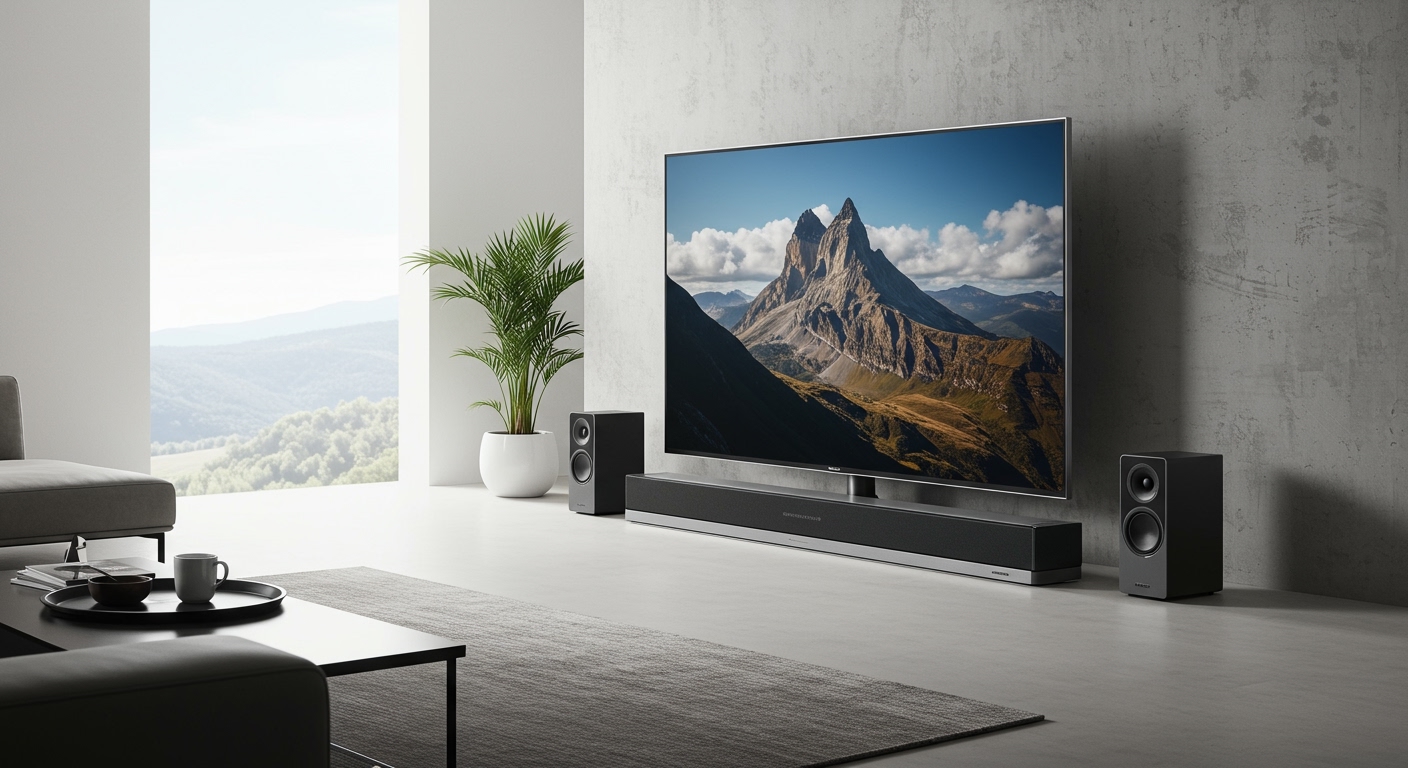
However, there is a massive catch that frustrates millions of consumers. While these televisions technically have speakers, the physical constraints of ultra-thin screens mean those internal audio drivers are incredibly small. Because high-quality sound requires physical space to move air, the razor-thin profile of modern displays physically limits the audio quality.
In my years of testing and calibrating home theater setups, I have evaluated hundreds of displays. Relying solely on factory audio almost always results in a hollow, tinny sound experience. Let’s break down exactly what you need to know about your TV’s audio and how to fix it.
Key Takeaways: Understanding Smart TV Audio
- Instant Playback: All major brands (Samsung, LG, Sony, TCL) include built-in speakers for out-of-the-box listening.
- The Thin-Screen Penalty: Ultra-thin TV designs leave no room for large speaker magnets, resulting in weak bass and muffled dialogue.
- Downward-Firing Drivers: Most built-in speakers point downward or backward, bouncing sound off your walls rather than directing it at your ears.
- Easy Upgrades: Connecting a soundbar or bookshelf speakers via HDMI eARC or Optical Cable is a simple, plug-and-play solution.
- Free Fixes: You can dramatically improve built-in sound simply by adjusting the native EQ settings in your television’s menu.
If the Answer to “Do Smart TVs Have Speakers” is Yes, Why Upgrade?
It is easy to assume that a premium $2,000 OLED TV will sound just as spectacular as it looks. Unfortunately, this is rarely the case. We constantly hear from readers who invest in gorgeous 4K displays only to struggle to understand movie dialogue.
The primary issue comes down to basic physics. Sound is created by pushing air. To create deep, resonant bass and crisp, clear treble, a speaker cone needs depth to move back and forth. Modern televisions are often less than an inch thick.
Furthermore, because the screen takes up the entire front face of the device, manufacturers are forced to place the speakers on the bottom or the back of the chassis. This is known as a down-firing or rear-firing speaker configuration. Instead of the sound traveling directly to your ears, it fires into your TV stand or bounces off the wall behind the screen.
The Real-World Impact on Your Viewing Experience
When we test factory speakers in our sound lab, we notice three recurring issues. First, the dynamic range is incredibly compressed, meaning explosions sound flat rather than impactful. Second, the bass response is almost non-existent below 80Hz.
Finally, and most importantly, dialogue clarity suffers immensely. Background music and sound effects frequently drown out the actors’ voices. If you find yourself constantly riding the volume button on your remote—turning it up to hear whispers and scrambling to turn it down during action scenes—your built-in speakers are failing you.
Step-by-Step: Optimizing the Speakers Your Smart TV Already Has
Before you spend money on external audio equipment, you should maximize the potential of your current setup. Many consumers endure terrible audio simply because their TV is using the wrong default settings.
Here is my step-by-step guide to squeezing the best possible audio out of your factory TV speakers.
Step 1: Change the Audio Preset Mode
Most televisions ship in a “Standard” or “Eco” audio mode. These modes intentionally flatten the sound to meet energy consumption regulations.
- Navigate to your TV’s Settings menu and select the Audio or Sound tab.
- Look for a setting called Sound Mode or Audio Preset.
- Change this to Movie, Cinema, or Amplify. These modes instantly boost the dynamic range and improve overall volume.
Step 2: Enable Dialogue Enhancement
If you struggle to hear what actors are saying, look for a specific voice-boosting feature.
- Stay in the Sound Settings menu.
- Search for a toggle named Clear Voice (LG), Active Voice Amplifier (Samsung), or Dialogue Enhance.
- Turn this feature ON. It actively isolates vocal frequencies and raises them above the background noise.
Step 3: Turn Off Artificial Surround Sound
Many TVs feature a setting called “Virtual Surround” or “Simulated Surround.” While this sounds impressive on paper, it often ruins the audio clarity.
- Find the Virtual Surround or Spatial Audio toggle in the advanced audio settings.
- Turn it OFF.
- We have found that forcing two tiny TV speakers to simulate a 5.1 home theater actually muddies the soundstage. Sticking to standard stereo delivers a cleaner, punchier sound.
Step 4: Utilize the Wall Mount Setting
The physical placement of your television drastically alters how its internal speakers sound.
- Look for a setting labeled TV Installation Type or Acoustic Tuning.
- Select either Stand or Wall Mount based on your actual physical setup.
- This setting tells the TV’s internal computer how to adjust the equalizer. If the TV is wall-mounted, it will reduce heavy mid-bass frequencies to prevent the sound from echoing harshly off the drywall.
How to Upgrade Your Audio: A Step-by-Step Guide
If you have tweaked the internal settings and are still unsatisfied, it is time to bypass the built-in speakers entirely. Upgrading your audio setup is the single best investment you can make for your home entertainment system.
Step 1: Choose Your Upgrade Path
You have three primary options when bypassing your TV’s factory speakers.
- Soundbars: The most popular choice. They are sleek, affordable, and fit perfectly right under your screen. Most include a separate wireless subwoofer for deep bass.
- Powered Bookshelf Speakers: A pair of active stereo speakers provides superior musicality and a wider soundstage than a soundbar.
- Dedicated Home Theater (AVR): The ultimate enthusiast option. This involves an Audio Video Receiver (AVR) powering multiple passive speakers (5.1 or 7.1 surround sound) placed strategically around the room.
Step 2: Identify Your TV’s Audio Output Ports
To connect external speakers, you need to know what ports your television supports. Look at the back panel of your TV.
- HDMI eARC / ARC: This is the gold standard. It allows your TV to send high-resolution audio (like Dolby Atmos) to your soundbar while letting you control the volume with your standard TV remote.
- Optical Audio (TOSLINK): A great backup option if you lack an HDMI ARC port. It uses a fiber-optic laser to transmit crisp digital surround sound, though it cannot handle advanced uncompressed formats like Atmos.
- Bluetooth: While convenient, we generally advise against using Bluetooth for primary TV audio. The wireless connection often suffers from minor latency, causing annoying lip-sync issues where the audio lags behind the video.
Step 3: Connect and Configure Your New Speakers
Once you have selected your gear, setup is usually painless. Let’s walk through a standard HDMI connection.
- Plug your new soundbar or speakers into a power outlet.
- Connect a high-speed HDMI cable from the port labeled HDMI OUT on your soundbar to the port labeled HDMI eARC on your TV.
- Turn on both devices.
- Navigate to your TV’s Sound Settings. Change the Audio Output from “TV Speakers” to “HDMI ARC” or “External Audio System.”
Step 4: Calibrate the Digital Audio Format
For the best possible sound quality, you must ensure your TV is sending the correct audio format to your new external speakers.
- In your TV’s sound menu, look for a setting called Digital Audio Out or Pass-Through.
- Change this setting from PCM to Auto, Pass-Through, or Bitstream.
- Using “Pass-Through” guarantees that your TV sends the pure, raw audio signal directly to your soundbar without compressing it first. This is crucial for experiencing true Dolby Digital or DTS surround sound.
Comparing Audio Setups: Which is Right for You?
To help you decide the best way to handle your smart TV’s audio limitations, we have compiled a quick comparison of your primary options.
| Audio Setup Type | Average Cost | Audio Quality | Best Use Case | Ease of Setup |
|---|---|---|---|---|
| Built-In TV Speakers | $0 (Included) | Poor to Mediocre | Watching the news; bedrooms; tight budgets. | Effortless (Plug & Play) |
| Standard Soundbar | $100 – $300 | Good | Massive upgrade for dialogue; small to medium living rooms. | Very Easy (1 Cable) |
| Premium Soundbar + Rears | $500 – $1,200 | Excellent | Immersive Dolby Atmos movies; clean aesthetic setups. | Moderate |









