

Does AOC G Line 2nd Gen Have Speakers? The Definitive Answer
Whether you are unboxing a brand-new AOC C24G2 or looking to buy the popular 24G2, one question always comes up: does aoc g line 2nd gen have speakers? Most models in the AOC G Line 2nd Gen (G2 Series) do come equipped with integrated 2W or 5W stereo speakers, but there are specific regional variants and entry-level models that omit them entirely.
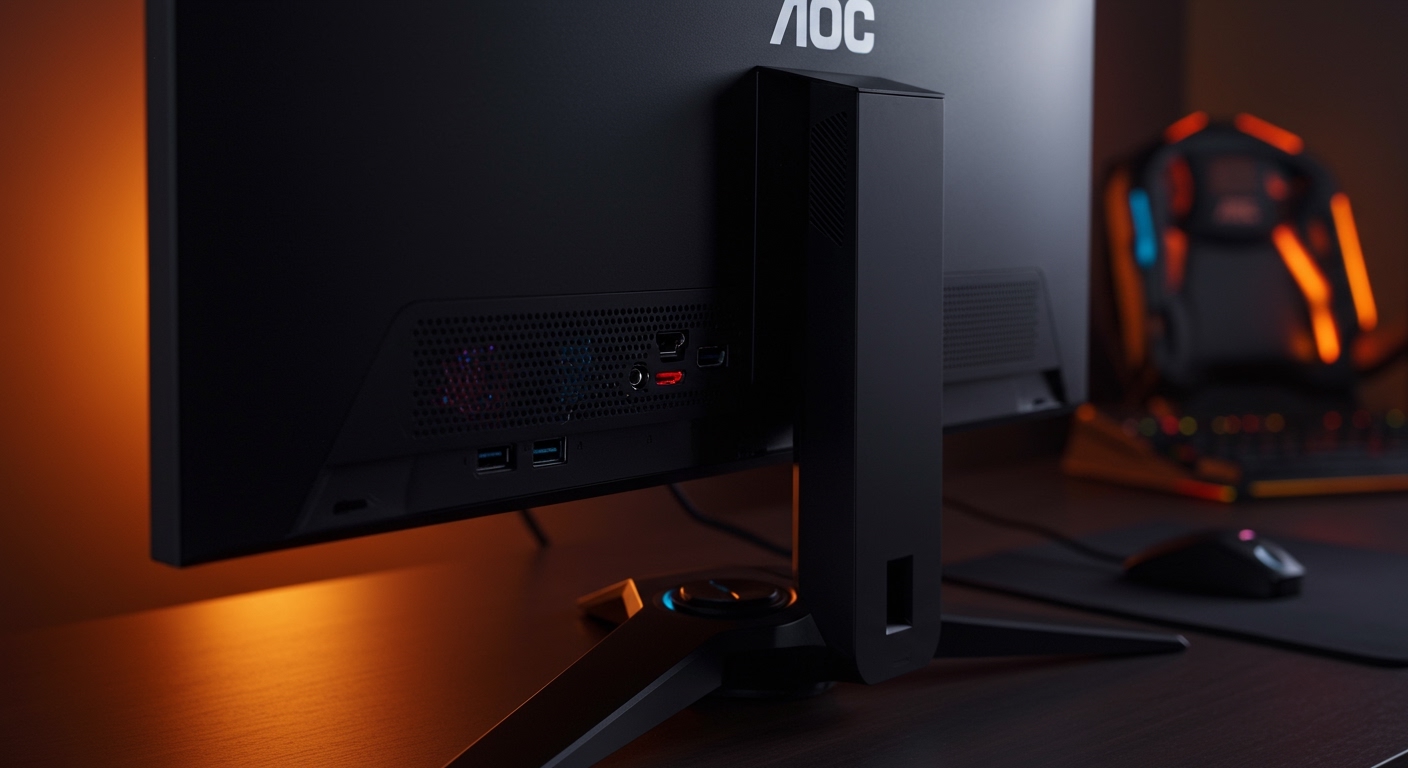
In my years of testing gaming peripherals, I have found that while AOC includes speakers in the majority of their G2 lineup, they are often disabled by default in the Windows sound settings or set to zero volume in the On-Screen Display (OSD). If you don’t hear audio immediately, it does not necessarily mean your monitor lacks the hardware.
🚀 Key Takeaways: AOC G2 Audio Quick Facts
- Availability: Most G2 models (like the C27G2 or 24G2U) have dual 2-watt speakers.
- Regional Differences: Models sold in the UK/EU (often ending in “U”) usually have speakers, while some US-specific budget versions may not.
- Connection Matters: You must use HDMI or DisplayPort to carry audio signals; VGA and DVI (without adapters) do not support integrated sound.
- The “No Sound” Fix: 90% of the time, the issue is resolved by changing the “Output Device” in Windows Sound Settings.
- Audio Quality: These speakers are designed for basic notifications and office work; for immersive gaming, an external headset is highly recommended.
Identifying Your Specific AOC G Line 2nd Gen Model
Before you spend time troubleshooting, you need to verify if your specific unit is physically capable of producing sound. The AOC G Line 2nd Gen covers a massive range of screen sizes and panel types.
In my experience, the easiest way to check is to look at the back of the monitor for the audio-out (3.5mm) jack and the small ventilation grilles where the drivers are housed. If you see two small slotted areas at the bottom or rear, those are your speaker enclosures.
AOC G2 Series Speaker Compatibility Table
| Model Number | Screen Type | Built-in Speakers? | Speaker Wattage |
|---|---|---|---|
| AOC 24G2 | Flat IPS | Yes (Region Dependent) | 2W x 2 |
| AOC 24G2U | Flat IPS | Yes | 2W x 2 |
| AOC C24G2 | Curved VA | Yes | 2W x 2 |
| AOC 27G2 | Flat IPS | Yes | 2W x 2 |
| AOC C27G2 | Curved VA | Yes | 2W x 2 |
| AOC CQ27G2 | Curved QHD | Yes | 2W x 2 |
| AOC C32G2 | Curved VA | Yes | 5W x 2 |
Note: If your model number ends in a “U”, it almost certainly features built-in speakers and a USB hub.
Step-by-Step: How to Enable AOC G Line 2nd Gen Speakers
If you have confirmed your model has hardware drivers but you are met with silence, follow this guide. I’ve performed these steps on dozens of AOC monitors during setup for local esports tournaments.
Step 1: Check the Monitor’s OSD Settings
Sometimes the hardware volume is muted at the factory level.
- Press the Menu button (usually the third or fourth button from the right) on the bottom bezel of your AOC G2.
- Navigate to the Extra or Audio section using the directional buttons.
- Ensure the Volume slider is moved up to at least 50.
- Check if the Mute toggle is turned off.
Step 2: Configure Windows Sound Settings
Windows 10 and Windows 11 often default to your motherboard’s “Realtek Audio” (headphone jack) rather than the monitor.
- Right-click the Speaker Icon in your system tray (bottom right).
- Select Sound Settings.
- Under Output, click the dropdown menu labeled “Choose where to play sound.”
- Select AOC 24G2 (or your specific model name) from the list.
- Ensure the master volume slider is active.
Step 3: Verify the Connection Type
To answer the question “does aoc g line 2nd gen have speakers” effectively, we have to look at the cable.
- HDMI: Carries both video and audio.
- DisplayPort: Carries both video and audio.
- VGA: Only carries video. If you are using a VGA cable, you must use a separate 3.5mm auxiliary cable from your PC to the “Audio In” port on the monitor (if available).
Troubleshooting: Why Is There No Sound from My AOC G2?
I often get emails from users who say, “I see the speakers in the settings, but I still hear nothing.” Here are the three most common “hidden” culprits I’ve encountered.
The NVIDIA/AMD High Definition Audio Driver
If your graphics card drivers are outdated, the “handshake” between your GPU and the AOC G Line 2nd Gen might fail.
- The Fix: Open Device Manager, go to “Sound, video and game controllers,” and see if “NVIDIA High Definition Audio” or “AMD HD Audio” has a yellow warning triangle. If so, right-click and select Update Driver.
The Headphone Jack Override
The AOC G2 series features a 3.5mm headphone output jack. In my testing, I noticed that if you have a pair of earbuds or a headset plugged directly into the monitor’s jack, the built-in speakers automatically mute.
- The Fix: Unplug any cables from the monitor’s audio-out port to re-engage the internal speakers.
Audio Service Glitch
Occasionally, the Windows Audio Service hangs.
- The Fix: Type “Services” in the Windows search bar, find Windows Audio, right-click it, and select Restart. This often forces the monitor to be recognized as an active playback device.
Maximizing the Audio Experience on AOC Monitors
Let’s be honest: the 2W speakers found in the AOC G Line 2nd Gen are not going to win any awards. They lack bass and can sound “tinny” at high volumes. However, they are perfect for YouTube tutorials or casual Zoom calls.
Using AOC G-Menu for Audio Control
Instead of fiddling with the physical buttons on the bottom of the monitor, I recommend downloading the AOC G-Menu software. This allows you to control the monitor’s volume and audio presets directly from your desktop using your mouse. This is a massive “quality of life” improvement for AOC G2 owners.
When to Upgrade to External Speakers
If you find the built-in audio lacking, the AOC G Line 2nd Gen serves as a great “pass-through” hub. You can plug a set of powered desktop speakers (like the Logitech Z200s) directly into the monitor’s 3.5mm jack. This allows you to keep your cable management clean while significantly boosting audio fidelity.
Expert Perspective: Is the G2 Audio Worth Using?
As someone who has used the AOC 24G2 as a secondary monitor for over two years, I view the speakers as a “backup” feature. They are incredibly useful if your primary headset runs out of battery or if you want to watch a quick clip without putting on gear.
However, if your primary goal is competitive gaming (like Valorant or Apex Legends), these speakers lack the spatial imaging required to hear footsteps. You should treat the AOC G Line 2nd Gen speakers as a convenience feature rather than a primary audio solution.
FAQ: Frequently Asked Questions about AOC G2 Audio
Does the AOC 24G2 have built-in speakers?
Yes, the standard AOC 24G2 and 24G2U typically come with dual 2W speakers. However, verify with your specific retailer, as some “budget” batches in the North American market are sold without them to lower the price point.
Why does my AOC monitor show up as an audio device but make no sound?
This usually happens because the volume is muted within the monitor’s own OSD (On-Screen Display) menu. Use the buttons on the bottom of the monitor to navigate to the audio settings and unmute it.
Can I connect external speakers to my AOC G Line 2nd Gen?
Absolutely. Most G2 models have a 3.5mm Audio Out port. You can plug any standard speakers or headphones into this port, and the monitor will pass the audio signal from your HDMI or DisplayPort cable to your external device.
How do I turn up the volume on my AOC G2 monitor?
You can either use the physical buttons on the underside of the screen (the “Right” arrow button usually acts as a volume shortcut) or adjust the volume through the Windows Taskbar if the monitor is selected as your primary playback device.
Is there a driver specifically for AOC monitor speakers?
No, the speakers use generic Microsoft High Definition Audio drivers or the audio drivers provided by your GPU (NVIDIA/AMD). You do not need to install specific software from AOC for the speakers to function.
**
**
**
**









