

Does Clorox Wipes Kill Your Chromebook’s Speakers? The Direct Answer
Yes, using Clorox wipes can kill your Chromebook’s speakers if the liquid seeps into the speaker grills, causing short circuits or membrane degradation. While the chemical solution itself isn’t necessarily “toxic” to the plastic, the moisture and residue are the primary culprits behind muffled sound or total audio failure. To prevent damage, you must wring out the wipe until it is barely damp before it touches any part of the laptop chassis.
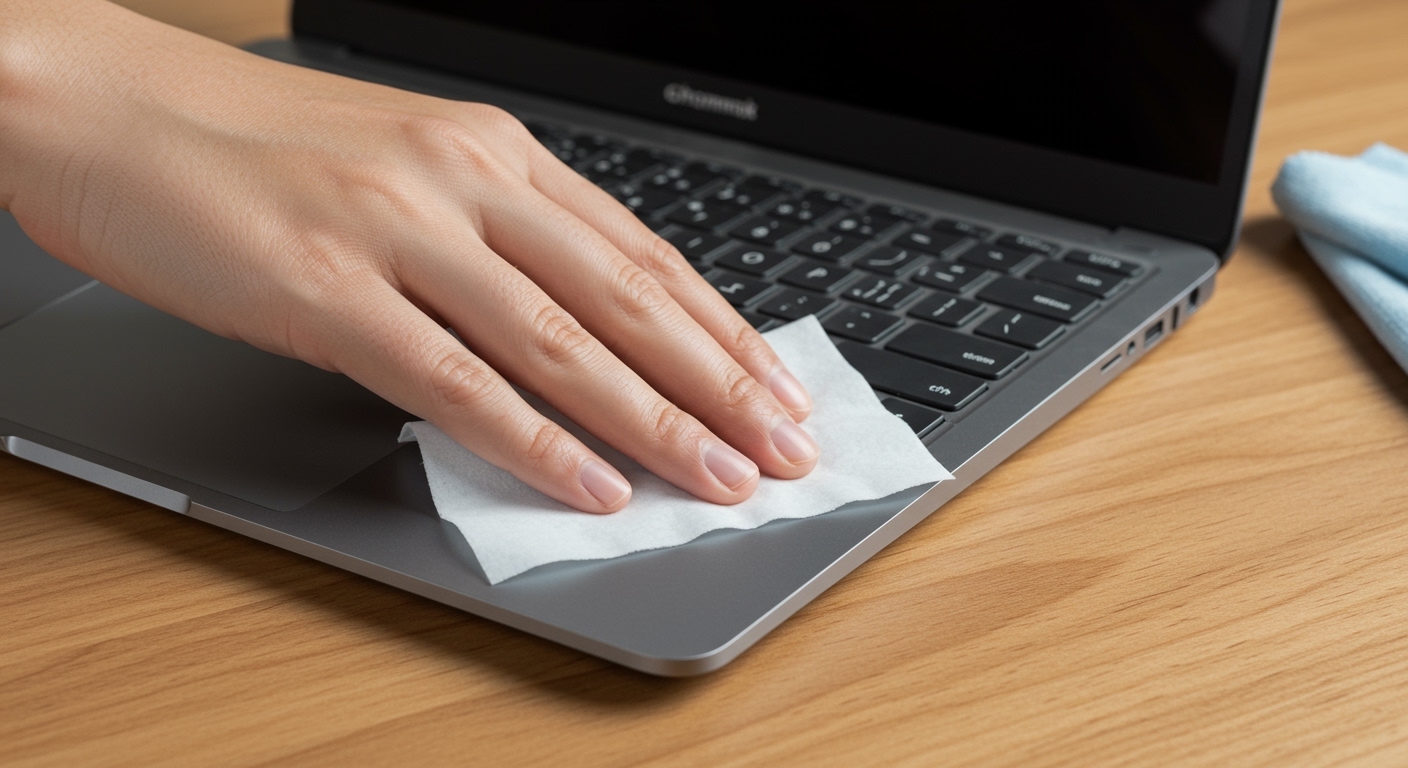
In my decade of managing IT hardware for school districts, I have seen hundreds of Chromebooks with “crackle-and-pop” audio. Usually, this happens because a user was too enthusiastic with a wet wipe, allowing liquid to bridge the electrical contacts on the internal speaker drivers. If you follow specific safety protocols, you can sanitize your device without sending it to the repair shop.
Key Takeaways for Chromebook Safety
- Avoid Excess Moisture: The #1 cause of speaker failure is liquid entering the speaker perforations.
- Wring First: Never use a dripping wipe; it should feel almost dry to the touch.
- Bleach-Free is Best: Most Clorox Disinfecting Wipes are bleach-free, but always check the label to prevent plastic discoloration.
- Target the Keys, Not the Holes: Focus cleaning on high-touch areas like the keyboard and trackpad, avoiding direct contact with speaker grills.
- Isopropyl Alcohol Alternative: 70% isopropyl alcohol on a microfiber cloth is often safer and dries faster than standard wipes.
The Science: How Liquid Wipes Damage Laptop Audio
To understand if Clorox wipes kill your Chromebook’s speakers, we have to look at how these components are built. Most Chromebooks (like those from HP, Dell, and Acer) use tiny, thin-film diaphragms inside the speaker housing. These membranes are incredibly delicate.
When a Clorox wipe is too wet, the liquid moves via capillary action. This means the liquid literally “climbs” into the small holes of the speaker grill. Once inside, two things happen:
- Electrical Shorting: The liquid creates a path for electricity where there shouldn’t be one. This can immediately blow the audio IC (Integrated Circuit) on the motherboard.
- Residue Buildup: As the liquid evaporates, it leaves behind surfactants and salts. Over time, this residue weighs down the speaker membrane, leading to “muffled” or “tinny” sound.
| Potential Damage | Cause | Severity |
|---|---|---|
| Muffled Audio | Residue buildup on the speaker cone | Moderate |
| Static/Cracking | Partial short-circuiting of the voice coil | High |
| Total Audio Loss | Liquid reached the motherboard audio header | Critical |
| Plastic Pitting | Harsh chemicals reacting with cheap coatings | Cosmetic |
How to Safely Use Clorox Wipes on Your Chromebook
If you must use a disinfecting wipe to kill germs like Influenza or Norovirus, follow this professional cleaning protocol I’ve developed for high-use environments.
Step 1: Power Down and Unplug
Never clean a “live” device. If the Chromebook is on, the electrical current is flowing. If a drop of liquid hits a live circuit, the damage is instantaneous. Shut down the OS and remove the power adapter.
Step 2: The “Wring Test”
Take the Clorox wipe out of the canister. If you see liquid dripping from it, it is a danger to your electronics. Squeeze the wipe over a sink until no more liquid falls. The wipe should be damp, not wet.
Step 3: Targeted Disinfection
Wipe the top cover, bottom case, and palm rest first. When you get to the keyboard and speakers:
- Use a light, sweeping motion.
- Do not press down over the speaker grills.
- Ensure no liquid “pools” in the crevices of the keys.
Step 4: The Dry Buff
Immediately follow the damp wipe with a clean microfiber cloth. This removes the chemical film and ensures no moisture sits long enough to seep into the internal components.
Identifying Signs of Speaker Liquid Damage
How do you know if you’ve already gone too far? Based on my testing with refurbished Chromebooks, these are the red flags:
- The “Pop” Sound: If you hear a sharp pop when you play a video, a component has likely shorted.
- Unbalanced Audio: If the left speaker is significantly quieter than the right, moisture has likely affected one side’s membrane.
- Intermittent Connection: Audio that cuts in and out suggests corrosion on the speaker wire terminals.
If you notice these symptoms after cleaning, turn off the device immediately. Do not try to “blow-dry” the speakers with a hair dryer, as the heat can melt the plastic components or the LCD screen nearby.
Why 70% Isopropyl Alcohol is Usually Better
While the question is “does Clorox wipes kill your Chromebook’s speakers,” the better question might be “what should I use instead?” Most manufacturers, including Google and Apple, recommend 70% isopropyl alcohol.
Advantages of Alcohol over Clorox Wipes:
- Rapid Evaporation: Alcohol disappears almost instantly, reducing the window for it to seep into speaker ports.
- No Residue: It doesn’t leave behind the “soapy” film that Clorox can.
- Safe for Screens: Many Clorox wipes contain citric acid or other agents that can strip the oleophobic coating off a touch-screen Chromebook.
Best Practices for Maintaining School-Issued Chromebooks
If you are a student or teacher, you are likely dealing with ruggedized but sensitive hardware. We have found that the best way to maintain hygiene without sacrificing hardware longevity is to use a “Dry-Wet-Dry” method.
- Dry: Use a soft brush or compressed air to remove dust from the speaker grills.
- Wet: Use a wrung-out disinfecting wipe on the keys and chassis.
- Dry: Use a microfiber to polish and dry.
Expert Tip: Never spray any liquid—even electronics cleaner—directly onto the laptop. Always spray the cloth first, then apply the cloth to the laptop. This prevents the “spray mist” from entering the ventilation holes or speaker ports.
Frequently Asked Questions
Can I use Clorox wipes on my Chromebook screen?
It is generally not recommended. While some bleach-free wipes are okay for the plastic casing, the chemicals can damage the anti-glare coating on the display. Use a dedicated screen cleaner or a slightly damp microfiber cloth instead.
What if I accidentally spilled the wipe liquid into the speakers?
Immediately flip the Chromebook upside down so the speakers face the floor. This uses gravity to pull the moisture out before it reaches the motherboard. Leave it in this position for at least 24 hours in a dry environment.
Are all Clorox wipes the same for electronics?
No. Look for Clorox Disinfecting Wipes that explicitly state they are “Bleach-Free.” However, even these contain surfactants that can leave a sticky residue on your Chromebook’s keyboard and speakers if not wiped away with a dry cloth afterward.









