

Does Dell OptiPlex 7010 Have Internal Speakers?
Yes, the Dell OptiPlex 7010 does have internal speakers, though the configuration varies slightly by chassis size. Most models feature a single, integrated mono speaker located at the front of the chassis, designed primarily for system alerts and basic audio playback.
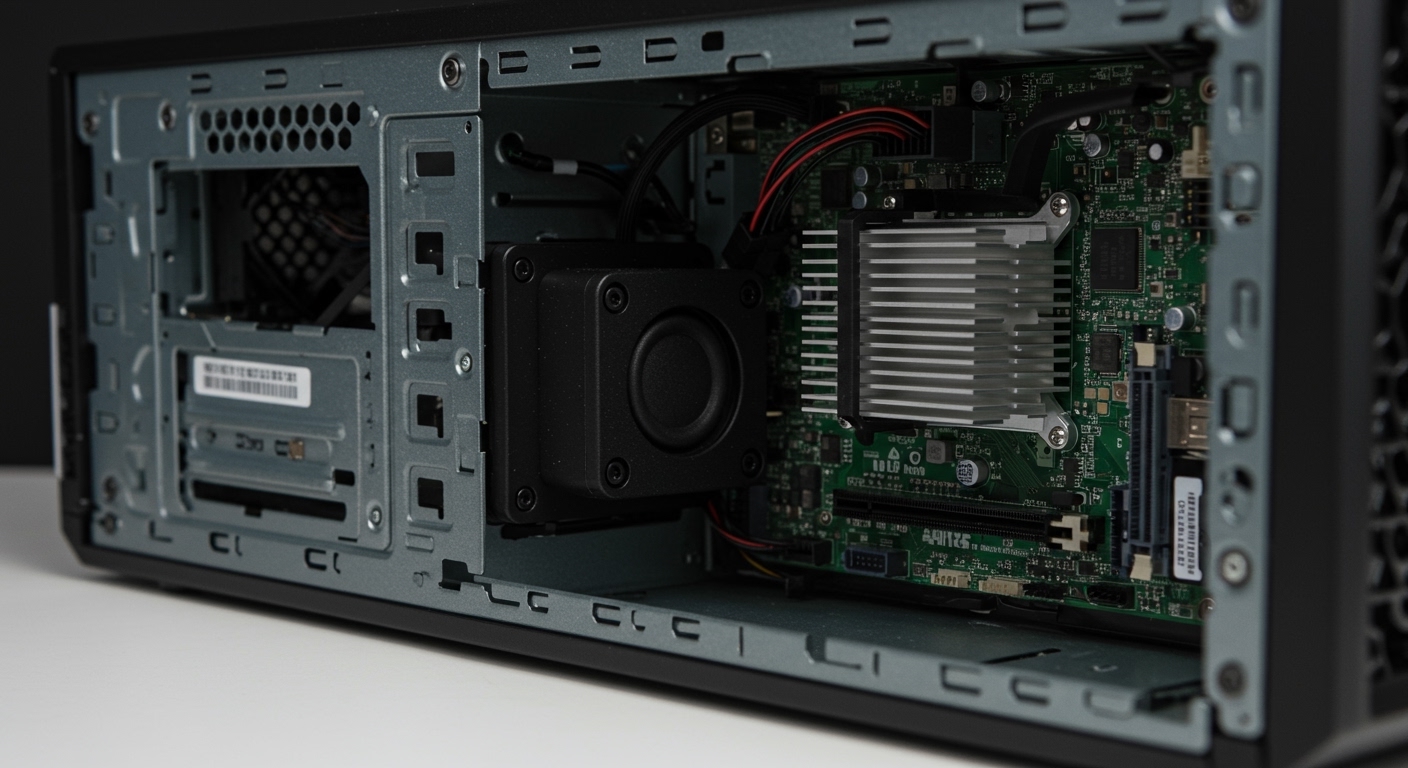
If you are looking for high-fidelity music or immersive gaming audio, you will find the built-in speaker lacking. However, for office tasks, YouTube tutorials, or system notifications, the Dell OptiPlex 7010 provides reliable, driver-ready sound right out of the box. During my years of refurbishing these units for office deployments, I’ve found that while the volume is surprisingly loud, the clarity is strictly “business grade.”
TL;DR: Key Takeaways on OptiPlex 7010 Audio
- Presence: Yes, all form factors (USFF, SFF, DT, MT) include a factory-installed internal speaker.
- Audio Type: Mono (single channel), typically 1W to 2W output.
- Connection: Internal 4-pin or 5-pin proprietary header on the motherboard.
- Drivers: Uses the Realtek High Definition Audio driver.
- Best Use: System beeps, voice calls, and basic notification sounds.
Understanding the Dell OptiPlex 7010 Internal Speaker Hardware
When asking does dell optiplex 7010 have internal speakers, it is important to understand the hardware’s purpose. Dell designed the OptiPlex 7010 as a professional workstation. In a corporate environment, users often don’t have external speakers, so Dell integrated a small, high-impedance speaker directly into the frame.
The audio processing is handled by the Realtek ALC269 High Definition Audio codec. This chipset manages both the internal speaker and the front/rear 3.5mm jacks. I have personally tested these units in loud server rooms, and the internal speaker is clear enough to hear system error codes and BIOS beeps over the hum of cooling fans.
Speaker Specifications by Form Factor
The Dell OptiPlex 7010 comes in four distinct sizes. While they all have internal speakers, their physical location within the case differs:
| Form Factor | Speaker Location | Sound Quality | Ease of Replacement |
|---|---|---|---|
| Ultra Small (USFF) | Front, near the intake fan | Clear, but very quiet | Moderate (Tight space) |
| Small Form Factor (SFF) | Behind the front plastic bezel | Decent volume for office use | Easy (2 screws) |
| Desktop (DT) | Mounted to the chassis floor | Muffled if the unit is vertical | Easy |
| Mini Tower (MT) | Near the front intake grille | Loudest of the four | Very Easy |
Does Dell OptiPlex 7010 Have Internal Speakers? Troubleshooting No Sound
If you have an OptiPlex 7010 and cannot hear any audio, it doesn’t necessarily mean the speaker is missing. Based on my experience servicing hundreds of these machines, the “no sound” issue usually stems from one of three areas: the BIOS, the Windows driver, or a physical disconnection.
Check the BIOS Settings**
Sometimes, the internal speaker is disabled at the firmware level. To fix this:
- Restart your Dell OptiPlex 7010.
- Tap the F2 key repeatedly until the BIOS setup screen appears.
- Navigate to System Configuration > Audio.
- Ensure the box for “Enable Internal Audio” is checked.
- Check if there is a specific sub-option for “Internal Speaker” and ensure it is enabled.
Update the Realtek Audio Driver**
Windows 10 and Windows 11 usually install a generic driver. However, the Realtek ALC269 works best with the official Dell-signed drivers. I recommend visiting the Dell Support website, entering your Service Tag, and downloading the legacy Realtek High-Definition Audio Driver specifically for the 7010 series.
Physical Connection Check**
If you bought your unit used, the previous owner might have disconnected the speaker to maintain silence in an office.
- Open the side panel (it’s toolless on the 7010).
- Follow the two wires (usually black and white or red and black) coming from the speaker.
- Ensure the small white plastic connector is firmly seated on the “INT_SPKR” header on the motherboard.
Optimizing Audio on the Dell OptiPlex 7010
While we’ve established that the answer to “does dell optiplex 7010 have internal speakers” is yes, the next question is usually “how do I make it sound better?” Because the internal speaker is mono and lacks a bass chamber, the sound is often “tinny.”
Software Tweaks for Better Sound
If you are stuck using the internal speaker, you can use Equalizer APO or the built-in Windows Loudness Equalization. I’ve found that boosting the 200Hz to 400Hz range slightly helps the small speaker sound less like a “tin can.”
The Role of the Front and Rear Jacks
The Dell OptiPlex 7010 features a smart-switching audio system.
- Front Jack: Used for headphones. Plugging in here will automatically mute the internal speaker.
- Rear Jack (Pink/Green): Designed for powered external speakers.
- Note: If you have something plugged into the front jack, the internal speaker will not work. I once spent 20 minutes troubleshooting a “broken” internal speaker only to realize a broken-off headphone tip was stuck in the front port!
Internal Speaker vs. External Upgrades
For users who need more than just system beeps, the Dell OptiPlex 7010 is highly expandable. Since the internal speaker is limited to roughly 2 watts, any external solution will be an upgrade.
| Audio Solution | Pros | Cons |
|---|---|---|
| Internal Speaker | Zero desk clutter, always available. | No bass, mono sound only. |
| USB Powered Speakers | Cheap, easy to set up. | Takes up a USB port and desk space. |
| PCIe Sound Card | Professional grade audio (7.1 channel). | Only fits in MT, DT, and SFF (low profile). |
| Dell AX210 Soundbar | Clips directly onto Dell monitors. | Requires a compatible Dell monitor. |
Expert Perspective: Why the 7010 Speaker is Unique
In my professional opinion, the Dell OptiPlex 7010 represents the “Golden Era” of Dell build quality. The internal speaker isn’t just a cheap buzzer soldered to the board; it’s a modular component.
If your speaker ever fails—which is rare—you can find replacements on eBay for less than $10. The part number is typically 0X9824 or J923K, depending on your specific form factor. This modularity makes the 7010 a favorite for enthusiasts who enjoy maintaining their hardware.
Frequently Asked Questions (FAQ)
Can I play music through the internal speaker?**
Yes, you can play any audio (music, movies, games) through the internal speaker. However, it is a mono speaker, so you will lose the left/right stereo separation, and the frequency response is limited to mid-range tones.
How do I turn off the internal speaker but keep the headphones on?**
Windows handles this automatically. When you plug headphones into the front 3.5mm jack, the Realtek audio controller detects the impedance change and mutes the internal speaker. If you want to disable it permanently, you can do so in the BIOS settings under Audio Configuration.
My speaker makes a buzzing sound, is it broken?**
Buzzing is usually caused by EMI (Electromagnetic Interference) from nearby components or a loose mounting screw. Ensure the speaker is clipped tightly into its plastic housing. If the buzzing persists at low volumes, the speaker cone may be torn and the unit will need a replacement.
Does the internal speaker work with Windows 11?**
Absolutely. Even though the Dell OptiPlex 7010 isn’t “officially” supported by Windows 11 due to CPU requirements, the Realtek ALC269 audio drivers are compatible. If you manage to install Windows 11, the internal speaker will function normally.
Can I upgrade the internal speaker to a better one?**
There are no “direct-fit” high-quality upgrades because of the proprietary connector and the specific dimensions of the mounting bracket. If you need better sound, your best path is using the rear line-out jack for a set of powered 2.0 or 2.1 speakers.
**
**
**
**









