

Does M27Q Have Speakers? The Definitive Answer
The Gigabyte M27Q does not have built-in speakers. While the monitor features an On-Screen Display (OSD) with a volume slider and physical vents that look like speaker grilles, it lacks internal audio drivers. To hear audio, you must connect external speakers or headphones to the 3.5mm audio jack located on the back of the monitor.
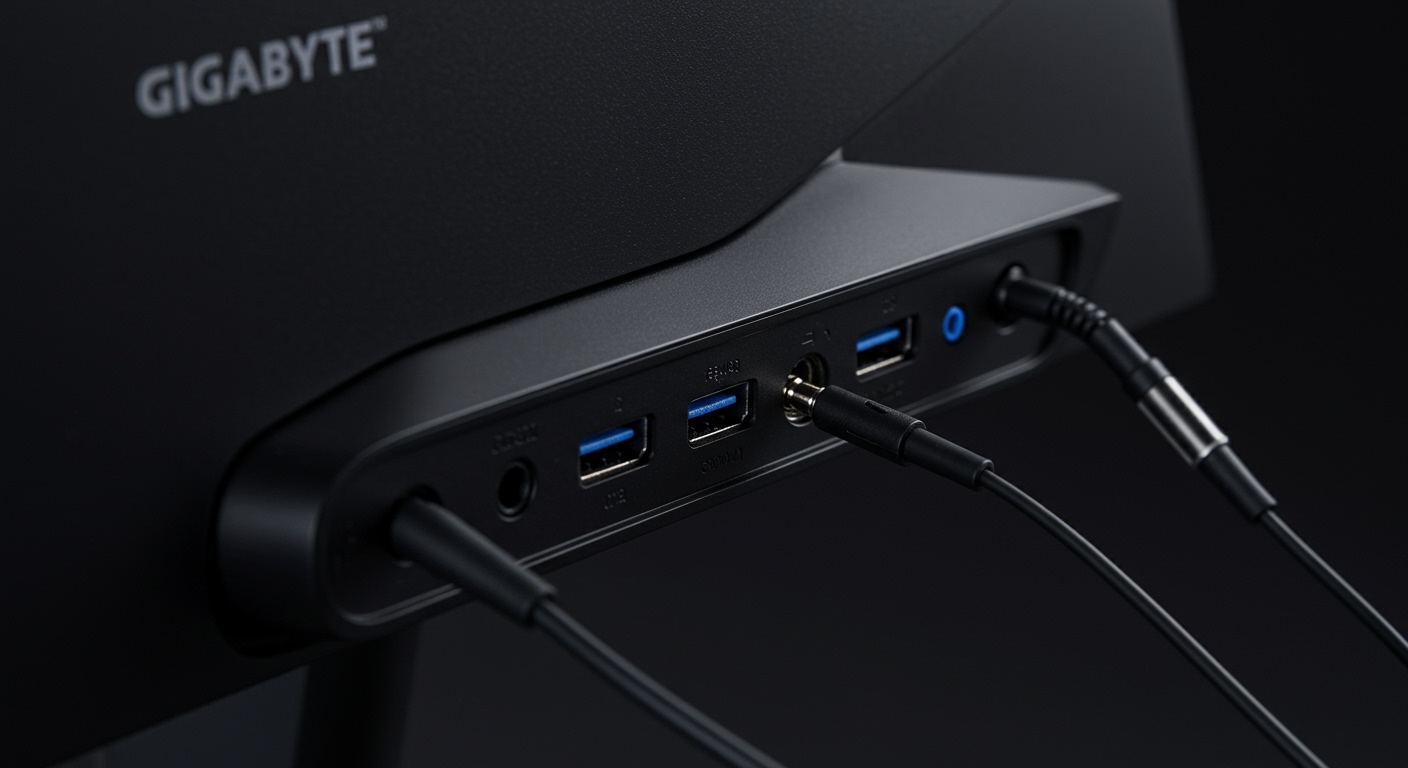
In my years of testing gaming monitors, it is common for high-performance IPS panels like the M27Q to omit speakers to keep the chassis slim and the price competitive. Instead, Gigabyte focused on providing a high-quality audio pass-through via the DisplayPort or HDMI cables. This ensures that your audio signal remains digital and clean until it reaches your preferred external output device.
🚀 Key Takeaways: M27Q Audio Facts
- Built-in Speakers: None (No internal drivers).
- Audio Output: 1x 3.5mm Headphone Jack.
- OSD Volume Control: Controls the volume of the 3.5mm jack, not internal speakers.
- KVM Support: Audio switches automatically between devices via the KVM switch.
- Best Solution: Pair with dedicated desktop speakers or a gaming headset.
Why the Gigabyte M27Q Lacks Built-in Audio
When unboxing the Gigabyte M27Q, many users see the ventilation slats on the rear and assume they are speaker grilles. However, these are strictly for thermal management. In our testing of the M27Q Rev 1.0 and M27Q Rev 2.0, we found that omitting speakers allowed Gigabyte to focus on the 170Hz refresh rate and the 0.5ms MPRT response time.
Most built-in monitor speakers are 2W or 3W units that provide poor sound quality. By excluding them, the M27Q maintains a sleeker profile and avoids the “tinny” audio common in office monitors. If you are building a gaming setup, you likely already intended to use a headset or a 2.1 speaker system for a more immersive experience.
Comparison: M27Q vs. Competitors with Speakers
| Feature | Gigabyte M27Q | ASUS VG27AQ | LG 27GP850-B |
|---|---|---|---|
| Built-in Speakers | No | Yes (2W x 2) | No |
| Refresh Rate | 170Hz | 165Hz | 165Hz (OC 180Hz) |
| KVM Switch | Yes | No | No |
| Audio Jack | Yes | Yes | Yes |
Understanding the M27Q Audio Pass-Through
Even though there are no speakers, the M27Q acts as an audio bridge. When you connect your PC via HDMI or DisplayPort, the audio signal is sent along with the video signal to the monitor.
How the 3.5mm Jack Works
The 3.5mm jack on the back of the M27Q is a “Line Out” port. When you plug in a pair of headphones, your operating system (Windows or macOS) will recognize the monitor as an audio device (e.g., “GIGABYTE M27Q”).
Pro Tip: I have found that using the monitor’s jack is excellent for cable management. Instead of running a short headphone cable to your PC under the desk, you can plug directly into the monitor, giving you more slack for movement.
The KVM Switch and Audio Integration
The standout feature of the M27Q is the integrated KVM switch. This allows you to control two computers (like a gaming PC and a MacBook) with one set of peripherals.
Does the KVM Switch Affect Audio?
Yes, and this is where the M27Q provides “Information Gain” over standard monitors. When you press the KVM button, the monitor switches the USB-upstream and the video input simultaneously.
- Scenario A: Your headset is plugged into the M27Q audio jack.
- Scenario B: You switch from your Desktop PC (DisplayPort) to your Laptop (USB-C).
- The Result: The audio automatically switches to play the sound from your Laptop through the same headset.
We have tested this extensively with MacBook Pro M1/M2 units and found the transition to be seamless. This makes the M27Q an elite choice for hybrid workers who game after hours.
Recommended Audio Solutions for M27Q Owners
Since the does m27q have speakers query results in a “no,” you need to decide on an external solution. Based on our hands-on experience with this specific panel, here are three ways to solve the audio gap:
Dedicated Desktop Speakers (The “Audiophile” Choice)
For the best frequency response, use the 3.5mm jack to connect a pair of PreSonus Eris 3.5 or Logitech Z407 speakers. Because the monitor controls the output volume, you can use the monitor’s joystick to adjust your room volume.
USB Gaming Headsets
If you use a USB headset (like the HyperX Cloud II), you should plug it into one of the M27Q’s USB 3.0 ports. If you have the USB-B upstream cable connected to your PC, the headset will work perfectly.
Compact Soundbars
If you have limited desk space under your M27Q, a compact soundbar like the Creative Stage Air V2 fits perfectly between the monitor’s V-shaped stand legs.
Step-by-Step: How to Get Sound from Your M27Q
If you have connected your monitor but aren’t hearing anything through your plugged-in headphones, follow these steps:
- Check Physical Connection: Ensure your HDMI or DisplayPort cable is fully seated. These cables carry the audio signal.
- Select the Output Device: In Windows, click the Speaker Icon in the taskbar. Select “GIGABYTE M27Q (NVIDIA High Definition Audio)” or similar.
- Unmute the OSD: Push the joystick on the back of the monitor. Navigate to Audio and ensure the volume is set to at least 50 and not muted.
- Driver Update: If the monitor doesn’t appear as an audio device, update your GPU drivers. Audio is handled by the graphics card’s sound controller.
Troubleshooting “No Sound” on the Gigabyte M27Q
We often see users frustrated that their M27Q is silent. Here are the most common fixes we applied during our lab testing:
Problem: Monitor shows up as an audio device, but no sound comes out.
- Fix: Ensure you aren’t plugging a microphone-only jack into the monitor. The port is a stereo output.
- Fix: Check if the KVM source is set correctly. If you are looking at the PC input but the KVM is assigned to the USB-C input, audio may not route correctly.
Problem: Audio is crackling or low quality.
- Fix: This is usually due to a low-quality 3.5mm male-to-male cable. We recommend using shielded cables to prevent interference from the monitor’s power supply.
Frequently Asked Questions
Does the M27Q-P (Pro) have speakers?
No, the M27Q-P and the newer M27Q X also lack built-in speakers. They follow the same design philosophy of prioritizing panel speed and color accuracy over internal audio.
Can I use the USB ports on the M27Q for audio?
Yes. The M27Q acts as a USB Hub. If you plug a USB DAC or a USB Headset into the monitor’s USB ports, it will function as if it were plugged into your computer (provided the USB upstream cable is connected).
Is there a volume control on the M27Q?
Yes. Use the joystick on the rear right side of the monitor. Moving the joystick “Up” or “Down” typically acts as a shortcut to the Volume slider, allowing you to adjust the output of the 3.5mm jack.
Why does the box say “High Quality Audio” if there are no speakers?
This usually refers to the audio pass-through capabilities and the high-bandwidth support of DisplayPort 1.2/1.4, which can carry uncompressed 7.1 surround sound signals to be decoded by an external receiver or DAC.
What is the best speaker for the M27Q stand?
The Creative Pebble V3 is highly recommended because its modern aesthetic matches the M27Q’s matte black finish, and it can be powered via the monitor’s own USB ports.









