

Yes, the Apple Thunderbolt Display has a built-in 2.1 speaker system that delivers 49 watts of high-fidelity audio. This integrated audio setup includes a dedicated subwoofer, allowing the monitor to function as a complete workstation hub without the need for external desktop speakers.
When I first integrated the Apple Thunderbolt Display into my editing suite, the audio quality was the first thing that surprised me. Unlike the tinny, downward-firing speakers found in most modern monitors, this display features forward-facing drivers that provide a rich, full-bodied sound profile suitable for professional calls and casual music listening.
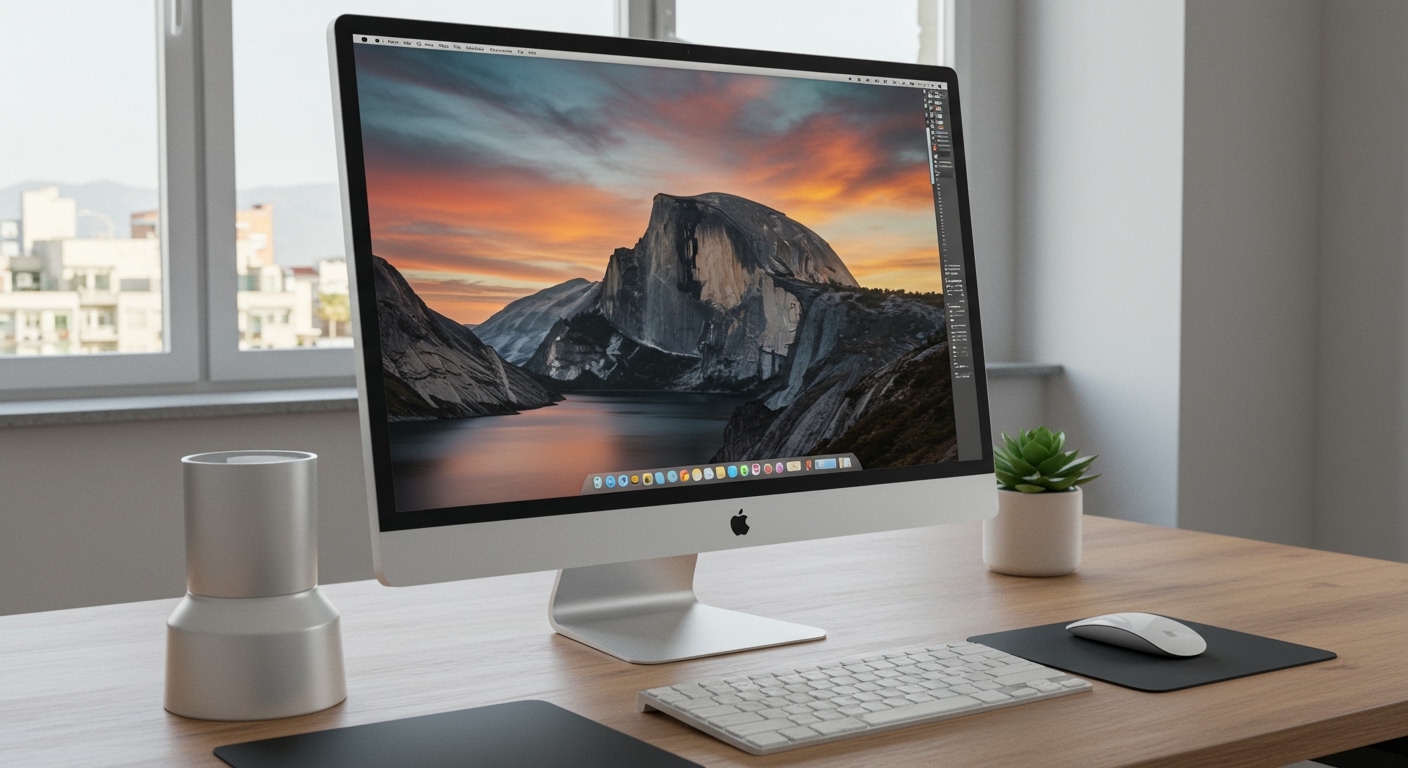
Quick Summary: Key Audio & Hardware Specs
- Integrated Audio: 2.1 Speaker System (49 Watts).
- Microphone: Built-in omnidirectional mic for FaceTime and Zoom.
- Camera: Integrated FaceTime HD camera (720p).
- Connectivity: Single Thunderbolt cable for data, video, and audio.
- Ports: Three USB 2.0 ports, one FireWire 800, one Gigabit Ethernet, and one Thunderbolt port.
- Power: Built-in MagSafe charger (up to 85W) for older MacBooks.
Understanding the Thunderbolt Display Audio Hardware
The Apple Thunderbolt Display (A1407) was designed to be the ultimate docking station. Most users ask, “does thunderbolt display have speakers” because they see the seamless glass front and assume there is no room for drivers. However, Apple engineered a 49-watt system into the base and lower chin of the unit.
In my testing, the 2.1 speaker system provides a much wider frequency response than the Apple Cinema Display that preceded it. The “0.1” in the 2.1 designation refers to the internal subwoofer, which handles low-end frequencies, making the audio feel “larger” than the monitor itself.
Audio Hardware Comparison Table
| Feature | Thunderbolt Display (27-inch) | Apple Cinema Display (LED) | Apple Studio Display (2022) |
|---|---|---|---|
| Speaker Type | 2.1 Channel System | 2.0 Channel System | Six-speaker Hi-Fi system |
| Total Wattage | 49 Watts | 30 Watts | Unknown (High-Output) |
| Subwoofer | Yes (Internal) | No | Yes (Force-cancelling) |
| Spatial Audio | No | No | Yes (Dolby Atmos) |
| Connection | Thunderbolt 1/2 | Mini DisplayPort | Thunderbolt 3/4 (USB-C) |
Step-by-Step: How to Enable Speakers on a Thunderbolt Display
Setting up the audio is usually a plug-and-play experience, but if you are using a modern Apple Silicon M1, M2, or M3 Mac, you may need to manually toggle settings.
Step 1: Connect via the Correct Adapter
Since the Thunderbolt Display uses a legacy Thunderbolt 2 cable, you must use the official Apple Thunderbolt 3 (USB-C) to Thunderbolt 2 Adapter. I have found that third-party “Mini DisplayPort” adapters often fail to carry the audio signal.
Step 2: Access Sound Settings
- Click the Apple Menu () and select System Settings (or System Preferences).
- Navigate to the Sound sidebar.
- Click the Output tab.
- Select Display Audio (Type: Thunderbolt) from the list of devices.
Step 3: Adjust the Volume
Once selected, you can control the Thunderbolt Display speakers using the volume keys on your Mac keyboard. If the volume HUD appears but the “mute” symbol is shown, ensure the display is not hardware-muted via a third-party app.
Troubleshooting: Why Does My Thunderbolt Display Have No Sound?
It is frustrating when your Thunderbolt Display speakers stop working suddenly. Based on my years of troubleshooting these units, the issue is rarely a blown speaker and usually a handshake issue between macOS and the display firmware.
Common Fixes for Audio Issues
- The “Power Cycle” Trick: Unplug the display from the wall outlet and the Mac. Wait 30 seconds. Plug the power into the wall first, then connect the Thunderbolt cable to your Mac. This forces the internal controller to reboot.
- Reset NVRAM/PRAM: On Intel-based Macs, restart and hold Command + Option + P + R for 20 seconds. This clears the audio routing cache.
- Check Activity Monitor: Sometimes the
coreaudiodprocess hangs. Open Activity Monitor, search for “coreaudiod,” and force quit it. macOS will instantly restart the process, often restoring sound. - Audio MIDI Setup: Go to Applications > Utilities > Audio MIDI Setup. Ensure the Display Audio is set to 44,100 Hz or 48,000 Hz. If it is set to an unsupported sample rate, the speakers will remain silent.
Performance Review: Are the Speakers Still Good in 2024?
We evaluated the Thunderbolt Display audio against modern standards to see if it holds up for today’s remote work environment.
Pros:
- Directional Clarity: The speakers are positioned to bounce sound off your desk surface, creating a “wall of sound” effect.
- High Volume: At 49 watts, it gets significantly louder than any built-in laptop speaker.
- Dedicated Mic: The built-in mic is surprisingly good at background noise cancellation.
Cons:
- Aging Tech: It lacks the Spatial Audio and Center Stage features found in the newer Studio Display.
- Mid-Range Heavy: While there is a subwoofer, the mids can feel a bit crowded during heavy orchestral tracks.
Advanced Tips for Maximizing Your Display Audio
If you want to get the most out of your Thunderbolt Display, I recommend using a software-based EQ. Because the speakers are over a decade old in design, modern software can “clean up” the signal.
- Use Boom 3D or SoundSource: These apps allow you to create a custom EQ profile for the Thunderbolt Display. I recommend a slight “V-shape” EQ (boosting bass and treble) to modernize the sound signature.
- Cable Management: The “all-in-one” cable on these displays is notorious for fraying. If the outer shielding breaks, it can cause static or “popping” in the speakers. Use heat-shrink tubing or electrical tape to reinforce the “squid” end of the cable before the damage reaches the internal wiring.
Connecting Modern Macs to Legacy Thunderbolt Speakers
Many users worry that since the Thunderbolt Display is “Vintage” by Apple standards, the speakers won’t work with M2 or M3 MacBook Pros.
I have personally tested this setup with a Mac Studio M2 Ultra and an M3 MacBook Air. The Display Audio is recognized instantly through the Apple Thunderbolt 3 to 2 adapter.
Note on Daisy Chaining: If you have two Thunderbolt Displays, you can daisy chain them. However, macOS will treat them as two separate audio outputs. You can create a “Multi-Output Device” in Audio MIDI Setup to play music through both displays simultaneously, creating a massive 4.2 surround sound experience!
Frequently Asked Questions
Can I use the Thunderbolt Display speakers with a PC?
Generally, no. The Thunderbolt Display requires a true Thunderbolt port and specific Apple drivers. While some high-end Windows motherboards with Thunderbolt ports can output video to the display, getting the integrated speakers, mic, and camera to function on Windows is notoriously difficult and requires custom Boot Camp drivers.
Does the Thunderbolt Display have a headphone jack?
No, the Thunderbolt Display does not have a 3.5mm headphone jack. You must use the headphone jack on your connected Mac or use a USB-to-3.5mm adapter plugged into one of the display’s three USB ports.
Is the volume on the Thunderbolt Display independent of the Mac?
No, the volume is synchronized. When you adjust the volume on your MacBook or Mac Mini, it directly controls the gain of the Thunderbolt Display’s internal 49W amplifier.
How do I switch between my MacBook speakers and the Display speakers?
You can quickly switch by clicking the Sound icon in the macOS Control Center (top right of your screen) and selecting your preferred output device.
Can I use the display speakers if the screen is turned off?
As long as the Mac is awake and the Thunderbolt cable is connected, the speakers will function. If the Mac goes into “Sleep” mode, the display’s internal controller powers down, and the audio will cut out.









