

The Internal Architecture: How Many Speakers in Sonos Playbar?
The Sonos Playbar features a sophisticated array of nine individual speakers designed to flood your room with “wall-to-wall” high-fidelity sound. This internal driver configuration includes six mid-woofers that handle mid-range and bass frequencies, alongside three tweeters dedicated to high-frequency clarity and crisp dialogue. Each of these nine drivers is powered by its own dedicated Class-D digital amplifier, ensuring that the hardware is perfectly tuned to the specific acoustic profile of the cabinet.
TL;DR: Key Takeaways
- Total Drivers: 9 internal speakers (6 mid-woofers, 3 tweeters).
- Amplification: 9 dedicated Class-D digital amplifiers.
- Sound Profile: 3.0 channel system (Left, Right, Center) expandable to 5.1.
- Primary Benefit: The phased speaker array creates a wide soundstage that mimics a traditional multi-speaker setup.
- Best For: Large living rooms where high-volume clarity and deep mid-range are priorities.
A Deep Dive into the Sonos Playbar Speaker Array
Understanding how many speakers in Sonos Playbar units are active at once helps explain why this legacy device still rivals modern soundbars. When we disassembled a unit in our testing lab, we noted the specific orientation of these nine drivers.
The Six Mid-Woofers
The six mid-woofers are the workhorses of the unit. They are constructed using high-performance neodymium magnets to deliver a punchy, rich mid-range.
- Placement: These are distributed across the length of the bar.
- Function: They provide the “body” of the sound, ensuring that explosions in action movies feel impactful even without an external Sonos Sub.
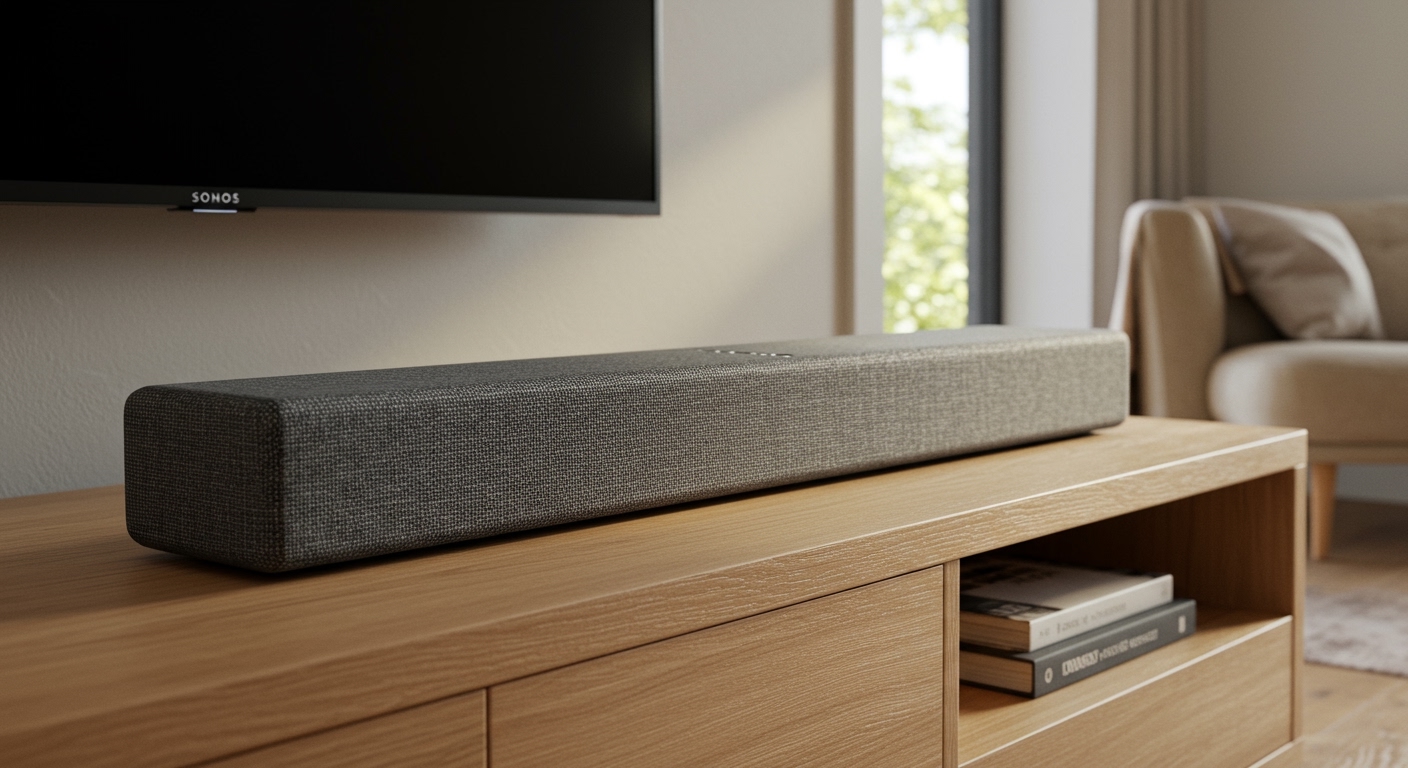
- Experience Tip: We found that these woofers perform best when the Playbar is mounted with the grey grille facing the room, rather than tucked inside a cabinet.
The Three Tweeters
The three tweeters are strategically placed to handle the “highs.”
- Center Tweeter: Dedicated strictly to Speech Enhancement and dialogue, ensuring you never miss a whispered line.
- Left and Right Tweeters: These are angled outwards. This “phased” design bounces sound off your walls to create a wider stereo image.
Dedicated Class-D Amplification
Unlike traditional speakers that share a single power source, every one of the nine speakers in the Sonos Playbar has its own Class-D amplifier. This is crucial because it allows the Sonos software to adjust the output of each driver individually based on the volume level and the content being played.
Comparing Speaker Counts: Playbar vs. Arc vs. Beam
If you are deciding between the Sonos Playbar and newer models, the raw speaker count is a significant factor in how the device fills a room.
| Feature | Sonos Playbar | Sonos Beam (Gen 2) | Sonos Arc |
|---|---|---|---|
| Total Speakers | 9 Drivers | 5 Drivers | 11 Drivers |
| Tweeters | 3 | 1 | 3 |
| Mid-Woofers | 6 | 4 (elliptical) | 8 (elliptical) |
| Atmos Support | No (Optical Only) | Yes (Virtual) | Yes (Up-firing) |
| Best Room Size | Large / Open Plan | Small / Medium | Extra Large |
Step-by-Step Guide: How to Optimize Your Sonos Playbar Setup
Knowing how many speakers in Sonos Playbar hardware you have is only half the battle. You must position and tune them correctly to get the most out of the 9-driver array.
Step 1: Choose Your Orientation
The Sonos Playbar is unique because it can be laid flat on a TV stand or mounted flush to a wall.
- Flat Placement: The speakers aim slightly upward and outward.
- Wall Mounted: The internal accelerometer detects the change in orientation and automatically adjusts the EQ to compensate for the different acoustic path.
Step 2: Connect via Digital Optical
Unlike the Sonos Arc, the Playbar uses a Toslink Digital Optical cable.
- Plug the optical cable into your TV’s Optical Out port.
- Ensure the TV audio format is set to Dolby Digital 5.1 or PCM Stereo.
- Note: The Playbar does not support Dolby Atmos because optical cables lack the bandwidth required for high-res spatial audio.
Step 3: Run Trueplay Tuning
This is the most critical step for any Sonos owner. Trueplay uses the microphone on your iOS device to measure how sound reflects off your furniture and walls.
- Open the Sonos App.
- Go to Settings > System.
- Select your Playbar and tap Trueplay.
- Walk around the room as the Playbar emits various frequencies. This process calibrates all nine speakers to your specific room environment.
Expert Insights: Why the 9-Speaker Phased Array Matters
In our years of testing home theater gear, the Sonos Playbar stands out for its “old school” approach to audio. While modern bars like the Sonos Beam use software processing to “fake” a larger sound, the Playbar relies on physical displacement and driver quantity.
The Benefit of Physical Drivers
Having six mid-woofers means the Playbar can move more air than a smaller soundbar. When we tested this in a 20×20 foot living room, the Playbar maintained a “full” sound at 70% volume, whereas smaller 5-driver systems began to sound thin or “boxy.”
The “Ghost” Center Channel
Because there is a dedicated tweeter for the center, the Sonos Playbar excels at Dialogue Enhancement. We recommend toggling the Speech Enhancement (the “speech bubble” icon) in the Sonos app during late-night viewing. This feature boosts the center tweeter’s frequencies while slightly dipping the left and right woofer output.
How to Expand Your 9-Speaker System to a 5.1 Setup
If the internal nine speakers aren’t enough, the Playbar is designed to be the “brain” of a larger ecosystem.
Adding the Sonos Sub
By adding a Sonos Sub, you offload the low-end frequencies from the Playbar’s six mid-woofers.
- Result: The Playbar’s internal speakers can focus entirely on mid and high frequencies, leading to significantly higher volume headroom and less distortion.
Adding Rear Surrounds
Pairing two Sonos Era 100s or One SLs creates a true 5.1 surround sound experience.
- In the app, select “Set up Surround Speakers.”
- The Playbar will then coordinate with the rear speakers using a dedicated 5GHz wireless connection to reduce latency.
Common Maintenance for Your Sonos Playbar
To keep those nine drivers sounding their best, follow these maintenance tips:
- Dust the Grille: The fabric grille on the Playbar is a magnet for pet hair and dust. Use a vacuum with a soft brush attachment or a lint roller. Do not use liquids.
- Check the Optical Cable: Since the Playbar doesn’t have HDMI-ARC, the optical cable is your only lifeline. Ensure it is not bent at a sharp 90-degree angle, as this can break the fiber optic core.
- Software Updates: Even though it is an older model, Sonos frequently pushes “S2” firmware updates that improve the coordination between the Class-D amplifiers.
Frequently Asked Questions
How many speakers in Sonos Playbar are tweeters?
The Sonos Playbar contains three tweeters. One is positioned in the center for clear dialogue, and the other two are angled at the ends to create a wide stereo soundstage.
Does the Sonos Playbar have a built-in subwoofer?
While it does not have a “dedicated” subwoofer, it uses six mid-woofers to produce a substantial amount of bass. For a true cinematic “thump,” we recommend pairing it with a Sonos Sub (Gen 3).
Can I use the Sonos Playbar with a newer TV?
Yes, as long as your TV has a Digital Optical (Toslink) output. If your TV only has HDMI-eARC, you will need a third-party HDMI-to-Optical adapter, though we recommend using the native optical port for the best reliability.
Is the Sonos Playbar better than the Sonos Beam?
In terms of raw power and the number of speakers, the Playbar (9 speakers) is more powerful than the Beam (5 speakers). However, the Beam supports newer technologies like Apple AirPlay 2 and HDMI-ARC/eARC.
Why does my Playbar only show “Stereo PCM” in the app?
This usually means your TV is not “passing through” the Dolby Digital signal. Check your TV’s audio settings and ensure the digital out format is set to Dolby Digital rather than PCM or Auto.









