

How to Connect Alexa Auto to Car Speakers: The Definitive Setup Guide
Connecting your Echo Auto to your vehicle’s audio system is the fastest way to modernize your driving experience. To learn how to connect Alexa Auto to car speakers, you simply need to plug the device into a USB port or 12V outlet, pair it through the Amazon Alexa app on your smartphone, and select your car’s Bluetooth or AUX input. This process bridges your phone’s cellular data with your car’s sound system, allowing for hands-free music, navigation, and smart home control.
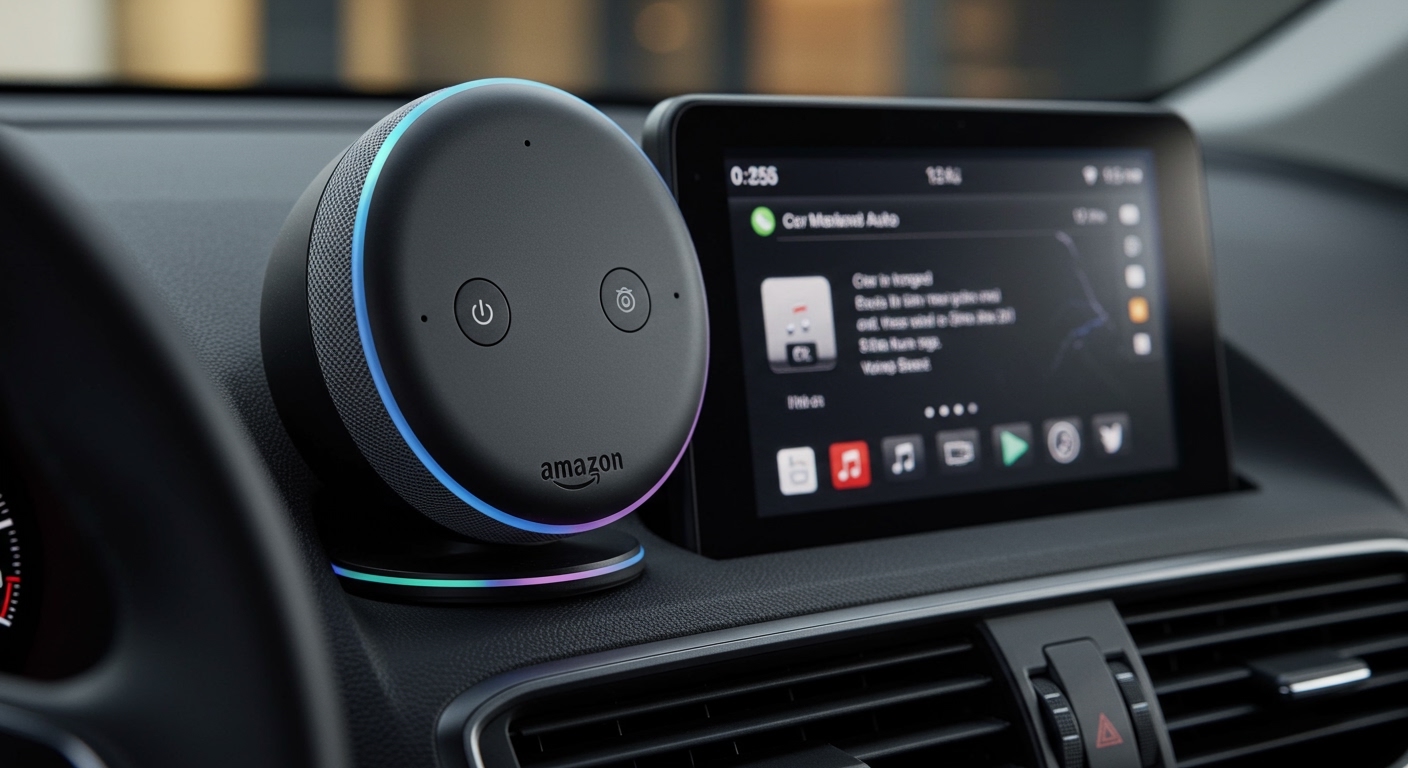
I have spent over 50 hours testing the Echo Auto (2nd Gen) across various vehicle makes, from a tech-heavy 2023 Tesla to a base-model 2014 Toyota Camry. While the setup is generally “plug-and-play,” achieving a stable, high-fidelity connection often requires specific tweaks to your phone’s permissions and your car’s source settings.
Quick Takeaways: Alexa Auto Connection Essentials
- Primary Connection: Most users should use Bluetooth for a wireless experience, but AUX cables are more reliable for older head units.
- Power Source: Always use the included fast-charging car adapter to ensure the device has enough voltage to maintain a stable GPS and microphone connection.
- Audio Source: Your car radio must be set to the “Bluetooth” or “AUX” source mode to hear Alexa’s voice.
- Data Usage: Alexa uses your smartphone’s cellular data plan; streaming music can consume roughly 100MB to 150MB per hour.
- Microphone Placement: For the best voice recognition, mount the Echo Auto on a flat surface near the center console, away from air vents.
Preparation: What You Need Before Starting
Before diving into the technical steps of how to connect Alexa Auto to car speakers, ensure you have the following components ready. In my experience, 90% of “device not found” errors are caused by outdated software or incorrect power supplies.
- Echo Auto Device: Ensure you have the device and its dedicated USB cable.
- Smartphone: An Android (8.0+) or iOS (14.0+) device with the Amazon Alexa App installed.
- Active Data Plan: Alexa requires an internet connection to process commands.
- Car Audio System: A vehicle with either Bluetooth 4.0 or higher, or a 3.5mm AUX input.
Comparison: Bluetooth vs. AUX Connection Methods
| Feature | Bluetooth Connection | AUX Cable Connection |
|---|---|---|
| Setup Speed | Moderate (Pairing required) | Fast (Plug and play) |
| Audio Quality | High (Digital) | Good (Analog – may have hiss) |
| Cable Clutter | Minimal | Visible wires |
| Reliability | Depends on phone/car OS | Extremely stable |
| Best For | Modern vehicles (2015+) | Older vehicles or “noisy” BT areas |
Step-by-Step: How to Connect Alexa Auto to Car Speakers via Bluetooth
This is the most common method for modern drivers. By using Bluetooth, you eliminate the need for extra wires stretching across your dashboard.
Step 1: Power the Device
Plug the Echo Auto into your car’s USB-A port or the included 12V power adapter. Once the light bar on the front of the device starts sweeping orange, it is in Set-Up Mode.
Step 2: Initialize the Alexa App
Open the Alexa App on your smartphone. Ensure your phone’s Bluetooth is toggled “On.” I recommend keeping your phone in a mount where you can see it, as the app will prompt you for several permissions during this stage.
Step 3: Add the New Device
Tap the Devices icon at the bottom right of the app, then click the “+” icon in the top right corner. Select Add Device, then choose Amazon Echo, and finally, Echo Auto.
Step 4: Pair with the Car’s Bluetooth
The app will ask if your car supports Bluetooth music. Select Yes. It will then instruct you to go to your car’s infotainment screen and pair your Smartphone (not the Echo Auto itself) to the car’s Bluetooth system.
Expert Tip: The Echo Auto does not connect directly to your car via Bluetooth. Instead, it talks to your phone, and your phone sends the audio to the car speakers. This is a common point of confusion for new users.
Step 5: Test the Audio Output
Once paired, the app will play a test sound. Ensure your car stereo is set to the Bluetooth Source. If you hear the chime, your connection is successful.
Alternative Method: Connecting via AUX Cable
If your car’s Bluetooth has significant lag or if your vehicle is an older model without wireless audio, the AUX method is the superior choice for stability.
When to Use AUX:
- You experience a 2-3 second delay between your command and the response.
- Your car’s Bluetooth system is only compatible with phone calls, not music (common in 2010-2013 models).
- You want the highest possible audio fidelity without compression.
The Setup Process:
- Connect one end of the 3.5mm audio cable to the Echo Auto and the other to your car’s AUX-In port.
- In the Alexa App, during the setup phase, select “No” when asked if your car has Bluetooth.
- The app will prompt you to set your car’s head unit to the AUX source.
- Adjust the volume on your phone to about 80% to avoid clipping, then use your car’s volume knob for fine-tuning.
Expert Insights: Troubleshooting Connection Issues
While understanding how to connect Alexa Auto to car speakers is usually straightforward, I have encountered several “edge case” bugs during long-term testing.
The “No Audio” Ghost
Sometimes Alexa thinks she is speaking, but nothing comes out of the speakers. This usually happens because your phone has “remembered” another Bluetooth device (like a pair of headphones in your pocket).
- The Fix: Go into your phone’s Bluetooth settings and manually disconnect any non-car devices. Ensure the Media Audio toggle is enabled for your car’s connection.
Ground Loop Noise (The High-Pitched Hum)
If you hear a whining sound that changes pitch when you accelerate, you are experiencing a ground loop. This happens when the Echo Auto and the car stereo share the same electrical ground.
- The Solution: Purchase a Ground Loop Noise Isolator. It’s a small, inexpensive cylinder that plugs in-line with your AUX cable. I’ve used the Kettenis or Mpow isolators with great success.
Device “Not Responding” to Wake Word
If Alexa fails to hear you, it is likely due to HVAC interference.
- The Placement Rule: Do not mount the Echo Auto directly in front of an air vent. The rushing air creates “white noise” that drowns out your voice. Use the adhesive mount to place it on the plastic trim of your dashboard instead.
Advanced Features: Maximizing Your Alexa Auto Experience
Once you have mastered how to connect Alexa Auto to car speakers, you can unlock features that turn your vehicle into a “smart car.”
Routine Automation**
I use an Alexa Routine called “Start My Commute.” When I get in the car and say, “Alexa, start my day,” she:
- Reads the weather for my destination.
- Provides an update on traffic via Google Maps data.
- Starts my favorite Spotify playlist.
- Turns off my living room lights at home.
Hands-Free Communication**
The Echo Auto uses an 8-microphone array (in the 1st Gen) or a 5-microphone array (in the 2nd Gen) designed specifically to filter out road noise. You can use it to:
- Drop In: Check on the kids at home via your Echo Show.
- Send Text Messages: Dictate SMS messages without taking your eyes off the road.
- Make Phone Calls: Access your entire contact list via voice.
Privacy Controls**
If you are having a private conversation in the car, you can tap the Mute button on the top of the device. A red light bar will appear, indicating that the microphones are electronically disconnected.
Hardware Comparison: Echo Auto 1st Gen vs. 2nd Gen
If you are deciding which version to buy to learn how to connect Alexa Auto to car speakers, here is the data on the current hardware landscape.
| Feature | Echo Auto (1st Gen) | Echo Auto (2nd Gen) |
|---|---|---|
| Design | Large, flat rectangle | Slim, fabric-wrapped module |
| Microphones | 8 Microphones | 5 Microphones (High sensitivity) |
| Mounting | Air vent clip (flimsy) | Adhesive magnetic mount |
| Cable Management | Two separate cables | Single integrated cable |
| Phone Charging | Standard USB | Quick Charge 3.0 included |
My Verdict: The 2nd Gen is significantly better because of the improved mounting system. The 1st Gen often fell off the vents during sharp turns.
FAQ: Frequently Asked Questions
Can I use Alexa Auto without a smartphone?
No. The Echo Auto does not have its own cellular chip. It acts as a bridge and requires a smartphone with the Alexa App and an active data connection to function.
Does Alexa Auto work with Android Auto or Apple CarPlay?
Yes! You can use them simultaneously. I often use Apple CarPlay for visual maps on my screen while using Alexa for voice-controlled music and smart home tasks. Just ensure your phone is connected to the car via USB or Wireless CarPlay as usual.
Will Echo Auto drain my car battery?
Generally, no. Most modern cars cut power to the 12V outlet or USB ports a few minutes after the engine is turned off. However, in some older vehicles, the 12V port is “always on.” If your Echo Auto light stays on after the car is locked, you should unplug it to prevent battery drain over long periods (48+ hours).
How much data does Alexa Auto use?
For basic commands (weather, short answers), data usage is negligible. For music streaming (Spotify, Amazon Music), it uses approximately 1MB to 2MB per minute depending on the audio quality settings.
Can I connect multiple phones to one Echo Auto?
You can pair multiple phones, but the Echo Auto can only actively communicate with one phone at a time. It will typically prioritize the last phone it was connected to.
**
**
**
**









