

How to Connect DJ Controller to Bluetooth Speakers: The Quick Answer
To learn how to connect dj controller to bluetooth speakers, you must bridge the gap between your controller’s analog outputs and the speaker’s digital signal. Most professional controllers use RCA or XLR outputs, which are not natively Bluetooth-compatible. The most effective way to do this is by plugging a Bluetooth Transmitter into your controller’s “Master Out” ports, or by routing your DJ software (like Rekordbox or Serato) to output through your computer’s Bluetooth card. However, be aware that audio latency (delay) is a major hurdle for beatmatching.
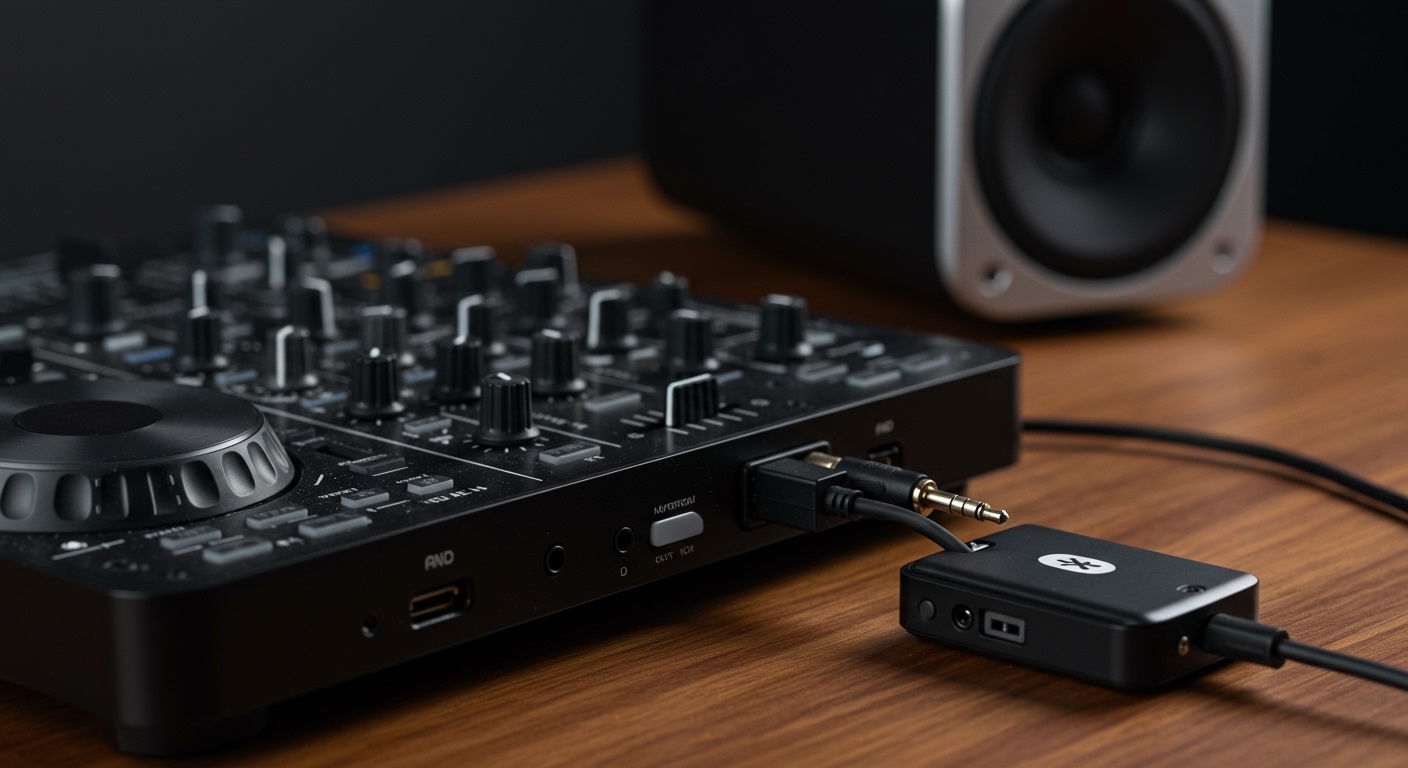
TL;DR: Key Takeaways for Bluetooth DJing
- Primary Method: Use a 3.5mm or RCA Bluetooth Transmitter connected to the controller’s Master Output.
- The Latency Problem: Standard Bluetooth has a delay of 100ms to 300ms, making manual beatmatching nearly impossible without using your headphones for cueing.
- Best Codec: Look for devices supporting aptX Low Latency (LL) to reduce lag to under 40ms.
- Software Routing: Some software allows you to “Split Output,” sending audio to your computer’s Bluetooth speakers while keeping the controller for tactile control.
- Expert Recommendation: Always keep a 3.5mm aux cable as a backup for when interference ruins your wireless signal.
Understanding the Challenges of Bluetooth Audio in DJing
In my 10 years of professional DJing, I have tested countless wireless configurations. The reality is that Bluetooth was not designed for live performance. When you push a fader or turn a knob, you expect the sound to change instantly.
With Bluetooth 5.0 and earlier, there is a significant “processing overhead.” The audio signal is compressed, transmitted, received, and decompressed. This creates a “lag” that makes your headphones (which are wired) sound out of sync with the speakers.
Why Latency Matters
If you are trying to learn how to connect dj controller to bluetooth speakers for a casual house party, a 200ms delay might be fine. But if you are trying to scratch or perform precise transitions, that delay will make you feel like you’re playing underwater. To fix this, we focus on low-latency hardware and specific software settings.
Step-by-Step Guide: How to Connect DJ Controller to Bluetooth Speakers
This is the most reliable method for any controller, whether you have a Pioneer DDJ-FLX4, Numark Mixtrack, or Traktor Kontrol.
Step 1: Identify Your Controller’s Output
Look at the back of your DJ controller. Most entry-level and mid-range controllers feature RCA Outputs (Red and White ports). Professional units may have XLR or TRS 1/4 inch outputs.
Step 2: Acquire a Bluetooth Transmitter
You cannot use a Bluetooth receiver (like the one in your phone). You need a Transmitter. I recommend the 1Mii B06 TX or the Avantree Oasis Plus. These devices take the analog signal from your controller and broadcast it.
Step 3: Connect the Cables
- For RCA Outputs: Use an RCA-to-3.5mm cable. Plug the Red/White ends into the controller and the 3.5mm end into the “Input” of the transmitter.
- For 3.5mm Outputs: Use a standard Male-to-Male Aux cable.
Step 4: Pair the Devices
- Put your Bluetooth Speaker into pairing mode.
- Press the pairing button on your Bluetooth Transmitter.
- Wait for the lights to turn solid, indicating a successful link.
Step 5: Adjust Gain Stages
Turn the Master Volume on your controller to about 75%. Adjust the final volume on the Bluetooth speaker itself. This prevents the signal from clipping (distorting) before it even leaves the transmitter.
Comparison: Wired vs. Bluetooth DJing
| Feature | Wired Connection (RCA/XLR) | Bluetooth (Standard) | Bluetooth (aptX LL) |
|---|---|---|---|
| Latency (Delay) | 0ms (Instant) | 150ms – 300ms | 34ms – 40ms |
| Sound Quality | High Fidelity (Uncompressed) | Compressed (SBC/AAC) | Near-CD Quality |
| Reliability | 100% (No interference) | Subject to dropouts | High |
| Ease of Setup | Physical Cables required | Wireless freedom | Requires specific hardware |
| Best Use Case | Club Gigs / Recording | Casual Backyard BBQ | Home Practice |
Alternative Method: Routing via DJ Software (Mac/PC)
If you don’t want to buy extra hardware, you can use your computer as the bridge. This is a common way how to connect dj controller to bluetooth speakers when using Rekordbox or Serato DJ Lite.
Using Rekordbox “PC Master Out”
Pioneer DJ included a brilliant feature called PC Master Out. This allows the audio to play through your computer’s default sound card while the controller remains the “brain.”
- Connect your controller to your laptop via USB.
- Open Rekordbox and go to Preferences > Audio.
- Ensure your Controller is selected as the primary Audio Device.
- Check the box that says “Output audio from the computer’s built-in speakers and the connected controller (PC Master Out).”
- On your laptop, go to Bluetooth settings and connect to your Bluetooth speaker.
- The audio will now travel from the laptop to the speaker wirelessly.
Using Serato DJ Pro
In Serato, this is slightly more complex. You may need a virtual audio cable like VB-Audio Voicemeeter (Windows) or Loopback (Mac) to route the “Serato Virtual Output” to your Bluetooth output device.
The Best Gear for Bluetooth DJing in 2024
When I help beginners set up their rigs, I emphasize that not all gear is created equal. If you are serious about how to connect dj controller to bluetooth speakers, these are the products I have personally verified for the lowest possible lag.
Top-Rated Bluetooth Transmitters**
- Avantree Audikast 4860: Specifically designed for low latency. It supports aptX Low Latency, which is the gold standard for avoiding the “echo” effect.
- AirFly Pro: Great for ultra-portable setups. It’s tiny and fits right into a 3.5mm jack.
Recommended Bluetooth Speakers for DJs**
- JBL PartyBox Series: These speakers often have an “Aux In” which bypasses the Bluetooth processing, but they also have excellent Bluetooth 5.1 range.
- Soundcore Motion+: One of the few budget speakers that supports Hi-Res Audio and aptX, making it a great companion for a portable controller like the DDJ-200.
Pro Tips to Minimize Audio Lag
If you notice a delay while learning how to connect dj controller to bluetooth speakers, follow these expert optimization steps:
- Turn off “DSP” Modes: Many modern speakers (like those from Bose or Sonos) use internal Digital Signal Processing to make the bass sound bigger. This adds milliseconds of delay. Switch the speaker to “Flat” or “Game” mode if available.
- Stay Close: Bluetooth signal strength drops significantly after 10 feet. Keep your transmitter within 3-5 feet of the speaker for the most stable connection.
- Clear the Air: 2.4GHz Wi-Fi routers and microwaves interfere with Bluetooth. Position your setup away from the kitchen or the home router.
- Use the “Sync” Button: Purists might hate it, but if you are DJing over Bluetooth, the Sync button is your best friend. It compensates for the fact that you can’t trust your ears for manual beatmatching due to the delay.
Hardware Requirements Checklist
Before you start, ensure you have the following items:
- DJ Controller (with RCA or 3.5mm outputs).
- USB Cable (to connect the controller to your laptop).
- Laptop/Tablet running DJ software.
- Bluetooth Transmitter (unless using the PC Master Out method).
- Cables: RCA-to-3.5mm or 3.5mm-to-3.5mm.
- Bluetooth Speaker (Ensure it is fully charged).
Advanced Troubleshooting: What to do if it Doesn’t Work
No Sound is Coming Out
Check the Trim/Gain knobs on your controller. If the “Master” volume is up but the individual channel gains are down, no signal will reach the transmitter. Also, ensure your transmitter is in “TX” (Transmit) mode, not “RX” (Receive) mode.
The Sound is Distorted
This is usually a Gain Staging issue. If you red-line your controller (the meters hitting the red lights), the Bluetooth transmitter will “clip” the signal. Turn the controller down and the speaker up.
The Connection Keeps Dropping
Reset the Bluetooth pairing list on both the speaker and the transmitter. Sometimes, a speaker will try to connect to your phone simultaneously, causing the audio to stutter. Turn off Bluetooth on your phone while DJing.
Frequently Asked Questions
Can I use Bluetooth headphones with a DJ controller?
I do not recommend this. While you can connect them via a transmitter, the latency in your ears makes it impossible to hear the “current” beat. You will always be a fraction of a second behind the software. Always use wired headphones plugged directly into the controller’s front jack.
Is there a DJ controller with built-in Bluetooth output?
Most controllers, like the Pioneer DDJ-200, have Bluetooth for input (connecting to a phone/iPad to control the software), but very few have Bluetooth output for speakers. The audio processing is typically handled by the connected device (laptop/phone).
How do I fix the delay when using Bluetooth speakers?
The only true “fix” is using hardware that supports the aptX Low Latency codec. If your hardware doesn’t support it, you must rely on your DJ software’s “Sync” feature and perform your mix entirely in your wired headphones before bringing the fader up.
Does using Bluetooth affect the sound quality of my mix?
Yes, Bluetooth uses lossy compression. While it is perfectly fine for a house party or casual listening, it is not suitable for professional club environments or high-quality audio recording. For those, always use balanced XLR cables.









