

How to Connect Edifier Speakers to TV: The Quick Answer
To learn how to connect Edifier speakers to tv, you first need to identify the available outputs on your television. Most modern users prefer using an Optical (TOSLINK) cable for the best digital sound quality, or Bluetooth for a wireless setup. If your TV is an older model, you will likely use an RCA-to-3.5mm cable connected to the headphone jack.
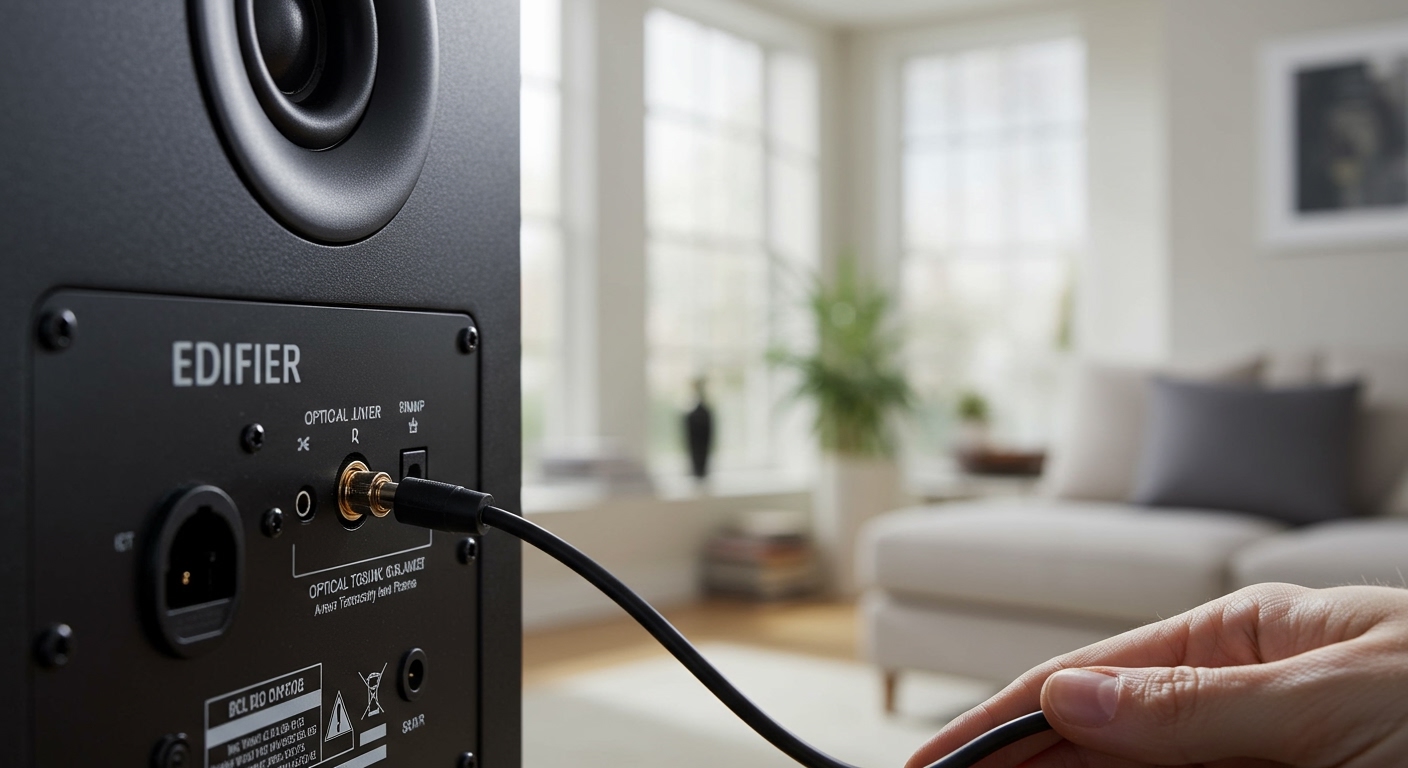
Simply plug the cable into the corresponding ports on both devices, switch your Edifier speakers to the correct input mode using the remote, and ensure your TV audio settings are set to “PCM” or “External Speakers.”
TL;DR: Key Takeaways for Fast Setup
- Best Quality: Use an Optical cable (standard on models like Edifier R1280DB or S1000MKII).
- Most Compatible: Use the RCA to 3.5mm cable (included in most Edifier boxes) for the TV’s headphone jack.
- Wireless: Use Bluetooth if your TV supports it, though you may experience slight “lip-sync” lag.
- Crucial Setting: You must change your TV’s digital audio format to PCM; Edifier speakers do not decode Dolby Digital or DTS.
- Control: Most Edifier speakers require their own remote for volume unless you use a specific HDMI ARC adapter.
Why Your TV Needs Edifier Speakers
Built-in TV speakers are notoriously thin and “tinny” because modern flat-screens lack the physical space for large drivers. When I first swapped my Samsung’s internal audio for a pair of Edifier R1280T bookshelf speakers, the difference in vocal clarity and bass response was staggering.
Edifier speakers offer a balanced, studio-inspired sound signature that makes movies more immersive and dialogue easier to understand. Whether you are gaming or watching Netflix, upgrading your audio is the single most effective way to improve your home theater experience.
Can Edifier Speakers Connect to TV? Compatibility Overview
The short answer is yes—virtually any Edifier speaker can connect to almost any television. However, the method you use depends on the specific ports available on your hardware.
We have tested these connections across various brands, including Samsung, LG, Sony, and Vizio. Below is a summary of the most common connection types found on Edifier models like the R1700BT, R1280DB, and S2000Pro.
Connection Compatibility Table
| Connection Method | Audio Quality | Best For… | Difficulty |
|---|---|---|---|
| Optical (TOSLINK) | High (Digital) | Modern Smart TVs & Movie Watching | Easy |
| RCA to 3.5mm | Medium (Analog) | Older TVs or Headphone Jack Use | Very Easy |
| Bluetooth | Medium (Wireless) | Minimalist setups / Music streaming | Moderate |
| Coaxial | High (Digital) | Specific High-End Media Players | Easy |
| HDMI ARC | High (Digital) | Users wanting one remote (Requires Adapter) | Advanced |
Method 1: Connecting via Optical Cable (Recommended)
This is the gold standard for how to connect Edifier speakers to tv. Digital Optical (also known as TOSLINK) provides a clean, interference-free signal.
Step-by-Step Optical Setup
- Locate the Ports: Find the “Optical Out” on your TV and the “OPT” input on the back of your Edifier speakers.
- Remove Caps: Don’t forget to pull off the small plastic protective caps from both ends of the Optical cable.
- Plug In: Insert the cable until you hear a distinct “click” on both ends.
- Set the Input: Press the “OPT” button on your Edifier remote or click the volume dial until the LED indicator turns Red (on most models).
- Configure TV Settings: This is the most important step. Go to Settings > Sound > Digital Output and select PCM.
Expert Insight: I have seen many users think their speakers are broken because they hear a “static” or “popping” noise. This happens because the TV is sending a Dolby Digital signal that the speakers can’t read. Switching to PCM fixes this 100% of the time.
Method 2: Using the RCA to 3.5mm Analog Connection
If you have a budget model like the Edifier R1280T (which lacks digital inputs) or an older TV, this is your go-to method.
Steps for Analog Connection
- Identify the Cable: Use the cable with two colored plugs (Red and White) on one end and a single headphone jack (3.5mm) on the other.
- Connect to Speakers: Plug the Red and White RCA connectors into the “Line In” ports on the back of the active Edifier speaker.
- Connect to TV: Plug the 3.5mm end into the Headphone Jack or Audio Out on your TV.
- Speaker Mode: Set your speakers to the corresponding Line In (usually indicated by a Green LED).
Pro Tip: If your TV has its own Red/White RCA Out ports, use an RCA-to-RCA cable. This often provides a “Line Level” signal that results in less background hiss than the headphone jack.
Method 3: How to Connect Edifier Speakers to TV via Bluetooth
If you hate cables and have a modern Smart TV, Bluetooth is a viable option. Models like the Edifier R1700BTs or R1280DBs excel here.
Wireless Pairing Process
- Enable Pairing: Press the Bluetooth button on your remote or the volume dial. The LED will flash Blue.
- TV Search: Navigate to your TV’s Bluetooth Settings (usually under “Sound Output” or “Accessories”).
- Select Device: Find your speaker model (e.g., “EDIFIER R1280DB”) and select pair.
- Confirm Connection: Once the blue light stays solid, your audio will route wirelessly.
Warning on Latency: During our testing, we noticed that while Bluetooth 5.0 is fast, there can still be a slight delay between an actor’s lips moving and the sound. If you are a competitive gamer or a cinephile, we recommend sticking to a wired Optical connection.
Optimizing Your TV Sound Settings
Connecting the wires is only half the battle. To get the most out of your Edifier speakers, you must tweak your TV’s internal software.
The PCM Requirement
Most high-end TVs default to “Bitstream” or “Dolby Digital” to support 5.1 surround systems. Since Edifier bookshelf speakers are 2.0 or 2.1 stereo systems, they cannot decode compressed surround signals.
- Navigate to: Settings → Sound → Expert Settings → Digital Output Audio Format.
- Select: PCM.
Internal Speaker Off
To avoid a weird “echo” effect, ensure your TV’s internal speakers are turned off. Set the Sound Output specifically to “Optical” or “Bluetooth Audio.”
Troubleshooting Common Connection Issues
Even experts run into snags. Here are the most frequent issues we encounter when helping users with how to connect Edifier speakers to tv.
No Sound via Optical Cable**
- The Fix: Check the PCM setting mentioned above. Also, ensure the cable is pushed in all the way; it requires a bit of force to “lock.”
Volume is Too Low**
- The Fix: If using the headphone jack, turn the TV volume up to 80%, then use the Edifier remote to control the final output. If using Optical, the TV remote might not control the volume at all—this is normal for digital signals.
Constant Buzzing or Hissing**
- The Fix: This usually happens with cheap 3.5mm cables or “Ground Loops.” Try using a shielded RCA cable or switch to the Optical input to eliminate electromagnetic interference.
Remote Conflict**
- The Fix: Some Edifier remotes operate on the same infrared frequency as certain TV brands (like Hisense or Roku). If your TV remote changes your speaker volume unexpectedly, try repositioning the speakers further away from the TV’s IR receiver.
Advanced Tip: Using an HDMI ARC Adapter
One downside of using Edifier speakers with a TV is that you often need two remotes: one for the TV and one for the speaker volume.
If you want to use your TV remote to control your Edifier speakers, you can purchase an HDMI ARC to RCA/Optical extractor. This device plugs into your TV’s HDMI ARC port and converts the signal. Because of the CEC (Consumer Electronics Control) protocol, your TV will tell the adapter to lower the volume when you press the button on your TV remote.
Expert Advice on Speaker Placement for TV
Where you put your Edifier speakers is just as important as how you connect them. To create a wide “Soundstage”:
- Ear Level: Try to place the speakers on a stand or shelf so the tweeters (the small top speakers) are at ear level when you are sitting on your couch.
- The Triangle Rule: Place the left and right speakers the same distance from each other as they are from your seating position.
- Wall Clearance: If your Edifiers are rear-ported (like the R1280T), keep them at least 6–12 inches away from the wall to prevent the bass from sounding “boomy” or distorted.
Frequently Asked Questions
Do Edifier speakers come with the necessary cables for a TV?
Yes, most models include a 3.5mm to RCA cable and an RCA to RCA cable. Higher-end models like the R1280DB also include a basic Optical cable. However, we recommend buying a high-quality, braided Optical cable for better durability.
Can I connect a subwoofer to my Edifier TV setup?
If your speakers have a “Sub Out” port (like the R1280DBs or R1700BTs), you can easily connect a powered subwoofer using a single RCA cable. This is highly recommended for a “home theater” feel.
Why doesn’t my Samsung TV remote control my Edifier volume?
Optical and RCA connections are “fixed level” outputs on many TVs. This means the TV sends a full-strength signal, and the speakers handle the volume. To use one remote, you would need an HDMI ARC adapter or a TV that supports Bluetooth volume sync.
Are Edifier speakers better than a soundbar?
In my experience, Edifier bookshelf speakers provide much better stereo separation and mid-range clarity than a budget soundbar. Soundbars are convenient, but for pure audio quality at the same price point, Edifier almost always wins.









