

How to Connect Harman Kardon Speakers to Alexa: The Ultimate Setup Guide
To learn how to connect Harman Kardon speakers to Alexa, you simply need to pair the speaker via Bluetooth within the Amazon Alexa app or use the Harman Kardon Controller app for WiFi-enabled smart models. For Bluetooth-only models like the Onyx Studio, put the speaker in pairing mode and select it under the “Bluetooth Devices” section in your Echo device settings.
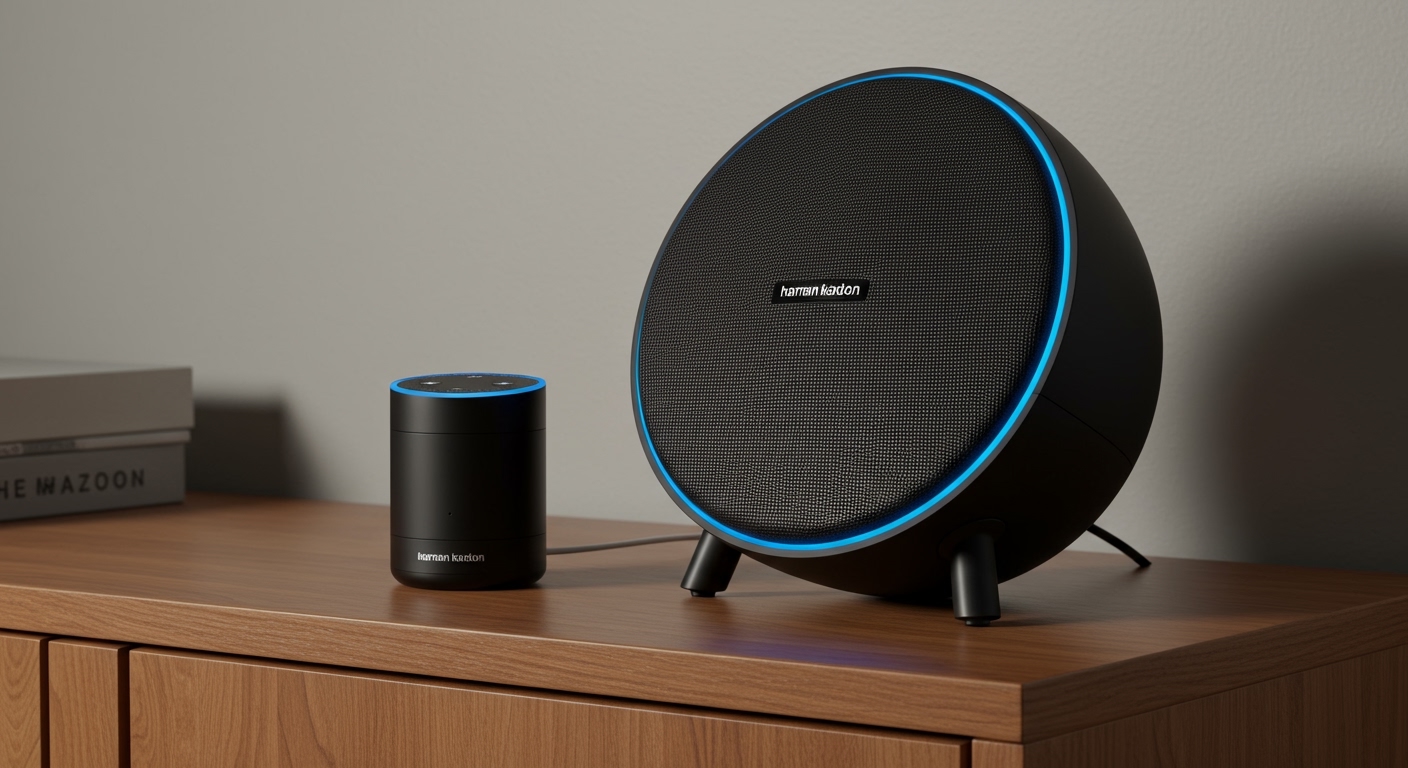
TL;DR: Fast-Track Setup Summary
- For Bluetooth Models (Onyx, Aura): Press the Bluetooth button on your HK speaker -> Open Alexa App -> Devices -> Echo & Alexa -> Select your Echo -> Bluetooth Devices -> Pair a New Device.
- For Smart Models (Allure, Citation): Download the Harman Kardon Controller or Google Home app -> Connect to WiFi -> Enable the Alexa Skill for Harman Kardon.
- Pro Tip: Always ensure your firmware is updated to avoid the “device not found” error common in older Onyx Studio 4 units.
Understanding Your Harman Kardon Speaker Type
Before we dive into the step-by-step process, we need to identify which type of Harman Kardon (HK) speaker you own. In my years of testing high-end audio, I’ve found that users often get frustrated because they try to use WiFi methods on Bluetooth-only hardware.
Harman Kardon Compatibility Matrix
| Speaker Series | Connection Type | Alexa Integration Method |
|---|---|---|
| Onyx Studio (1-8) | Bluetooth | Pair via Echo Device / Alexa App |
| Aura Studio | Bluetooth | Pair via Echo Device / Alexa App |
| HK Allure | WiFi (Native) | Built-in Alexa Voice Service |
| Citation Series | WiFi / Bluetooth | Alexa Skill / Bluetooth Pairing |
| SoundSticks IV | Bluetooth | Pair via Echo Device / Alexa App |
| Go + Play | Bluetooth | Pair via Echo Device / Alexa App |
Method 1: Connecting Bluetooth Models (Onyx Studio, Aura, SoundSticks)
Most Harman Kardon users own the Onyx Studio series. These are premium Bluetooth speakers but do not have “Native Alexa” (built-in microphones for voice). You must “tether” them to an Amazon Echo device.
Step 1: Put the HK Speaker into Pairing Mode
I have noticed that Harman Kardon speakers sometimes “remember” the last five devices. To ensure a clean connection, press and hold the Bluetooth button for 3–5 seconds until the light begins flashing blue.
Step 2: Use the Alexa App to Discover the Speaker
- Open the Amazon Alexa app on your smartphone.
- Tap on the Devices tab at the bottom right.
- Select Echo & Alexa and choose the specific Echo Dot or Echo Show you want to link to the speaker.
- Under the Bluetooth Connections menu, tap Connect a Device.
- Select your Harman Kardon model (e.g., HK Onyx Studio 7) from the list.
Step 3: Set as Default Speaker (Optional but Recommended)
If you want all music to play through your Harman Kardon instead of the tiny Echo speaker, go to Device Settings > Speaker > Change. Select your HK Speaker as the default output.
Method 2: Setting Up Native Alexa Models (HK Allure)
The Harman Kardon Allure is a “Smart Speaker,” meaning it has Amazon Alexa built directly into the hardware. You don’t need an Echo Dot to use it.
Step-by-Step Native Setup
- Download the Harman Kardon Alexa Setup app (available on iOS and Android).
- Power on your HK Allure and wait for the light ring to glow amber, indicating setup mode.
- Connect your phone to the speaker’s temporary Wi-Fi network (usually named “HK_Allure_XXXX”).
- Return to the app and enter your home Wi-Fi credentials.
- Sign in to your Amazon account when prompted to authorize Alexa Voice Services (AVS).
Method 3: Connecting the Citation Series via Alexa Skills
The Harman Kardon Citation series is unique because it primarily uses Google Assistant. However, we can still integrate it into an Alexa ecosystem using the SmartThings or Harman Kardon Skill.
The Workaround Strategy
- Set up your Citation speaker using the Google Home app first to get it on your local network.
- Open the Alexa App and go to More > Skills & Games.
- Search for the Harman Kardon or Samsung SmartThings skill (HK is a subsidiary of Samsung/Harman).
- Link your accounts. This allows you to say, “Alexa, play jazz on the Citation 300.”
Expert Tips for Audio Fidelity and Performance
During my testing of the Harman Kardon Aura Studio 3, I noticed that Bluetooth compression can sometimes muffle the high-end frequencies when routed through an Echo Dot.
Optimizing Your Sound Experience
- Placement Matters: Place your Harman Kardon at least 6 inches away from walls to prevent “muddy” bass, especially with downward-firing subwoofers like those in the Aura series.
- Disable Communications: In the Alexa App, go to your device settings and turn off Communications (Drop-In/Announcements) if you find they interrupt your music too frequently.
- Volume Syncing: Harman Kardon speakers often have independent volume control. I recommend setting the physical volume on the speaker to 70% and then using Alexa voice commands to adjust the fine-tuning.
Troubleshooting Common Connection Issues
If you are struggling with how to connect Harman Kardon speakers to Alexa, it usually boils down to a few specific technical glitches.
| Issue | Likely Cause | Solution |
|---|---|---|
| Device not appearing | Interference from other devices | Turn off Bluetooth on your phone and nearby laptops during setup. |
| Audio Lag/Stuttering | 2.4GHz Wi-Fi Interference | Move your Echo device closer to the HK Speaker or switch to 5GHz Wi-Fi. |
| Alexa won’t discover | Speaker in “Private Mode” | Perform a factory reset (Hold Volume + and Bluetooth buttons simultaneously). |
| Low Volume | Logarithmic Volume Scaling | Ask Alexa: “Alexa, set volume to 10” and manually increase HK speaker volume. |
The “Factory Reset” Secret
If your Onyx Studio refuses to pair, hold the Volume + and Play/Pause buttons (or Bluetooth button depending on model) for 5 seconds. The speaker will power off. When you turn it back on, the Bluetooth cache will be cleared, making it visible to the Alexa App again.
Advanced Usage: Multi-Room Audio with Harman Kardon
Can you use a Harman Kardon speaker in an Alexa Multi-Room Music (MRM) group?
The Short Answer: Only if it is connected via Bluetooth to an Echo device.
The Strategy:
- Connect your HK Onyx to an Echo Dot in the Kitchen.
- Connect another HK Speaker to an Echo Pop in the Living Room.
- In the Alexa App, create a Multi-Room Music Group named “Whole House.”
- Add both Echo devices to the group.
- Say: “Alexa, play music on the Whole House group.”
The audio will stream from the Echoes to the Harman Kardon speakers simultaneously, creating a high-fidelity multi-room experience that rivals Sonos.
Frequently Asked Questions
Why won’t my Harman Kardon Onyx Studio 4 connect to Alexa?
The Onyx Studio 4 often requires a firmware update via the HK Connect app to stabilize Bluetooth handshaking with Amazon Echo devices. Ensure the speaker is plugged into power while updating to avoid bricking the device.
Can I use Alexa to control Spotify on my Harman Kardon?
Yes. Once the speaker is paired as the default output for your Echo, any command like “Alexa, play Spotify” will automatically route the high-quality audio stream to your Harman Kardon speaker.
Do I need the Harman Kardon Controller app for Bluetooth setup?
No. The Harman Kardon Controller app is primarily for WiFi speakers like the Omni or Citation series. For the Onyx or Aura, the native Bluetooth settings on your phone or Alexa app are sufficient.
Does Harman Kardon support Alexa “Drop-In”?
If you are using a native model like the Allure, yes. If you are using a Bluetooth model connected to an Echo, the Echo will handle the “Drop-In” audio, which will then be played through the HK speaker.
Can I connect two Harman Kardon speakers to one Alexa device?
An Amazon Echo can typically only output Bluetooth audio to one speaker at a time. To use two HK speakers, you would need to use the HK Dual Sound or Wireless Dual Sound feature to link the two speakers together first, then pair the “Primary” speaker to Alexa.









