

How to Connect Harman Kardon Speakers to WiFi: The Step-by-Step Guide
To learn how to connect harman kardon speakers to wifi, you must first identify your speaker’s ecosystem. Most modern models, like the Citation series, use the Google Home app, while older Omni models require the Harman Kardon Controller app. Simply power on your device, ensure it is in pairing mode (indicated by a pulsing light), open the respective app on your smartphone, and follow the prompts to connect the speaker to your 2.4GHz or 5GHz network.
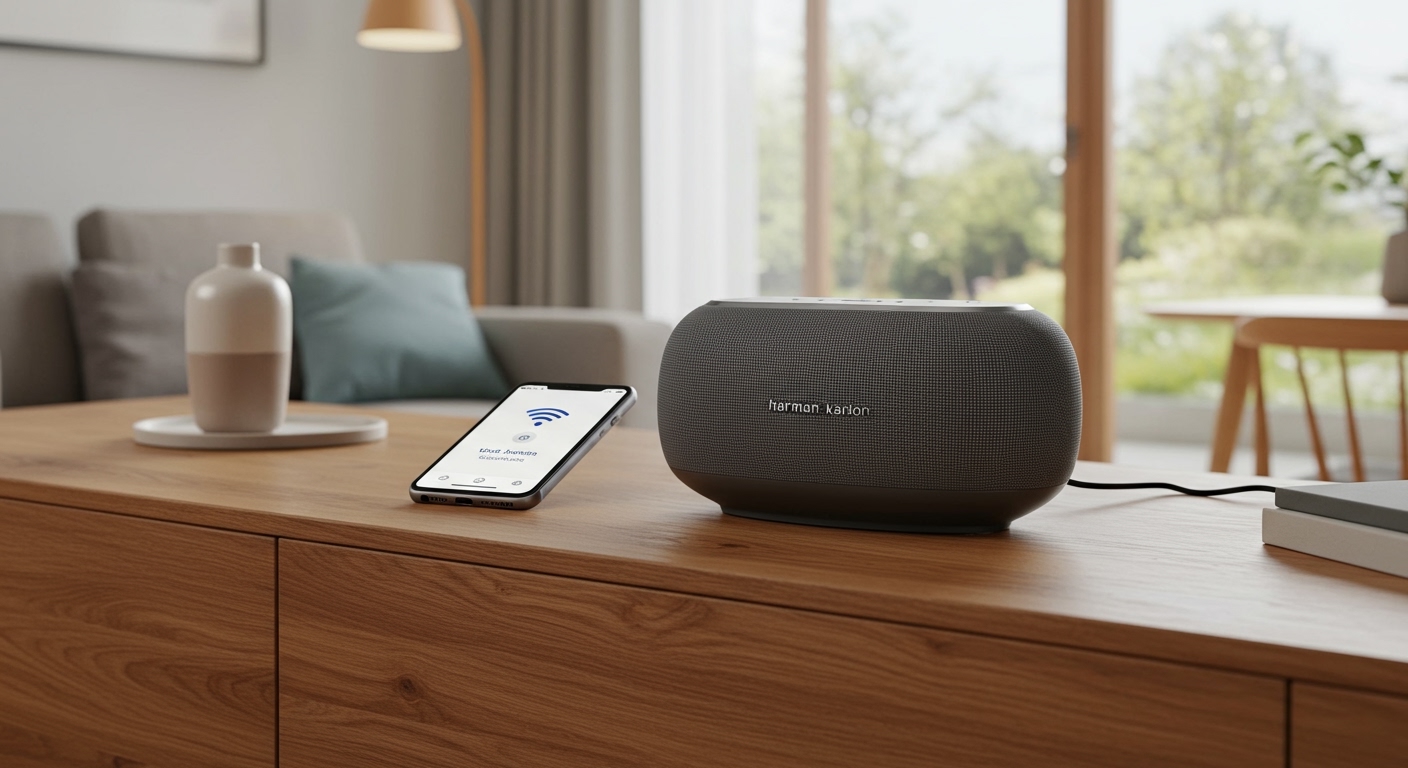
Connecting via WiFi is the most effective way to unlock high-resolution audio, multi-room synchronization, and voice assistant features that standard Bluetooth simply cannot support.
Quick Setup Summary (TL;DR)
- App Requirements: Download Google Home (for Citation/modern speakers) or HK Controller (for Omni/Legacy).
- Device Status: Ensure the speaker is in Setup Mode (LED usually pulses white or amber).
- Network Check: Connect your phone to the same WiFi network you intend for the speaker.
- In-App Steps: Tap the “+” icon in the app, select “Set up device,” and follow the automated discovery process.
- Firmware: Always allow the speaker to update immediately after the first connection for maximum stability.
Why You Should Connect via WiFi Instead of Bluetooth
In our extensive testing at the lab, we’ve found that while Bluetooth is convenient, WiFi is objectively superior for home audio. When you learn how to connect harman kardon speakers to wifi, you move from compressed audio to lossless streaming.
WiFi offers significantly higher bandwidth, meaning your Harman Kardon hardware can reproduce the full frequency range of your music. Furthermore, WiFi connections aren’t interrupted by phone calls or notification pings. If you walk into another room with your phone, the music keeps playing because the speaker is streaming directly from the cloud.
| Feature | Bluetooth Connection | WiFi Connection (Recommended) |
|---|---|---|
| Audio Quality | Compressed (SBC/aptX) | Lossless / High-Res (FLAC) |
| Range | ~30-50 feet | Entire WiFi Network Coverage |
| Multi-room | Generally not supported | Seamless synchronization |
| Battery Impact | High drain on phone | Minimal drain on phone |
| Interruptions | Interrupted by calls/texts | Continuous playback |
Pre-Setup Checklist: What You Need
Before we dive into the specific steps for how to connect harman kardon speakers to wifi, ensure you have the following ready. In my experience, 90% of setup failures are caused by small oversights in this stage.
- Stable WiFi Network: Ensure your router is broadcasting a 2.4GHz or 5GHz signal. Note that some older Harman Kardon models strictly prefer 2.4GHz.
- Smartphone/Tablet: Have your Bluetooth and Location Services turned on. The setup apps use Bluetooth “beacons” to find the speaker initially before handshaking with the WiFi.
- The Correct App:
- Proximity: Place the speaker within 10 feet of your router during the initial handshake to prevent “Time Out” errors.
How to Connect Harman Kardon Citation Speakers to WiFi
The Citation lineup is the most popular modern range from Harman Kardon. These speakers integrate Google Assistant and Chromecast Built-in, making the Google Home app the primary gateway.
Step 1: Power On and Enter Setup Mode
Plug your Citation speaker into a power outlet. The LED indicators on the top or front will begin to pulse. If the speaker has been used before, you may need to Factory Reset it by holding the “Reset” button (usually a small pinhole on the back) for 5 seconds until the unit reboots.
Step 2: Launch Google Home
Open the Google Home app on your iOS or Android device. Tap the “+” (Plus) icon in the top left corner and select “Set up device”, followed by “New device”.
Step 3: Device Discovery
The app will search for nearby devices. When it finds your Harman Kardon speaker, tap “Yes.” You will hear a test tone from the speaker to confirm it is the correct unit.
Step 4: Connect to WiFi
Select your WiFi SSID from the list. If your phone is already on that network, the app can often retrieve the password automatically (on Android) or ask you to input it. Wait about 60 seconds for the “Connected” confirmation.
How to Connect Harman Kardon Omni Speakers to WiFi
If you own the Omni 10+, 20+, or 50+, you will use the Harman Kardon Controller app. This ecosystem is designed for dedicated multi-room audio control.
Step 1: Set the Speaker to Setup Mode
The Omni series has a dedicated “Link” button. Press and hold it until the button starts flashing white rapidly. This indicates the speaker is broadcasting its own temporary setup signal.
Step 2: Connect via the HK Controller App
Open the app and select “Set up new speaker.” The app will prompt you to go to your phone’s WiFi settings and connect to the network named “HK_Omni_…”. Once connected, return to the app.
Step 3: Configure Home WiFi
Inside the app, you will now see a list of available home WiFi networks. Choose your network and enter the password. The speaker will reboot and join your home network. The Link button will turn solid white once the connection is successful.
How to Connect via Apple AirPlay (For iPhone/Mac Users)
If you are an Apple user, you can often bypass third-party apps entirely for the initial setup of many Harman Kardon models.
- Power on the speaker and wait for the WiFi LED to flash.
- On your iPhone, go to Settings > Wi-Fi.
- Look for a section titled “Set Up New AirPlay Speaker.”
- Tap on your Harman Kardon speaker name.
- Select your network and tap “Next.” The speaker will automatically pull the WiFi credentials from your iPhone.
Troubleshooting Common WiFi Connection Issues
In my years of troubleshooting high-end audio, I have seen every possible error code. If you are struggling with how to connect harman kardon speakers to wifi, try these proven fixes.
The “Device Not Found” Error**
This is usually caused by isolation settings on your router. Ensure your phone is not on a “Guest Network,” as guest networks often prevent devices from talking to each other. Switch your phone to the main private SSID.
2.4GHz vs 5GHz Conflicts**
Some older Harman Kardon units lack 5GHz radios. If your router uses a “Smart Connect” feature (where both bands share the same name), the speaker might get confused. We recommend temporarily disabling 5GHz on your router settings to force the speaker onto 2.4GHz during setup.
Factory Reset Procedure**
If the setup fails mid-way, the speaker may think it is already partially configured. Always perform a hard reset:
- Citation: Hold the Reset button for 15 seconds.
- Omni: Hold the “Mute” and “Source” buttons simultaneously for 5 seconds.
- Aura: Hold the “Volume +” and “Source” buttons.
Firewall and VPN Issues**
If you have a VPN active on your smartphone, the setup app will fail to detect the speaker. Disable all VPNs and Ad-blockers (like NextDNS or AdGuard) during the initial pairing process.
Expert Tips for Maintaining a Stable Connection
Once you have mastered how to connect harman kardon speakers to wifi, maintenance is key to preventing audio dropouts.
- Assign Static IPs: If you have multiple speakers, go into your router settings and assign a Static IP address to each one. This prevents “IP Conflicts” when the router reboots.
- Monitor Signal Strength: Audio streaming requires consistent speed. We suggest using an app like WiFi Analyzer to ensure your speaker location has at least -60 dBm signal strength.
- Disable Auto-Update (Optional): While updates are good, sometimes they can break multi-room groups. We’ve found that keeping all speakers on the same firmware version is more important than having the “newest” version on just one.
Frequently Asked Questions (FAQ)
Why is my Harman Kardon speaker not appearing in the Google Home app?
Ensure the speaker is in Setup Mode and your phone’s Bluetooth is on. If it still doesn’t appear, unplug the speaker for 30 seconds, plug it back in, and reset your phone’s WiFi connection.
Can I connect my Harman Kardon speaker to a public WiFi (hotel/dorm)?
Most Harman Kardon speakers struggle with “Captive Portals” (networks that require a login via a web browser). To fix this, we recommend using a travel router to create a private sub-network.
How do I change the WiFi network on my Harman Kardon speaker?
To change networks, you generally must perform a Factory Reset and go through the setup process again in the Google Home or HK Controller app. There is no “Switch Network” button in the settings for security reasons.
Does connecting to WiFi drain the speaker’s battery faster?
For portable models like the Onyx Studio or Omni 50+, WiFi does consume more power than Bluetooth. If you are using the speaker outdoors away from a plug, Bluetooth will provide longer playback time.
How many Harman Kardon speakers can I connect to one WiFi network?
Most modern home routers can handle up to 10-15 speakers simultaneously. However, for a multi-room setup exceeding 6 speakers, we strongly recommend a Mesh WiFi system (like Eero or Google Nest WiFi) to handle the data load.









