

Essential Equipment for Your PreSonus Setup
To learn how to connect PreSonus speakers effectively, you must first identify the specific inputs available on your model. Most PreSonus Eris and Studio series monitors offer three main connection types: XLR, 1/4” TRS (Balanced), and RCA (Unbalanced).
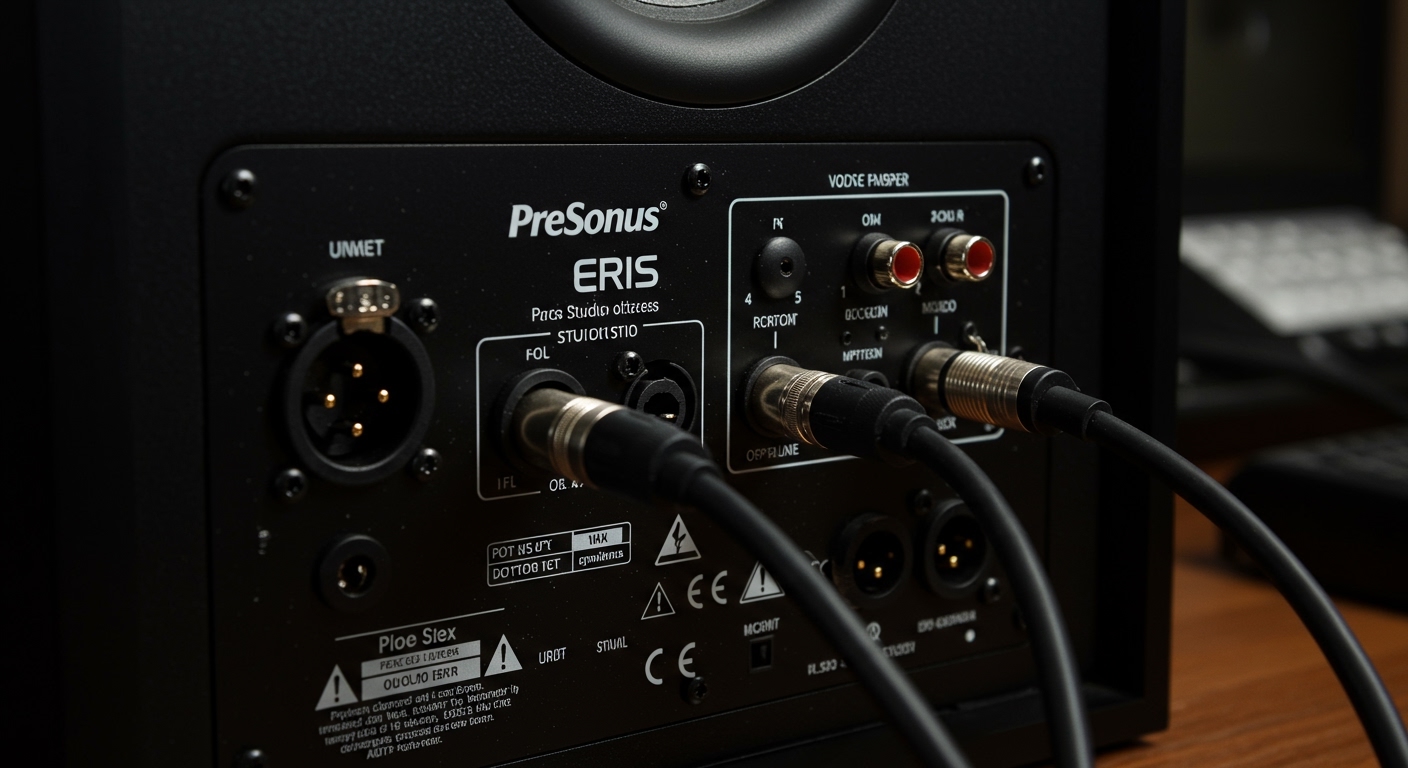
During my years of setting up home studios, I’ve found that using balanced cables (XLR or TRS) is non-negotiable if you want to eliminate the annoying “hum” caused by electrical interference. If you are using smaller desktop models like the Eris E3.5 or E4.5, you might also use a 3.5mm-to-RCA cable to connect directly to a computer’s headphone jack.
Understanding Cable Types
| Cable Type | Signal Type | Best For | Connection Quality |
|---|---|---|---|
| XLR | Balanced | Professional Audio Interfaces | Excellent (Low Noise) |
| 1/4″ TRS | Balanced | Studio Monitors/Interfaces | Excellent (Low Noise) |
| RCA | Unbalanced | Consumer Gear / Turntables | Good (Short distances) |
| 3.5mm TRS | Unbalanced | Phones / Laptops | Standard |
How to Connect PreSonus Speakers: A Step-by-Step Guide
The process of how to connect PreSonus speakers involves more than just plugging in wires; it requires a specific power-on sequence to protect your hardware. I always recommend the “last on, first off” rule: your speakers should be the last thing you turn on and the first thing you turn off.
Step 1: Physical Cable Connection
Start by connecting your audio source (such as a PreSonus AudioBox or Focusrite Scarlett) to the back of your monitors. If you are using the Eris series, plug the left and right outputs of your interface into the corresponding inputs on the speakers.
Step 2: Set Gain Stages
Before flipping the power switch, ensure the Volume/Gain knob on the back of the PreSonus speakers is turned all the way down. This prevents a sudden burst of sound from damaging the drivers or your ears.
Step 3: Powering Up
- Turn on your computer and audio interface.
- Ensure your interface volume is at zero.
- Flip the power switch on the PreSonus monitors.
- Slowly increase the volume on both the interface and the speakers until you reach a comfortable listening level.
How to Connect PreSonus Speakers to a PC or Mac
If you don’t have an external audio interface, you can still learn how to connect PreSonus speakers directly to your computer. This is common for users of the Eris E3.5 BT or E4.5 models.
Using a 3.5mm to RCA Cable
For most computers, you will use a 1/8” (3.5mm) TRS to Dual RCA cable. Plug the 3.5mm end into your computer’s green headphone output and the red/white RCA ends into the back of the “Active” (powered) speaker.
Using a USB-C to 1/4″ Interface
For professional results, we recommend using a PreSonus Revelator or AudioBox GO.
- Connect the interface via USB to your Mac or PC.
- Connect two 1/4″ TRS cables from the interface outputs to the PreSonus speaker inputs.
- Select the interface as your “Output Device” in your OS Sound Settings.
Connecting Active vs. Passive PreSonus Monitors
It is vital to understand that in many PreSonus Eris pairs, one speaker is “Active” (contains the amplifier) and the other is “Passive.”
How to connect PreSonus speakers in this configuration:
- Locate the speaker wire terminals on the back of both units.
- Strip about 1/2 inch of insulation off the provided speaker wire.
- Match the Red (+) and Black (-) terminals from the active speaker to the passive speaker.
- Ensure no stray wire strands are touching other terminals, as this can cause a short circuit.
Integrating a PreSonus Temblor Subwoofer
Adding a PreSonus Temblor T8 or T10 subwoofer changes the wiring signal path. Instead of going from the interface to the speakers, the signal goes to the subwoofer first.
- Interface to Sub: Run cables from your audio interface outputs to the Subwoofer Inputs.
- Sub to Monitors: Run a second set of cables from the Subwoofer Outputs to your PreSonus Eris or Studio monitors.
- Crossover Settings: Set the High Pass Filter on the sub to roughly 80Hz. This allows the subwoofer to handle the “thump” while your main speakers handle the “clarity.”
Wireless Connectivity: Pairing Bluetooth Models
Many modern PreSonus models, like the Eris 3.5BT, feature wireless capabilities.
How to Pair Bluetooth:
- Turn on your PreSonus speakers.
- Press and hold the Pair button on the back (or front, depending on the model) until the indicator light flashes.
- Open the Bluetooth settings on your phone or laptop.
- Select “Eris 3.5 BT” or your specific model from the list.
- Once paired, the light will turn solid, and you can stream audio wirelessly.
Expert Note: While Bluetooth is convenient, it introduces “latency” (lag). I never use Bluetooth for video editing or music production; stick to wired connections for those tasks to keep audio in sync.
Calibration and Room Correction Techniques
Once you know how to connect PreSonus speakers, you must calibrate them for your room. PreSonus provides “Acoustic Tuning” controls on the back of many models to help with this.
- Acoustic Space: If your speakers are against a wall or in a corner, set this to -2dB or -4dB. This reduces the “boomy” bass buildup caused by walls.
- High Frequency (HF): If your room has many hard surfaces (glass, wood), you might need to drop this by -2dB to reduce harshness.
- Low Frequency (LF): Use this to roll off the bass if you are using a subwoofer.
Ideal Speaker Placement (The Triangle Rule)
To get the most out of your PreSonus setup, place your speakers so they form an equilateral triangle with your head. The tweeters (the small top speakers) should be at the same height as your ears.
Troubleshooting Common Connection Issues
Sometimes, even when you follow the steps for how to connect PreSonus speakers, things go wrong. Here is a quick troubleshooting guide based on common user errors we’ve encountered.
| Issue | Potential Cause | Solution |
|---|---|---|
| No Sound | Wrong Input Selected | Check if you are plugged into the “In” rather than “Out” ports. |
| Loud Humming | Ground Loop | Ensure speakers and computer are on the same power strip; use balanced cables. |
| One Speaker Quiet | Bad Speaker Wire | Check the red/black wire connections between active and passive units. |
| Distorted Audio | Gain Clipping | Lower the volume on the back of the speaker and increase it on the interface. |
| Bluetooth Dropping | Interference | Move Wi-Fi routers or large metal objects away from the speakers. |
Frequently Asked Questions
Can I connect PreSonus speakers directly to my TV?
Yes. If your TV has an RCA output or a 3.5mm headphone jack, you can use the corresponding cables to connect to the PreSonus Eris series. For TVs with only Optical (Toslink) out, you will need a Digital-to-Analog Converter (DAC).
Do I need an amplifier for PreSonus speakers?
Most PreSonus Eris and Studio monitors are “active,” meaning the amplifier is built-in. You do not need an external amp. However, if you have the older Eris 4.5 Passive version, you will need a separate power amplifier.
Why is there a delay when using Bluetooth?
Bluetooth technology compresses audio and transmits it over airwaves, which takes time. This is called latency. For gaming or music creation, we always recommend a wired TRS or XLR connection to eliminate this delay.
What is the best cable for PreSonus Eris 3.5?
For the best sound quality on a budget, use a Dual RCA to 3.5mm cable to connect to a laptop, or Balanced 1/4″ TRS cables if connecting to an audio interface.









