

How to Connect Sound Card to Speakers: A Step-by-Step Guide
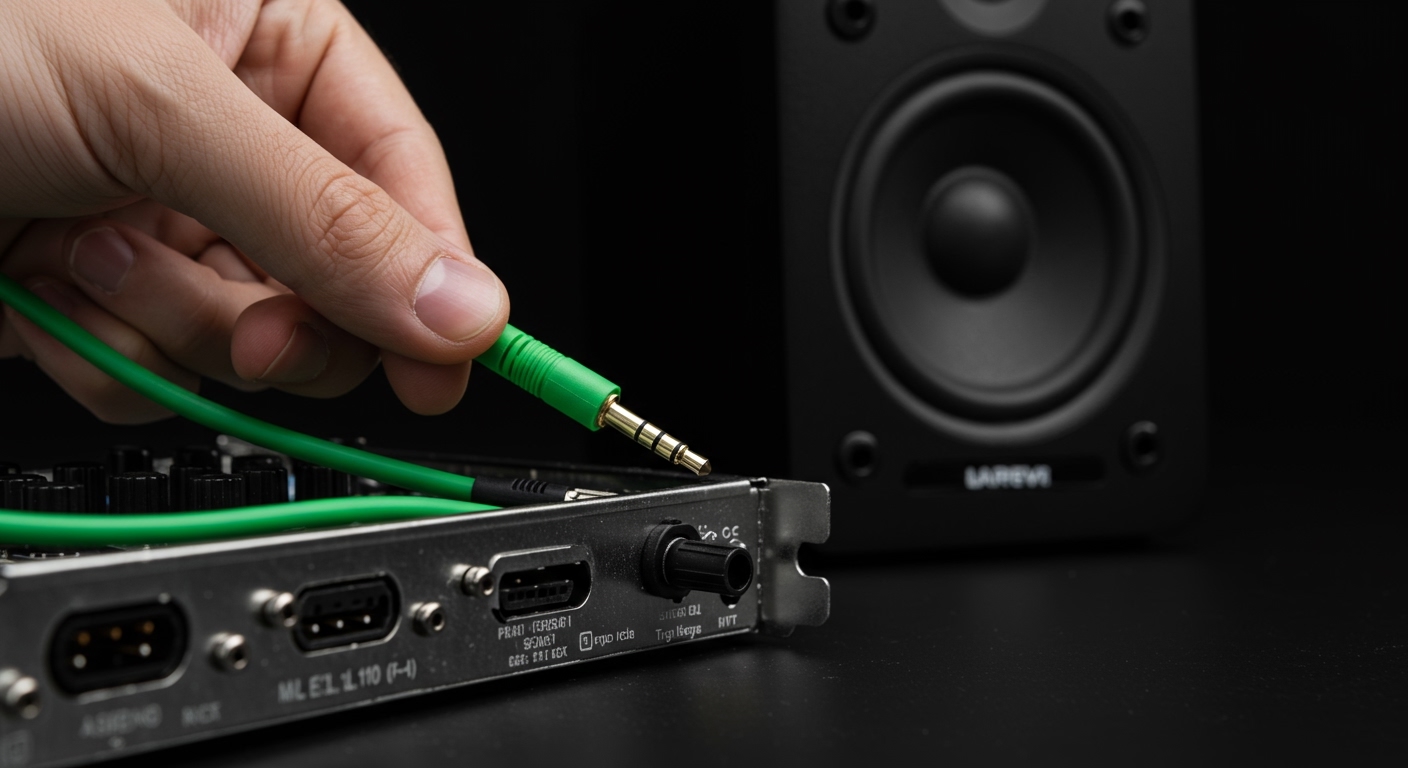
To connect a sound card to speakers, insert the 3.5mm TRS cable into the green Line Out port on your sound card and the corresponding Input jack on your speakers. If you are using a professional external sound card, you will likely use balanced XLR or 1/4-inch TRS cables to bridge the connection before selecting the device as your Default Playback Device in your computer’s sound settings.
Setting up high-quality audio can be frustrating when you encounter ground loops, static hiss, or a complete lack of signal. Whether you are a gamer looking for positional accuracy or a budding producer needing transparent playback, getting the physical connection right is the first step toward acoustic clarity. In my experience building custom workstations for over a decade, the difference between “okay” sound and “studio-grade” audio often comes down to the quality of the cables and the configuration of the digital-to-analog converter (DAC).
🚀 Key Takeaways: Sound Card Setup
- Identify Your Ports: Standard PC sound cards use 3.5mm color-coded jacks (Green = Front Speakers).
- External Interfaces: Pro-sumer external cards (USB) use RCA or Balanced TRS outputs for better noise rejection.
- Driver Power: Always install the manufacturer’s ASIO drivers for the lowest latency and best frequency response.
- Power Sequence: Always turn your speakers ON last and OFF first to avoid “pop” damage to the tweeters.
Understanding Your Hardware: Internal vs. External
Before learning how to connect sound card to speakers, you must identify which type of hardware you own. Each requires a slightly different physical approach.
Internal PCIe Sound Cards
These are installed directly into your motherboard’s PCIe slots. They are excellent for saving desk space and often feature high-end Op-Amps for driving high-impedance headphones.
- Best for: Competitive gaming and internal PC builds.
- Key Challenge: Potential EMI (Electromagnetic Interference) from the GPU.
External USB Sound Cards (Audio Interfaces)
These sit on your desk and connect via USB-A or USB-C. In my studio, I prefer these because they move the sensitive audio components away from the “noisy” electrical environment inside the PC case.
- Best for: Content creation, music production, and high-fidelity listening.
- Key Challenge: Requires dedicated desk real estate.
| Feature | Internal (PCIe) | External (USB/Bolt) |
|---|---|---|
| Connection Type | PCIe Slot | USB / Thunderbolt |
| Common Outputs | 3.5mm Jacks / Optical | XLR / 1/4″ TRS / RCA |
| Noise Floor | Moderate (Internal EMI) | Very Low (Isolated) |
| Portability | None | High |
Preparation: Tools and Cables You Will Need
To successfully how to connect sound card to speakers, gather these essential components:
- The Sound Card: (e.g., Creative Sound Blaster, Focusrite Scarlett, or ASUS Essence).
- The Speakers: (Active/Powered speakers are most common for PC setups).
- The Cables:
- Anti-Static Wrist Strap: Highly recommended if you are installing an internal card.
Step 1: Physical Installation (Internal Cards Only)
If you have an external USB card, skip to Step 2. For an internal PCIe sound card, follow these steps:
- Power Down: Turn off your PC and unplug the power cable. Press the power button once more to discharge any remaining electricity.
- Open the Case: Remove the side panel of your computer tower.
- Locate the Slot: Find an empty PCIe x1 or x4 slot.
- Insert the Card: Align the card’s gold contacts with the slot and press down firmly until it clicks.
- Secure it: Use a screw to fasten the card’s bracket to the PC chassis.
Step 2: How to Connect Sound Card to Speakers (The Wiring)
This is the core of the process. Depending on your speaker type, use one of the following methods.
Method A: Standard Multimedia Speakers (3.5mm)
Most consumer speakers (like Logitech or Creative sets) use a single 3.5mm jack.
- Locate the Green Port on the back of your sound card. This is labeled as Front Left/Right or Line Out.
- Plug the cable from your speakers into this port.
- Pro Tip: If you have a 5.1 system, you must also connect the Orange (Center/Sub) and Black (Rear) cables to their matching colored ports.
Method B: Studio Monitors (TRS or XLR)
If you are using professional monitors like KRK Rokits or Yamaha HS series, you will likely use an external sound card.
- Use two Balanced TRS cables.
- Plug one into “Output 1 (Left)” and the other into “Output 2 (Right)” on the back of the interface.
- Connect the other ends to the inputs on the back of each respective speaker.
- Why Balanced? Balanced cables (TRS/XLR) use a three-conductor system to cancel out hum and noise picked up along the cable run.
Method C: Digital Connection (Optical/TOSLINK)
For high-end home theater receivers:
- Use an Optical (S/PDIF) cable.
- Remove the plastic caps from the cable ends.
- Plug one end into the Optical Out on the sound card and the other into the Optical In on your receiver.
Step 3: Software Configuration and Driver Setup
The hardware is connected, but your computer needs to know how to talk to it.
- Download Drivers: Avoid using the generic Windows drivers. Go to the manufacturer’s website (e.g., Focusrite, Creative, or Universal Audio) and download the latest software suite.
- Install and Reboot: Follow the prompts and restart your computer to initialize the Audio Engine.
- Set Default Device:
- Configure Sample Rate:
Troubleshooting Common Sound Card Issues
Even with a perfect setup, you might run into “silence.” Here is how I troubleshoot these issues in the field:
- No Sound at All: Check the Volume Mixer. Ensure neither the application nor the master volume is muted. Verify that the speakers are plugged into a power outlet and turned on.
- Crackling or Popping: This is often caused by a Buffer Size that is too low in your driver settings. Increase the buffer to 256 or 512 samples.
- The “Hum” (Ground Loop): If you hear a low-frequency hum, your PC and speakers might be on different electrical circuits. Try plugging them into the same high-quality power strip.
- Device Not Recognized: Try a different USB port (for external cards) or reseat the PCIe card (for internal ones). Ensure BIOS/UEFI hasn’t disabled onboard audio if you intend to use it alongside your card.
Optimizing Your Audio Experience
Once you have mastered how to connect sound card to speakers, you can fine-tune the output for maximum fidelity.
- Disable Enhancements: In Windows Sound settings, I always recommend checking “Disable all enhancements.” These often add artificial EQ that “muddies” the original recording.
- Speaker Placement: Place your speakers so the tweeters are at ear level. Form an equilateral triangle between the two speakers and your head for the best “stereo image.”
- Use ASIO Drivers: For music production, use ASIO4ALL or the manufacturer’s native ASIO driver. This bypasses the Windows sound mixer, significantly reducing latency (the delay between clicking play and hearing sound).
Frequently Asked Questions
Can I connect my sound card to passive speakers?
No, you cannot connect a sound card directly to passive speakers. Sound cards provide a “Line Level” signal which is too weak to move large speaker cones. You must connect the sound card to an amplifier or receiver, which then connects to the passive speakers.
Why does my sound card have so many colored ports?
These are for Surround Sound (5.1 or 7.1).
- Green: Front speakers/Headphones.
- Pink: Microphone.
- Blue: Line In (for recording external gear).
- Orange: Center and Subwoofer.
- Black: Rear Surround.
Do I need a sound card if my motherboard has one?
While most modern motherboards have decent audio, a dedicated sound card or external interface provides a lower noise floor, better shielding, and higher quality digital-to-analog conversion. If you are using high-end headphones or studio monitors, a dedicated card is a significant upgrade.
What cable do I need to connect a sound card to a home stereo?
You typically need a 3.5mm to Dual RCA Y-Cable. The 3.5mm end goes into the sound card’s green port, and the Red/White RCA ends go into the “Aux” or “CD” input on your stereo receiver.









