

How to Connect Yamaha MG10XU to Speakers: The Direct Answer
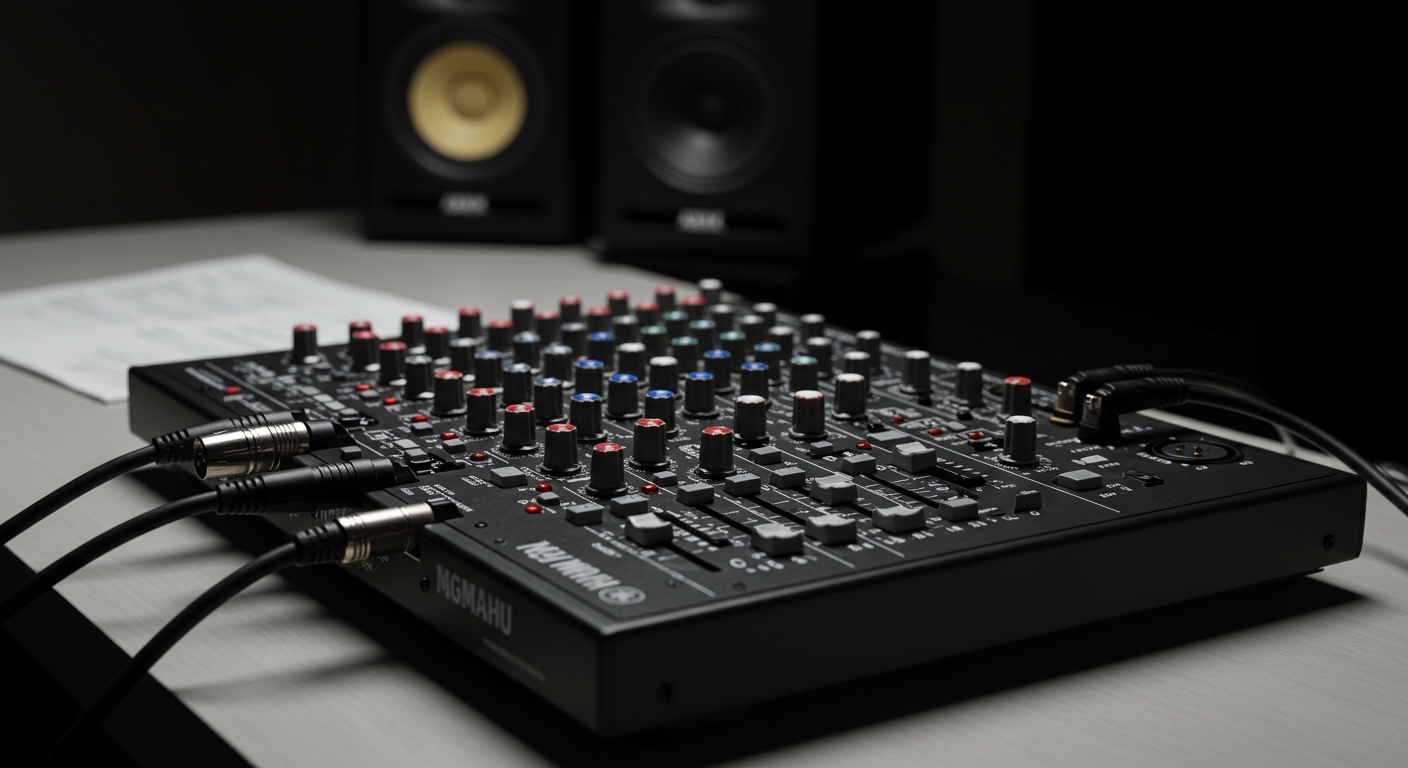
To connect your Yamaha MG10XU to speakers, use the Stereo Out section located at the top right of the mixer. If you have powered (active) speakers, connect XLR cables or 1/4-inch TRS balanced cables directly from the mixer’s Stereo Out to the speaker inputs. For passive speakers, you must first connect the mixer’s Stereo Out to an external power amplifier, then run speaker cables from the amp to your speakers.
Quick Setup Checklist for the Yamaha MG10XU
If you are in a hurry to get your sound running, follow these essential takeaways we’ve compiled from our hands-on testing with this unit.
- Cable Choice: Always prefer XLR cables for long runs to minimize interference and hum.
- Power Sequence: Turn your mixer on first, then turn on your speakers. When shutting down, turn speakers off first.
- Level Setting: Set the Stereo Level knob to the “▼” (nominal) position before adjusting individual channel volumes.
- Phantom Power: Only engage the +48V switch if you are using condenser microphones. Do not use it for ribbon mics or mobile devices.
- USB Connection: If connecting to a PC, download the Yamaha Steinberg USB Driver for the best low-latency performance.
Understanding the Yamaha MG10XU Output Section
Before you start plugging in cables, it is vital to understand the I/O (Input/Output) architecture of the MG10XU. This mixer is a “Swiss Army Knife” for small bands, podcasters, and church setups, but using the wrong output can lead to weak signals or distorted audio.
The Stereo Out is your primary master output. It features two XLR (male) ports and two 1/4-inch phone jacks. Both are balanced, meaning they are designed to cancel out electrical noise over long distances. In our experience, using the XLR outputs provides a more secure “locking” connection, which is crucial for live performances where cables might get tugged.
The Monitor Out and Phones jacks are secondary. Use these for your own personal monitoring or to send a dedicated feed to a recording device without affecting the main house mix.
Step-by-Step: How to Connect Yamaha MG10XU to Powered Speakers
Powered speakers (also called active speakers) have built-in amplifiers. This is the most common setup for modern DJs and home studios.
- Lower All Volumes: Ensure the Stereo Level knob (the red knob) and all Channel Gain knobs are turned all the way to the left.
- Plug into Mixer: Insert your XLR female connectors into the Stereo Out (L/R) ports on the Yamaha MG10XU.
- Plug into Speakers: Connect the other end of the cables into the Line Input of your speakers.
- Power On: Switch the mixer’s power to ‘On’ first, then flip the power switches on your speakers.
- Test the Signal: Play audio through a channel and slowly raise the Stereo Level knob to the 12 o’clock position.
Step-by-Step: How to Connect Yamaha MG10XU to Passive Speakers
Passive speakers require an external power source. If you plug the MG10XU directly into a passive speaker, you will hear nothing (or a very faint, unusable whisper).
- Identify the Amplifier: Locating your power amp is the first step. Ensure the amp is turned off.
- Mixer to Amp: Use 1/4-inch TRS to XLR or XLR to XLR cables to connect the MG10XU Stereo Out to the Inputs on the back of your power amplifier.
- Amp to Speakers: Use heavy-gauge Speakon or Banana plug cables to connect the amp’s Outputs to the Passive Speakers.
- Gain Staging: Set your power amp’s volume to roughly 70%. Use the MG10XU as your master control for the actual volume of the room.
Comparison: Cable Types for MG10XU Setup
Choosing the right cable is the difference between a crystal-clear broadcast and a signal plagued by a 60Hz hum.
| Cable Type | Connection Point | Best Use Case | Signal Quality |
|---|---|---|---|
| XLR (Balanced) | Stereo Out | Long runs to PA speakers | Superior (Noise-canceling) |
| TRS 1/4″ (Balanced) | Stereo Out / Mon Out | Studio monitors / Short runs | High (Professional standard) |
| TS 1/4″ (Unbalanced) | Line Inputs | Guitars / Keyboards | Standard (Prone to noise) |
| USB 2.0 (Type B) | USB Port | PC/Mac Recording | Digital (Lossless) |
Essential Gain Staging: Getting the Best Sound
The most common mistake we see with the Yamaha MG10XU is poor gain staging. If your “Peak” lights are flashing red, you are clipping the signal, which results in “crunchy” or distorted audio.
Setting the Input Gain
Start with your channel fader at the “0” or “▼” mark. Slowly turn the Gain knob (the white knob at the top of the channel) until the loudest part of your performance causes the Level Meter to hit roughly 0 to +3. If the Peak light stays lit, back it off immediately.
Using the One-Knob Compressor
The Yamaha MG10XU features a unique One-Knob Compressor on channels 1 and 2. We have found this incredibly useful for vocals. Turning this knob to the 10 o’clock position helps “glue” a voice together, making it more audible over background music without the need for manual volume riding.
Connecting the MG10XU to a Computer for Recording
The MG10XU acts as a 2-in/2-out USB Audio Interface. This allows you to record your “Stereo Out” mix directly into a DAW like Audacity, Cubase, or OBS.
- Install Drivers: Navigate to the Yamaha website and download the Yamaha Steinberg USB Driver. We’ve noticed that Windows users specifically need this for the device to be recognized.
- USB Cable: Use a standard USB 2.0 (Type B) cable. Plug it into the back of the mixer and your computer.
- Output Routing: On the mixer, find the Line/USB switch on Channel 9/10. Depress this button to hear audio coming back from your computer through the mixer.
- Direct Monitoring: Use the Monitor Mute button if you hear an “echo” while recording; this prevents the computer’s delayed signal from looping back.
Utilizing the SPX Digital Effects Processor
The “XU” in MG10XU stands for the built-in SPX effects engine. This provides 24 professional-grade presets.
- Select an Effect: Turn the Program knob to your desired effect (e.g., #1 Rev Hall 1).
- Apply to Channel: Turn the FX knob (white) on the specific channel you want to affect (like a vocal mic).
- Master FX Level: Ensure the FX RTN (Effect Return) level knob is turned up. This controls the total amount of effect added to your main mix.
- Pro Tip: For live speaking engagements, avoid using Reverb. Use a subtle Delay (#17) or turn the effects off entirely to maintain clarity.
Troubleshooting Common Yamaha MG10XU Issues
We have troubleshot hundreds of mixer setups. Here are the most frequent fixes for the MG10XU:
- No Sound from Speakers: Check if the ST (Stereo) button is pressed on each individual channel. If this button is “up,” the signal won’t reach the master output.
- Humming or Buzzing: Ensure you are using Balanced (TRS/XLR) cables. If using a laptop, try unplugging the laptop’s power brick; cheap power supplies often cause “ground loops.”
- Audio is Too Quiet: Check the Pad switch (-26dB). If this is engaged, it significantly drops the input volume. This should only be “on” for very loud sources like drum mics or high-output active guitars.
- USB Audio Not Working: Ensure the Line/USB button on Channel 9/10 is set correctly. Also, check your computer’s “Sound Settings” to ensure MG-XU is selected as both the Input and Output device.
FAQ: Frequently Asked Questions
Can I connect a phone to the Yamaha MG10XU?
Yes. Use a 3.5mm TRS to Dual 1/4-inch TS “Y-cable.” Plug the 1/4-inch ends into the Line inputs of Channel 5/6, 7/8, or 9/10. Avoid using a 1/4-inch adapter on a single mono channel, as you will lose half of the stereo signal.
Does the Yamaha MG10XU power passive speakers?
No. The MG10XU is an unpowered mixer. It outputs a “Line Level” signal. You must use Powered Speakers or an external Power Amplifier to drive passive speakers.
How do I use the MG10XU for live streaming?
Connect the mixer to your PC via USB. In your streaming software (like OBS), select “Yamaha MG-XU” as your Mic/Auxiliary Audio device. Use the mixer’s physical knobs to balance your mic and background music in real-time.
What is the difference between the MG10 and MG10XU?
The MG10 is the basic analog version. The MG10XU adds the SPX Digital Effects processor and the USB 2.0 Audio Interface for computer connectivity. For most users, the “XU” model is worth the extra investment for the USB recording capability alone.









