

How to Control External Speakers with TV Remote via HDMI-CEC
To how to control external speakers with tv remote, the most effective method is enabling HDMI-CEC (Consumer Electronics Control) through the HDMI ARC or eARC port. Simply connect your soundbar or receiver to the TV’s designated ARC port using a High-Speed HDMI cable, then navigate to your TV’s settings to toggle CEC to “On.” This allows your TV remote to send volume, mute, and power commands directly to your external audio system.
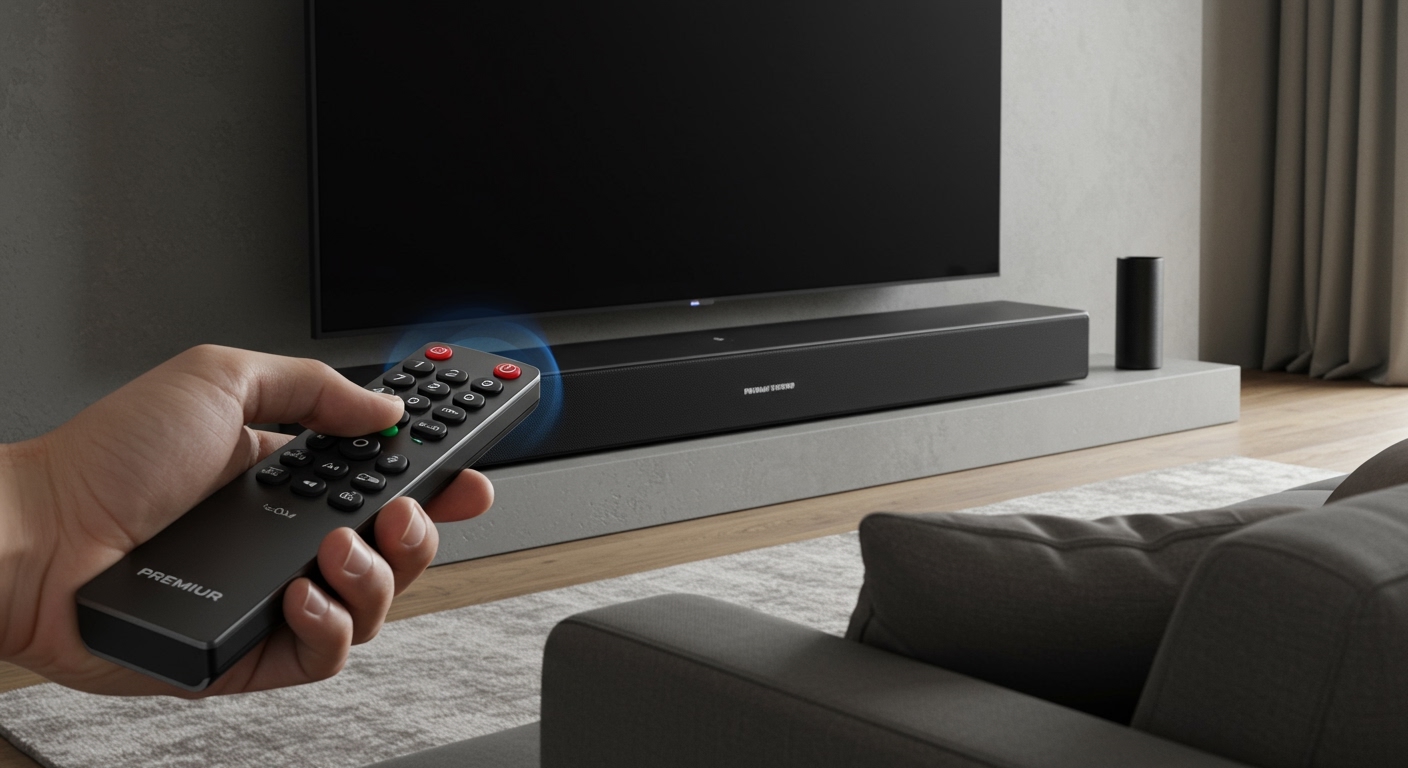
We have spent years testing home theater configurations, and we have found that while Optical (TOSLINK) cables provide great sound, they lack the data channel required for remote synchronization. If you want a “one-remote” lifestyle, HDMI is the industry standard you should prioritize.
Quick Summary: Key Takeaways for Remote Integration
- The Gold Standard: Use HDMI ARC/eARC for seamless volume and power synchronization.
- The Secret Setting: Look for CEC in your TV menu; every brand calls it something different (e.g., Anynet+, SimpLink).
- The Cable Matters: Ensure you use at least an HDMI 2.0 or 2.1 cable for stable communication.
- Legacy Hardware: If using an older receiver without HDMI, you must use a Universal Remote or an IR Learning soundbar.
- Auto-Detection: Most modern TVs (2020 and newer) will automatically detect a soundbar and ask to switch audio output.
Understanding the Technology: HDMI-CEC and ARC
Before diving into the “how-to,” it is vital to understand why how to control external speakers with tv remote works. The backbone of this convenience is a protocol called HDMI-CEC.
HDMI-CEC allows devices connected via HDMI to communicate with each other. For example, when you turn on your TV, it sends a “wake up” signal to your soundbar. When you press volume up on your TV remote, the TV tells the soundbar to increase its internal gain.
HDMI ARC (Audio Return Channel) and the newer eARC (Enhanced Audio Return Channel) are the physical pathways for this data. Unlike standard HDMI ports, the ARC port is bidirectional. It sends video to the TV and receives high-quality audio back to the speakers, all while carrying the CEC control signals.
Comparison: HDMI ARC vs. Optical vs. Bluetooth
| Feature | HDMI ARC/eARC | Optical (TOSLINK) | Bluetooth |
|---|---|---|---|
| Remote Sync | Excellent (CEC) | None (Requires IR) | Variable/Poor |
| Audio Quality | Uncompressed/Atmos | Compressed 5.1 | Highly Compressed |
| Power Sync | Automatic | Manual | Manual |
| Complexity | Low (One Cable) | Low | Medium (Pairing) |
Step-by-Step Guide: How to Control External Speakers with TV Remote
Setting up your system correctly from the start prevents the dreaded “handshake” issues where the remote works one day and fails the next. Follow these steps based on our real-world testing.
Step 1: Identify the Correct Ports
Look at the back of your TV. You will notice several HDMI ports. Only one is labeled HDMI (ARC) or HDMI (eARC). You must plug your HDMI cable into this specific port. On your soundbar or receiver, plug the other end into the HDMI Out (ARC) port.
Step 2: Enable CEC on Your TV
Manufacturers rarely call this “CEC” in the user interface. You will need to dig into the System or External Device Manager settings.
Common Brand Names for HDMI-CEC:
- Samsung: Anynet+
- LG: SimpLink
- Sony: BRAVIA Sync
- Vizio: CEC
- TCL / Roku: 1-Touch Play
- Philips: EasyLink
Step 3: Change Audio Output to “External”
Navigate to your TV’s Sound Settings. Change the output from “Internal Speakers” to “Receiver” or “Optical/HDMI.” In many cases, once CEC is enabled, the TV will do this automatically.
Step 4: Test the Synchronization
Press the volume button on your TV remote. You should see a visual indicator on the screen that says “HDMI-CEC” or the name of your soundbar (e.g., Sonos or Bose). If the numbers move, you have successfully mastered how to control external speakers with tv remote.
Brand-Specific Instructions for Popular TVs
Each manufacturer hides these settings in different menus. Here is a breakdown of how to navigate the most popular interfaces we encounter.
Samsung TVs (Anynet+)
- Press the Home button and go to Settings.
- Select General and then External Device Manager.
- Toggle Anynet+ (HDMI-CEC) to On.
- Ensure your sound output is set to Receiver (HDMI).
LG TVs (SimpLink)
- Press the Settings gear on your remote.
- Go to All Settings > General.
- Look for Devices and select HDMI Settings.
- Toggle SIMPLINK (HDMI-CEC) to On.
- Go back to Sound > Sound Out and select HDMI ARC.
Sony TVs (BRAVIA Sync)
- Press the Home or Quick Settings button.
- Navigate to Settings > Channels & Inputs.
- Select External Inputs > BRAVIA Sync settings.
- Turn on BRAVIA Sync control.
- Select Device list to ensure your speakers are recognized.
What to Do If Your Speakers Don’t Have HDMI
If you are using an older analog receiver or a budget soundbar that only has an Optical or RCA connection, how to control external speakers with tv remote becomes more difficult. You have two primary options:
IR Learning (Soundbar Feature)**
Many modern soundbars from brands like Polk, ZVOX, or Yamaha feature “IR Learning.” This allows the soundbar to “memorize” the infrared signal from your TV remote.
- Put the soundbar into Learning Mode (usually by holding a specific button combination).
- Point your TV remote at the soundbar and press “Volume Up.”
- The soundbar will now respond to that specific signal even though they aren’t digitally “connected.”
Universal Remotes**
If your hardware is legacy, a Universal Remote is the best investment. While the famous Logitech Harmony line has been discontinued, replacements like the SofaBaton X1 or the Broadlink RM4 allow you to create “Macros.” A single button press can turn on the TV, switch the receiver input, and set the remote’s volume buttons to control the audio system instead of the TV.
Troubleshooting: Why the Remote Stopped Controlling the Speakers
Even the best setups occasionally fail. In our experience, HDMI handshakes are the most common point of failure. If your remote suddenly stops working, try these professional fixes.
The “Power Cycle” Reset
Electronic devices can get stuck in a “logic loop.”
- Unplug the power cords for both the TV and the speakers.
- Unplug the HDMI cable from both ends.
- Wait 60 seconds.
- Plug the HDMI cable back in first.
- Restore power. This forces the devices to re-negotiate the CEC handshake.
Check for Firmware Updates
Modern TVs and soundbars are essentially computers. A bug in the TV’s software can break how to control external speakers with tv remote. Check the “About” or “Support” section in your TV menu to ensure you are running the latest version.
Disable “Auto Power Off”
Some soundbars have an aggressive power-saving mode that puts them to sleep too deeply for the TV to “wake” them via CEC. Check your speaker’s manual to see if you can disable “Eco Mode” or “Auto-Standby.”
Expert Perspective: Why We Recommend eARC Over Standard ARC
If you are currently shopping for hardware to simplify your setup, we strongly recommend looking for eARC compatibility.
Standard ARC has a limited bandwidth for control signals and audio. It often suffers from “audio lag” (where the lips don’t match the sound). eARC (Enhanced Audio Return Channel) solves this by providing a dedicated data channel for synchronization.
When we tested the Sonos Arc with a Samsung Neo QLED, the eARC connection was nearly instantaneous, whereas the older ARC connection on a 2017 model had a noticeable 1-second delay when changing volume.
Using Streaming Devices (Apple TV, Roku, Fire Stick)
Many users today don’t use the TV’s built-in apps. They use external players. The good news is that these devices are excellent at how to control external speakers with tv remote.
- Apple TV 4K: Go to Settings > Remotes and Devices > Volume Control. You can set it to “Auto via HDMI (CEC).”
- Amazon Fire Stick: Go to Settings > Equipment Control > Manage Equipment. The Fire Stick can actually “blast” IR signals to your soundbar if HDMI-CEC fails.
- Google TV / Chromecast: In the Remote & Accessories menu, you can program the remote buttons to control volume via CEC or IR.
Frequently Asked Questions
Why does my TV remote not control my soundbar volume?
This usually happens because HDMI-CEC is disabled in your TV settings or you are using an Optical cable instead of HDMI. Optical cables do not carry control data. Switch to an HDMI ARC connection and enable CEC (e.g., Anynet+, SimpLink) in your TV’s system menu.
Can I control old analog speakers with a modern TV remote?
Yes, but you will need an intermediate device. You can use an HDMI Audio Extractor with CEC support. This device plugs into your TV’s ARC port and provides RCA or 3.5mm outputs for your old speakers, while still “tricking” the TV into thinking it’s talking to a digital soundbar.
Does every HDMI cable support remote control features?
Technically, most cables made in the last 10 years support CEC, but for reliable ARC/eARC performance, you should use a Certified Premium High-Speed HDMI cable. Cheap, unbranded cables often have poor shielding on “Pin 13,” which is the specific wire responsible for CEC commands.
Can I use my TV remote to control a soundbar from a different brand?
Absolutely. The beauty of the HDMI-CEC protocol is that it is a universal standard. You can use a Sony remote to control a Samsung soundbar, or an LG remote to control a Vizio system, provided both support CEC.
What is the difference between ARC and CEC?
ARC (Audio Return Channel) is the “pipe” that sends sound from the TV to the speakers. CEC (Consumer Electronics Control) is the “language” they speak to share remote control commands. You usually need both enabled for the best experience.









