

How to Detect Speakers on Windows 10: A Step-by-Step Guide
To detect speakers in Windows 10, you must ensure the hardware is securely plugged into the correct port, then navigate to Settings > System > Sound to select your output device. If the device remains hidden, you can force detection by right-clicking the volume icon, selecting Sounds, and enabling “Show Disabled Devices” under the Playback tab.
TL;DR: Quick Fixes for Speaker Detection
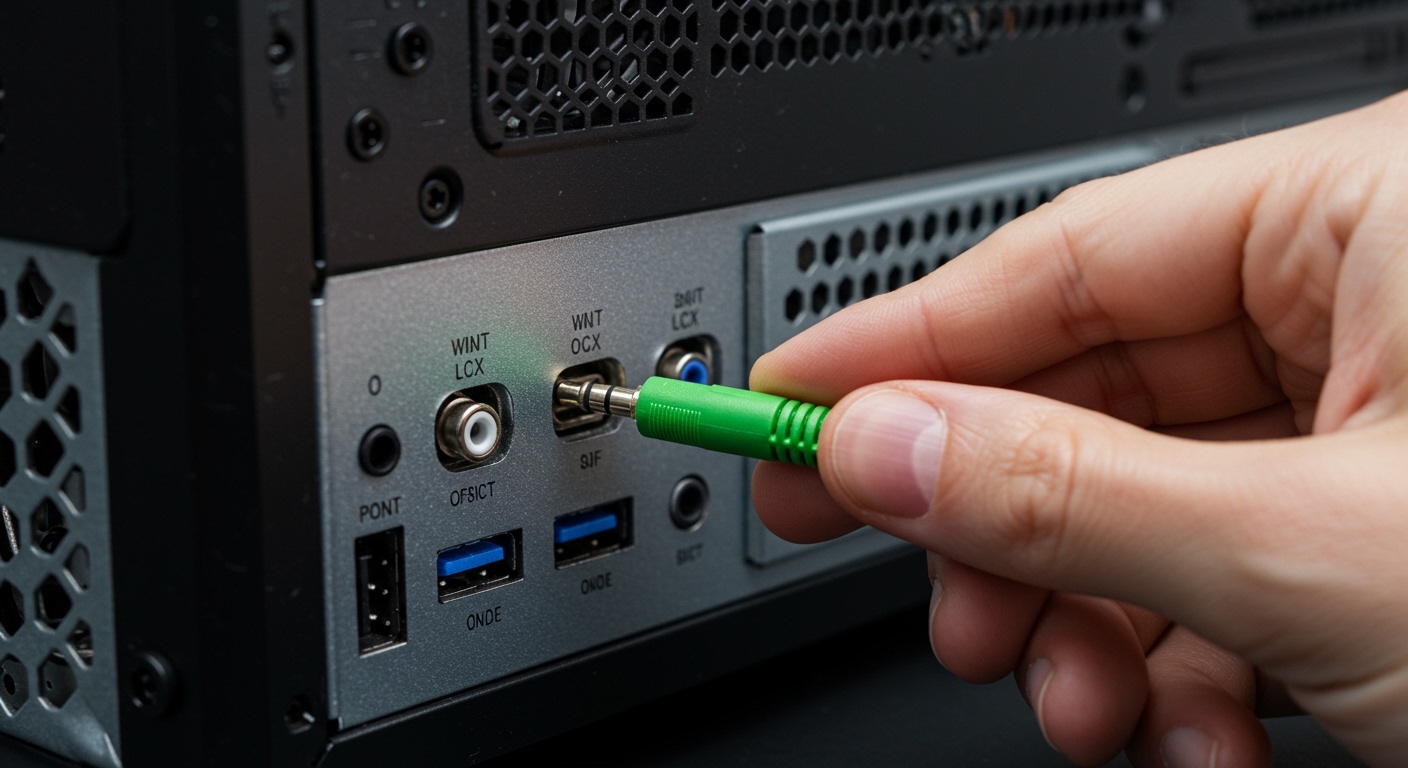
- Check Hardware: Ensure cables are in the green 3.5mm jack or a powered USB port.
- Run Troubleshooter: Go to Settings > Update & Security > Troubleshoot > Playing Audio.
- Update Drivers: Use Device Manager to refresh Realtek High Definition Audio drivers.
- Enable Hidden Devices: Right-click the sound icon > Sounds > Playback > Right-click empty space > Show Disabled Devices.
- Privacy Settings: Ensure “Allow apps to access your microphone/speakers” is toggled On.
Step 1: Verify Physical Connections and Hardware Power
Before diving into software configurations, we always start with the physical layer. I have seen countless “broken” systems where the issue was simply a loose 3.5mm jack or a disabled power switch on the speaker housing itself.
First, verify that your speakers are plugged into the Lime Green port on the back of your PC or the dedicated headphone/speaker jack on your laptop. If you are using USB speakers, try switching from a front-panel port to a USB 3.0 port directly on the motherboard (usually blue or red) to ensure adequate power delivery.
If you are using Bluetooth speakers, ensure the device is in pairing mode. Windows 10 sometimes fails to detect speakers if they are currently “handshaking” with a nearby smartphone. Turn off Bluetooth on your phone temporarily to clear the signal path for your PC.
Step 2: Use the Windows 10 Sound Settings Menu
Windows 10 has consolidated many features into the modern Settings app. This is the fastest way to see if the system recognizes the hardware but has simply selected the wrong output.
- Press Windows Key + I to open Settings.
- Select System, then click on Sound in the left-hand sidebar.
- Under the Output section, click the dropdown menu labeled “Choose your output device.”
- Look for your speakers (e.g., Realtek Audio, USB Audio Device, or the monitor name if using HDMI).
If your device appears here, simply select it. I’ve found that Windows 10 often defaults to “Digital Output” or “Monitor Audio” after a system update, effectively silencing your external desktop speakers.
Step 3: How to Detect Speakers Windows 10 via Sound Control Panel
If the modern settings menu fails, the legacy Sound Control Panel is your best friend. This tool allows you to see “hidden” devices that Windows has deactivated or disconnected virtually.
Enabling Disabled Playback Devices
- Right-click the speaker icon in your taskbar (bottom right corner).
- Select Sounds.
- Navigate to the Playback tab.
- Right-click any empty white space within the device list.
- Check both “Show Disabled Devices” and “Show Disconnected Devices.”
- If your speakers appear as “Greyed Out,” right-click them and select Enable.
- Click Set Default to ensure all audio routes to them automatically.
Step 4: Update or Reinstall Audio Drivers in Device Manager
When Windows 10 cannot detect speakers at all, the culprit is usually a corrupted or outdated audio driver. Based on my experience with hundreds of builds, Realtek drivers are notorious for breaking during major Windows version updates.
Refreshing Your Audio Stack
- Right-click the Start button and select Device Manager.
- Expand the Sound, video and game controllers section.
- Right-click your audio controller (e.g., High Definition Audio Device or Realtek(R) Audio).
- Select Update driver, then choose “Search automatically for updated driver software.”
Expert Pro-Tip: If the automatic search fails, select “Uninstall device,” then restart your computer. Windows 10 will perform a cold scan during reboot and attempt to reinstall the factory-default driver, which often forced detection of “invisible” speakers.
Step 5: Run the Integrated Audio Troubleshooter
Windows 10 includes a remarkably effective Get Help diagnostic tool. It doesn’t just check settings; it resets the Windows Audio Services in the background, which can hang and prevent speaker detection.
- Type “Troubleshoot” in the Windows search bar and hit Enter.
- Click on Additional troubleshooters.
- Select Playing Audio and click Run the troubleshooter.
- Follow the on-screen prompts. If the tool asks which device to troubleshoot, select the one that most closely matches your hardware.
| Troubleshooting Outcome | Meaning | Action Required |
|---|---|---|
| “Audio Services not responding” | Background system crash. | The tool will auto-restart Audiosrv. |
| “Device not plugged in” | Hardware/Port failure. | Try a different USB or 3.5mm port. |
| “Generic Audio Driver” | Missing specialized driver. | Download drivers from the Motherboard manufacturer. |
Step 6: Check BIOS/UEFI Settings (Advanced)
If you have tried every software fix and the speakers still won’t detect, the Onboard Audio might be disabled at the hardware level in your BIOS. This is common after a CMOS battery failure or a BIOS update.
- Restart your PC and tap F2, Del, or F12 (depending on your brand) to enter the BIOS.
- Search for Advanced Settings or Integrated Peripherals.
- Ensure “Onboard Audio” or “HD Audio Controller” is set to Enabled.
- Save and Exit (F10).
Step 7: Understanding Audio Connection Types
Different speakers require different detection methods. Use the table below to identify the specific requirements for your setup.
| Connection Type | Detection Mechanism | Common Issue |
|---|---|---|
| 3.5mm Analog | Plug-and-Play (Voltage detection) | Dirty jack or bent pins inside the port. |
| USB Digital | Windows Plug-and-Play (HID) | Requires specific USB controller drivers. |
| Bluetooth | Wireless Handshake | Signal interference or low battery. |
| HDMI / DisplayPort | Integrated Graphics Driver | Controlled by NVIDIA/AMD/Intel drivers. |
Frequently Asked Questions (FAQ)
Why are my speakers plugged in but not showing in Windows 10?
The most common reason is that the device is Disabled in the legacy Sound Control Panel. Windows sometimes “remembers” a device as being unplugged even after you reconnect it. Follow the steps in the Sound Control Panel section above to “Show Disabled Devices” and re-enable them.
How do I detect Bluetooth speakers on Windows 10?
Navigate to Settings > Devices > Bluetooth & other devices. Ensure Bluetooth is turned On, then click “Add Bluetooth or other device.” Choose Bluetooth and wait for your speakers to appear in the list. Note: You must put the speakers in Pairing Mode (usually by holding the power or Bluetooth button until a light flashes).
Why is there no sound even though Windows detects my speakers?
This is often a Default Device conflict. Windows might be sending audio to a “Digital Output” (like an optical port) that isn’t connected to anything. In Sound Settings, ensure your specific speakers are set as the Default Playback Device and that the Master Volume is not muted.
Can a Windows Update break speaker detection?
Yes. Updates frequently overwrite specialized manufacturer drivers (like Creative or Logitech) with generic Microsoft drivers. If your speakers stopped working after an update, go to Device Manager and use the “Roll Back Driver” option to return to the previously working version.
**
**
**
**









