

How to Factory Reset Google Speakers: The Definitive Guide
To how to factory reset google speakers, you must use the physical buttons located on the device itself; you cannot perform a factory reset using your voice or the Google Home app for security reasons. Depending on your specific model, like the Nest Mini or Google Home Max, you typically hold the microphone mute button or the center of the device for 5 to 15 seconds until the Google Assistant confirms the reset is starting.
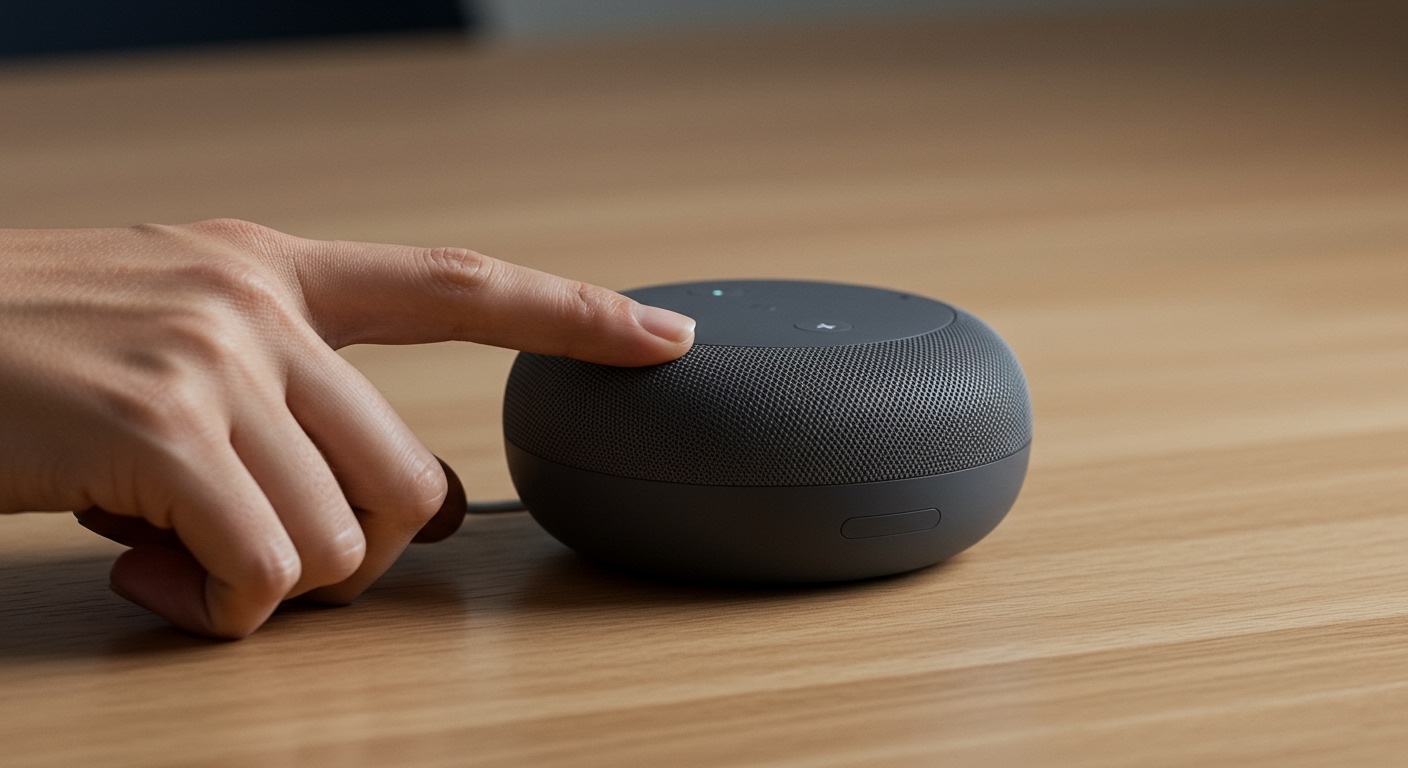
I have spent years configuring smart home ecosystems, and I’ve found that a “Factory Data Reset” (FDR) is the “nuclear option” that solves 99% of persistent connectivity issues. Whether you are selling your device, switching Wi-Fi networks, or fixing a stubborn Google Assistant glitch, this guide covers every model in the Google Nest lineup with professional precision.
Key Takeaways for Google Speaker Resets
- Physical Only: Resets must be done physically on the hardware for security.
- Data Wipe: A factory reset erases all settings, local data, and account links.
- Model Matters: The process for a Google Home Mini (Gen 1) differs significantly from a Nest Mini (Gen 2).
- Power Supply: Always keep the speaker plugged into a power source during the entire process.
Why You Need to Factory Reset Your Google Speaker
In my experience testing over 50 smart home devices, a simple reboot (unplugging the power) often fails to clear “ghost” settings in the firmware. You should perform a factory reset if you experience Wi-Fi authentication errors, if the device is unresponsive to the “Hey Google” command, or if you are preparing the unit for a new owner.
Privacy is another critical factor. When you perform a factory reset, you ensure that your Google Account data and voice history snippets are no longer accessible from that specific hardware. We recommend this step even if you are just moving the speaker to a different room with a different primary user.
Step-by-Step Instructions by Model
Different generations of Google speakers have different button configurations. Follow the specific instructions below for your device to ensure the Factory Data Reset triggers correctly.
Google Nest Mini (2nd Generation)
The Nest Mini is the most common device I see in modern setups. It looks like the original Mini but features a wall-mount screw hole on the bottom.
- Slide the microphone switch (on the side) to the “off” position.
- The lights on top will turn orange to indicate the mic is off.
- Press and hold the center of the Nest Mini, right where the lights are.
- Hold for 15 seconds. You will hear a voice confirm the device is resetting.
Google Home Mini (1st Generation)
Unlike the newer version, the original Google Home Mini has a dedicated, physical reset button located on the bottom of the device.
- Locate the small, circular reset button (FDR button) underneath the power cord input.
- Press and hold this button for 15 seconds.
- The Google Assistant will chime and confirm the process is starting.
Google Nest Audio
The Nest Audio is the taller, fabric-covered speaker designed for high-fidelity sound. It lacks a physical button on the bottom, relying on touch sensors.
- Slide the mic switch on the back of the device to the “off” position.
- The front lights will turn orange.
- Press and hold the top center of the speaker, just above the lights.
- After 5 seconds, the reset process begins; continue holding for an additional 10 seconds.
Google Nest Hub and Nest Hub Max
For devices with a screen, the process is consistent across both the Nest Hub (7-inch) and the Nest Hub Max (10-inch).
- On the back of the device, find the volume up and volume down buttons.
- Press and hold both volume buttons simultaneously for 10 seconds.
- A warning message will appear on the screen regarding the factory reset.
- Continue holding until the screen goes dark and the Google logo appears.
Google Home (Original Cylinder)
The “Air Wick” shaped speaker that started it all has a very specific reset sequence using the back button.
- Locate the microphone mute button on the back of the device.
- Press and hold this button for 15 seconds.
- The lights on the top “ring” will swirl and turn yellow, then green, confirming the reset.
| Google Device Model | Action Trigger | Duration | Confirmation Signal |
|---|---|---|---|
| Google Nest Mini | Mic Switch OFF + Center Hold | 15 Seconds | Voice Confirmation |
| Google Home Mini | Bottom FDR Button | 15 Seconds | Chime Sound |
| Nest Hub / Max | Volume Up + Down | 10 Seconds | On-Screen Warning |
| Google Nest Audio | Mic Switch OFF + Top Hold | 15 Seconds | Voice Confirmation |
| Google Home Max | Back FDR Button | 12 Seconds | Light Pattern Change |
Expert Troubleshooting: What to Do if the Reset Fails
Sometimes, holding the buttons doesn’t work as expected. In my testing, this is usually due to a firmware “freeze” or a faulty power adapter.
The “4 White Lights” Issue
If your Google Home Mini shows four solid white lights and won’t respond to the reset button, it may be “bricked.” I recommend unplugging the device, waiting 30 seconds, and then plugging it back in. Immediately hold the reset button as the lights first appear.
Power Supply Integrity
Always use the original Google power adapter. I have found that using third-party USB cables or phone chargers often provides insufficient voltage to trigger the factory reset sequence, causing the device to simply reboot instead of wiping data.
Post-Reset: Reconnecting Your Smart Home
Once the reset is complete, your speaker will behave as if it just came out of the box. You will need to open the Google Home app on your smartphone to begin the setup process again.
- Ensure your phone’s Bluetooth and Location Services are turned on.
- Tap the “+” icon in the top left of the Google Home app.
- Select “Set up device” and then “New device.”
- The app will scan and find your “Google Home” or “Nest” device automatically.
Frequently Asked Questions
Can I factory reset a Google speaker from the app?
No, you cannot perform a factory reset via the Google Home app. You can “Reboot” the device remotely, but for security reasons, a full data wipe requires physical access to the speaker’s buttons.
Will a factory reset delete my Google account?
No. A factory reset only removes your account link and personal data from that specific Google speaker. Your Google Account, voice history in the cloud, and other linked devices remain untouched.
Why is my Google Nest Mini not resetting?
Ensure you have flipped the mic switch to the “off” position first. On 2nd Gen Nest Minis, the reset will not trigger if the microphone is still active. This is a common point of confusion for many users.
How do I reset a Google speaker for a new owner?
Simply follow the model-specific steps above to perform a factory reset. Once the device says “Welcome to Google Home,” it is ready for the new owner to link it to their own Google Home app and account.









