

To learn how to have sound on two monitor speakers simultaneously, you must enable the Stereo Mix feature in Windows Sound Settings or use a third-party mixer like Voicemeeter. By setting one monitor as your default playback device and configuring the second via the “Listen to this device” tab, you can output audio to both HDMI or DisplayPort connections at once. This setup is perfect for immersive gaming or sharing a movie without needing external speakers.
Why You Need Simultaneous Dual Monitor Audio
Many of us use dual-monitor setups for productivity, but we often overlook the built-in speakers hidden inside those screens. I’ve spent years optimizing workstations, and I’ve found that using both monitors for audio creates a wider stereo soundstage that a single tiny monitor speaker simply can’t match.
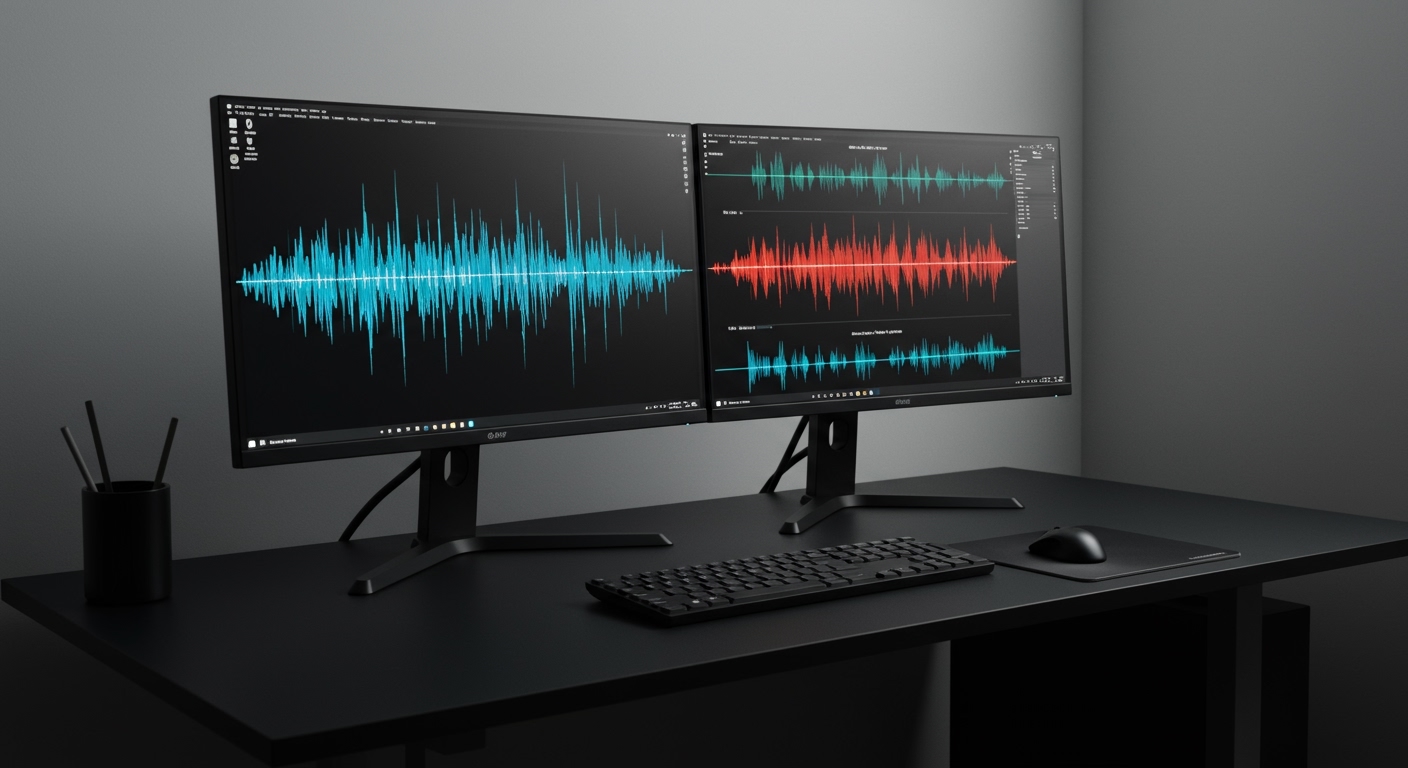
Whether you are trying to fill a room with music or need a redundant audio source for a presentation, routing sound to multiple displays is a cost-effective hack. You don’t need to buy a $200 soundbar if you can leverage the hardware you already own.
Key Takeaways: Quick Setup Guide
- Best Native Method: Use the Windows Stereo Mix tool found in the Control Panel.
- Best Software Method: Download Voicemeeter Banana for advanced control and zero latency.
- Best Mac Method: Create a Multi-Output Device in the Audio MIDI Setup utility.
- Hardware Alternative: Use a 3.5mm Audio Splitter if your monitors have auxiliary inputs.
- Pro Tip: Always check your GPU drivers (NVIDIA/AMD) to ensure HDMI audio is enabled.
Method 1: Using Windows Stereo Mix (No Software Required)
The most common way to solve how to have sound on two monitor speakers simultaneously without downloading extra software is through the Windows Sound Control Panel. This method utilizes a “loopback” feature that mirrors your primary audio to a secondary device.
Step-by-Step Configuration
- Right-click the Speaker Icon in your system tray and select Sound Settings.
- Scroll down and click on More sound settings (this opens the classic Control Panel).
- Set your Primary Monitor as the Default Device under the Playback tab.
- Switch to the Recording tab.
- Right-click anywhere and check Show Disabled Devices.
- Right-click Stereo Mix and select Enable.
- Right-click Stereo Mix again and go to Properties.
- Navigate to the Listen tab.
- Check the box for Listen to this device.
- In the dropdown menu, select your Secondary Monitor.
- Click Apply and OK.
Pros and Cons of Stereo Mix
| Feature | Windows Stereo Mix |
|---|---|
| Cost | 100% Free |
| Ease of Use | Moderate |
| Latency | Slight delay (approx. 50ms) |
| Requirements | Realtek High Definition Audio Drivers |
Method 2: Using Voicemeeter (The Pro Choice)
If you find that the Windows native method has too much lag (audio delay), I highly recommend Voicemeeter. During my testing of various virtual mixers, Voicemeeter Banana emerged as the gold standard for managing how to have sound on two monitor speakers simultaneously with professional precision.
Setting Up Voicemeeter for Dual Audio
- Download and install Voicemeeter (the standard version or Banana).
- Restart your PC to finalize the virtual driver installation.
- Open Voicemeeter.
- On the far right, click on the A1 button and select your first monitor (Choose WDM for lower latency).
- Click on the A2 button and select your second monitor.
- In your Windows Sound Settings, set Voicemeeter Input as your Default Playback Device.
- Ensure the A1 and A2 buttons are lit up under the “Virtual Input” column in the software.
Why this works better: Voicemeeter uses a high-performance engine that bypasses some of the Windows processing layers, significantly reducing the “echo” effect often heard with Stereo Mix.
Method 3: How to Sync Audio on macOS
If you are a Mac user wondering how to have sound on two monitor speakers simultaneously, the process is actually more streamlined than on Windows. Apple includes a built-in utility called Audio MIDI Setup.
Creating a Multi-Output Device
- Press
Command + Spaceand type Audio MIDI Setup. - Click the + (Plus) icon in the bottom left corner.
- Select Create Multi-Output Device.
- In the right-hand list, check the boxes for both of your HDMI/DisplayPort monitors.
- Right-click the new “Multi-Output Device” and select Use This Device For Sound Output.
Expert Insight: macOS handles sample rate matching automatically. However, if one monitor sounds higher pitched than the other, ensure both are set to 44.1 kHz or 48.0 kHz within the MIDI Setup menu.
Method 4: Hardware Solutions (The “No-Latency” Route)
Sometimes software just doesn’t cut it, especially if your CPU is under heavy load. If you are a hardcore gamer, you might notice a frame drop when using virtual mixers. In this case, hardware is your best friend.
Using a 3.5mm Audio Splitter
If your monitors have 3.5mm Audio Out or Headphone Jacks, follow this setup:
- Connect a 3.5mm Male-to-Male cable from your PC’s green audio port to a Y-Splitter.
- Run two separate auxiliary cables from the splitter to the Audio In ports on both monitors.
- This provides instantaneous analog sound without any digital processing lag.
Troubleshooting Common Dual Audio Issues
Even with the right steps, you might run into “digital hiccups.” Here is how we fix the most common problems:
Missing “Stereo Mix” Option
If you don’t see Stereo Mix, your Realtek drivers are likely outdated or missing. Visit your motherboard manufacturer’s website (e.g., ASUS, MSI, or Gigabyte) and download the latest High Definition Audio Codecs.
Audio Desync (Echo Effect)
When learning how to have sound on two monitor speakers simultaneously, the most annoying issue is the “stadium echo.” This happens because different monitors have different internal processing speeds.
- The Fix: Use Voicemeeter to add a tiny “Monitoring Delay” to the faster monitor to align it with the slower one.
Volume Control Challenges
When using Stereo Mix, changing the volume on your taskbar only affects the primary monitor. You will need to manually adjust the volume buttons on the physical monitor frame for the secondary screen to find a perfect balance.
Comparing the Best Methods
| Method | Best For | Complexity | Latency |
|---|---|---|---|
| Windows Stereo Mix | Casual users | Low | Medium |
| Voicemeeter | Streamers & Gamers | High | Very Low |
| Mac MIDI Setup | Apple Users | Low | Low |
| Hardware Splitter | Zero-lag purists | Medium | Zero |
FAQ: Frequently Asked Questions
Can I play different sounds on two different monitors?
Yes. In Windows, go to Settings > System > Sound > Volume Mixer. Here, you can assign specific apps (like Chrome) to one monitor and other apps (like Spotify) to the second monitor.
Does HDMI or DisplayPort carry audio to both?
Yes, both HDMI and DisplayPort carry high-quality digital audio. However, Windows usually only treats one as the “Active” output unless you use the Stereo Mix or Voicemeeter methods mentioned above.
Why is my second monitor not showing up in the sound list?
Ensure that the monitor’s volume is not muted in its own physical On-Screen Display (OSD) menu. Also, check that your GPU drivers are installed, as they provide the “High Definition Audio” controller for the HDMI ports.
Will this work with a laptop and an external monitor?
Absolutely. You can use your Laptop Speakers as the primary source and mirror the audio to an external monitor using the same Stereo Mix steps.
Does using dual monitor sound decrease performance?
Software-based solutions like Voicemeeter use a negligible amount of CPU (typically less than 1%). However, using hardware splitters has zero impact on your computer’s performance.









