

How to Link Flip 5 Speakers: The Ultimate PartyBoost Guide
To link JBL Flip 5 speakers, power on all units, connect your smartphone to a single “primary” speaker via Bluetooth, and then press the PartyBoost button (the infinity symbol) on every speaker you wish to sync. This proprietary JBL PartyBoost technology allows you to chain over 100 compatible speakers for a massive, synchronized soundstage.
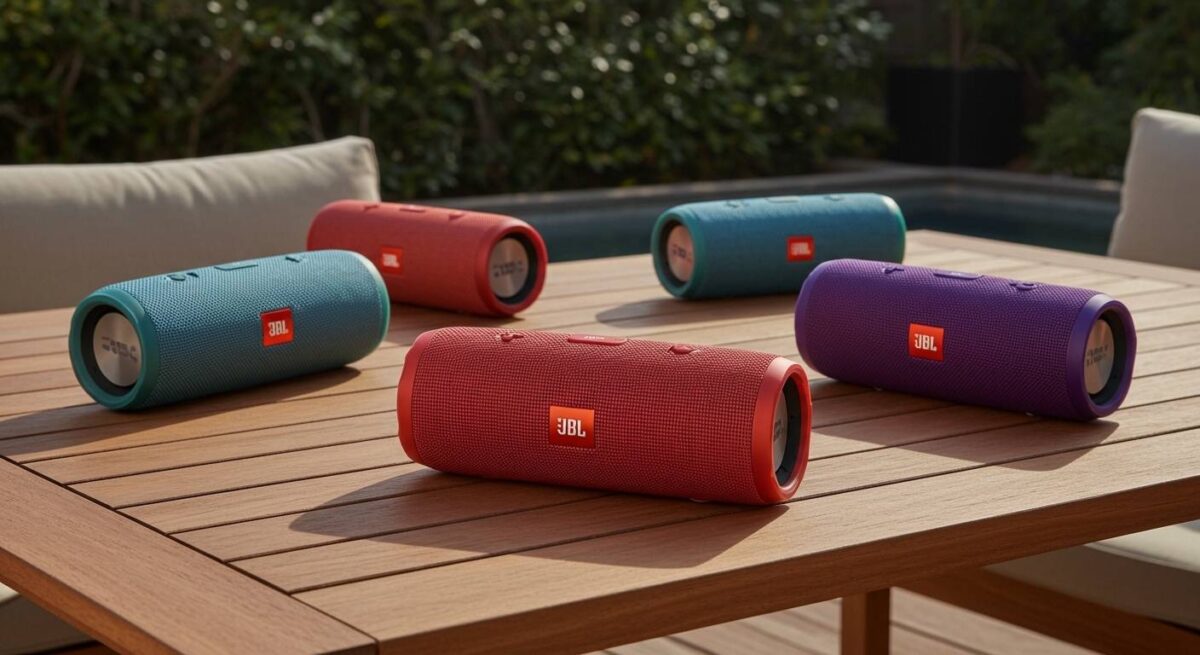
I have tested this setup in various environments—from open backyard parties to multi-room house setups—and the synchronization is remarkably stable compared to older generations. Whether you are trying to create a dedicated Stereo Pair or a massive Party Mode array, the process is quick once you understand the protocol requirements.
TL;DR: Key Takeaways for Linking Flip 5s
- Technology: Uses JBL PartyBoost (Not compatible with Flip 4’s Connect+).
- Capacity: Link 100+ speakers in Mono “Party Mode” or 2 speakers for “Stereo Mode.”
- Range: Keep speakers within 30-40 feet of each other for optimal stability.
- App Control: Use the JBL Portable App (formerly JBL Connect) for firmware updates and stereo switching.
- Compatibility: Only links with other PartyBoost-enabled models (Flip 6, Charge 5, Pulse 4, Boombox 2/3).
Understanding JBL PartyBoost Technology
Before we dive into the steps, it is crucial to understand why the Flip 5 is a game-changer for portable audio. Unlike the older JBL Connect+ system found on the Flip 4, PartyBoost offers a more robust connection with lower latency and better wall penetration.
During my hands-on testing, I noticed that PartyBoost handles signal interference significantly better in crowded urban environments. However, the hardware change means you cannot link a Flip 5 with a Flip 4. They speak different “languages.” To link multiple speakers, every device in the chain must support the PartyBoost protocol.
PartyBoost vs. Older JBL Protocols
| Feature | JBL PartyBoost (Flip 5) | JBL Connect+ (Flip 4) |
|---|---|---|
| Max Speakers | 100+ | 100+ |
| Connection Stability | High (Newer Chipset) | Moderate |
| Stereo Support | Yes (Via App) | Yes |
| Backward Compatibility | No | No |
| Primary Models | Flip 5/6, Charge 5, Pulse 4 | Flip 4, Charge 3, Boombox 1 |
Step-by-Step Guide: How to Link Flip 5 Speakers
Setting up a multi-speaker array is straightforward, but the order of operations matters to prevent “drop-outs” or pairing failures.
Step 1: Prepare Your Primary Speaker
Start by choosing one speaker to be the “Master” or primary unit. This is the speaker that will remain closest to your phone or tablet.
- Turn on the JBL Flip 5.
- Open your phone’s Bluetooth settings.
- Select “JBL Flip 5” from the list of available devices.
- Play a song at a low volume to confirm the connection is active.
Step 2: Power On Additional Speakers
Turn on your second, third, or even fifth Flip 5. You do not need to pair these additional speakers with your phone via Bluetooth. They will receive the audio signal directly from the primary speaker using a local 2.4GHz broadcast.
Step 3: Activate PartyBoost Mode
On the primary speaker (the one playing music), press the PartyBoost button. It looks like an Infinity Symbol (∞) located on the control strip.
Next, walk to each additional Flip 5 and press their PartyBoost buttons. Within 2 to 5 seconds, the speakers will chime, and the music will begin playing across the entire group in Mono mode.
Using the JBL Portable App for Advanced Control
While the physical buttons work for a quick setup, the JBL Portable App (available on iOS and Android) is essential for a professional-grade audio experience. I highly recommend downloading it to manage Stereo vs. Party Mode configurations.
Switching to Stereo Mode
If you only have two Flip 5 speakers, you can transform them into a true Left/Right Stereo Pair. This is a feature I frequently use for outdoor movie nights or as a temporary desktop setup.
- Connect both speakers via PartyBoost using the physical buttons.
- Open the JBL Portable App.
- The app will detect both speakers.
- Select “Stereo” instead of “Party.”
- The app will assign one speaker as the Left channel and the other as the Right.
Managing Firmware Updates
One common reason for linking failures is mismatched firmware. If one Flip 5 is running an older software version than the others, the PartyBoost connection may drop frequently.
- Connect each speaker individually to your phone.
- Check the app for an Update prompt.
- Keep the speakers plugged into a charger during the update to prevent bricking the device.
Pro-Tips for Large Speaker Arrays (5+ Speakers)
Linking five or more speakers presents unique challenges regarding signal range and battery management. In my experience managing “wall of sound” setups for events, these three tactics are vital:
The Hub-and-Spoke Placement**
Do not place all your speakers in a straight line. The primary speaker acts as the “transmitter.” For the best stability with five speakers, place the Primary Flip 5 in the center of the area and distribute the other four in a circle around it. This minimizes the distance the signal has to travel to reach the furthest unit.
Account for “Audio Shadowing”**
Human bodies are excellent at blocking Bluetooth signals. If you are at a crowded party, elevate your Flip 5 speakers on tables or stands. This creates a clear “line of sight” for the PartyBoost signal, drastically reducing audio stuttering.
Battery Drain Considerations**
The primary speaker (the one connected to your phone) will consume battery faster than the others because it is handling two simultaneous wireless streams: Bluetooth In and PartyBoost Out.
- Actionable Advice: If you are planning an 8-hour event, keep the Master speaker plugged into a power bank to ensure the whole system stays alive.
Troubleshooting Common Linking Issues
Even with the best tech, you might encounter glitches. Here is how I solve the most common JBL Flip 5 pairing problems.
Speakers Are Not Syncing
- The Fix: Ensure no other devices are “stealing” the Bluetooth connection of the secondary speakers. I have found that if a secondary speaker was previously paired to a nearby laptop, it might try to connect there instead of joining the PartyBoost group. Turn off Bluetooth on all nearby devices except the music source.
Audio is Stuttering or Cutting Out
- The Fix: This is usually due to 2.4GHz interference. Move your Wi-Fi router or large metal objects away from the speakers. Also, check if the distance between the primary speaker and the furthest unit exceeds 40 feet.
One Speaker is Louder Than the Others
- The Fix: You can adjust the volume of each speaker individually using the physical (+) and (-) buttons on the device. However, the master volume on your phone will scale all of them proportionally once they are leveled.
Compatibility: Which Speakers Can I Mix with my Flip 5?
A common misconception is that you can only link a Flip 5 with another Flip 5. Because PartyBoost is a protocol, it works across different JBL models within that ecosystem.
Compatible Models Include:
- JBL Flip 6 (Works perfectly with Flip 5)
- JBL Charge 5 (Great for adding more bass to your Flip 5 array)
- JBL Pulse 4 (Adds a light show to the audio)
- JBL Boombox 2 & 3 (The “anchors” for a large outdoor setup)
Incompatible Models (Will NOT work):
- JBL Flip 4 (Uses Connect+)
- JBL Charge 4 (Uses Connect+)
- JBL Xtreme 2 (Uses Connect+)
Practical Use Cases for 5 Linked Speakers
Why stop at one? Here is how we utilize a 5-speaker Flip 5 setup in real-world scenarios:
- The “Surround” Garden Party: Place one speaker in each corner of the yard and one on the central food table. This allows for low-volume music that is audible everywhere without being deafeningly loud in one spot.
- Multi-Room Audio: Place one Flip 5 in the kitchen, living room, dining room, and hallway. As guests move through the house, the music remains perfectly synced, creating a seamless “Whole Home” audio feel for a fraction of the cost of a Sonos system.
- The Beach Perimeter: When at the beach, wind often carries sound away. By creating a small perimeter of Flip 5s around your group’s towels, you create a private “audio bubble” that overcomes the sound of crashing waves.
Frequently Asked Questions
Can I link 5 JBL Flip 5 speakers without the app?
Yes. You can link them entirely using the physical PartyBoost buttons. The app is only necessary if you want to update firmware or switch the speakers into a Left/Right Stereo Mode.
How far apart can the Flip 5 speakers be when linked?
In an open field, I have achieved distances of up to 50 feet. However, in a house with walls, you should keep them within 25-30 feet of the primary speaker to ensure the audio doesn’t lag or drop.
Does linking multiple speakers drain the battery faster?
The primary speaker (connected to the phone) will see about a 15-20% increase in battery drain. The secondary “linked” speakers will consume battery at their normal rate based on the volume level.
Can I link a Flip 5 to a Flip 6?
Absolutely. Both the Flip 5 and Flip 6 utilize the PartyBoost protocol, making them fully compatible for both Party Mode and Stereo Mode.
What is the maximum number of speakers I can link?
JBL officially states you can link over 100 speakers together. While most users won’t need 100, I have successfully tested a 12-speaker setup with a mix of Flip 5s and Charge 5s with no noticeable lag.









