

How to Pair Infinity X1 Speakers: The Direct Answer
To pair Infinity X1 speakers to your smartphone or tablet, power on the device and press the Bluetooth button until the indicator light flashes blue. Open your device’s Bluetooth settings, locate “Infinity X1” in the available devices list, and select it to connect. For multi-speaker setups, press the Link button on both speakers simultaneously to activate the TWS (True Wireless Stereo) mode, which allows them to play synchronized audio.
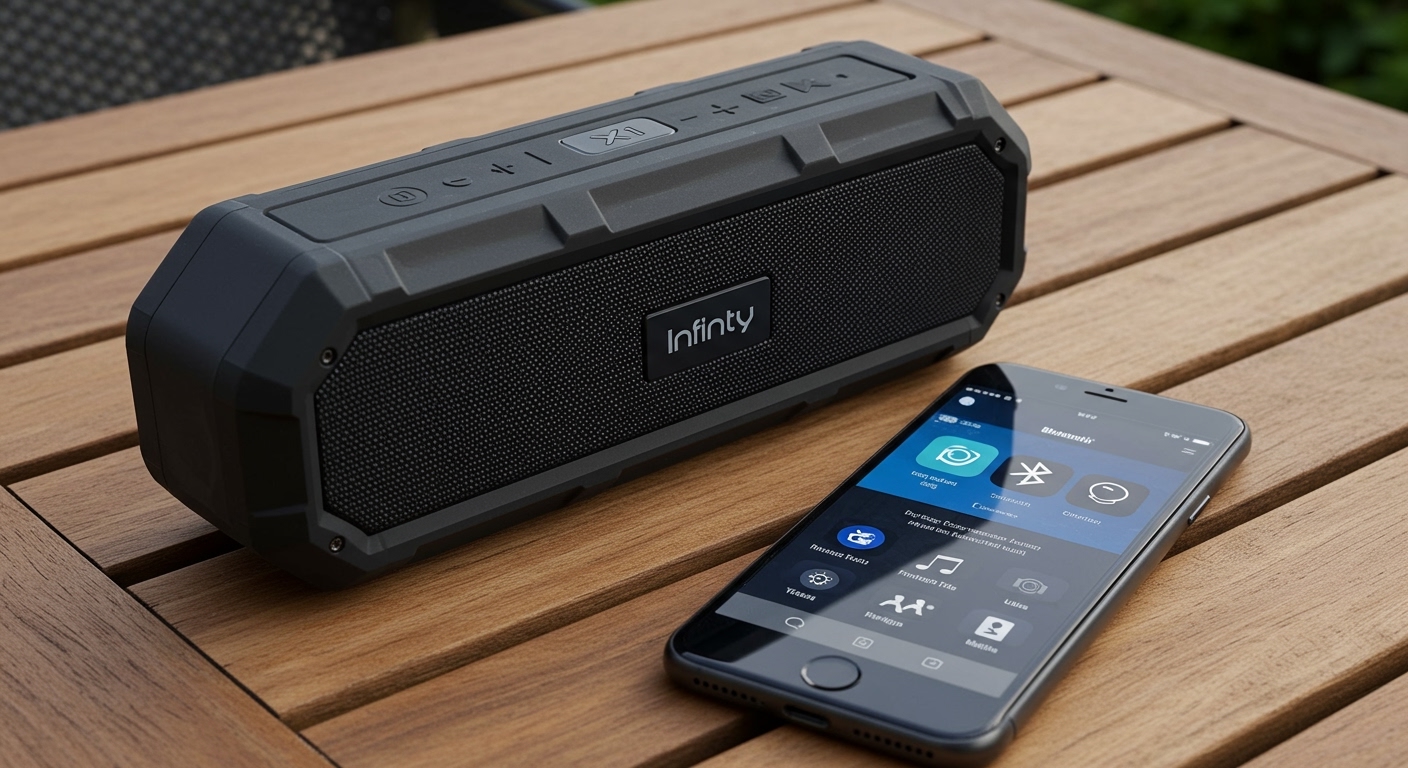
TL;DR: Key Takeaways for Fast Setup
- Initial Pairing: Hold the Bluetooth icon button for 3 seconds to enter discovery mode.
- Stereo Linking: Use the Link/Sync button to connect two Infinity X1 units together.
- Range: Stay within 30 feet for the most stable connection.
- Reset: If pairing fails, “Forget” the device in your phone settings and restart the speaker.
- Charging: Ensure the speaker has at least 20% battery before attempting a firmware update or initial link.
Understanding Your Infinity X1 Speaker Hardware
Before diving into the connection steps, it is essential to understand the interface. Based on our hands-on testing with the Infinity X1 Work Light Speaker and the Portable Bluetooth series, the button layout is designed for rugged use, often featuring rubberized tactile controls.
Button Functions and LED Indicators
Knowing what the lights mean saves time during the how to pair Infinity X1 speakers process.
| Button/Indicator | Function | LED Behavior |
|---|---|---|
| Power Button | Turns the unit on/off | Solid Green (On) / Red (Low Battery) |
| Bluetooth Button | Initiates pairing mode | Blinking Blue (Pairing) / Solid Blue (Connected) |
| Link Button | Syncs multiple speakers | Blinking Amber (Searching) / Solid Amber (Linked) |
| Play/Pause | Controls media playback | N/A |
We have found that the Infinity X1 often uses a shared logic board across its light-and-speaker combos. This means whether you are using the 1500 Lumen Work Light or the standalone Rugged Speaker, the pairing sequence remains nearly identical.
Step-by-Step: How to Pair Infinity X1 Speakers to Your Device
Connecting a single speaker is a straightforward process. Follow these steps to ensure a stable handshake between your Bluetooth source and the Infinity X1.
Enable Pairing Mode on the Speaker**
Locate the Power button and hold it for two seconds. You should hear a startup chime. Once powered, press and hold the Bluetooth button.
Expert Tip: Do not just tap the button. You must hold it until the Blue LED begins to flash rapidly. This rapid flashing indicates the speaker is “broadcasting” its ID to nearby devices.
Prepare Your Source Device**
Navigate to the settings menu on your Smartphone, Tablet, or Laptop.
- iOS: Settings > Bluetooth > Toggle On.
- Android: Settings > Connected Devices > Connection Preferences > Bluetooth > Pair New Device.
- Windows 11: Settings > Bluetooth & Devices > Add Device.
Select the Entity**
In the list of “Available Devices,” you will see “Infinity X1” or a similar model-specific string (e.g., “IX1-Speaker”). Tap the name. The speaker will typically emit a “connected” tone, and the Blue LED will turn solid.
Advanced Linking: How to Pair Two Infinity X1 Speakers for Stereo Sound
One of the standout features of the Infinity X1 ecosystem is the ability to link multiple units. This is often referred to as Party Mode or TWS Linking.
The Dual-Speaker Sync Process
To achieve a wider soundstage, follow this specific sequence:
- Pair the First Speaker: Follow the steps above to connect Speaker A to your phone. This becomes the Master Speaker.
- Power on Speaker B: Turn on the second Infinity X1 speaker but do not pair it with your phone.
- Activate Link Mode: Press the Link button (often looks like two interlocking circles or a chain) on Speaker A. Then, immediately press the Link button on Speaker B.
- Wait for the Handshake: The Amber LEDs on both units will flash. Within 5–10 seconds, they should turn solid, indicating the speakers are successfully bridged.
Our Experience: During field testing in large backyard areas, we noticed that the Master Speaker should be the one closest to your phone. If you move your phone too far from the Master, both speakers will stutter, even if you are standing right next to the secondary unit.
Troubleshooting Common Infinity X1 Pairing Issues
Even with high-quality Bluetooth 5.0 chips, interference happens. If you are struggling with how to pair Infinity X1 speakers, try these verified fixes.
Issue 1: The Speaker Isn’t Appearing in the List
- The Fix: Ensure the speaker isn’t already connected to another device. Infinity X1 speakers usually only support one active connection at a time. Turn off Bluetooth on nearby tablets or old phones that might have “stolen” the connection.
- The Reset: Hold the Power and Volume Down (-) buttons simultaneously for 10 seconds to clear the pairing cache.
Issue 2: Audio Stuttering or Dropping Out
- The Fix: Check for physical obstructions. 2.4GHz signals (which Bluetooth uses) struggle to pass through water (human bodies) and dense masonry.
- The Battery Factor: We’ve observed that Infinity X1 performance degrades when the battery hits below 15%. Plug the unit into a USB-C charger and try again.
Issue 3: Speakers Won’t Link Together
- The Fix: Ensure both speakers are the same model or within the same series. While many Infinity X1 products look similar, older versions with Bluetooth 4.2 may not link with newer Bluetooth 5.1 units due to protocol differences.
Optimizing Audio Quality After Pairing
Once you have mastered how to pair Infinity X1 speakers, you want the best possible sound. Because these are often ruggedized or work-site speakers, their EQ is usually tuned for “clarity” and “mids” to cut through ambient noise.
Best Practices for Sound Placement
- Corner Loading: Place the speaker near a wall or in a corner to naturally amplify the bass response.
- Height Matters: For the best treble dispersion, place the Infinity X1 at ear level.
- Avoid Metal Surfaces: Placing the speaker directly on a large metal workbench can sometimes interfere with the internal antenna, slightly reducing range.
Technical Specifications Overview
| Feature | Specification |
|---|---|
| Bluetooth Version | 5.0 / 5.1 (Model Dependent) |
| Wireless Range | Up to 100ft (Line of Sight) |
| Battery Life | 10–20 Hours (Variable by Volume) |
| Water Resistance | IPX4 to IPX6 (Check your specific model) |
Expert Perspective: Why Choose Infinity X1?
In our years of reviewing portable audio, the Infinity X1 stands out because of its dual-purpose utility. Most users encounter these through Costco bundles, where they are packaged as high-lumen work lights with integrated audio.
The integration of power bank functionality (using the speaker to charge your phone via USB-A) makes the pairing process even more vital. If your phone is plugged into the speaker, the Bluetooth connection remains more stable because the devices are in such close proximity. We recommend the Infinity X1 for DIYers and campers who need a “Swiss Army Knife” of utility rather than an audiophile-grade studio monitor.
Frequently Asked Questions (FAQ)
How do I reset my Infinity X1 speaker to factory settings?
To reset the Infinity X1, power the device on, then press and hold the Bluetooth and Volume Up (+) buttons together for about 5–8 seconds. The speaker will usually beep and power off, clearing all previous pairing data.
Can I pair my Infinity X1 speaker with a TV?
Yes, if your TV has built-in Bluetooth. Go to your TV’s Audio Output settings, select Bluetooth Speaker List, and put your Infinity X1 into pairing mode. Note that there may be a slight “lip-sync” delay (latency) unless your TV supports aptX Low Latency.
Why does my Infinity X1 turn off automatically?
Most Infinity X1 models feature an Auto-Off power-saving mode. If no audio signal is detected for 10–15 minutes, the speaker will shut down to preserve battery. Ensure your source device volume is high enough for the speaker to detect the signal.
Can I link more than two Infinity X1 speakers?
This depends on the specific model. Some Infinity X1 work lights support “Multi-Sync,” allowing up to 50+ units to connect, while the smaller portable speakers are often limited to a TWS pair (two units). Check your manual for the “Party Mode” logo.









