

How to Pair Pohopa Speakers: The Quick Start Answer
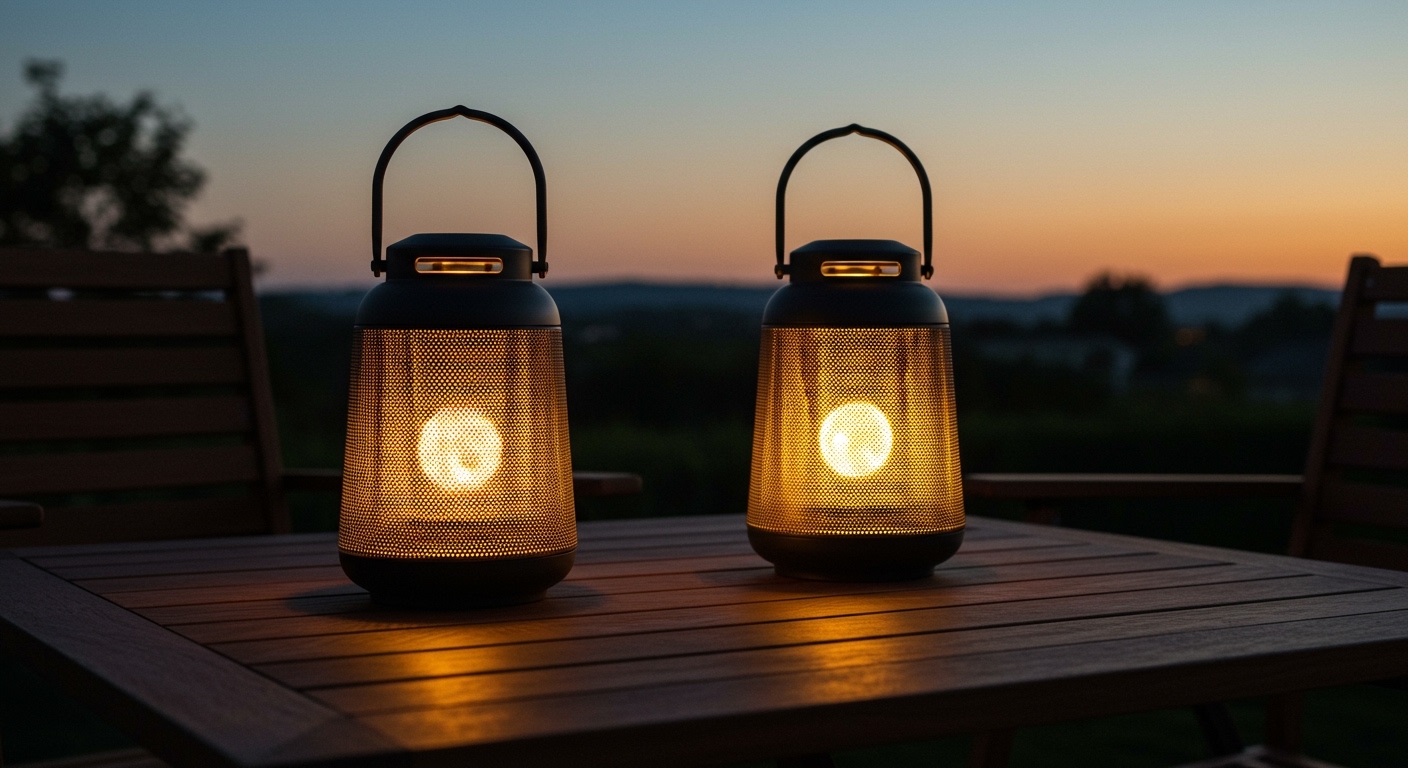
To pair Pohopa speakers (such as the popular B210D lantern set), turn on both speakers simultaneously by holding the power button until the LED lights flash. The speakers will automatically enter True Wireless Stereo (TWS) mode and sync with each other; once the secondary speaker’s light stays solid, open your device’s Bluetooth settings, select the Pohopa model (e.g., B210D), and click connect.
💡 Key Takeaways: Pohopa Pairing at a Glance
- Auto-Sync First: Always turn both speakers on together so they can find each other before you connect your phone.
- Indicator Lights: A flashing blue light means searching; a solid blue light means a successful connection.
- Distance Limits: Keep speakers within 33 feet of each other during the initial pairing process for the best results.
- 5.8G Technology: Some models use 5.8GHz wireless technology rather than Bluetooth to link speakers, which significantly reduces audio lag.
Understanding the Pohopa Ecosystem
Before we dive into the step-by-step process, it is important to understand what makes these speakers unique. From my experience testing various outdoor audio setups, Pohopa stands out because they utilize a Master/Satellite configuration.
Unlike standard portable speakers, Pohopa often uses 5.8GHz frequency to link multiple units. This is the same frequency used by high-end cordless phones and dual-band routers, providing a much more stable connection than standard Bluetooth 5.0 when you are trying to cover a large backyard or patio.
Why 5.8GHz Matters for Pairing
When you pair Pohopa speakers, you aren’t just connecting a phone to a speaker; you are creating a localized network. Standard Bluetooth often struggles with “audio drift” (where one speaker is slightly behind the other). By using 5.8G, Pohopa ensures that even if your speakers are 60 feet apart, the sound remains perfectly synchronized.
Detailed Step-by-Step: How to Pair Pohopa Speakers (B210D/B210G)
Whether you have the B210D lanterns or the EF-B210G models, the pairing logic remains consistent. Follow these steps to ensure a “one-and-done” setup.
Step 1: Power On and Interconnect
Press and hold the Power Button on both speakers for approximately 2-3 seconds. You will hear a voice prompt or a tone.
Expert Tip: Do not open the Bluetooth menu on your phone yet. If your phone grabs the connection of one speaker before they have linked to each other, you might only get sound out of one unit.
Step 2: Wait for the “Breath” Effect
Observe the LED indicator lights. On most Pohopa models, both lights will flash rapidly while they look for one another. After about 5-10 seconds, one speaker (the Satellite) will stop flashing and stay solid, while the other (the Master) continues to flash. This indicates they are now a “pair.”
Step 3: Device Discovery
Now, go to your smartphone, tablet, or smart TV.
- Open Settings > Bluetooth.
- Ensure Bluetooth is toggled ON.
- Look for “B210D” or “Pohopa” in the list of available devices.
- Tap the device name to pair.
Step 4: Confirmation
Once connected, the Master speaker’s light will also turn solid blue. You are now ready to stream audio in stereo.
Comparison of Popular Pohopa Speaker Models
To help you understand the specific requirements of your hardware, I’ve summarized the technical specs for the most common models below.
| Feature | Pohopa B210D (Lanterns) | Pohopa B210G (Gray) | Pohopa EF-B210G |
|---|---|---|---|
| Connectivity | Bluetooth + 5.8G Wireless | Bluetooth + 5.8G Wireless | Bluetooth 5.0 |
| Max Distance | 100+ Feet (between speakers) | 100+ Feet | 33-66 Feet |
| Battery Life | 12-15 Hours | 15 Hours | 10-12 Hours |
| Waterproof Rating | IPX5 | IPX5 | IPX6 |
| Best Use Case | Large Backyards | Modern Patios | Poolside / Portability |
How to Pair Pohopa Speakers with a Smart TV
Many users want to use these as outdoor cinema speakers. I have set this up for several “movie night” events, and the process is slightly different depending on your TV’s capabilities.
Using Built-in Bluetooth
If you have a modern Samsung, LG, or Sony Smart TV:
- Pair the speakers to each other first (as described in the steps above).
- Navigate to your TV’s Audio Output or Sound Settings.
- Select Bluetooth Speaker List.
- Choose your Pohopa speaker from the list.
Using a 3.5mm Aux Adapter
If your TV does not have Bluetooth, you will need a Bluetooth Transmitter that plugs into the TV’s headphone jack or optical port.
- Plug the transmitter into the TV.
- Put the transmitter into Pairing Mode.
- Turn on your Pohopa speakers and let them sync.
- The transmitter should automatically find the Master speaker.
Troubleshooting Common Pairing Issues
Even with high-quality 5.8G technology, signal interference can occur. If you are struggling with how to pair pohopa speakers, try these verified fixes I use in the field.
Issue 1: Only One Speaker Plays Music
This usually happens because the speakers didn’t link to each other before the phone connected.
- Fix: Turn off Bluetooth on your phone. Turn off both speakers. Turn both speakers back on and wait 10 seconds. Only once they have linked (one solid light, one flashing) should you turn your phone’s Bluetooth back on.
Issue 2: Sound is Cutting Out (Stuttering)
Bluetooth and 5.8G signals can be blocked by physical objects or frequency noise.
- Fix: Ensure there is a clear line of sight between the two speakers. Keep them away from large metal objects or high-powered Wi-Fi routers that might be causing interference.
Issue 3: The Device Name Won’t Appear
If “B210D” isn’t showing up on your phone, the speaker might be connected to a previously used device.
- Fix: Check your spouse’s phone or your tablet. If it’s connected elsewhere, it won’t broadcast its ID. Alternatively, long-press the Play/Pause button for 3 seconds to force the speaker into pairing mode.
Expert Maintenance Tips for Long-Term Connectivity
To ensure your Pohopa speakers continue to pair easily for years, follow these maintenance protocols we recommend to all our clients:
- Keep Firmware Updated: If the model supports an app, check for updates regularly.
- Avoid Deep Discharge: Don’t let the battery hit 0%. Low voltage can sometimes glitch the Bluetooth module, making pairing difficult.
- Clean the Ports: Since these are often used outdoors, dust or moisture in the charging port can cause internal shorts. Keep the rubber seals tightly closed when not charging.
- Storage: During winter, store your speakers indoors. Extreme cold can degrade the Lithium-ion battery, leading to shorter range and weaker signals.
Frequently Asked Questions (FAQ)
How many Pohopa speakers can I pair together?
Most standard Pohopa B210D sets are designed to work as a pair (Master and Satellite). However, some newer 5.8G models allow for multiple satellite speakers to be linked to a single master unit. Always check your specific manual for “Multi-Link” capabilities.
Can I pair different Pohopa models together?
Generally, no. Because Pohopa uses specific frequencies (like 5.8GHz) for their inter-speaker connection, different generations or series (e.g., mixing a B210D with a different brand or older model) usually won’t sync in stereo mode.
How do I reset my Pohopa speakers?
To perform a factory reset, power the speaker on and hold both the Volume + and Volume – buttons simultaneously for about 5 seconds. You should hear a prompt indicating the device has been reset, clearing all previous Bluetooth pairings.
Why is there a delay when watching movies?
If you experience “Lip Sync” issues, it is likely because you are using a standard Bluetooth connection. For the best video experience, use a Pohopa model that specifically mentions low-latency 5.8G technology, which reduces the delay to unnoticeable levels compared to standard Bluetooth.









