

How to Play TV Sound Through Home Theater System Speakers: The Definitive Guide
To how to play tv sound through home theater system speakers, you must connect the HDMI ARC (Audio Return Channel) or eARC port on your TV to the corresponding port on your AV Receiver. Simply plug in a high-speed HDMI cable, enable HDMI-CEC in your TV settings, and switch the receiver input to “TV” or “Audio.” If your devices lack HDMI, a Digital Optical (Toslink) cable is the best secondary option for high-quality digital sound.
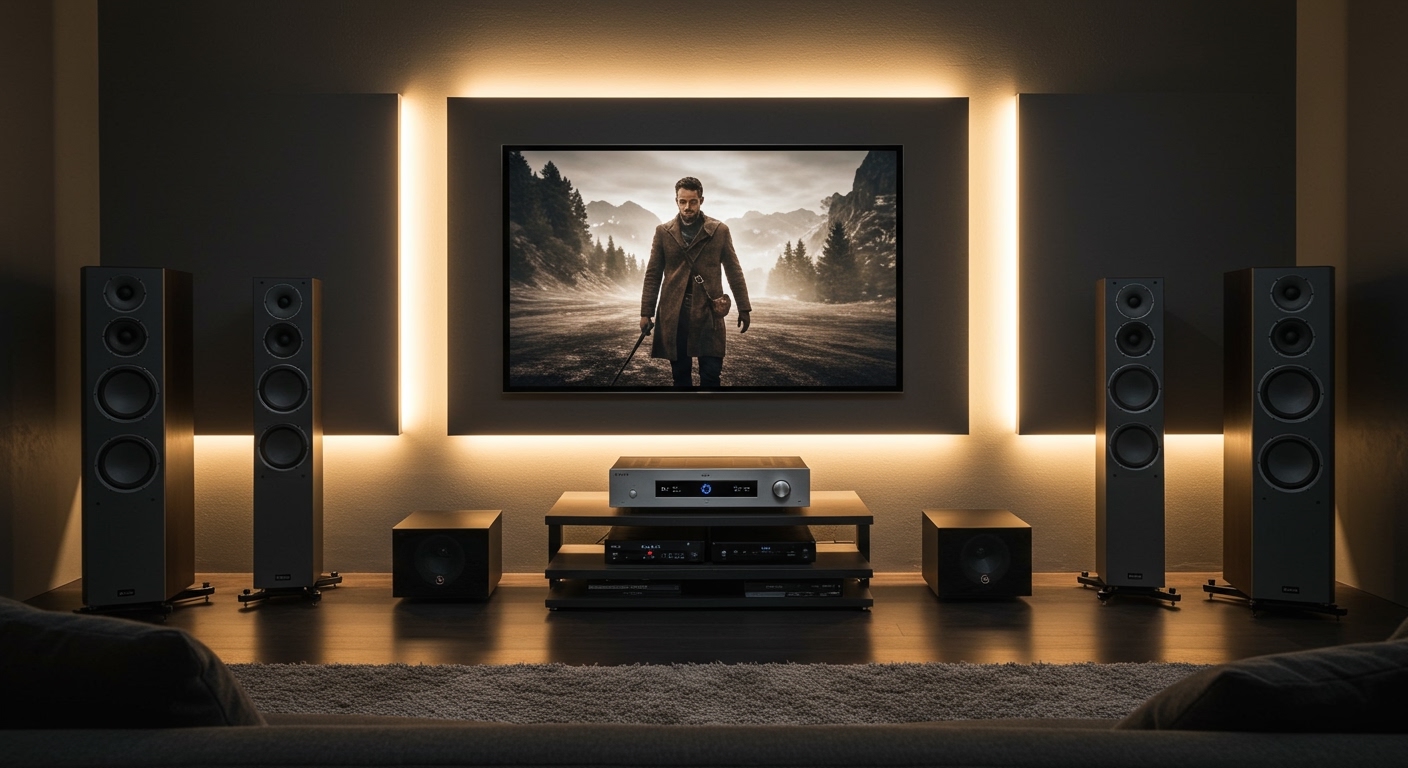
Setting up a home theater should be an exciting upgrade, but staring at a mess of ports and cables can feel overwhelming. I have spent over a decade designing custom media rooms, and I’ve seen every “no sound” frustration imaginable. Whether you are using a modern 4K OLED TV or a vintage surround sound receiver, getting your audio to flow correctly is a matter of matching the right hardware with the correct software settings.
🚀 Key Takeaways: Quick Setup Summary
- Best Connection: Use HDMI eARC for uncompressed formats like Dolby Atmos.
- Best Budget Option: Digital Optical cables provide stable 5.1 surround sound for older gear.
- Critical Setting: Always enable HDMI-CEC (called Anynet+, Bravia Sync, or SimpLink) to sync power and volume.
- Pro Tip: If you hear no sound, ensure your TV’s audio output is set to External Speakers or Receiver rather than “Internal Speakers.”
Comparison of Audio Connection Methods
| Connection Type | Audio Quality | Max Channels | Supports Dolby Atmos? | Ease of Use |
|---|---|---|---|---|
| HDMI eARC | Lossless (Highest) | 7.1 / 32-ch | Yes | High (CEC Control) |
| HDMI ARC | Compressed High-Res | 5.1 / 7.1 | Yes (DD+) | High (CEC Control) |
| Digital Optical | Standard Digital | 5.1 | No | Medium |
| RCA (Red/White) | Analog (Low) | 2.0 (Stereo) | No | Simple |
| Bluetooth | Compressed | 2.0 (Stereo) | No | Wireless / Lag prone |
Method 1: The HDMI ARC and eARC Connection (Recommended)
In my professional experience, HDMI ARC (Audio Return Channel) is the most efficient way to route audio. It eliminates the need for an extra audio cable because the same HDMI cable sending video to your TV can “return” audio to the speakers.
Step-by-Step HDMI Setup
- Locate the Ports: Look at the back of your TV and find the HDMI port specifically labeled ARC or eARC. Do the same on your AV Receiver.
- Use the Right Cable: Use a High-Speed HDMI cable (Version 2.0 or 2.1). I recommend AudioQuest or Monoprice for reliability.
- Physical Connection: Plug one end into the TV’s ARC port and the other into the Receiver’s HDMI Output (ARC) port.
- Activate HDMI-CEC: Go into your TV’s System or Settings menu. Enable the HDMI-CEC feature. Manufacturers use different names:
- Change Audio Output: Navigate to Sound Settings on your TV and change the output from “Internal Speakers” to Receiver or HDMI Audio Out.
Why eARC matters: If you own a PlayStation 5, Xbox Series X, or use Netflix 4K, eARC (Enhanced Audio Return Channel) is vital. It has the bandwidth to carry Dolby Atmos and DTS:X without compression, providing a truly immersive “bubble” of sound.
Method 2: Using Digital Optical (Toslink) Cables
If your receiver is more than five years old, it might not support ARC. In these cases, we use a Digital Optical Cable. This uses fiber optics to transmit audio as light pulses.
How to Connect via Optical
- Remove Caps: Optical cables have small plastic protective caps on the tips. I cannot tell you how many service calls I’ve fixed just by removing these.
- Plug and Click: Insert the cable into the Optical Out on the TV and Optical In on the receiver. You should hear a distinct “click.”
- Input Assignment: On your receiver, you may need to manually assign the “TV” input to the “Optical 1” or “Digital” source using the remote.
- TV Format: Set your TV’s digital audio format to PCM if you have issues, or Bitstream/Auto if you want 5.1 surround sound.
Limitations: Optical cables cannot carry high-def formats like Dolby TrueHD or DTS-HD Master Audio. You will be limited to standard 5.1 surround sound.
Method 3: Analog RCA or 3.5mm Connections (Legacy Systems)
Perhaps you are rocking a classic Pioneer or Kenwood analog amp. You can still play TV sound through these home theater system speakers using a 3.5mm-to-RCA adapter.
- Connect the 3.5mm jack to the TV’s Headphone Out port.
- Connect the Red and White RCA plugs to the Aux or CD input on your receiver.
- Volume Note: In this setup, the TV volume controls the signal strength sent to the receiver. I suggest setting the TV volume to about 75% and using the receiver to do the “heavy lifting.”
Configuring Your TV Settings for Best Sound
Even with the right cables, the wrong software settings will ruin the experience. To master how to play tv sound through home theater system speakers, you must dive into the “Expert” or “Advanced” sound menus.
PCM vs. Bitstream (Digital Pass-Through)
- PCM (Pulse Code Modulation): The TV does the audio decoding. Use this if your receiver is old and doesn’t recognize modern formats.
- Bitstream / Pass-Through: The TV sends the “raw” data to the receiver. I always recommend this. It lets your high-end Denon or Marantz receiver do the processing, which usually results in better channel separation and clarity.
Audio Delay (Lip-Sync)
Nothing breaks immersion faster than a character’s lips moving before the sound hits your ears. Most modern TVs (especially LG and Sony) have an Audio Delay or AV Sync setting. Adjust this in 10ms increments until the dialogue matches the video perfectly.
Professional Tips for Speaker Placement and Quality
Connecting the cables is only half the battle. To truly hear the difference when playing TV sound through your system, consider these “insider” tips I’ve gathered from hundreds of home visits.
The Center Channel is King
In a home theater setup, 80% of dialogue comes from the center channel. If your TV sound feels “muddy” or “buried” by the music:
- Ensure the center speaker is at ear level.
- Increase the Center Channel Level by +2 or +3 dB in your receiver settings.
Wire Management Matters
When running wires for your how to play tv sound through home theater system speakers project, avoid running power cables parallel to speaker wires. This can cause electromagnetic interference (EMI), resulting in a faint “hum” or “buzz” in your speakers. If they must cross, do so at a 90-degree angle.
Subwoofer Crawl
To get the best bass, place your subwoofer in your listening chair, play a bass-heavy track, and crawl around the room. Where the bass sounds tightest and cleanest is where you should actually place the subwoofer.
Troubleshooting: Why Is There No Sound?
If you’ve followed the steps for how to play tv sound through home theater system speakers and still hear silence, check these common culprits:
- Wrong Input: Is the receiver set to “TV,” “Opt 1,” or “HDMI 1”? Cycle through every input slowly.
- Mute/Volume: It sounds simple, but check both the TV and Receiver volume levels. Some TVs “mute” the internal speakers but don’t automatically turn up the external ones.
- Firmware Updates: Smart TVs from Samsung and Sony frequently push updates that can “break” HDMI-CEC handshakes. Ensure both your TV and Receiver are on the latest firmware.
- The “Handshake” Reset: Unplug the HDMI cable from both ends, power down the TV and Receiver at the wall for 60 seconds, then reconnect. This forces a fresh HDMI handshake.
Frequently Asked Questions
Can I play TV sound through my home theater speakers via Bluetooth?
Yes, most smart TVs have Bluetooth Audio Out. However, I don’t recommend this for a primary home theater. Bluetooth compresses audio heavily and often introduces a significant “lip-sync” delay where the sound doesn’t match the picture.
Do I need a special HDMI cable for ARC?
You don’t need an expensive “boutique” cable, but you do need a High-Speed HDMI cable (Category 2). If you are using eARC for Dolby Atmos, look for an Ultra High-Speed (48Gbps) cable to ensure you have enough bandwidth.
Why does my TV remote no longer control the volume?
This usually happens because HDMI-CEC has been disabled. Go to your TV’s settings and ensure that the “Control HDMI Devices” or “Link” feature is turned ON. This allows the TV to send volume commands to the receiver via the HDMI cable.
Can I use the TV speakers and home theater speakers at the same time?
Generally, no. Most TVs are designed to output to one or the other. Using both simultaneously often creates an “echo” effect because of the slight processing delay in the external receiver. It is best to stick to the home theater speakers for a clean soundstage.









