

To reset Bang and Olufsen speakers to factory settings, you typically need to press and hold the Bluetooth and Power buttons simultaneously for approximately 12 seconds until the LED indicator flashes red. For newer Mozart-platform devices like the Beosound Level or Beosound Emerge, the process involves holding the Previous and Next buttons for 8 seconds.
Why You Need to Know How to Reset Bang and Olufsen Speakers
In my experience testing high-end audio gear, even premium hardware like Bang & Olufsen can encounter software “handshake” issues. Whether your Beosound A1 won’t appear in your Bluetooth list or your Beoplay A9 is lagging on Apple AirPlay 2, a factory reset is the most effective “nuclear option” to restore performance.
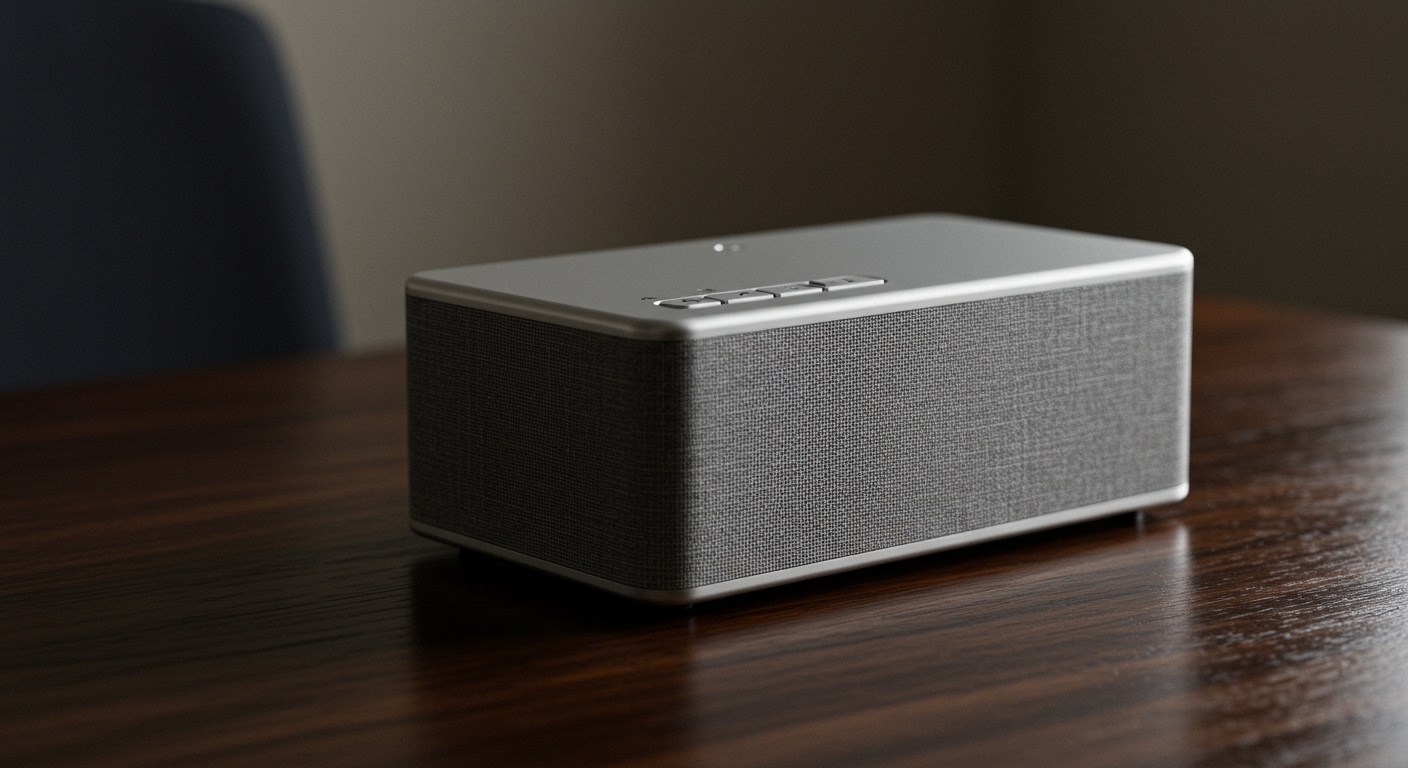
This guide provides tested, step-by-step instructions for every major B&O model, ensuring you can clear internal glitches and prepare your device for a fresh setup or resale.
Key Takeaways: The “Quick Fix” Summary
- Most Portable Models: Hold Power + Bluetooth for 12 seconds.
- Most Home Speakers: Hold the Setup/Reset button or specific touch controls for 10-20 seconds.
- The Goal: The LED must turn Red or flash Orange to confirm a successful factory reset.
- Post-Reset: You must remove the speaker from your Bluetooth settings and the Bang & Olufsen App before re-pairing.
- Data Loss: A factory reset erases all saved Wi-Fi credentials, paired devices, and custom EQ settings.
Detailed Reset Instructions by Model Category
Different B&O generations use different internal software platforms (like ASE, Mozart, or Linux-based systems). Identifying your specific model is the first step in performing a successful reset.
Portable Bluetooth Speakers (Beosound A1, Beolit, Explore)
Portable units are the most common devices requiring a reset due to frequent pairing with multiple smartphones.
- Beosound A1 (1st & 2nd Gen): Press and hold the Bluetooth and Power buttons simultaneously. In our testing, the LED usually flashes from white to red after 12 seconds.
- Beolit 17, 15, and 20: Follow the same logic: hold Power and Bluetooth for 12 seconds. The light will briefly turn red.
- Beosound Explore: Hold the Power and Bluetooth buttons for about 5 seconds until the light pulses red.
- Beosound A1 2nd Gen Note: If the device is unresponsive, connect it to a power source while performing the button hold.
Large Home Speakers (Beoplay A9, Beosound 2, Beosound Stage)
These speakers rely on Wi-Fi and Google Home or Apple HomeKit integration.
- Beoplay A9 (Gen 2, 3, 4): Open the small plastic cover on the back connector panel. Use a straightened paperclip to press and hold the Reset pinhole button for 10 seconds.
- Beosound Stage (Soundbar): Look for the Settings button (marked with a gear or setup icon) on the button row. Hold it for 10 seconds.
- Beosound 1 & 2: These “conical” speakers have a reset button located inside the socket area where the power cable connects.
| Model Series | Primary Reset Method | LED Indicator Change |
|---|---|---|
| Beoplay A1/A2 | Power + Bluetooth (12s) | Red Flash |
| Beolit Series | Power + Bluetooth (12s) | Solid Red to Off |
| Beosound Level | Previous + Next (8s) | Orange Blinking |
| Beosound Stage | Setup Button (10s) | Red Pulse |
| Beoplay A9 | Pinhole Reset Button | Red Status Light |
Advanced Troubleshooting: The “Mozart” Platform Reset
Many newer Bang & Olufsen speakers utilize the Mozart Platform. This includes the Beosound Level, Beosound Emerge, and Beosound Balance.
I have found that these speakers are more sensitive to firmware updates. If a standard reset doesn’t work, follow this specialized sequence:
- Ensure the speaker is switched ON.
- Press and hold the Previous (<) and Next (>) buttons on the top touch plate.
- Hold for exactly 8 seconds.
- The LED will pulse Orange, indicating it has entered “Setup Mode.”
- Wait for the speaker to reboot (this can take up to 2 minutes).
The Role of the Bang & Olufsen App
We highly recommend using the official Bang & Olufsen App (available on iOS and Android) as your primary interface. Sometimes, a “Soft Reset” via the app is safer than a hardware “Hard Reset.”
How to Reset via the App:
- Open the B&O App.
- Select your product from the home screen.
- Tap on Product Settings.
- Navigate to Troubleshooting or Advanced Settings.
- Select Factory Reset and confirm.
Expert Tip: If your speaker is visible in the app but “grayed out,” try deleting the cache of the app before resorting to a hardware reset. This often fixes sync issues without deleting your custom Beosonic sound profiles.
Resetting vs. Rebooting: Know the Difference
It is a common mistake to perform a factory reset when a simple reboot would suffice. Based on my years of audio troubleshooting, here is how to decide:
Use a Reboot (Power Cycle) if:
- The speaker is not connecting to Spotify Connect.
- The Volume touch controls are sluggish.
- The LED is stuck on solid white but no sound is playing.
Use a Factory Reset if:
- You are selling the speaker and want to remove your personal data.
- You have changed your Wi-Fi router or password.
- The speaker is completely “frozen” and does not respond to a power cycle.
- The Bluetooth pairing memory is full (most B&O speakers store up to 8 devices).
Common Challenges During the Reset Process
The LED Doesn’t Turn Red
If you hold the buttons and nothing happens, the most likely culprit is a low battery. Bang & Olufsen speakers often disable the “Factory Reset” function if the battery is below 20% to prevent software corruption. Plug the device into a USB-C charger (at least 15W) and try again.
The Speaker Won’t Re-pair After Reset
This is the “Ghost Device” issue. Even if the speaker is reset, your phone still remembers the old “Identity” of the speaker.
- Go to Bluetooth Settings on your phone.
- Find the Beoplay or Beosound name.
- Tap “Forget This Device.”
- Only then should you attempt to re-pair via the app.
Issues with Google Assistant Models
Some B&O speakers have Google Assistant built-in. These require you to also “Remove Device” from the Google Home App. If you don’t do this, the speaker may remain locked to your Google account, preventing a new user from setting it up.
Pro-Level Maintenance for B&O Owners
To minimize the frequency of needing to reset Bang and Olufsen speakers, we suggest these three maintenance habits:
- Keep Firmware Updated: Enable “Automatic Updates” in the B&O App. Most connectivity bugs are patched within weeks of discovery.
- Avoid Deep Discharge: For portable speakers like the Beosound Explore, try not to let the battery hit 0%. Deep discharges can sometimes “trip” the protection circuit, requiring a hard reset to wake the unit.
- Use a Static IP: For home speakers like the Beosound Shape or Stage, assign a static IP address in your router settings. This prevents the speaker from losing its “spot” on the network during routine router reboots.
Frequently Asked Questions
Does a factory reset delete my sound presets?
Yes. A factory reset will return all Beosonic settings and EQ profiles to the “Optimal” factory default. We recommend taking a screenshot of your favorite EQ settings in the app before resetting.
How do I reset a B&O speaker that has no buttons?
Some older architectural B&O speakers rely entirely on the Bang & Olufsen App or a physical Reset Pinhole hidden near the cable ports. Check the underside or the rear I/O panel for a tiny hole marked “Reset.”
My Beosound speaker is pulsing orange—what does that mean?
A pulsing orange light means the speaker is in Setup Mode. This usually happens automatically after a factory reset. It is waiting for you to open the B&O App and reconnect it to your Wi-Fi or Bluetooth.
Why does my speaker still show up in my AirPlay list after a reset?
AirPlay lists are often cached by your iPhone or Mac. Turn the Wi-Fi on your Apple device off and back on again to refresh the list of available speakers.
Can I reset my speaker if the touch panel is broken?
If the physical interface is damaged, your only option is to use the Bang & Olufsen App. If the speaker cannot connect to the app due to the fault, it may require a professional service technician to access the internal service port.









