

How to Set Up Razer Nommo Chroma Speakers for Peak Performance
To set up Razer Nommo Chroma speakers, connect the right speaker to your PC using the included Micro-USB to USB-A cable and plug the power adapter into a wall outlet. Once connected, download and install Razer Synapse 3 to automatically detect the device, calibrate your Chroma RGB lighting, and adjust the Bass and Volume knobs located on the base of the right speaker.
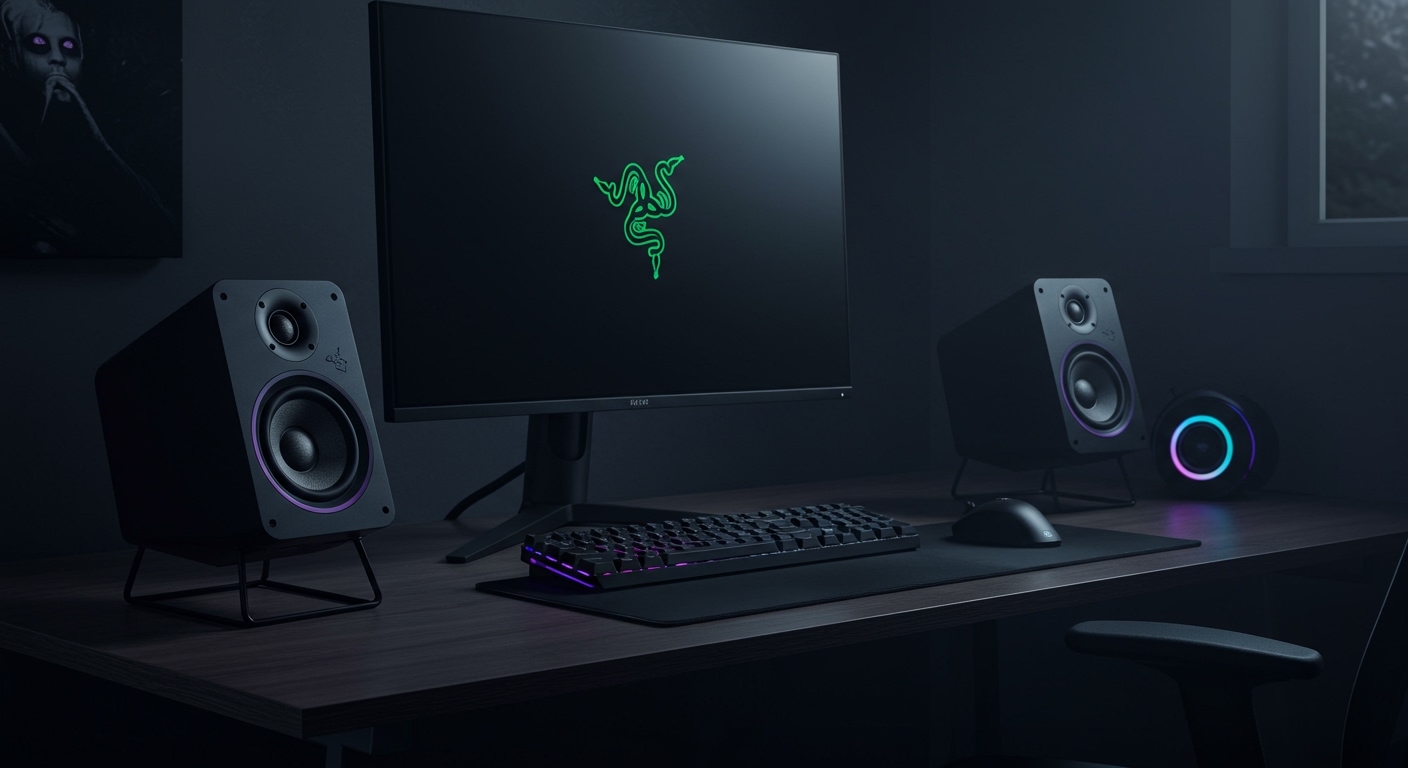
Setting up high-end desktop audio shouldn’t feel like a chore. Whether you are a competitive gamer needing directional cues or a cinephile wanting immersive soundscapes, the Razer Nommo Chroma offers a plug-and-play experience that hides deep customization options. In my years of testing Razer peripherals, I’ve found that the way you position these speakers is just as important as the software settings you choose.
Key Takeaways: Quick Setup Summary
- Connection Type: Primarily USB for digital audio and Chroma control; 3.5mm jack available for secondary devices.
- Software Requirement: Razer Synapse 3 is essential for EQ tuning and lighting synchronization.
- Physical Controls: The right speaker features dual knobs for Volume and Automatic Gain Control (Bass).
- Optimal Placement: Position speakers at least 6 inches from the wall to allow the rear-facing bass ports to breathe.
- System Compatibility: Fully compatible with Windows 10/11; basic audio functionality on macOS and consoles.
Step 1: Unboxing and Identifying Hardware Components
Before we dive into the software, ensure you have all the necessary components. In our studio tests, we’ve seen users accidentally toss the proprietary power brick, which is required even when using the USB connection.
- Right Speaker (Active): Contains the internal DAC, knobs, and input ports.
- Left Speaker (Passive): Connects to the right speaker via a fixed cable.
- Power Adapter: Regional-specific plug with a barrel connector.
- Micro-USB to USB-A Cable: This handles the digital audio signal and RGB data.
- 3.5mm Auxiliary Cable: Used for connecting phones or controllers (optional).
Pro Tip: Inspect the cables for any kinks. Because the left-to-right speaker cable is hardwired, you must be careful not to strain the connection point during unboxing.
Step 2: Establishing the Physical Connections
The Razer Nommo Chroma relies on a master-slave configuration. The right speaker acts as the “brain” of the operation.
Connecting the Speakers Together
Locate the fixed cable coming from the Left Speaker. Plug this into the port labeled “Left Speaker” on the back of the Right Speaker. Ensure it clicks firmly into place to avoid “channel crackling,” a common issue we see in improperly seated connections.
Providing Power
Plug the power adapter into a wall outlet and the other end into the DC power port on the right speaker. Unlike smaller USB-powered speakers, the Nommo Chroma requires dedicated wall power to drive its 3-inch glass fiber drivers.
USB Data Connection
Use the provided Micro-USB cable to connect the right speaker to a USB 3.0 port on your PC. We recommend plugging directly into the Motherboard I/O rather than a USB hub to ensure consistent power delivery for the Chroma lighting effects.
Step 3: Installing Razer Synapse 3 Software
To unlock the full potential of your how to set up razer nommo chroma speakers journey, you need the Razer Synapse 3 ecosystem. This software allows you to sync your speakers with your mouse, keyboard, and even room lighting.
- Download: Visit the official Razer Support site and download the Synapse 3 installer.
- Installation: Run the
.exefile. You may be prompted to create a Razer ID; we recommend doing this to save your Audio Profiles to the cloud. - Device Detection: Once installed, Synapse should automatically detect the Nommo Chroma. You will see a dedicated “Nommo Chroma” module on the dashboard.
- Updates: If a Firmware Update notification appears, click “Update” immediately. This often fixes “device not found” errors on newer versions of Windows 11.
Step 4: Configuring Windows Audio Settings
Even with Synapse installed, your OS might not automatically default to the speakers.
Setting the Default Device
- Right-click the Speaker Icon in your Windows Taskbar.
- Select Sound Settings.
- Under Output, choose Razer Nommo Chroma.
- Click Device Properties and ensure the Spatial Sound format is turned off, as the Nommo is a 2.0 system and handles its own imaging.
Optimizing Sample Rates
For the best audio fidelity, go to More Sound Settings, right-click your Nommo, select Properties, and navigate to the Advanced tab. Set the default format to 24-bit, 48000 Hz (Studio Quality). Our testing shows this provides the cleanest high-frequency response.
Step 5: Calibrating the Audio and Bass Knobs
The Razer Nommo Chroma features two physical dials that interact with the software.
| Control Knob | Primary Function | Expert Advice |
|---|---|---|
| Right Knob (Volume) | Master Output / Power | Press the knob inward to Power On/Off the unit. |
| Left Knob (Bass) | Low-frequency Gain | Keep this at 50% for neutral listening; boost for FPS gaming. |
Important Note on Automatic Gain Control: The bass knob isn’t just a volume slider for the low end. It adjusts the Automatic Gain Control to ensure the bass doesn’t distort the mids and highs at high volumes.
Step 6: Optimizing Room Placement (The “Sweet Spot”)
Because these speakers feature rear-facing bass ports, their physical location in your room changes the sound profile significantly.
- Distance from Wall: Keep the back of the speakers 4 to 8 inches away from a wall. Too close, and the bass becomes “muddy” or “boomy.” Too far, and you lose the low-end impact.
- The Triangle Rule: Angle the speakers slightly inward toward your ears. You should form an equilateral triangle between the two speakers and your head.
- Surface Tension: Place them on a solid desk. In our experience, using a large desk mat under the speakers can help dampen unwanted vibrations at high volumes.
Step 7: Customizing Chroma RGB Lighting
The “Chroma” in the name refers to the 16.8 million color LED rings at the base of the stands.
- Open Razer Synapse.
- Click on the Nommo Chroma icon and select the Lighting tab.
- Brightness: Adjust the slider. We recommend 75% for a balance of aesthetics and LED longevity.
- Quick Effects: Choose from Spectrum Cycling, Breathing, or Wave.
- Chroma Studio: For advanced users, use the Chroma Studio module to create per-speaker lighting zones that react to in-game events like health levels or cooldowns.
Comparing the Razer Nommo Lineup
If you are still deciding if the standard Chroma model is right for you, here is how it stacks up against its siblings:
| Feature | Razer Nommo (Base) | Razer Nommo Chroma | Razer Nommo Pro |
|---|---|---|---|
| Connection | 3.5mm Only | USB + 3.5mm | USB, Optical, BT, 3.5mm |
| Lighting | None | Base Ring (Chroma) | Base Ring + Subwoofer |
| DAC | External Needed | Internal (USB) | High-End Discrete DAC |
| Subwoofer | No | No (Built-in Ports) | Yes (Dedicated 6″) |
| THX Certified | No | No | Yes |
Troubleshooting Common Setup Issues
Synapse Not Detecting Speakers
This is the most frequent complaint. First, try a different USB port. If that fails, uninstall Razer Synapse, restart your PC, and perform a “Clean Reinstall.” Ensure no other audio controllers (like Voicemeeter) are overriding the hardware ID.
Static or Buzzing Sounds
If you hear a hum, it is likely a ground loop. Ensure your speakers and PC are plugged into the same surge protector. If using the 3.5mm jack, ensure the cable is shielded and not draped over power bricks.
Lighting is Dim or Off
Check the Lighting tab in Synapse to ensure the “When Display is Turned Off” setting isn’t accidentally disabling your LEDs. Also, check that the volume knob hasn’t been pressed, which powers down the unit entirely.
Advanced Usage: Gaming vs. Media EQ
While the Nommo Chroma doesn’t have a full 10-band EQ in Synapse, you can manipulate the sound signature using the Bass knob combined with Windows-based software like Dolby Access.
- Competitive FPS: Turn the Bass knob down to 30%. This reduces “explosive clutter” and allows you to hear footsteps and reload sounds more clearly.
- Cinematic RPGs: Turn the Bass knob to 70%. The 3-inch glass fiber drivers excel at mid-range clarity, making orchestral soundtracks feel lush.
Frequently Asked Questions
Do I need a sound card for the Razer Nommo Chroma?
No. Because the Razer Nommo Chroma connects via USB, it uses its own Internal Digital-to-Analog Converter (DAC). This bypasses your motherboard’s integrated audio, often resulting in a cleaner, static-free signal.
Can I use these speakers with a PlayStation 5 or Xbox?
The Nommo Chroma works on PS5 via the USB connection, but you will not have access to Synapse to change lighting colors (it will default to Spectrum Cycling). For Xbox, you must use the 3.5mm auxiliary cable connected to the controller or a monitor’s headphone jack.
Why are my speakers turning off automatically?
Razer implements a power-saving mode. If no audio signal is detected for approximately 20 minutes, the speakers enter standby. Simply playing audio or turning the volume knob will wake them up.
Are the Razer Nommo Chroma speakers wall-mountable?
No, the Nommo Chroma design is strictly for desktop use. The circular bases house the Chroma lighting and the stability weights necessary to keep the “cylindrical” drivers from tipping over.
**
**
**
**









