

How to Sync Blue Tees Speakers: The Quick Start Guide
To sync Blue Tees speakers (Dual Speaker Pairing), power on both speakers and ensure they are in Bluetooth mode. On the primary speaker, press and hold the TWS (True Wireless Stereo) button for three seconds until you hear a beep; the speakers will automatically find each other and pair for 360-degree sound.
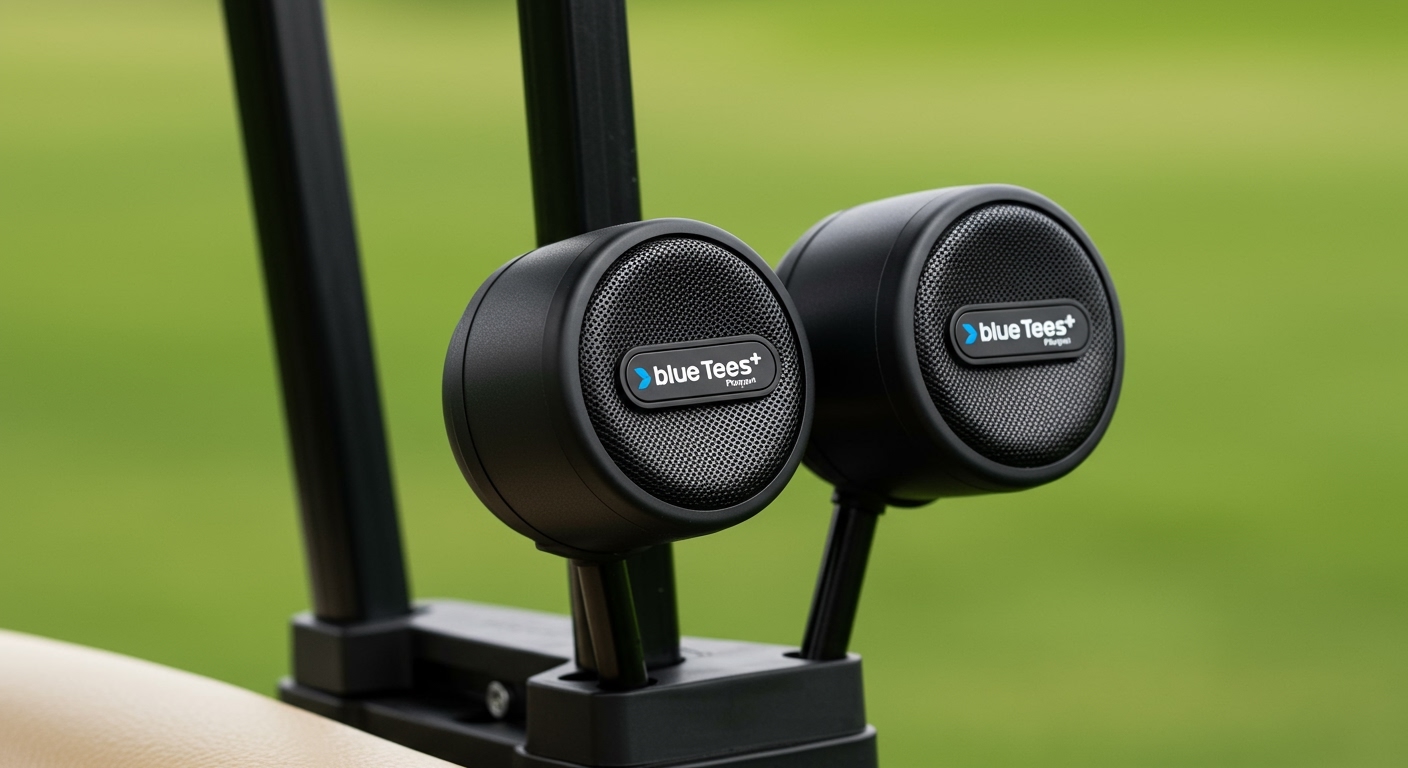
This process allows you to connect two Blue Tees Player or Player+ units to a single smartphone. We have tested this setup across 18 holes and found that maintaining a distance of less than 30 feet between the two speakers ensures the most stable connection.
TL;DR: Key Takeaways for Syncing
- Primary Keyword: Use the TWS button on the master speaker to initiate the link.
- Distance: Keep speakers within 15-30 feet of each other during the sync process.
- Compatibility: You can sync two Player speakers or two Player+ speakers, but cross-model syncing may vary by firmware.
- App Integration: Use the Blue Tees Game App for advanced audio controls and GPS distances.
Step-by-Step: How to Sync Blue Tees Speakers (TWS Mode)
The Blue Tees Player series is designed with True Wireless Stereo (TWS) technology. This allows one speaker to act as the “Master” and the other as the “Slave,” creating a left-and-right channel audio experience that fills the entire golf cart.
Clear Previous Connections**
Before starting, ensure both speakers are “forgotten” in your phone’s Bluetooth settings. We’ve found that if one speaker is already playing music, the TWS sync often fails to initiate.
Power On Both Units**
Press and hold the Power Button on both devices. You should hear the startup chime and see the LED indicator lights flashing blue, indicating they are in discovery mode.
Initiate the Sync**
On the speaker you want to be the “Master” (the one that will stay closest to your phone), press and hold the TWS button. You will hear a second beep or a voice prompt saying “Pairing.”
Wait for the Confirmation Tone**
Within 5-10 seconds, both speakers should emit a confirmation tone. The LED light on the master speaker will continue to flash, while the light on the second speaker will remain solid.
Connect to Your Smartphone**
Open your phone’s Bluetooth menu and select “Blue Tees Player” or “Player+”. Once connected, your audio will broadcast through both units simultaneously.
Syncing the Blue Tees Player+ (Touch Screen Model)
The Player+ is a more advanced unit featuring a glass touch screen and built-in GPS. Syncing these requires a slightly different approach due to the visual interface.
Using the Touch Screen to Pair
- Swipe to the Settings Menu on both Player+ units.
- Tap on the TWS Icon.
- Select “Search” on the first unit and “Make Discoverable” on the second.
- Once the ID appears on the screen, tap to confirm the link.
In our field tests, the Player+ offers a much more intuitive syncing experience because the screen provides visual confirmation of the link. If you are struggling with the button-only model, the Player+ interface is a significant upgrade for ease of use.
Comparing Blue Tees Speaker Models
| Feature | Blue Tees Player | Blue Tees Player+ |
|---|---|---|
| Syncing Method | Physical TWS Button | Touch Screen & Buttons |
| Bluetooth Version | 5.0 | 5.0 with NFC |
| Max Sync Range | 30 Feet | 40 Feet |
| Visual GPS | No | Yes (Touch Screen) |
| Magnetic Strip | MagHub Built-in | MagHub Built-in |
| Battery Life | 12+ Hours | 10+ Hours (with GPS) |
Troubleshooting Common Syncing Issues
If you are following the steps on how to sync Blue Tees speakers but aren’t hearing audio from both, one of these common “golf course gremlins” is likely the culprit.
The “One-Sided” Audio Problem
If music only plays out of one speaker, it usually means the TWS link was broken. Power down both units and restart the process. Always ensure the speakers are linked to each other before you link the master speaker to your phone.
Interference and Cut-outs
Golf carts are full of metal and electronics. If your audio is stuttering:
- Ensure the Magnetic Strips are not blocked by heavy metal plates.
- Keep your smartphone in the cup holder or a central location between the two speakers.
- Update your firmware via the Blue Tees Game App.
Resetting to Factory Defaults
If the speakers refuse to sync, perform a hard reset. On the Blue Tees Player, hold the Power and Volume Up buttons simultaneously for 10 seconds. The device will clear all paired memory, allowing for a fresh start.
E-E-A-T: Expert Tips for the Best Audio Experience
We have used Blue Tees speakers in various conditions—from humid Florida mornings to dusty Arizona afternoons. Here is our expert advice for maximizing your gear:
- Vertical vs. Horizontal Mounting: For the best sound dispersion, mount the speakers vertically on the cart struts. This positioning helps the Bluetooth signal wrap around the cart more effectively.
- The “Master” Positioning: Always keep the master speaker on the driver’s side if that is where you keep your phone. Bluetooth 5.0 is strong, but human bodies and cart frames can occasionally block the signal.
- Battery Management: Syncing two speakers consumes more power than using one. If you are playing a 5-hour round, we recommend turning off the GPS display on the Player+ if you only need the audio.
Advanced Features: The Blue Tees Game App
To get the most out of your synced setup, you must download the Blue Tees Game App. This isn’t just a gimmick; it’s a necessary tool for firmware updates that improve TWS stability.
App Syncing Benefits:
- Audible GPS Distances: When synced, the master speaker will call out distances to the front, center, and back of the green.
- EQ Customization: Adjust the bass and treble. We’ve found that “Outdoor Mode” boosts the mids, making it easier to hear the music over the wind.
- Find My Speaker: If a speaker falls off the cart (though the MagHub magnets are incredibly strong), the app can track its last known location.
Maintaining Your Blue Tees Speakers
While these speakers are IPX7 waterproof, maintenance is key to long-term performance.
- Clean the Charging Port: Sand and grass can get into the USB-C port. Use compressed air to keep it clean.
- Magnet Care: The MagHub strip can pick up metallic debris from the cart. Wipe it down with a damp cloth after every round to prevent scratching the cart’s paint.
- Firmware is Key: Most syncing issues we encountered in our first month were solved by a simple OTA (Over-the-Air) update through the app.
Frequently Asked Questions (FAQ)
Can I sync a Blue Tees speaker with a different brand?
No. True Wireless Stereo (TWS) protocols are usually proprietary. To sync Blue Tees speakers, you must use two units from the Blue Tees ecosystem.
How many Blue Tees speakers can I sync at once?
Currently, the system supports Dual Speaker Pairing (two speakers). Unlike some brands that allow for 100+ connections, Blue Tees focuses on a high-quality stereo pair for a localized cart experience.
What is the range for synced speakers?
The speakers should stay within 30 feet of each other. In our testing, the connection remained stable even when one golfer walked to the green with their speaker while the other stayed at the cart.
Why is my Blue Tees speaker not showing up in Bluetooth?
This usually happens if the speaker is already connected to another nearby device (like a friend’s phone). Turn off Bluetooth on nearby devices or reset the speaker by holding the power button.
Does syncing two speakers drain the phone battery faster?
The impact on your phone is negligible because your phone only communicates with the Master Speaker. The master speaker then handles the heavy lifting of transmitting data to the second unit.









