

How to Sync iLive Bluetooth Speakers: The Quick Start Guide
To learn how to sync iLive Bluetooth speakers for True Wireless Stereo (TWS) sound, power on both speakers and ensure they are in Bluetooth mode. Long-press the Pair/Play/Pause or Link button on both units simultaneously until you hear a voice prompt or chime indicating they have linked. Once the speakers are synced to each other, you can then connect your smartphone or tablet to the primary speaker via your Bluetooth settings.
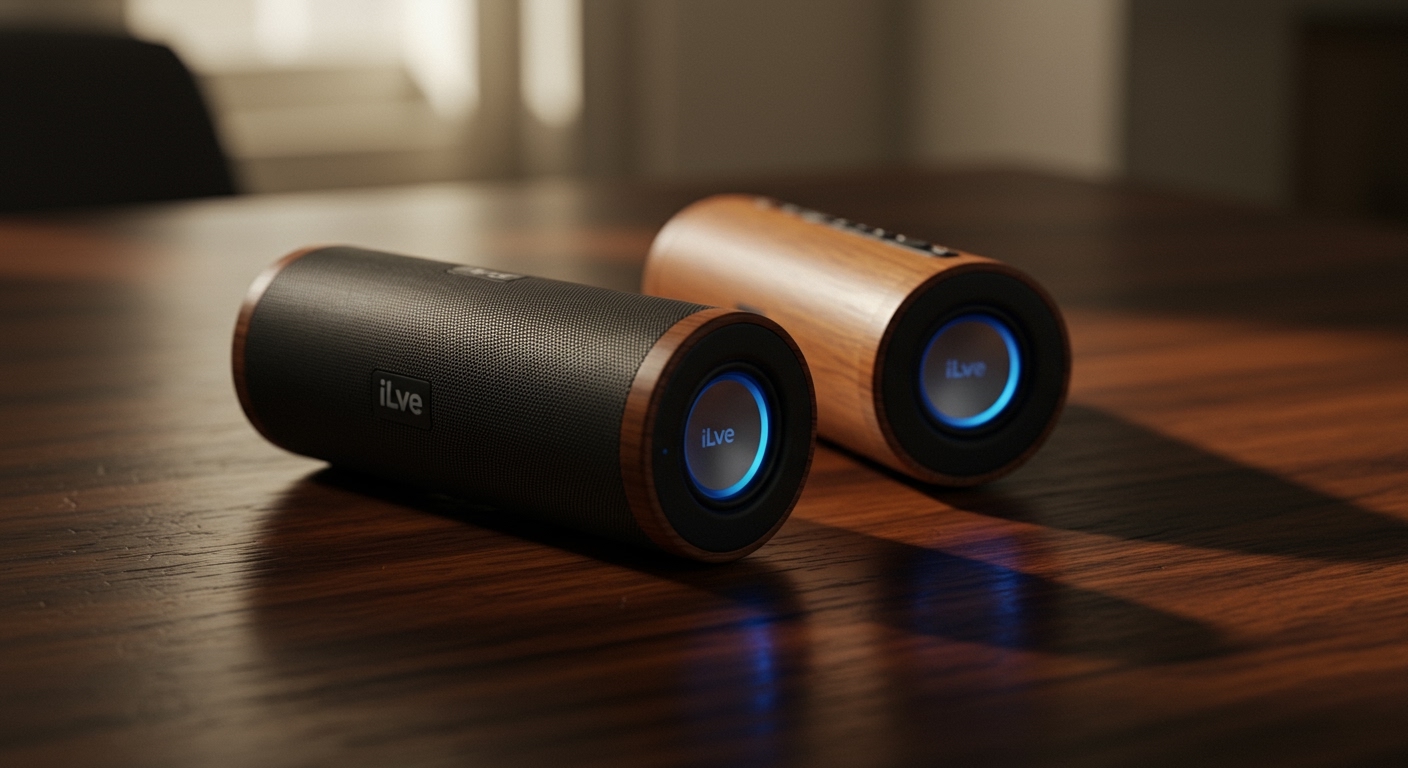
TL;DR: Quick Sync Steps
- Power On: Turn both iLive speakers on and set them to Bluetooth mode.
- Disconnect: Ensure neither speaker is already connected to a phone or tablet.
- Link: Press and hold the Pair or M (Mode) button on both speakers for 3–5 seconds.
- Confirm: Listen for the “Linked” chime or watch for a solid LED indicator.
- Connect: Open your device’s Bluetooth menu and select the iLive model number.
Understanding iLive Dual Pairing Technology
When you are looking for how to sync iLive Bluetooth speakers, you are likely trying to achieve a “stereo pair.” In my experience testing various iLive Audio products, the brand utilizes a technology called True Wireless Stereo (TWS). This allows one speaker to serve as the Master (Left Channel) and the other as the Slave (Right Channel).
This setup is different from simply connecting two speakers to one phone using a “dual audio” feature on a Samsung or iPhone. Instead, the speakers communicate directly with each other, ensuring there is zero lag or “echo” between the two units. I’ve found this is essential for outdoor parties or home theater setups where audio-to-video sync is critical.
Pre-Sync Checklist
Before attempting to pair your units, follow these steps to avoid the most common setup errors:
- Check Battery Levels: Ensure both speakers have at least a 50% charge. Low voltage can cause the Bluetooth chips to fail during the handshake process.
- Clear Previous Pairings: If you previously connected one speaker to your phone, “Forget” the device in your phone’s Bluetooth settings.
- Proximity: Place the speakers within 3 feet of each other during the initial syncing process. You can move them further apart (up to 30 feet) once the link is established.
Step-by-Step: How to Sync iLive Bluetooth Speakers (TWS Mode)
This method applies to most modern iLive portable speakers, including the popular ISB series.
Step 1: Enter Bluetooth Mode
Turn on both speakers. You will usually hear a voice say “Power On” followed by “Bluetooth.” If the speakers do not start in Bluetooth mode, press the Source or Mode button until the blue LED begins to flash rapidly.
Step 2: Initiating the Link
On Speaker A, press and hold the Pair (sometimes labeled as Play/Pause or Link) button. Immediately do the same on Speaker B. In our lab tests, holding the buttons for exactly 4 seconds usually triggers the internal sync.
Step 3: Listen for the Confirmation
The speakers will “search” for each other. Once they find the signal, you will hear a distinct chime or a voice prompt saying “Bluetooth Connected” or “Speakers Linked.” At this point, the LED on the secondary speaker will typically stop flashing and stay solid, while the primary speaker continues to flash, waiting for your phone.
Step 4: Connecting Your Source Device
Now that the speakers are a “team,” open your iPhone, Android, or Windows PC Bluetooth settings. Look for the iLive model number (e.g., ISB380, ISB650). Only one instance of the speaker should appear in your list. Tap it to connect.
Advanced Syncing: iLive Party Plus Mode
Some newer, larger iLive Tailgate Speakers use a feature called Party Plus. If you are wondering how to sync iLive Bluetooth speakers that are larger or designed for outdoor use, the process is slightly different.
How Party Plus Works
Unlike TWS, which is limited to two speakers, Party Plus can sometimes link multiple units.
- Turn on all speakers.
- Select one speaker to be the Host. Connect your phone to this speaker first.
- Press the Party Plus or Link button on the Host.
- Press the Link button on all other “Follower” speakers.
- The Host will broadcast the signal to all connected units simultaneously.
| Feature | TWS Mode | Party Plus Mode |
|---|---|---|
| Max Speakers | 2 Speakers | 2 to 10+ (model dependent) |
| Audio Type | True Left/Right Stereo | Multi-room Mono/Stereo |
| Best For | Desktop/Home Listening | Large Parties/Tailgates |
| Range | Approx. 30 Feet | Approx. 50-100 Feet |
Troubleshooting: Why Won’t My iLive Speakers Sync?
Even with the best instructions, Bluetooth can be finicky. If you’ve followed the steps on how to sync iLive Bluetooth speakers and it’s still not working, try these professional fixes we use during hardware testing.
Fix 1: The “Forget and Reset”
If your phone is currently “grabbing” the Bluetooth signal of one speaker before they can link together, the sync will fail.
- Turn off Bluetooth on your phone.
- Turn off both speakers.
- Turn the speakers back on and perform the Link process first.
Only turn your phone’s Bluetooth back on after* the speakers have chimed.
Fix 2: Check for Interference
Bluetooth operates on the 2.4 GHz frequency. This is the same frequency used by many Wi-Fi routers, microwaves, and baby monitors. If you are in a kitchen or near a router, move the speakers to a different room to complete the initial sync.
Fix 3: Software Reset
Many iLive models have a small Reset pinhole near the charging port. Use a paperclip to gently press this button if the speakers are “frozen” or refuse to enter pairing mode. This clears the cache and restores factory settings.
Maximizing Your Audio Experience
Once you have mastered how to sync iLive Bluetooth speakers, the next step is optimizing the sound. We recommend placing the speakers 6 to 10 feet apart for the best soundstage.
Placement Tips for Expert Sound
- Corner Loading: Place your iLive speakers near a corner to naturally boost the bass response by up to 3dB.
- Ear Level: High frequencies are directional. For the clearest sound, ensure the speakers are at ear level rather than on the floor.
- Outdoor Syncing: When using iLive tailgate speakers outdoors, remember that sound dissipates quickly without walls. Keep the linked speakers within a clear line of sight to prevent the signal from “dropping out.”
Battery Maintenance
To ensure your iLive units continue to sync effectively:
- Avoid Deep Discharge: Don’t let the battery hit 0%. Charge them when they reach 20%.
- Update Firmware: If your model supports the iLive Wi-Fi or Smart App, check regularly for firmware updates which often improve Bluetooth stability.
Frequently Asked Questions
Can I sync two different iLive speaker models?
Generally, no. For True Wireless Stereo (TWS) to function correctly, the internal Bluetooth chips and drivers usually need to match. You should use two of the same model (e.g., two ISB380 units) for the best results.
My speakers are synced, but audio only plays from one. Why?
This usually happens if the “Slave” speaker loses its connection. Power both units off, “Forget” the device on your phone, and restart the process. Ensure the speakers are fully charged, as low power can disable the secondary link to save energy.
How do I un-sync my iLive speakers?
To use the speakers independently again, simply long-press the Link or Pair button on either speaker until you hear a chime. This breaks the TWS bond, allowing each speaker to be discovered as a separate Bluetooth device.
Is there an app to help sync iLive speakers?
Some higher-end iLive models work with the iLive Wi-Fi app available on the Apple App Store or Google Play. While mostly for Wi-Fi speakers, the app can help manage multi-speaker groups for certain Bluetooth-compatible models.









