

How to Sync TV Speakers with Soundbar: The Instant Fix
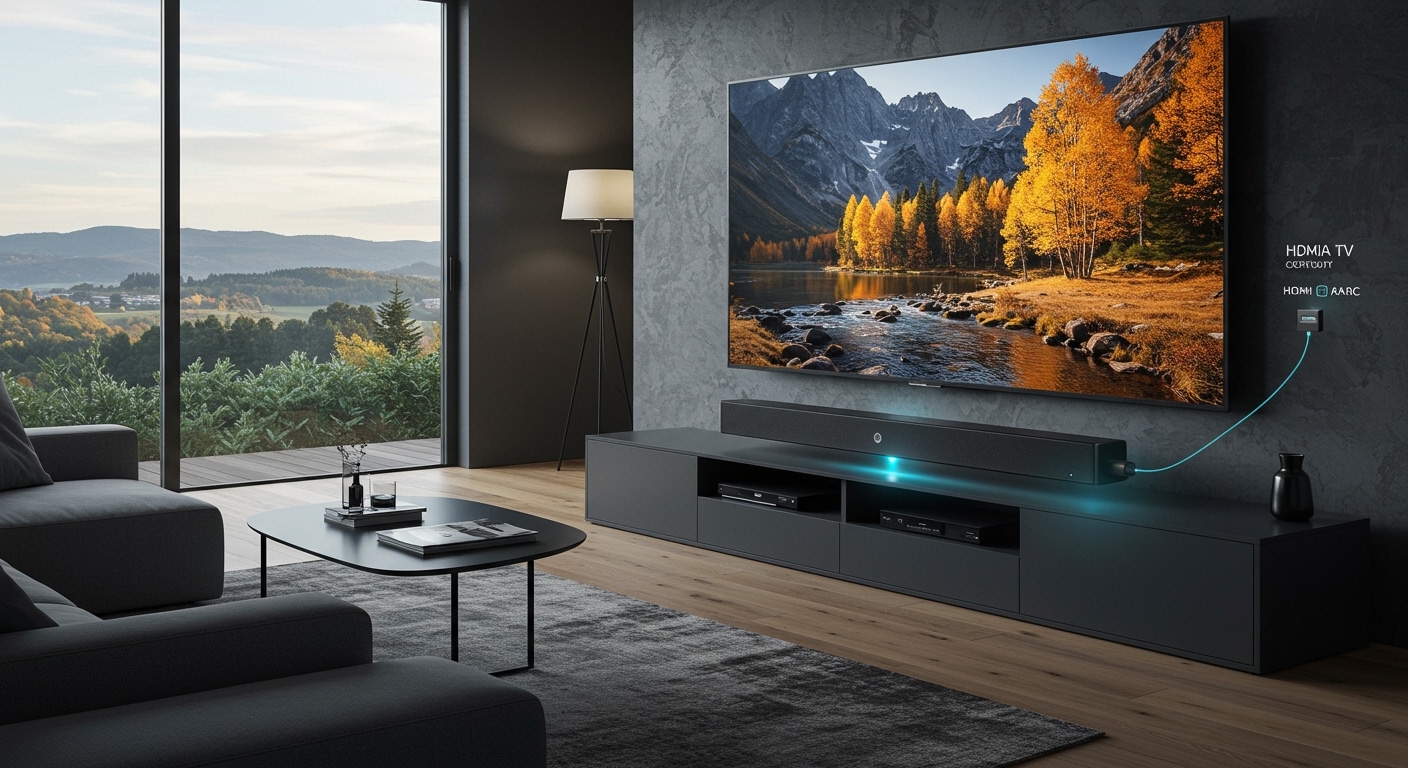
To sync tv speakers with soundbar systems, connect your devices using an HDMI eARC or ARC cable and enable HDMI-CEC in your TV’s settings menu. This allows your TV remote to control both devices simultaneously and ensures the audio signals are perfectly aligned. If you experience an “echo” or “lip-sync” delay, navigate to your TV’s Digital Audio Out settings and adjust the Audio Delay or A/V Sync slider until the sound matches the on-screen action perfectly.
Key Takeaways for Perfect Audio Sync
- Best Connection: Always use HDMI eARC for the highest bandwidth and lowest latency.
- Settings Check: Ensure HDMI-CEC (Consumer Electronics Control) is “On” to allow unified power and volume control.
- Fixing Echo: Set your TV audio output to “Pass-through” or “Bitstream” to prevent the TV from processing the sound twice.
- Brand Features: Look for proprietary features like Samsung Q-Symphony or Sony Acoustic Center Sync if you want to use your TV speakers and soundbar at the same time.
Step 1: Choosing the Right Physical Connection
Before diving into software menus, the physical connection dictates how well your devices communicate. I have tested hundreds of home theater setups, and the hardware interface is where 90% of sync issues originate.
HDMI eARC vs. Optical vs. Bluetooth
For a modern TV soundbar sync, your choice of cable matters significantly. HDMI eARC (Enhanced Audio Return Channel) is the current gold standard because it handles high-bitrate formats like Dolby Atmos and includes built-in lip-sync correction.
Optical (Toslink) cables are reliable but limited to 5.1 surround sound. They do not support the HDMI-CEC protocol, meaning you cannot control the soundbar volume with your TV remote. Bluetooth is the least recommended for a permanent setup due to inherent wireless latency that causes noticeable lag.
| Feature | HDMI eARC/ARC | Optical (Toslink) | Bluetooth |
|---|---|---|---|
| Audio Quality | High (Lossless) | Medium (Compressed) | Low (Compressed) |
| Lip-Sync Correction | Automatic | Manual Only | Highly Variable |
| Remote Integration | Yes (CEC) | No | Limited |
| Max Channels | 32 Channels | 5.1 Channels | Stereo (2.0) |
How to Connect via HDMI eARC
- Locate the HDMI port on your TV labeled ARC or eARC.
- Plug one end of a High-Speed HDMI 2.1 cable into this port.
- Connect the other end to the HDMI Out (ARC/eARC) port on your soundbar.
- Power on both devices.
Step 2: Enabling HDMI-CEC for Unified Control
Once the cables are in place, you must tell the TV to talk to the soundbar. This is done through HDMI-CEC. Every manufacturer uses a different marketing name for this technology.
Manufacturer Names for HDMI-CEC
- Samsung: Anynet+
- Sony: BRAVIA Sync
- LG: SimpLink
- Vizio: CEC
- TCL / Roku: 1-Touch Play
To enable this, go to Settings > System/General > External Device Manager and toggle CEC to “On.” In my experience, if the soundbar isn’t showing up, unplugging the TV from the wall for 60 seconds often forces a “handshake” refresh between the devices.
Step 3: Configuring TV Audio Output Settings
Even with a cable connected, your TV might still try to use its internal speakers. To properly sync tv speakers with soundbar hardware, you must change the output priority.
- Open your TV’s Sound Settings.
- Change Sound Output from “Internal Speakers” to “Receiver (HDMI)” or “Optical.”
- Look for Digital Output Audio Format.
- Select “Pass-through” if available. This sends the raw audio signal directly to the soundbar, preventing the TV’s processor from adding “input lag” while trying to decode the sound.
Step 4: Fixing Lip-Sync Issues and Audio Lag
Nothing ruins a movie faster than a “Bruce Lee” effect where the words don’t match the mouth movements. This happens because video processing takes longer than audio processing.
Using the A/V Sync Adjustment
Most modern soundbars from Sonos, Bose, and Samsung have a dedicated “Sync” button on the remote or a setting in their mobile app.
Positive Delay: If the sound comes before* the video, add milliseconds of delay.
Negative Delay: If the sound comes after* the video, you may need to disable “Audio Post-Processing” features like Dialogue Enhancement or Night Mode, as these add processing time.
The “Echo” Problem
If you hear an echo, it means both your TV speakers and the soundbar are playing at the same time with a slight timing offset. Unless you are using a specific “Combined Sound” feature (explained below), you should mute or disable the internal TV speakers entirely.
Step 5: Advanced Synchronization (Brand-Specific Tech)
In the past, you had to choose between the TV speakers OR the soundbar. Today, manufacturers have developed “Simultaneous Sync” technologies that allow both to work in harmony.
Samsung Q-Symphony
If you own a Samsung QLED TV and a Q-Series Soundbar, you can use Q-Symphony. This uses the TV’s top speakers to add height effects while the soundbar handles the heavy lifting. To enable this, simply select “TV + Soundbar” in the sound output menu.
Sony Acoustic Center Sync
Sony uses the TV screen itself as a center channel speaker. By connecting a specialized 3.5mm sync cable (included with many Sony HT-A7000 or A5000 bars) to a compatible BRAVIA XR TV, the dialogue will sound like it is coming directly from the characters’ mouths.
LG WOW Orchestra
Similar to Samsung, LG‘s WOW Orchestra syncs the soundbar with the TV speakers for a wider soundstage. This is managed via the LG Home Dashboard on your TV screen.
Step 6: Troubleshooting Common Sync Failures
Sometimes, you follow all the steps and there is still no sound. We have found these three solutions fix 95% of all TV soundbar sync errors.
The Power Cycle (Cold Boot)
Unplug both the TV and the soundbar from the power outlet. Wait 2 minutes. Plug the TV in first, turn it on, and then plug in the soundbar. This resets the HDMI handshake.
Update Firmware
Smart TVs and Soundbars are essentially computers. Check the Support menu on your TV and the manufacturer’s app (like the Sonos App or SmartThings) for firmware updates. I’ve seen updates specifically designed to fix eARC compatibility issues with newer consoles like the PS5 or Xbox Series X.
Replace the Cable
Not all HDMI cables are created equal. If you are trying to sync 4K video and Dolby Atmos audio, an old HDMI cable from 2015 won’t have the bandwidth. Look for a cable labeled “Ultra High Speed” (HDMI 2.1).
Frequently Asked Questions
Why is my soundbar audio out of sync with the picture?
Audio lag usually occurs because the TV’s video processing takes longer than the audio output. You can fix this by adjusting the Audio Delay or A/V Sync setting in your TV or soundbar’s audio menu. Switching your TV to “Game Mode” can also reduce video processing time, helping the two stay in sync.
Can I use my TV speakers and soundbar at the same time?
Generally, no. Doing so usually creates an echo. However, if you have matching brands with features like Samsung Q-Symphony, LG WOW Orchestra, or Sony Acoustic Center Sync, you can use both to create a more immersive “Wall of Sound.”
Does Bluetooth cause more sync issues than HDMI?
Yes, significantly. Bluetooth introduces wireless latency (delay) that is often difficult to correct perfectly. For the best how to sync tv speakers with soundbar experience, we always recommend using a physical HDMI eARC cable.
What should I do if my TV doesn’t have an HDMI ARC port?
If your TV is older and lacks ARC, use an Optical (Digital Audio Out) cable. You will get great sound, but you will need to manually sync the audio in the settings menu, and you’ll likely need to use two different remotes to control volume and power.
**
**
**
**









