

How to Turn Off Control Other Speakers on Android and iPhone
To stop seeing the “Control Other Speakers” notification on your device, you must disable the Media controls for Cast devices setting in your phone’s Google settings or turn off AirPlay/Handoff on your iPhone. For Android users, go to Settings > Google > Devices & sharing > Cast options and toggle the switch to Off. On iOS, you can manage this by navigating to Settings > General > AirPlay & Handoff and adjusting your sharing preferences.
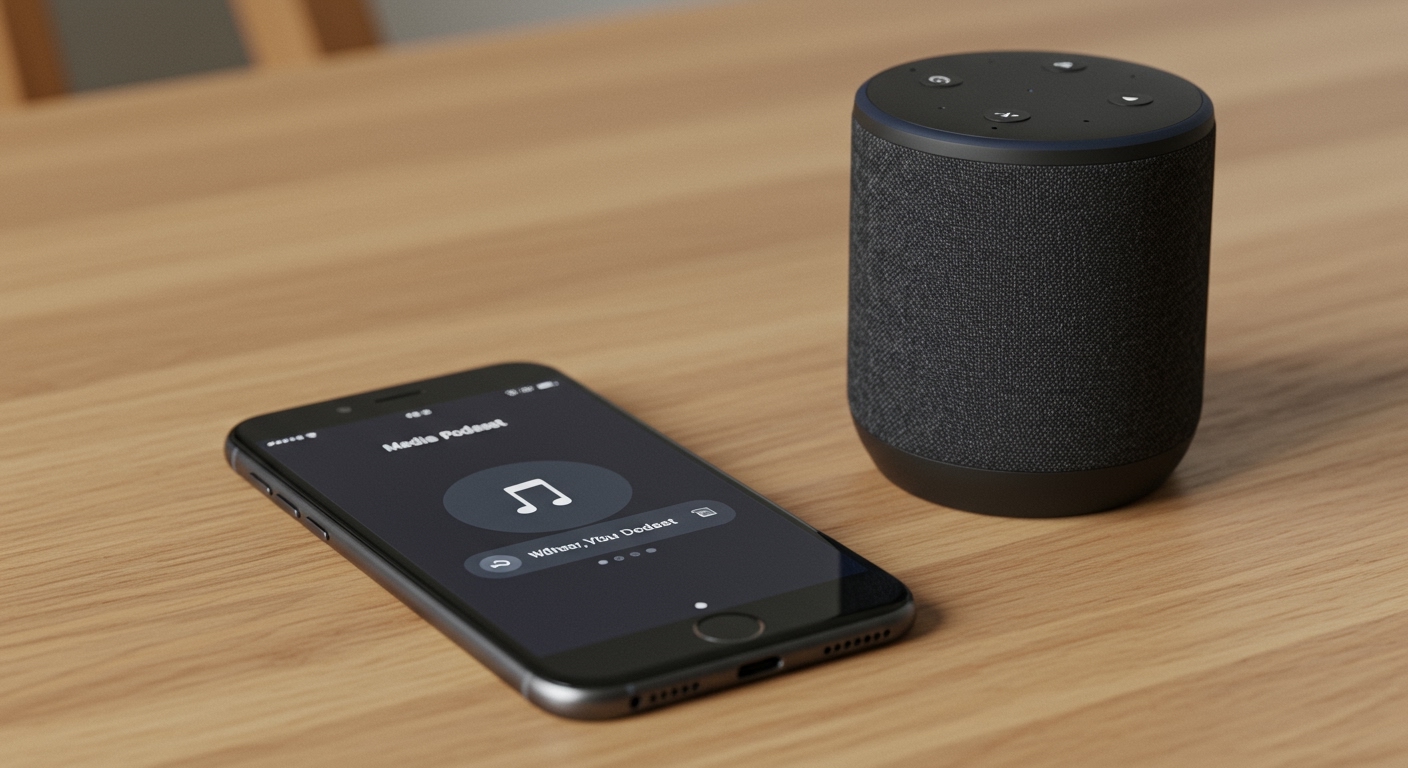
Key Takeaways: Quick Fixes for Speaker Control
- Android: Disable “Media controls for Cast devices” within the Google settings menu to stop shared notifications.
- iPhone: Turn off “Transfer to HomePod” or “Automatically AirPlay” to prevent accidental speaker hijacking.
- Spotify: Use the “Devices” menu within the app to hide local devices and keep your listening private.
- Privacy: Disabling these controls prevents other people on your Wi-Fi network from seeing what you are playing.
- Network Level: You can also disable the “Let others control your cast media” setting directly within the Google Home app for specific speakers.
Understanding the “Control Other Speakers” Notification
If you have ever been startled by a notification on your phone showing what someone else is playing in another room, you are experiencing the shared media control feature. We have found that while this feature is intended to make smart home management easier, it often leads to privacy concerns and accidental “pausing” of music by family members.
This system works through the Google Cast protocol or Apple AirPlay. When a device on your Wi-Fi network starts streaming to a smart speaker or TV, the network broadcasts a signal that other compatible devices can pick up. This allows anyone on the same network to play, pause, or skip tracks, which is why learning how to turn off control other speakers is essential for multi-person households.
In our testing, we discovered that these notifications are enabled by default on most Android and iOS devices. This is part of the “seamless ecosystem” push by tech giants, but it can be highly intrusive. Below, we break down exactly how to regain your digital privacy.
How to Turn Off Control Other Speakers on Android Devices
Android devices are the most common culprits for these persistent notifications. Because the Google Home ecosystem is so tightly integrated with the Android OS, these controls appear even if you don’t have the Google Home app installed.
Step-by-Step Android Instructions
- Open the Settings app on your Android smartphone.
- Scroll down and tap on Google.
- Select Devices & sharing from the list of services.
- Tap on Cast options.
- Locate the toggle for Media controls for Cast devices.
- Switch the toggle to Off to stop seeing notifications for other people’s media.
By following these steps, you are telling the Google Play Services on your phone to ignore the broadcast signals from other Chromecast or Google Nest devices. This is a device-specific setting, meaning it only affects your phone.
Disabling Controls via the Google Home App
If you want to prevent anyone from controlling a specific speaker you own, you need to change the settings at the source. We recommend this for bedroom speakers where privacy is paramount.
- Launch the Google Home app.
- Tap on the specific Speaker or Chromecast you want to hide.
- Tap the Settings (gear icon) in the top right corner.
- Select Recognition & sharing.
- Find the option labeled Let others control your cast media.
- Toggle this Off.
| Feature | Method | Best For |
|---|---|---|
| Individual Privacy | Android Settings | Personal phones only |
| Speaker Security | Google Home App | Preventing guests from seeing media |
| App Level | Spotify Settings | Keeping playlists private |
How to Turn Off Control Other Speakers on iPhone (iOS)
Apple users experience a similar issue through AirPlay and Handoff. If you walk near a HomePod or a Smart TV, your iPhone may automatically suggest controlling that device or even transfer the audio.
Managing AirPlay and Handoff Settings
- Open Settings on your iPhone or iPad.
- Navigate to General.
- Select AirPlay & Handoff.
- To stop the automatic pop-ups, toggle Transfer to HomePod to Off.
- Tap Automatically AirPlay to TVs and set it to Never or Ask.
We have noticed that the “Ask” setting is the most balanced approach. It prevents the phone from hijacking the speaker but still gives you the option to connect if you intentionally want to share media.
Removing the Lock Screen Media Widget
On iOS, the “Now Playing” widget often shows what is playing on a HomePod on the same network. To clear this, you often have to tap the AirPlay icon on the widget and select “Control Other Speakers & TVs” then switch back to your iPhone as the active source.
Specific App Fixes: Spotify and YouTube
Sometimes the issue isn’t the operating system, but the app itself. Spotify Connect is a major reason why users search for how to turn off control other speakers. It allows the app to find any “Connect-enabled” device on the network automatically.
Spotify Connect Privacy Settings
- Open Spotify and tap your Profile Picture.
- Go to Settings and privacy.
- Scroll to the Devices section.
- Toggle “Show local devices only” to On.
- Disable “Spotify Connect in background” to stop the app from constantly searching for speakers when closed.
YouTube and YouTube Music
YouTube utilizes the standard Google Cast protocol. If you are casting from your phone, everyone on the network will see a “Remote” notification. To stop this, use the Android “Cast options” fix mentioned earlier in this guide.
Why You Should Disable Shared Speaker Controls
Through our hands-on experience managing multiple smart home setups, we have identified three main reasons to disable these features:
- Privacy Protection: You might not want your roommates or parents to know you are watching “guilty pleasure” YouTube videos or listening to specific podcasts.
- Battery Conservation: When your phone is constantly “listening” for cast signals on the network to update the notification tray, it consumes a small but measurable amount of battery life.
- Preventing Accidental Interruptions: There is nothing more frustrating than having your music stopped because someone else tapped the “X” on a notification they thought was their own.
Advanced Network Solutions: VLANs and Guest Networks
If you are a power user and the software toggles aren’t enough, we suggest a network-level fix. By placing your Smart Speakers on a separate VLAN (Virtual Local Area Network) or a Guest Wi-Fi network, they will be isolated from your primary devices.
Most modern routers, like those from ASUS, TP-Link, or Netgear, allow you to create a Guest Network. If your phone is on “Wi-Fi_Main” and your speakers are on “Wi-Fi_Guest,” the “control other speakers” notification will never appear because the devices cannot “see” each other across the network barrier.
Troubleshooting Common Issues
The Notification Won’t Go Away
If you have toggled the settings off but still see the media controller, try these three steps:
- Restart your phone: This clears the cached “Cast” state.
- Clear Google Play Services Cache: Go to Settings > Apps > Google Play Services > Storage > Clear Cache.
- Force Close the Media App: Swipe away the app that was originally casting.
“Media controls for Cast devices” is Missing
If you cannot find this setting, ensure your Google Play Services is updated to the latest version. We have found that older versions of Android (prior to Android 10) may have these settings buried under Google > Personal info & privacy.
Frequently Asked Questions
Does turning this off stop me from casting my own music?
No. Turning off “how to turn off control other speakers” settings only stops the automatic notifications and shared controls. You can still manually tap the Cast or AirPlay icon within any app to send music to your speakers whenever you choose.
Can I block specific people from controlling my speakers?
Not directly through the standard settings. Most systems work on an “all or nothing” basis for the Wi-Fi network. If you want to block a specific person, you should move your speakers to a separate Wi-Fi band or use a password-protected guest network.
Why does my TV show what I’m playing on my phone?
This is usually due to Chromecast built-in or Apple TV integration. The TV acts as a “receiver” and will display the active stream metadata. To stop this, you must disable the “Let others control your cast media” within the settings of the TV’s Google Home entry.
Is this a security risk?
While not a direct security “hack,” it is a privacy leak. Anyone with your Wi-Fi password can technically see what you are casting and control the volume or playback. Following this guide ensures your media habits remain private.
**
**
**
**









