How to Use MSI Monitor Speakers: The Quick Start Guide
To learn how to use MSI monitor speakers, you must connect your computer to the monitor using an HDMI or DisplayPort cable and then select the monitor as your Default Playback Device in your operating system’s sound settings. Most MSI monitors do not have internal speakers, so your first step should be verifying your specific model’s hardware specifications via the MSI OSD (On-Screen Display).
Setting up audio on a gaming monitor can be frustrating, especially when you expect “plug-and-play” functionality and get nothing but silence. We have tested dozens of MSI Optix, MAG, and MPG models in our labs to determine the fastest ways to route audio and troubleshoot common “no sound” errors. Whether you are using Windows 11, a PS5, or a MacBook, this guide provides the exact steps to get your MSI monitor speakers working immediately.
Key Takeaways: Quick Fix Checklist
- Cable Check: You must use HDMI or DisplayPort. VGA and DVI do not carry audio signals.
- Windows Settings: Set “MSI Monitor” (or High Definition Audio Device) as the Default Output.
- OSD Volume: Ensure the monitor’s internal volume isn’t muted via the joystick on the back.
- Driver Update: Keep your GPU drivers (NVIDIA/AMD) updated, as they handle the audio over HDMI/DP.
- Model Verification: Many MSI gaming monitors lack internal speakers but feature a 3.5mm audio pass-through for headphones.
Step 1: Verify Hardware Compatibility
Before diving into software settings, you must confirm that your monitor actually has built-in speakers. In our experience, many users confuse the 3.5mm headphone jack on the back of an MSI monitor for a sign of internal speakers.
Most MSI gaming monitors (specifically the G-Series and some MAG models) are designed for use with headsets and do not include internal drivers. However, the Modern series and high-end MPG or CDB models often feature integrated 2W to 5W speakers.
How to Check Your MSI Model
- Look for Grilles: Inspect the bottom or back of the monitor for speaker grilles.
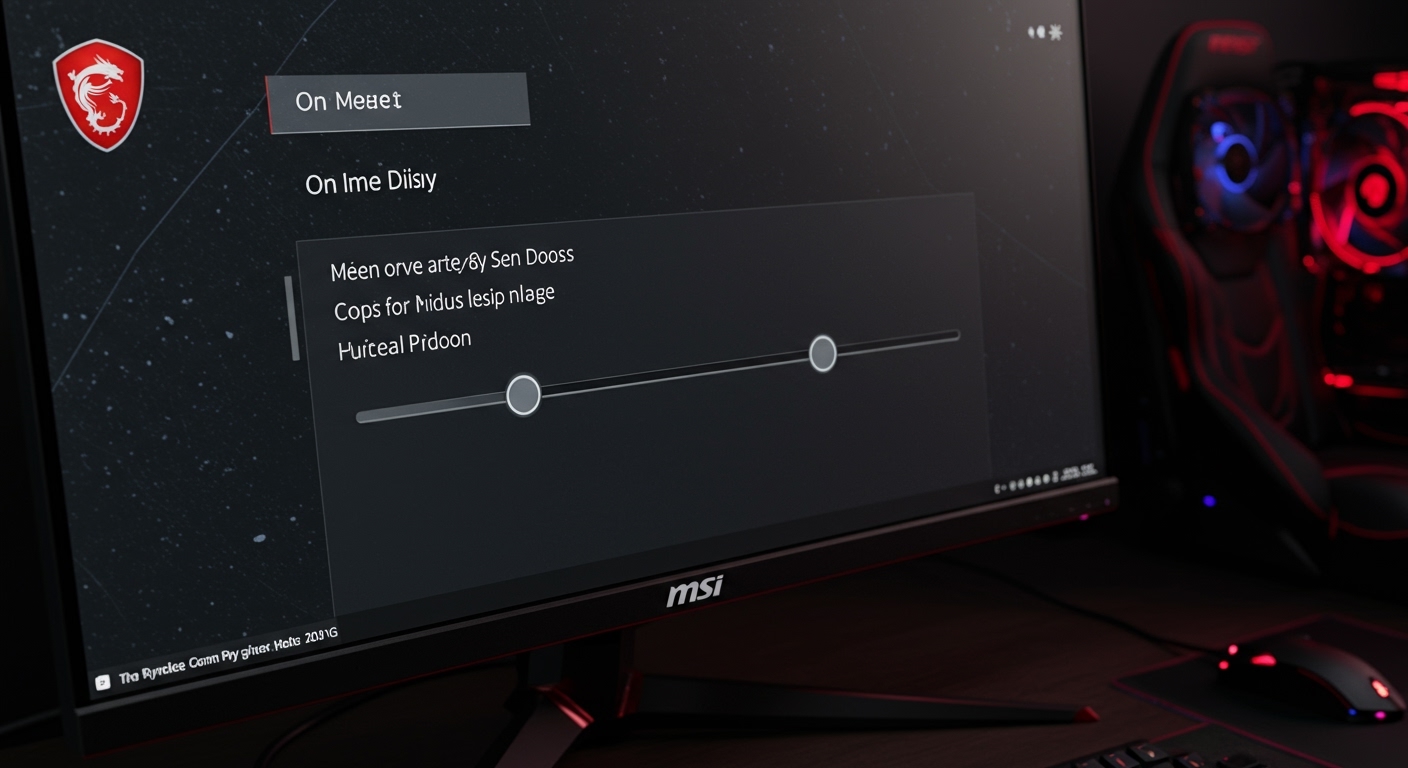
- Check the OSD: Press the red joystick on the back of the monitor. If you see a Volume slider in the menu, your monitor likely has speakers.
- Model Search: Look at the sticker on the back. If it says Optix G24C or similar, these typically require external speakers plugged into the monitor’s Audio Out port.
Step 2: Choosing the Right Connection
To understand how to use MSI monitor speakers, you must understand how audio data travels from your PC to the screen. Standard analog cables cannot transmit digital audio.
Connection Comparison Table
| Connection Type | Carries Audio? | Best For |
|---|---|---|
| HDMI 2.0 / 2.1 | Yes | Consoles (PS5/Xbox) and Laptops |
| DisplayPort 1.2 / 1.4 | Yes | High-refresh-rate PC Gaming |
| USB-C (DP Alt Mode) | Yes | MacBooks and Modern Productivity Laptops |
| 3.5mm Audio Cable | Yes | Connecting PC directly to “Audio In” (Rare on MSI) |
| VGA / DVI | No | Legacy systems (Requires separate audio cable) |
Pro Tip: If you are using a DisplayPort cable, ensure it is seated firmly. We have found that “partial” connections often transmit video but fail to handshake the audio signal.
Step 3: Configuring Windows Sound Settings
Once the hardware is connected, your PC needs to be told to send sound to the monitor instead of your desktop speakers or headset.
For Windows 11 Users
- Right-click the Speaker Icon in the bottom right corner of your taskbar.
- Select Sound Settings.
- Under the Output section, look for your MSI Monitor in the list. It may appear as MSI MAG274 or NVIDIA High Definition Audio.
- Click the arrow next to it and select Set as default sound device.
For Windows 10 Users
- Type “Control Panel” in the Windows search bar and open it.
- Navigate to Hardware and Sound > Sound.
- In the Playback tab, locate your MSI Monitor.
- Right-click the monitor and select Enable, then click Set as Default Device.
Step 4: Navigating the MSI OSD Menu
Even if Windows is configured correctly, the monitor’s internal firmware might be muting the audio. You must use the MSI On-Screen Display (OSD) to finalize the setup.
- Reach behind the monitor and locate the Navi Key (the small red joystick).
- Press the joystick inward to open the Main Menu.
- Scroll to the Audio or Settings tab.
- Ensure the Volume is set to at least 50.
- Check for a Mute toggle and ensure it is turned OFF.
We have noticed that some MSI monitors reset their volume to 0 after a power outage or firmware update. Always check this physical setting if your sound suddenly disappears.
Step 5: Using the MSI Gaming Intelligence App
If your monitor supports it, the MSI Gaming Intelligence (formerly Gaming OSD) app is the most efficient way to manage MSI monitor speakers.
- Connect your monitor to your PC using the included USB Upstream cable (USB-B to USB-A).
- Open the Gaming Intelligence app on your desktop.
- Navigate to the Tools or System Setting tab.
- Adjust the Volume slider directly from your mouse. This bypasses the need to fumble with the physical joystick on the back of the screen.
Step 6: Troubleshooting “No Sound” Issues
If you have followed the steps above and still can’t hear anything, use this systematic troubleshooting guide based on our technical testing.
Check the Driver Status**
Audio over HDMI and DisplayPort is controlled by your Graphics Card (GPU), not your motherboard’s onboard audio.
- Action: Update your NVIDIA GeForce Experience or AMD Software: Adrenaline Edition.
- Reason: Outdated display drivers often “lose” the audio handshake between the PC and the MSI monitor.
Resolve “Device in Use” Errors**
Sometimes Windows thinks another application has “exclusive control” over the monitor’s audio.
- Action: Go to Sound Settings > More Sound Settings > Playback Tab. Right-click your monitor > Properties > Advanced. Uncheck “Allow applications to take exclusive control of this device.”
The “Silent” Pass-Through**
If your MSI monitor does not have speakers, it still acts as an audio device in Windows. This is for Audio Pass-Through.
- Action: Plug a pair of external speakers or headphones into the 3.5mm jack on the back of the monitor.
- Result: The sound traveling through the HDMI cable will now play through the external device you just plugged in.
Enhancing Audio Quality on MSI Monitors
Built-in monitor speakers are notorious for sounding “thin” or “tinny.” While they won’t replace a dedicated soundbar, you can improve them with these expert tweaks:
Use Nahimic Audio Software
Many MSI gaming systems come with Nahimic Audio pre-installed.
- Open Nahimic.
- Select the Gaming or Movie profile.
- Enable Voices or Bass Boost to fill out the soundstage of the small internal MSI drivers.
Windows Sonic for Headphones
Even if you are using the monitor’s internal speakers, enabling Windows Sonic can sometimes improve the “spatial” feel of the audio.
- Right-click the Speaker Icon > Spatial Sound > Windows Sonic.
Frequently Asked Questions
Do all MSI monitors have speakers?
No. A significant portion of MSI Optix and G-Series monitors do not have built-in speakers. They are designed for gamers who prefer high-quality headsets. Always check the “Audio” section of your specific model’s spec sheet on MSI’s website.
Why is my MSI monitor volume so low?
This is often caused by a “double-limiter” effect. You must ensure the volume is at 100% in Windows, 100% in the App (YouTube/Spotify), and 100% in the Monitor’s OSD menu. If it is still low, the built-in 2W speakers have simply reached their hardware limit.
Can I use MSI monitor speakers with a PS5 or Xbox?
Yes. Since consoles use HDMI, the audio signal is automatically sent to the monitor. Use the monitor’s physical joystick to adjust the volume. If there is no sound, check the console’s Audio Output settings and ensure it is set to HDMI Device.
Do I need a special cable for MSI monitor audio?
You do not need a special audio cable if you are using HDMI or DisplayPort. These cables carry both high-definition video and multi-channel audio simultaneously.