

Understanding What Color Is for Speakers on a PC
If you are looking to plug in your audio gear and need to know what color is for speakers pc, the answer is Lime Green. This standard color represents the Front Left/Right Line-Out port used for stereo speakers and headphones on almost every modern computer motherboard and sound card.
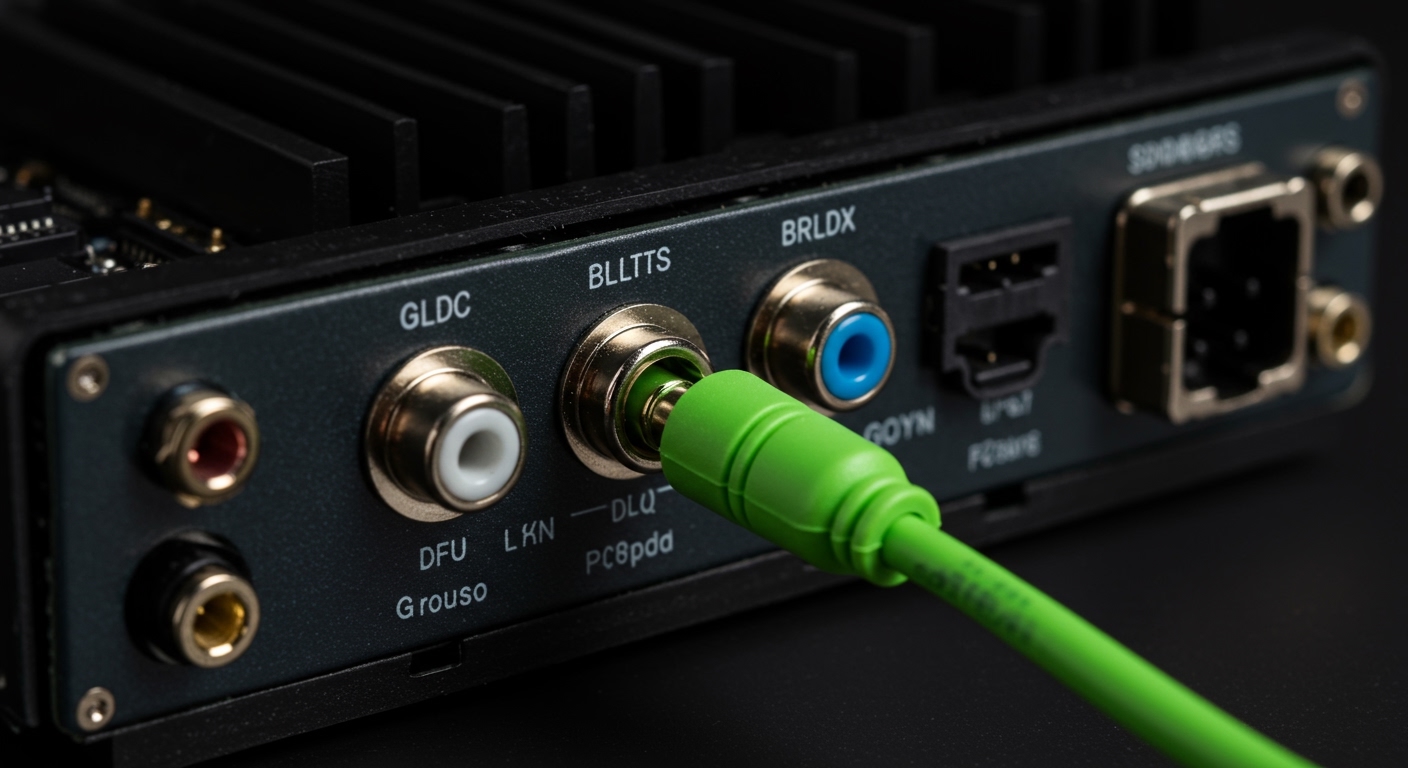
Connecting your audio peripherals can feel like solving a colorful puzzle, especially with the array of ports found on the back of a gaming rig. After building and troubleshooting hundreds of custom workstations, we have found that following the PC99 Color Standard is the fastest way to get your sound working perfectly. While Lime Green is the primary port for standard two-channel audio, understanding the other colors is vital if you are setting up a multi-channel surround sound system or using a dedicated microphone.
Quick Guide: PC Audio Jack Color Meanings
| Port Color | Function | Audio Channel / Device |
|---|---|---|
| Lime Green | Line-Out | Main Stereo Speakers or Headphones |
| Pink | Microphone In | Analog Microphone Input |
| Light Blue | Line-In | External Audio Sources (MP3 players, mixers) |
| Orange | Center/Subwoofer | Center Channel and Subwoofer (Surround Sound) |
| Black | Rear Surround | Rear Left/Right Speakers (5.1 or 7.1 systems) |
| Grey/Silver | Side Surround | Side Left/Right Speakers (7.1 systems only) |
Key Takeaways for Fast Setup
- Primary Port: Always look for the Lime Green jack first for standard PC speakers.
- The Icons: If colors are faded, look for a “headphone” icon or an arrow pointing out of a circle.
- Software Matters: Modern Realtek drivers often allow you to “re-task” ports if you plug into the wrong one.
- Surround Sound: 5.1 systems use Green, Orange, and Black; 7.1 systems add the Grey port.
Decoding the PC Audio Color Standard
The reason we have these specific colors dates back to the PC99 design guide created by Intel and Microsoft. Before this standard, every manufacturer used different colors, leading to massive confusion for consumers. I remember the frustration of trial and error in the mid-90s, where one wrong plug could result in silence or, worse, feedback loops.
Today, the Lime Green port remains the universal anchor for PC audio. Whether you are using a budget pair of Logitech desk speakers or high-end Bose monitors, the 3.5mm jack is designed to slide into that specific green socket. This port carries the primary analog signal for the front-left and front-right channels.
Why Is My Speaker Jack Not Green?
Sometimes, high-end motherboards or boutique audio interfaces use Gold-Plated jacks for better conductivity and aesthetics. In these cases, the manufacturer usually replaces the color-coded plastic with engraved text or small LED rings. If your motherboard has all-black or all-gold ports, look for the label “L-Out” or “Front.”
Step-by-Step: How to Connect Your PC Speakers
Setting up your audio shouldn’t be a guessing game. Follow this expert-verified process to ensure your soundstage is balanced and clear.
Step 1: Identify Your Speaker Cable
Most computer speakers come with a 3.5mm TRS (Tip-Ring-Sleeve) connector. This is the same size as a traditional headphone jack. Check the tip of the cable; if it has a green plastic housing or a green band, it is meant for the Lime Green port.
Step 2: Locate the Primary Output
Turn your PC case around so you can see the Rear I/O Panel. Locate the cluster of circular audio ports. We recommend using the ports on the back of the motherboard rather than the front-panel “Case” ports for the best signal-to-noise ratio. Find the Lime Green jack, which is typically positioned in the middle of the stack.
Step 3: Insert the Plug Firmly
Push the 3.5mm jack into the Lime Green port until you feel a “click.” If the connection is loose, you may experience “crackling” or lose sound in one speaker. I have often seen users complain about “dead speakers” when the reality was simply a jack that wasn’t pushed in all the way.
Step 4: Configure Windows Sound Settings
Once plugged in, Windows should automatically detect the connection.
- Right-click the Speaker Icon in your system tray (bottom right).
- Select “Open Sound Settings.”
- Under “Choose your output device,” ensure your speakers (usually listed as High Definition Audio Device or Realtek Audio) are selected.
Advanced Setup: What Color is for Speakers PC in Surround Sound?
If you are graduating from simple stereo to a 5.1 or 7.1 surround sound environment, the Lime Green port is no longer enough. You will need to utilize the entire rainbow of ports on your motherboard.
1 Surround Sound Connections
A 5.1 system consists of five speakers and one subwoofer. To get this working, you need three separate cables:
- Green Cable: Plugs into the Lime Green port (Front Left/Right).
- Black Cable: Plugs into the Black port (Rear Left/Right).
- Orange Cable: Plugs into the Orange port (Center and Subwoofer).
1 Surround Sound Connections
A 7.1 system adds two “Side” speakers to the mix. In addition to the three cables used in 5.1, you will use:
- Grey/Silver Cable: Plugs into the Grey port (Side Left/Right).
Pro Tip from our Testing: If your speaker system uses a single USB cable instead of 3.5mm jacks, the color coding on the motherboard becomes irrelevant. The USB cable handles all digital-to-analog conversion (DAC) inside the speaker or an external control pod.
Troubleshooting Common PC Audio Color Issues
Even when you know what color is for speakers pc, technical glitches can occur. Here are the most common issues we encounter in the field.
The Port Colors Don’t Match the Cable
Some older speaker sets use a Black or Red cable for the main stereo signal. If your cables aren’t color-coded, don’t panic. The Lime Green port is almost always the “default” for any single-cable speaker setup. If you hear nothing, try the Black port next, but Green is your best bet.
Sound Only Plays from One Speaker
This is rarely a port color issue and usually a “seating” issue. Ensure the jack is fully inserted. Additionally, check your Windows Balance settings. Navigate to Sound Settings > Device Properties and ensure the Left and Right sliders are equal.
Plugging into “Line-In” by Mistake
The Light Blue port is right next to the Lime Green one. If you plug your speakers into the blue port, you will hear nothing. The blue port is an input meant for recording sound from an external device like a record player or an instrument.
Realtek Audio Console “Pop-Ups”
When you plug a device in, your PC might show a window asking, “Which device did you plug in?” This is a feature of Realtek drivers. Even if you plugged into the wrong color, you can tell the software “This is a Front Speaker Out,” and it will electronically re-route the signal.
Expert Perspectives on Audio Quality: Front vs. Rear Ports
As an expert who has spent years analyzing PC hardware performance, I always advise users to favor the Rear Motherboard Ports over the front-panel jacks found on PC cases.
Why use the Rear Ports?
- Reduced Interference: The front-panel ports use long, unshielded wires that run through the “noisy” interior of your PC case, picking up electromagnetic interference from your GPU and PSU.
- Better Components: On many enthusiast motherboards (like the ASUS ROG or MSI Godlike series), the rear ports are directly connected to high-end ESS Sabres DACs or Nichicon capacitors.
- Stability: Cables plugged into the back are less likely to be accidentally bumped or pulled out, protecting your hardware’s lifespan.
The Future of PC Audio: Beyond the Colors
While the question of what color is for speakers pc is still vital for analog users, the industry is shifting toward digital connections. We are seeing a massive rise in USB-C and Optical (S/PDIF) audio.
Digital Optical Audio (S/PDIF)
Look for a small, square port with a red glow inside. This is the Optical Out. It uses light pulses instead of electricity to transmit data. The beauty of Optical is that it carries 5.1 or 7.1 audio through a single cable, completely bypassing the need for green, black, and orange color-coded jacks.
USB Audio
Many modern gaming headsets and “Smart” speakers (like the Razer Nommo) use USB. When you use USB, you are bypassing your motherboard’s internal sound card entirely. This is an excellent solution if your motherboard’s Lime Green port is damaged or produces “static” noise.
FAQ: Frequently Asked Questions about PC Speaker Colors
What color is for speakers pc if I have a laptop?
Laptops rarely use color-coding. Instead, they feature a single 3.5mm “Combo Jack.” This jack is usually black or silver and supports both headphones (output) and a microphone (input) using a TRRS connector. Look for a small headset icon next to the port.
Can I plug speakers into the pink jack?
No. The Pink jack is specifically for Microphones. It provides a small amount of “Plug-in Power” (usually 3-5 volts) to power condenser mics. Plugging speakers into the pink port could result in distorted sound or, in rare cases, damage to the speaker’s internal amplifier.
Why is my green port not working?
If you’ve confirmed you are using the Lime Green port but have no sound, check your BIOS/UEFI settings. Sometimes, “Onboard Audio” is disabled if a dedicated sound card or a specific GPU (via HDMI audio) is detected. Ensure “HD Audio” is set to Enabled.
Does it matter which way the speakers are plugged in?
For the 3.5mm jack, the orientation doesn’t matter. However, for the speakers themselves, ensure the “Active” speaker (the one with the volume knob) is placed on your Right side, as most PC audio signals are mapped with the volume control on the right channel by default.
What if I have 2.1 speakers (with a subwoofer)?
For 2.1 systems, you still use the Lime Green port. The subwoofer in a 2.1 system usually gets its signal from the main speaker housing or an internal crossover, so it does not require the separate Orange subwoofer jack used by 5.1 systems.









