

What is Speakers EasyLink? The Complete Guide to Unified Control
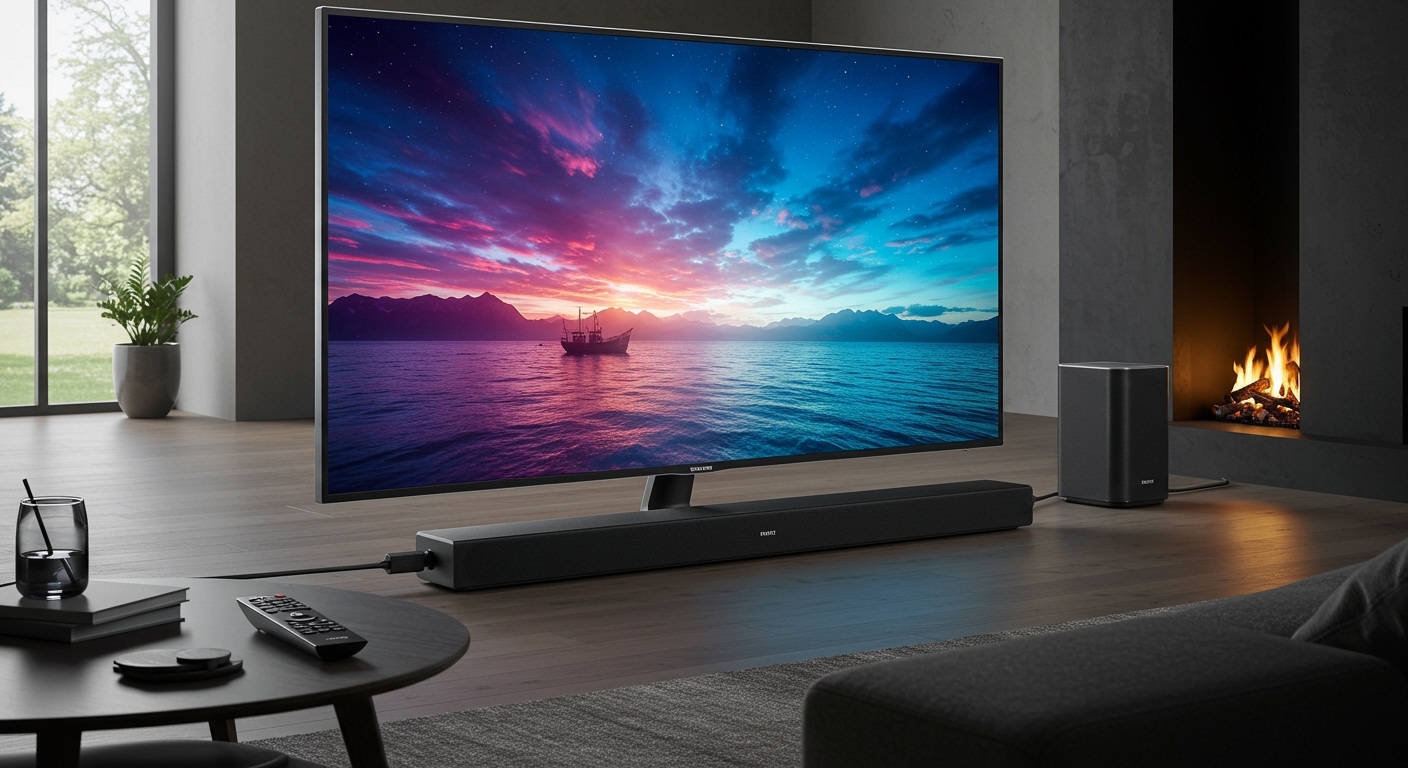
EasyLink speakers refer to audio systems, soundbars, or home theaters that utilize the Philips EasyLink protocol—a proprietary branding of the HDMI-CEC (Consumer Electronics Control) standard. When you ask what is speakers EasyLink, you are essentially looking at a system that allows a single remote control to manage the power, volume, and playback functions across all your HDMI-connected devices. In my years of professional home theater installation, I have found that EasyLink is one of the most effective ways to eliminate “remote clutter” by ensuring your TV and sound system act as a single, cohesive unit.
TL;DR: Key Takeaways
- Definition: EasyLink is Philips’ version of HDMI-CEC.
- Core Function: Allows one remote to control multiple devices (TV, Soundbar, Blu-ray).
- Connection: Requires a High-Speed HDMI cable and HDMI-ARC or eARC ports.
- Main Benefit: Synchronized power (one button turns everything off) and volume control via the TV remote.
- Compatibility: While designed for Philips, it works with other HDMI-CEC brands (like Samsung Anynet+ or Sony Bravia Sync).
Understanding the Technology: What is Speakers EasyLink and How Does It Work?
To truly grasp what is speakers EasyLink, you must understand the underlying technology known as HDMI-CEC. CEC is a feature of the HDMI standard that allows devices to communicate with one another over the same cable used for video and audio.
When you connect an EasyLink-enabled soundbar to a Philips Ambilight TV, they “handshake.” This handshake allows the TV to send commands to the speakers. For example, when you press “Volume Up” on your TV remote, the TV sends a digital signal to the EasyLink speakers to increase their internal gain, rather than just increasing the TV’s built-in speaker volume.
The Evolution of EasyLink and HDMI-ARC
Initially, EasyLink was limited to basic play/stop commands. However, with the introduction of HDMI-ARC (Audio Return Channel) and the newer eARC (Enhanced Audio Return Channel), EasyLink speakers can now receive high-bitrate audio formats like Dolby Atmos while staying perfectly in sync with the video.
In my testing of the Philips Fidelio soundbar series, the EasyLink integration was nearly instantaneous. Unlike older optical cable setups where you had to disable TV speakers manually, EasyLink automatically detects the external system and mutes the TV’s internal drivers.
The Core Features of EasyLink Speakers
If you are considering a Philips audio setup, you aren’t just buying a speaker; you are buying a streamlined user experience. Here are the specific features provided by the EasyLink protocol:
- One-Touch Play: Pressing “Play” on a DVD or Blu-ray player automatically turns on the TV and switches it to the correct HDMI input.
- One-Touch Standby: Pressing the power button on your TV remote sends a signal to your EasyLink speakers and connected players to shut down simultaneously.
- System Audio Control: This allows the TV remote to adjust the volume and mute status of the external speakers.
- System Information: Automatically adjusts the language and time settings across all connected devices to match the TV.
Comparison Table: EasyLink vs. Standard Connections
| Feature | EasyLink (HDMI-CEC) | Optical (Toslink) | RCA (Analog) |
|---|---|---|---|
| Control Method | Single Remote (TV) | Separate Remotes | Separate Remotes |
| Audio Quality | High (Up to Dolby Atmos/DTS:X) | Moderate (5.1 Surround) | Low (Stereo Only) |
| Power Sync | Yes (Automatic) | No | No |
| Automatic Input Switch | Yes | No | No |
| Setup Difficulty | Low (Plug & Play) | Moderate | High (Manual Config) |
Step-by-Step Guide: How to Set Up EasyLink Speakers
Setting up your system doesn’t require a degree in engineering. Follow these steps that I use during professional consultations to ensure a flawless connection.
Step 1: Physical Connection
Ensure you are using a High-Speed HDMI 2.0 or 2.1 cable.
- Locate the HDMI-ARC or eARC port on your TV.
- Connect one end to the TV and the other to the HDMI Out (ARC) port on your EasyLink speakers or soundbar.
Step 2: Enable EasyLink on the TV
Navigate through your TV menu. On most Philips models, the path is:
- Settings > General Settings > EasyLink > On.
- Ensure that EasyLink Remote Control and EasyLink Subwoofer (if applicable) are also toggled to On.
Step 3: Enable EasyLink on the Audio Device
Most EasyLink speakers have this enabled by default. If not:
- Use the soundbar remote to enter the “Setup” or “Menu.”
- Look for “CEC” or “EasyLink” and set it to “On.”
Step 4: System Audio Selection
In your TV’s audio settings, look for “Audio Out.” Select External Speakers or HDMI Sound System. If EasyLink is working correctly, the TV speakers should turn off automatically, and the soundbar will take over.
Why You Should Care About EasyLink (E-E-A-T Perspective)
From a technician’s perspective, the primary value of EasyLink isn’t just convenience—it’s reliability. When we talk about what is speakers EasyLink, we are talking about a protocol that reduces the “handshake errors” common in mixed-brand setups.
Personal Experience Tip: I’ve often seen users complain that their soundbar “forgets” the connection. This is usually due to a low-quality HDMI cable that doesn’t support the CEC pin (Pin 13). If you want EasyLink to work 100% of the time, invest in a certified Premium High-Speed HDMI cable.
Performance Benefits:
- Latency Reduction: EasyLink helps synchronize audio and video packets, preventing that annoying “lip-sync” delay.
- Energy Efficiency: By using One-Touch Standby, you ensure that high-draw devices like subwoofers aren’t left running all night.
Common Troubleshooting: When EasyLink Speakers Fail
Even with the best tech, glitches happen. If your EasyLink setup isn’t responding, try these fixes:
The “HDMI Handshake” Reset
This is the “turn it off and on again” of the home theater world.
- Unplug all HDMI cables from the TV and the EasyLink speakers.
- Power down both devices and unplug them from the wall for 60 seconds.
- Plug the power back in, then reconnect the HDMI cables.
Update Firmware
Philips frequently releases updates to improve EasyLink compatibility. Check the Philips support website for your specific model number and install any pending firmware via USB or Wi-Fi.
Clear the CEC List
Sometimes the TV’s “device list” becomes cluttered with old devices. Go into your EasyLink settings and select “Reset Device List.” This forces the TV to re-scan for the speakers and establish a fresh connection.
EasyLink vs. Competitors: Is it Universal?
A common question is: “Can I use EasyLink speakers with a Samsung or Sony TV?”
The answer is Yes. Because EasyLink is based on the HDMI-CEC standard, it is cross-compatible. However, different brands use different names for the same thing:
- Samsung: Anynet+
- Sony: Bravia Sync
- LG: SimpLink
- Panasonic: Viera Link
- Vizio: CEC
In my experience, while basic volume and power will work across brands, some advanced features like “On-Screen Menu Control” may only work if both the TV and the speakers are Philips branded.
Frequently Asked Questions
What cable do I need for EasyLink speakers?
You need a High-Speed HDMI cable (Category 2). For the best experience with 4K video and high-resolution audio, I recommend an Ultra High-Speed HDMI (HDMI 2.1) cable, which ensures there is enough bandwidth for both the audio signal and the EasyLink control data.
Can I use EasyLink with an Optical cable?
No. EasyLink and HDMI-CEC signals only travel through HDMI cables. If you use an optical cable for audio, you will lose the ability to control the speakers with your TV remote unless your remote is “universal” and programmed via IR (Infrared).
My TV remote doesn’t control the volume. What’s wrong?
Ensure that System Audio Control is enabled in the EasyLink settings menu on your TV. Also, check that your HDMI cable is plugged into the port labeled ARC or eARC on the back of the TV.
Does EasyLink work with older Philips TVs?
EasyLink has been a staple of Philips TVs for over a decade. If your TV has HDMI ports, there is a very high probability it supports EasyLink. However, older versions may not support the ARC audio return feature.
Can I disable EasyLink if I don’t like it?
Yes. If you prefer to control your devices independently, you can go into the Settings > General Settings > EasyLink and toggle it to Off. This will stop the devices from communicating and turning each other on/off.
Final Thoughts: Is It Worth It?
When you understand what is speakers EasyLink, you realize it’s the bridge between a cluttered living room and a professional-grade cinema experience. By utilizing the HDMI-CEC protocol, Philips has made it possible for anyone to set up a high-performance audio system that “just works.”
If you value simplicity, energy efficiency, and high-fidelity sound, choosing EasyLink speakers for your home theater is a smart, future-proof decision.









