

Understanding Where to Put PC Speakers for Maximum Performance
To get the best sound, you should place your PC speakers to form an equilateral triangle with your head, ensuring the tweeters are at ear level and tilted slightly toward you. This “sweet spot” ensures accurate stereo imaging, clear high frequencies, and a balanced soundstage that makes games and music feel immersive.
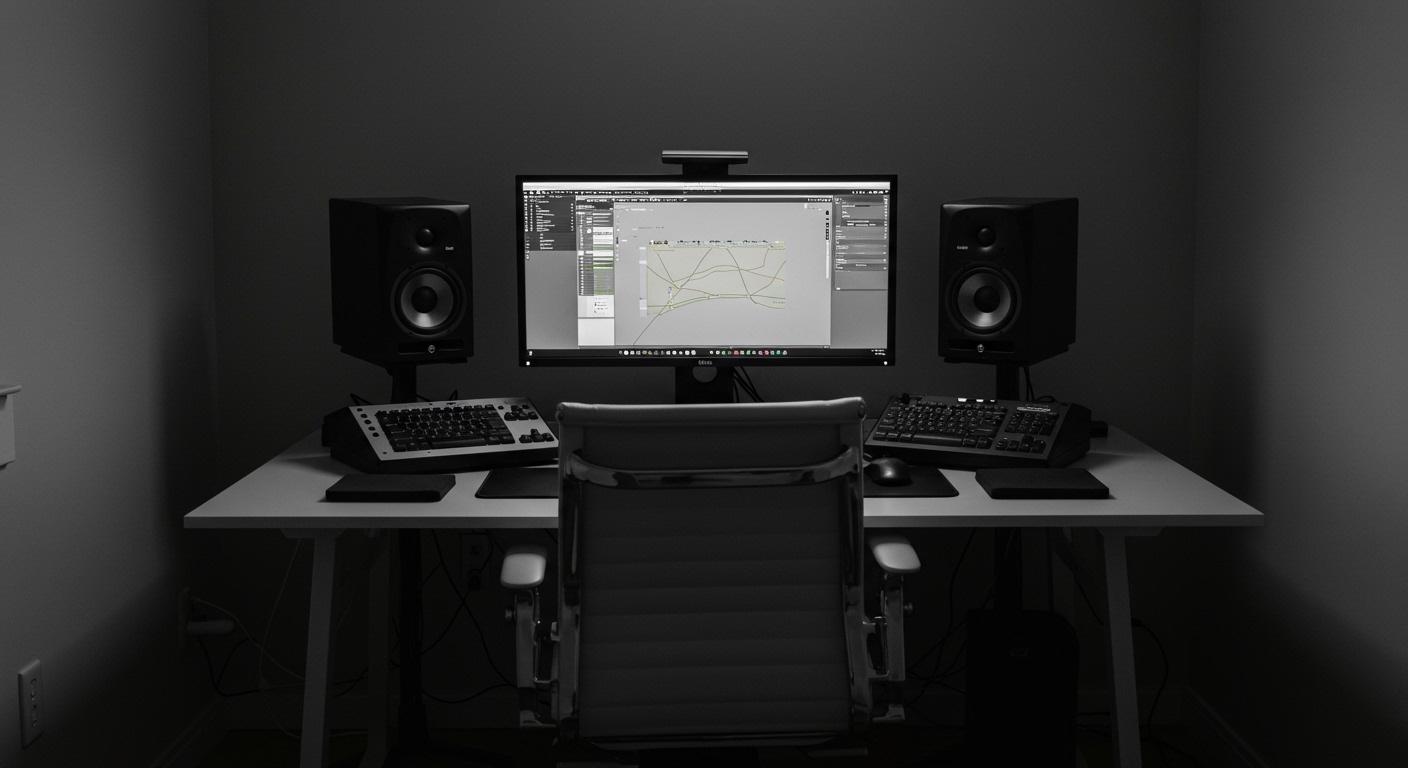
I have spent over a decade setting up high-end workstations and home studios, and I’ve learned that even a $500 pair of speakers will sound like a “tin can” if placed incorrectly. Most users simply plop their speakers next to their monitor, but this leads to phase cancellation and muddy bass. By following a few simple geometric rules, you can drastically improve your audio quality without spending a dime.
TL;DR: Quick Setup Checklist
- The Triangle: Distance between speakers should equal the distance from each speaker to your ears.
- Height: Tweeters (the small top drivers) must align with your ears.
- Toe-In: Angle speakers about 15–30 degrees toward your seating position.
- De-coupling: Use isolation pads or stands to stop desk vibrations.
- Wall Clearance: Keep speakers at least 6 to 12 inches away from the back wall to prevent “boomy” bass.
The Core Geometry: The Equilateral Triangle Rule
The most critical factor in where to put pc speakers is the relationship between the two speakers and your listening position. In the audio world, we call this the Stereo Image. When speakers are too close together, the sound feels “mono” and narrow; too far apart, and you lose the “phantom center” where vocals usually sit.
Ideally, the distance between the Left and Right speakers should be exactly the same as the distance from each speaker to your head. For most standard 60-inch desks, this means your speakers will be roughly 30 to 40 inches apart.
Why the 60-Degree Angle Matters
When you form an equilateral triangle, each speaker sits at a 60-degree angle relative to the other. This creates a balanced soundstage where you can pinpoint exactly where a footstep is coming from in Call of Duty or where the violin is placed in an orchestral track.
Achieving Proper Vertical Alignment (The Ear Level Rule)
One of the biggest mistakes I see in home offices is speakers sitting flat on the desk surface. High-frequency sounds from the tweeter are highly directional, meaning if they are pointing at your chest rather than your ears, you lose significant clarity and detail.
Tweeters vs. Woofers
- Tweeters: These handle the high-pitched sounds. They must be aimed directly at your ears.
- Woofers: These handle the mids and bass. They are less directional, but still benefit from proper height.
If your speakers are too short, do not just leave them on the desk. Use desktop speaker stands (like the Kanto S2 or ISO-Acoustics) to lift them. If you are on a budget, even a stack of sturdy books can work to bring those tweeters up to eye level.
Dealing with Desk Reflections and Boundary Interference
The surface of your desk acts like a mirror for sound. When sound waves hit your desk and bounce back into your ears, they arrive slightly later than the direct sound. This is called Comb Filtering, and it makes your audio sound “hollow” or “thin.”
Comparison Table: Placement Solutions
| Problem | Cause | Best Solution |
|---|---|---|
| Muddy Bass | Speaker too close to the wall | Move 6-12 inches away from wall |
| Hollow Mids | Sound reflecting off the desk | Use Acoustic Foam Wedges |
| Desk Rattling | Vibrations transferring to wood | Use Sorbothane pads or Isolation stands |
| No Center Image | Speakers too wide apart | Move closer to monitor |
The “Toe-In” Technique
Toe-in refers to angling your speakers inward toward your face. I recommend starting with a 15-degree angle. If the sound feels too sharp or “bright,” point them more straight ahead. If you want more “focus” and detail, angle them directly at your ears.
Where to Put PC Speakers in Small Workspaces
If you are working with a cramped dorm desk or a small corner setup, you might not have room for the perfect triangle. In these cases, you must prioritize de-coupling.
When speakers sit on a thin desk, the entire surface becomes a “resonator.” This adds a fake, “boxy” sound to your music. We use Isolation Pads (high-density foam) to “float” the speakers. In my testing, using Yoga blocks as temporary stands proved surprisingly effective at reducing these unwanted vibrations for under $15.
Strategic Wall Placement
Many PC speakers are Rear-Ported, meaning there is a hole in the back to let air out. If you smash these speakers against a wall, the bass builds up and becomes “boomy” and undefined. Always leave at least a 4-inch gap to let the speaker “breathe.”
Positioning Your Subwoofer for Maximum Impact
If you have a 2.1 system (two speakers and a subwoofer), placement for the sub is different because low-frequency sounds are omnidirectional. Your ears can’t easily tell where bass is coming from, but your room certainly can.
The “Subwoofer Crawl” Method
To find the perfect spot for your sub, follow these steps:
- Place the subwoofer right on your chair (where your head normally is).
- Play a bass-heavy track.
- Crawl around the floor near your desk and listen.
- Wherever the bass sounds the tightest and clearest is where you should put the subwoofer.
Expert Tip: Avoid putting subwoofers directly in corners. While this makes the bass “louder,” it usually makes it “one-note” and sloppy. Aim for about a foot away from the corner for a smoother response.
Advanced Setup: Multi-Monitor Challenges
In 2024, many of us use dual or triple monitor setups. This creates a massive physical barrier for sound. If your speakers are hidden behind your monitors, you are effectively listening through a filter.
Solutions for Multi-Monitor Users:
- Horizontal Orientation: Some speakers (like the Audioengine A2+) can be turned on their sides, though this may affect the dispersion pattern.
- Over-Monitor Mounting: Use wall mounts to place speakers above your monitors, angled downward. This is a favorite of professional streamers as it clears desk real estate.
- The “Wide” Setup: Place speakers on the outside of the monitors, but increase the toe-in angle significantly to maintain the stereo image.
Calibration and Final Testing
Once you have figured out where to put pc speakers, you need to verify the results. You don’t need expensive laboratory equipment; you just need your ears and a few reference tracks.
The “Center Image” Test
Play a song with a strong, centered vocal (like “Hello” by Adele or “Dreams” by Fleetwood Mac). Close your eyes. The singer should sound like they are hovering directly in the middle of your monitor. If the voice seems to pull to the left or right, adjust your angles or move one speaker slightly closer.
Recommended Calibration Tools:
- Room EQ Wizard (REW): Free software for measuring room response (requires a mic).
- Online Tone Generator: Use this to sweep from 20Hz to 20kHz to see if any frequencies “disappear” or “vibrate” your desk.
- SoundID Reference: A paid software that creates a custom EQ profile to “fix” your room’s acoustic flaws.
Frequently Asked Questions
Can I put my PC speakers on their side?
Most PC speakers are designed for vertical use. Placing them horizontally can mess with the vertical dispersion, causing sound to change if you move your head slightly. Only do this if the manufacturer explicitly states it is okay, or if you have no other choice.
Is it okay to put speakers right next to my PC tower?
Yes, modern speakers are magnetically shielded. They will not damage your hard drives or components. However, the fans in your PC might create “noise floor” issues, and the vibration of the speakers could theoretically affect mechanical HDDs over long periods.
Should I wall-mount my computer speakers?
Wall mounting is great for saving desk space, but it increases boundary gain (extra bass). If you wall-mount, ensure the brackets allow you to tilt the speakers down toward your ears and try to keep them a few inches off the actual wall surface if they are rear-ported.









