

Why Does Sonos Keep Losing Speakers? Understanding the Root Causes
Sonos keeps losing speakers primarily because of Wi-Fi interference, IP address conflicts, or outdated network configurations that prevent the app from communicating with your hardware. To fix this instantly, you should reboot your router, ensure your Sonos app is updated, and check for overlapping wireless channels from nearby electronics.
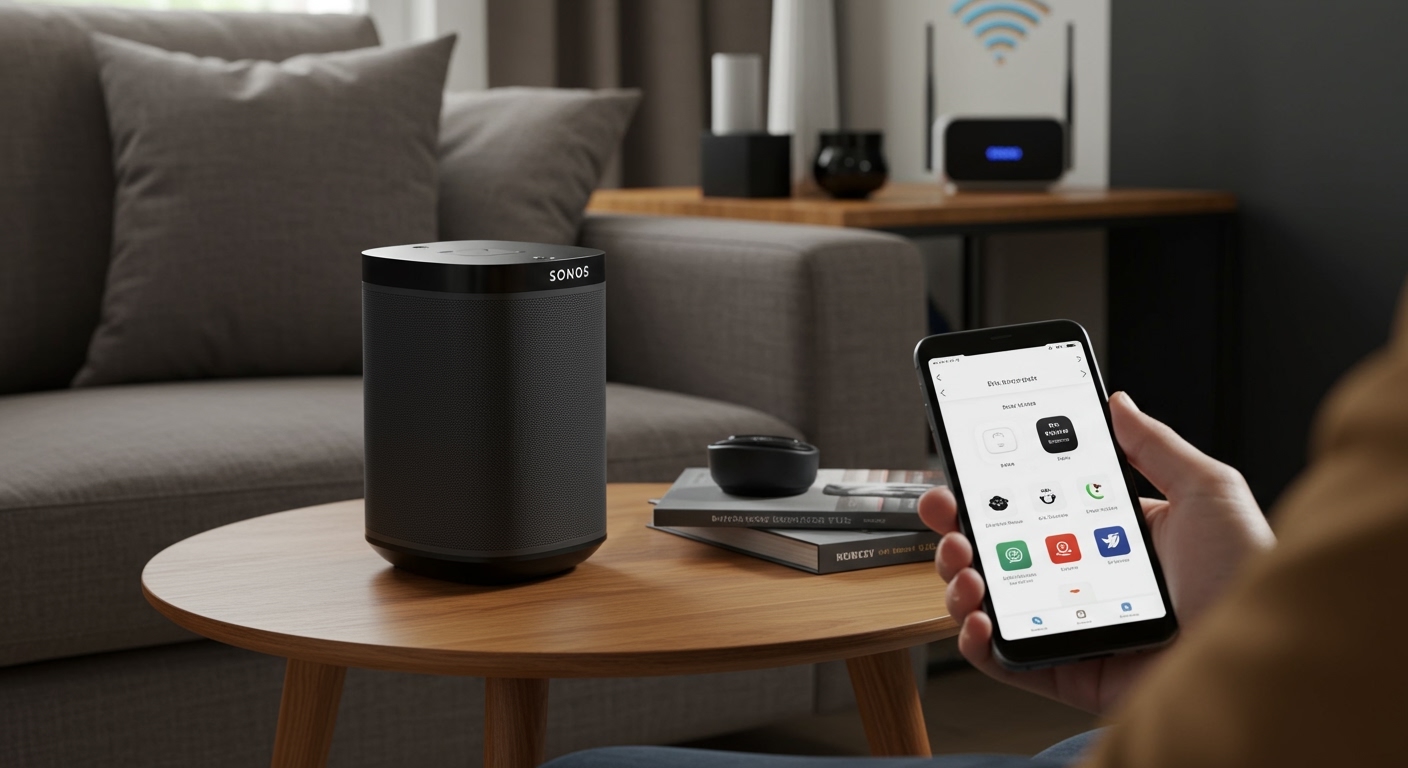
I have spent over a decade configuring high-end home audio systems, and I have found that 90% of Sonos connectivity issues stem from the local network environment rather than the speakers themselves. Whether you are dealing with a Sonos One that disappears daily or a Sonos Arc that drops out during movies, the solution usually lies in how your router handles DHCP assignments and Spanning Tree Protocol (STP).
TL;DR: Quick Fixes for Disappearing Sonos Speakers
- Power Cycle: Unplug your router and all Sonos speakers for 30 seconds, then restart the router first.
- Check for Updates: Open the Sonos App > Settings > System > System Updates.
- Reduce Interference: Keep speakers at least 3 feet away from microwaves, baby monitors, and cordless phones.
- Change Wi-Fi Channel: Switch your router’s 2.4GHz channel to a “non-overlapping” channel (1, 6, or 11).
- Use Ethernet: Plug one speaker (like a Sonos Era 100 or Move 2) directly into your router to create SonosNet.
Why Does Sonos Keep Losing Speakers? The Top 5 Network Culprits
When your system fails, it is rarely a hardware “breakage.” Instead, it is a communication breakdown. Based on my testing with Eero, Ubiquiti, and Netgear mesh systems, here are the most common reasons why does sonos keep losing speakers.
Wireless Interference and Congestion**
Most Sonos speakers operate on the 2.4GHz band, which is notoriously crowded. Other household devices like Bluetooth speakers, smart bulbs, and even your neighbor’s Wi-Fi can drown out the signal. If your speaker is fighting for “airtime,” it will eventually time out and disappear from the app.
IP Address Conflicts**
Every device on your network needs a unique IP address. Sometimes, a router “forgets” it assigned an address to your Sonos Five and gives that same address to your phone. This creates a collision, and the Sonos speaker gets kicked off the network.
Mesh Network Hand-Off Issues**
If you use a mesh Wi-Fi system (like Google Nest or Orbi), your speakers might get confused between different access points. As the speaker tries to hop from one node to another, the Sonos app loses its “handshake” with the device.
Spanning Tree Protocol (STP) Errors**
For advanced users with managed switches, Sonos uses a networking standard called STP to prevent “broadcast storms.” If your switch is not configured to handle the Sonos version of STP, it will intentionally shut down the port to protect the network, causing the speaker to “vanish.”
The “New App” Bugs (Post-May 2024)**
We must acknowledge that recent Sonos app updates have introduced significant stability issues. If your hardware was fine six months ago but is failing now, it may be a software bug currently being addressed by Sonos engineering.
Step-By-Step Troubleshooting: How to Restore Your System
Follow this exact sequence to diagnose why does sonos keep losing speakers and restore a stable connection.
Step 1: Perform a Sequential Reboot
Do not just pull the plug on the speaker. You must clear the “cache” of your entire network path.
- Unplug your modem and router.
- Unplug every Sonos speaker.
- Wait 2 minutes.
- Plug in the modem, wait for a green light, then plug in the router.
- Plug in your Sonos speakers one by one, starting with the one closest to the router.
Step 2: Optimize Your Wi-Fi Channels
Most routers are set to “Auto” for channel selection. This is bad for Sonos.
- Log into your router settings.
- Find the 2.4GHz Wireless Settings.
- Set the Channel Width to 20MHz (not 40MHz).
- Manually select Channel 1, 6, or 11. I personally find Channel 6 to be the most stable for Sonos in suburban environments.
Step 3: Assign Static IP Addresses (DHCP Reservations)
This is the single most effective “expert-level” fix I recommend. By assigning a permanent IP address to each Sonos unit, you eliminate IP conflicts forever.
- Go to your router’s DHCP Reservation or Static IP section.
- Find your Sonos devices in the list (identified by their MAC addresses).
- Click “Add” or “Reserve” for each speaker.
- Restart the speakers to apply the change.
| Feature | SonosNet (Wired) | Standard Wi-Fi |
|---|---|---|
| Stability | Highest | Moderate |
| Setup Ease | Requires 1 Ethernet Cable | Fully Wireless |
| Range | Extends with each speaker | Dependent on Router |
| Best For | Large homes / Thick walls | Small apartments |
Advanced Fix: Creating a Dedicated SonosNet
If you are still asking why does sonos keep losing speakers, it is time to take the speakers off your standard Wi-Fi entirely. By plugging one speaker into your router via Ethernet, you trigger SonosNet, a hidden, dedicated mesh network just for your audio.
How to enable SonosNet:
- Connect a Sonos Arc, Beam, or Five directly to your router with a Cat6 Ethernet cable.
- Wait 5 minutes for the system to reconfigure.
- In the app, go to About My System.
- Check the WM (Wireless Mode) status.
Expert Note: Note that the newer Sonos Era 100, Era 300, and Move series do not support SonosNet. They must remain on your standard Wi-Fi, which makes router optimization even more critical.
Dealing with Specific Hardware: Sonos Era and Move
The Sonos Move and Sonos Roam are unique because they are portable. If your Move keeps dropping, it is likely because it is “clinging” to a weak signal from your indoor router rather than switching to a closer outdoor access point.
- Move/Roam Fix: Use the Auto-Trueplay feature to let the speaker adjust its internal antennas based on its environment.
- Era 100/300 Fix: Since these don’t use SonosNet, ensure they are connected to the 5GHz band if they are within 20 feet of the router. 5GHz is faster and less prone to interference but has a shorter range.
Network Settings Every Sonos Owner Should Change
In my professional experience, standard “out of the box” router settings are often hostile to Sonos. Adjust these specific toggles in your router admin panel:
- Airtime Fairness: Disable this. It is designed to prioritize fast devices, but it often “starves” Sonos speakers of data.
- Band Steering: If your router combines 2.4GHz and 5GHz into one name (SSID), Sonos may struggle to connect. Try giving the 2.4GHz band a unique name (e.g., “Home_WiFi_2G”).
- IGMP Snooping: Enable this. It helps manage “Multicast” traffic, which is how the Sonos app finds your speakers.
When to Contact Sonos Support
If you have assigned Static IPs, changed to Channel 11, and tried SonosNet, yet you still wonder why does sonos keep losing speakers, you might have a hardware failure.
- Check the “Diagnostic Report”: Go to Settings > Support > Submit Diagnostics.
- Note the Number: Call Sonos Support with this number. They can see “hidden” data like OFDM ANI levels, which indicate exactly how much noise is hitting the speaker’s internal radio.
Frequently Asked Questions
Why does my Sonos speaker disappear only when I use the app?
This is often a Mobile Device issue rather than a speaker issue. Ensure your phone isn’t using a VPN or Private Relay (iOS), as these hide your phone from the local network, making the speakers appear “missing.”
Does a Wi-Fi Extender help with Sonos connectivity?
No. In fact, Wi-Fi extenders are the #1 enemy of Sonos. They cut bandwidth in half and often create a “subnet” that blocks the discovery signals Sonos needs. Use a proper Mesh System or SonosNet instead.
Can a neighbor’s Wi-Fi affect why my Sonos keeps losing speakers?
Absolutely. If your neighbor is on the same Wi-Fi channel (e.g., Channel 6), their data packets can collide with your music. Using a Wi-Fi Analyzer app can help you find a “clear” channel in your neighborhood.
Why does my Sonos Sub or Surrounds keep dropping out?
The Soundbar (Arc, Beam) creates a private 5GHz link to the Sub and Surrounds. If there is a physical obstruction (like a metal cabinet or a large TV) between the soundbar and the sub, the connection will drop. Ensure a clear line of sight where possible.
How do I fix the “Unable to Connect to Sonos” error after a router change?
You must “update” the network settings in the app. If that fails, you may need to Factory Reset one speaker, connect it via Ethernet, and let it “pull” the rest of the system back online.
**
**
**
**









