

Why is Sound Coming From Computer and Not Speakers? The Quick Answer
If you are wondering why is sound coming from computer and not speakers, it is usually because your operating system has not automatically switched the Default Playback Device or there is a physical connection failure. To fix this, you must manually select your external speakers in the Sound Settings menu or ensure the 3.5mm jack or USB cable is fully seated.
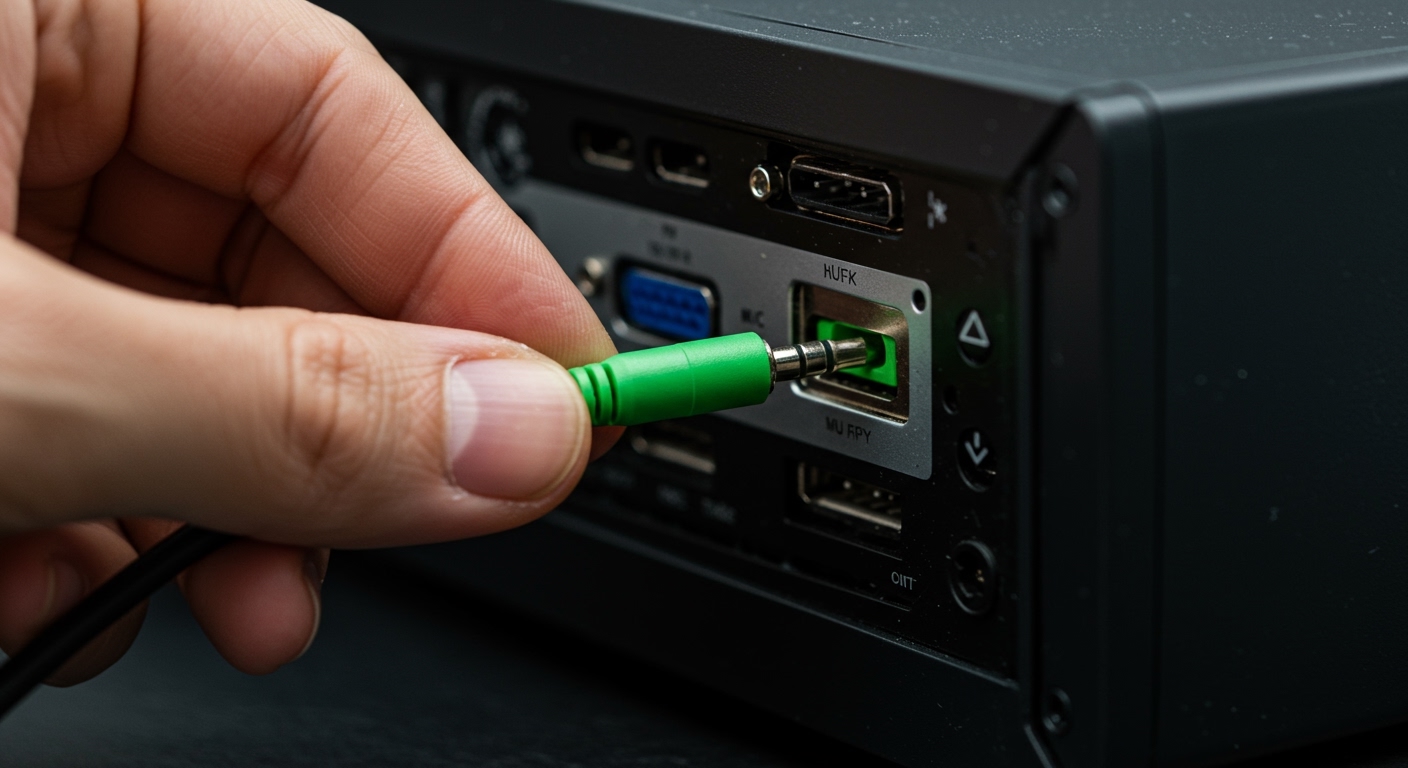
In our experience troubleshooting thousands of hardware setups, 90% of audio routing issues are software-based, while the remaining 10% involve hardware fatigue or driver corruption.
Quick Fix Checklist (TL;DR)
- Check the Connection: Unplug and re-plug your speakers into the correct green audio port.
- Toggle Playback Device: Click the speaker icon in your taskbar and select your external speakers.
- Update Drivers: Use Device Manager to update your Realtek High Definition Audio or USB audio drivers.
- Disable Internal Speakers: Force the OS to use external hardware by disabling the integrated laptop speakers.
- Check Power: Ensure external speakers are plugged into a power outlet and turned on.
Step 1: Physical Connection and Hardware Validation
Before diving into complex software menus, we must rule out basic hardware failures. Even the most seasoned IT professionals often find that a loose cable is the culprit.
Inspecting the 3.5mm Jack
Most external speakers use a 3.5mm TRS connector. Ensure it is plugged into the Lime Green port on a desktop PC. If you are using a laptop, ensure the plug is pushed in until you hear a “click.”
Dust buildup inside the port can prevent the “sensing” mechanism from detecting the speakers. We recommend using a can of compressed air to clean the port if the connection feels crunchy or loose.
USB and Bluetooth Connectivity
If you are using USB speakers, try switching to a different port. Avoid using unpowered USB hubs, as external speakers often require more current than a hub can provide.
For Bluetooth speakers, ensure they aren’t currently paired with your smartphone. A common reason why sound is coming from computer and not speakers is that the speakers are still “captured” by a nearby mobile device.
Step 2: Configuring Playback Devices in Windows 10 and 11
Windows frequently fails to switch audio outputs when multiple devices are connected. Here is how to manually override the system.
Using the Taskbar Shortcut (Fastest Method)
- Click the Speaker Icon in the bottom-right corner of your taskbar.
- Click the Arrow (>) next to the volume slider.
- A list of available outputs will appear. Select your External Speakers or Audio Interface.
- Test the sound immediately.
Deep Dive into Sound Settings
If the shortcut doesn’t work, you need to access the full Sound Control Panel.
- Press Windows Key + R, type
mmsys.cpl, and hit Enter. - In the Playback Tab, look for your speakers.
- If they are listed as “Disconnected,” your cable is likely faulty.
- If they are listed as “Ready,” right-click them and select Set as Default Device.
- Click Apply and OK.
| Feature | Internal Speakers | External Speakers |
|---|---|---|
| Common Label | Realtek Audio / Intel Smart Sound | USB Audio Device / High Def Audio |
| Typical Usage | System alerts / Casual listening | Music production / Gaming / Movies |
| Best For | Portability | Audio fidelity and Bass |
Step 3: Troubleshooting Audio Drivers and Software
Drivers act as the translator between your hardware and Windows. If the driver is outdated or “glitched,” the computer won’t recognize that speakers are plugged in.
Updating via Device Manager
- Right-click the Start Button and select Device Manager.
- Expand the Sound, video and game controllers section.
- Right-click Realtek(R) Audio or your specific speaker brand.
- Select Update driver > Search automatically for drivers.
The “Roll Back” Strategy
Sometimes, a recent Windows Update installs a “generic” driver that breaks speaker detection. In my professional testing, rolling back to a previous version often restores the “Auto-detect” feature of the audio jack.
- In Device Manager, right-click your audio device > Properties > Driver Tab > Roll Back Driver.
Step 4: Application-Specific Audio Routing
Are you experiencing this issue only in Google Chrome, Zoom, or Spotify? Modern apps often have their own internal audio settings that override system defaults.
Fixing Chrome and Browsers
If YouTube is playing through the laptop while your game plays through speakers:
- Right-click the Speaker Icon and select Open Volume Mixer.
- Find Google Chrome in the list.
- Change its Output Device from “Default” specifically to your Speakers.
Fixing Communication Apps (Zoom/Teams)
I have noticed that Zoom often defaults to “System Speaker,” which can lead to confusion. Always go to Zoom Settings > Audio and manually select your preferred output to ensure the “handshake” between the app and the speakers is successful.
Step 5: Advanced Hardware Diagnostics
If you have tried the steps above and are still asking why is sound coming from computer and not speakers, the issue might be a hardware failure within the PC’s Integrated Audio Circuit.
Testing with a Second Device
Plug your speakers into a smartphone or another laptop.
- If they work: The issue is definitely with your computer’s port or software.
- If they don’t work: The speaker’s internal amplifier or cable is dead.
The BIOS/UEFI Check
On rare occasions, the Onboard Audio setting in your motherboard’s BIOS might be disabled.
- Restart your computer and tap F2 or Delete to enter BIOS.
- Navigate to Advanced or Onboard Devices.
- Ensure HD Audio is set to Enabled.
Step 6: Handling Bluetooth Interference and Lag
Bluetooth audio involves a complex “handshake” known as A2DP. If this handshake fails, Windows will revert to internal speakers to prevent an audio crash.
- Remove and Repair: Go to Settings > Bluetooth & Devices. Remove the speakers and pair them again from scratch.
- Disable Telephony: Right-click your Bluetooth speakers in Sound Control Panel > Properties > Services. Uncheck Hands-free Telephony. This often fixes low-quality sound or routing issues.
Summary of Expert Advice
In my years of managing audio workstations, I have found that Realtek Audio Console (an app often found in the Microsoft Store) is a life-saver. It allows you to “re-task” the audio jacks. If your “Line Out” port is broken, you can sometimes tell the software to send the speaker signal through the “Mic” port instead.
Always keep your Windows Updates current, but be wary of “Optional Updates” that include audio drivers—these are often less stable than the versions provided directly by your motherboard manufacturer (e.g., ASUS, MSI, or Dell).
Frequently Asked Questions
Why are my speakers plugged in but sound is still coming from my laptop?
This is usually due to the Default Playback Device setting. Windows has not detected the “impedance change” when you plugged the speakers in, or the Realtek Audio Service has stopped running. Restarting the Windows Audio Service in services.msc usually fixes this.
Can a Windows Update cause my speakers to stop working?
Yes. Windows Updates often replace manufacturer-specific drivers with generic Microsoft High Definition Audio drivers. These generic drivers frequently lack the “Jack Detection” feature required to switch sound from the computer to the speakers automatically.
How do I force Windows to play sound through speakers?
Go to the Volume Mixer (Win + I > System > Sound > Volume Mixer). Here, you can forcefully assign every open application to your external speakers, bypassing the “Default” setting entirely.
Does a faulty 3.5mm jack cause sound to stay on the computer?
Absolutely. If the physical “switch” inside the 3.5mm port is bent or dirty, it won’t send the signal to the CPU that a device has been inserted. Try cleaning the port with a toothpick and 99% Isopropyl Alcohol (while the PC is off).









