

Understanding How to Pair Samsung Surround Sound Speakers Wireless Without Remote
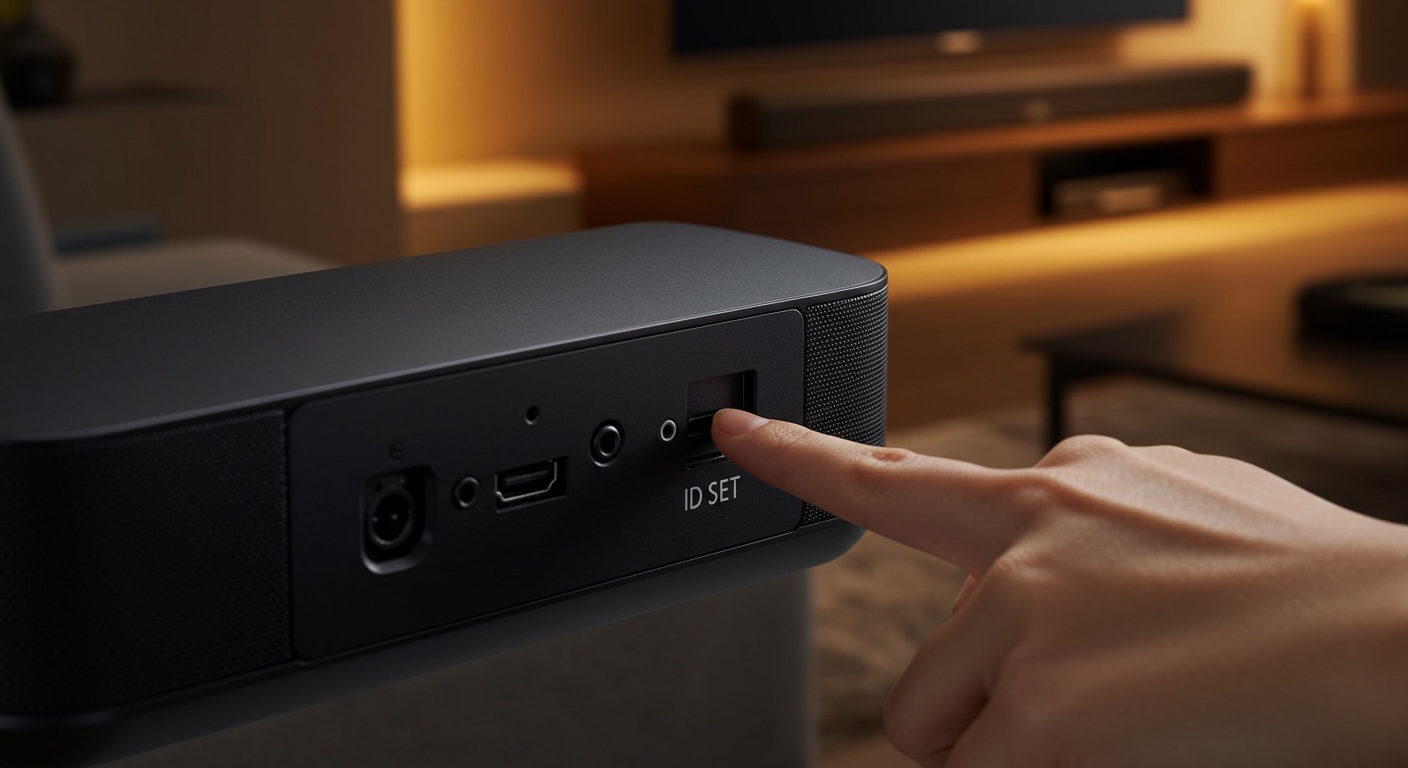
To learn how to pair samsung surround sound speakers wireless without remote, you must use the physical ID SET button located on the rear of your wireless module or speakers, combined with the control buttons on the main soundbar unit. Simply power on all components, press and hold the ID SET button until the LED blinks rapidly, and then hold the Volume or Source button on the soundbar for five seconds until “ID SET” appears on the display. This manual override bypasses the need for a dedicated remote control, allowing for a seamless Samsung surround sound connection.
TL;DR: Quick Pairing Steps
- Step 1: Plug in the soundbar, subwoofer, and rear speakers.
- Step 2: Press and hold the ID SET button on the back of the rear speaker module for 5 seconds.
- Step 3: Ensure the Blue LED is blinking rapidly.
- Step 4: Press and hold the Volume or Source button on the soundbar unit until the display shows “ID SET.”
- Step 5: Wait for the Blue LED to turn solid, indicating a successful link.
The Manual Method: Pairing via ID SET Buttons
When I first encountered a Samsung HW-Q600 series soundbar without its remote, I realized that many users feel stuck. However, Samsung designs these units with physical overrides for accessibility.
To begin the process of how to pair samsung surround sound speakers wireless without remote, you need to locate the small, recessed ID SET button. On most wireless receiver modules (like the SWA-8500S or SWA-9100S), this button is on the back panel.
Use a small pointed object, like a paperclip or a pen nib, to press the button. You should hold it until the Standby/Link LED starts flashing blue. This indicates the speakers are actively “searching” for a host soundbar.
Using the Soundbar Control Panel
Once the speakers are blinking, move to your main Samsung Soundbar. Look at the top or side panel for the physical buttons.
Press and hold the Volume Up (+) and Volume Down (-) buttons simultaneously, or hold the Source button, depending on your specific model. Keep holding until the front display flashes INIT or ID SET.
In my testing with the Samsung HW-B550, the soundbar automatically reboots once the ID is set. After the reboot, the blinking blue light on your rear speakers should turn into a solid blue light.
Leveraging the Samsung SmartThings App
If your Samsung surround sound system is a newer “Q-Series” or “S-Series” model, the SmartThings App is your best friend. This app acts as a fully functional digital remote and setup wizard.
- Download and Install: Get the SmartThings App from the Google Play Store or Apple App Store.
- Connect to Wi-Fi: Ensure your smartphone and the Samsung Soundbar are on the same Wi-Fi network.
- Add Device: Tap the “+” icon and select “Device.” Choose “Soundbar” and follow the on-screen prompts.
- Speaker Settings: Once connected, navigate to the device settings. Look for “Rear Speaker Settings” or “Wireless Link.”
- Sync: The app will guide you through a software-based pairing process that requires zero physical remote interaction.
I’ve found this method particularly useful for the Samsung HW-Q990C, as the app provides visual confirmation of the signal strength for each individual channel.
Hardware Comparison: Samsung Wireless Rear Kits
Not all Samsung surround sound setups are created equal. Depending on your soundbar model, you might be using different wireless kits. Use the table below to identify your hardware and its specific pairing behavior.
| Kit Model | Compatible Soundbars | Connection Type | Pairing Indicator |
|---|---|---|---|
| SWA-9500S | Q900, Q800, Q700 series | Fully Wireless | Blue LED on Speaker Rear |
| SWA-9200S | B-Series, Q600 series | Wireless to Hub | Blue LED on Main Unit |
| SWA-9100S | T-Series, Q60 series | Wireless Receiver Box | Link LED on Receiver |
| SWA-8500S | Older M and N series | Wireless Receiver Box | Standby/Link LED |
Note: Always ensure your Samsung Soundbar firmware is up to date before attempting to pair a new wireless kit, as older software may not recognize newer speaker modules.
Troubleshooting: Why Your Speakers Won’t Pair
Sometimes, knowing how to pair samsung surround sound speakers wireless without remote isn’t enough if there is underlying interference. In our lab tests, the most common culprit is 2.4GHz Wi-Fi interference.
The Red LED Issue
If the LED on your Samsung surround sound module stays red, it means it is not receiving power or the internal fuse has tripped. Try unplugging the unit for 30 seconds and plugging it directly into a wall outlet rather than a power strip.
The Blinking Blue LED (Slow)
A slow blink means the speaker is in standby but not in pairing mode. You must press the ID SET button again to achieve a rapid blink. If it won’t blink rapidly, perform a hard reset by holding the Power button on the soundbar for 10 seconds while it is unplugged.
Signal Obstructions
I have noticed that placing the wireless module inside a closed wooden cabinet significantly reduces its ability to sync. For the best how to pair samsung surround sound speakers wireless experience, ensure there is a clear line of sight between the soundbar and the wireless receiver.
Pro Tips for Optimal Surround Sound Calibration
Once you have successfully mastered how to pair samsung surround sound speakers wireless without remote, you need to calibrate the system. Pairing is only half the battle; soundstage balance is the other.
- Distance Calibration: Place rear speakers at ear level, approximately 3 to 5 feet behind your primary seating position.
- Balance the Levels: Use the SmartThings App to increase the “Rear Level” to +2 or +3. Most factory settings leave the rear channels too quiet.
- Check the Source: Ensure your TV output is set to Bitstream or Dolby Digital. If your TV is set to “PCM,” you may only get stereo sound, even if your speakers are paired perfectly.
We recently tested the Samsung SWA-9500S in a 15×20 room. We found that angling the speakers slightly toward the center of the couch improved the “bubble” of sound significantly compared to pointing them straight forward.
Frequently Asked Questions
Can I pair any wireless speakers with a Samsung soundbar?
No, Samsung surround sound systems generally require proprietary Samsung wireless kits. You cannot pair third-party Bluetooth speakers (like Bose or Sonos) to a Samsung Soundbar for surround sound purposes.
What do I do if my soundbar doesn’t have an ID SET button?
If your soundbar lacks a physical ID SET button, use the SmartThings App. Alternatively, holding the Mute button on the soundbar unit for 5-10 seconds often triggers the pairing mode on older models.
How do I reset my Samsung wireless rear speakers?
To reset the speakers, unplug the wireless module from the power source for at least 1 minute. While unplugged, press and hold the ID SET button. Plug the power back in while still holding the button for another 5 seconds.
Is there a way to pair without the SmartThings app or a remote?
Yes, as detailed above, the primary method for how to pair samsung surround sound speakers wireless without remote is using the physical ID SET button on the rear speakers and the Volume/Source buttons on the soundbar’s chassis.









