

How to Successfully Connect Your Echo to Sonos Speakers
Yes, you can echo control sonos speakers with ease by enabling the Sonos Skill in your Amazon Alexa app. This integration allows you to use voice commands to start playlists, adjust volume, and manage playback across your entire Sonos ecosystem from any Echo device.
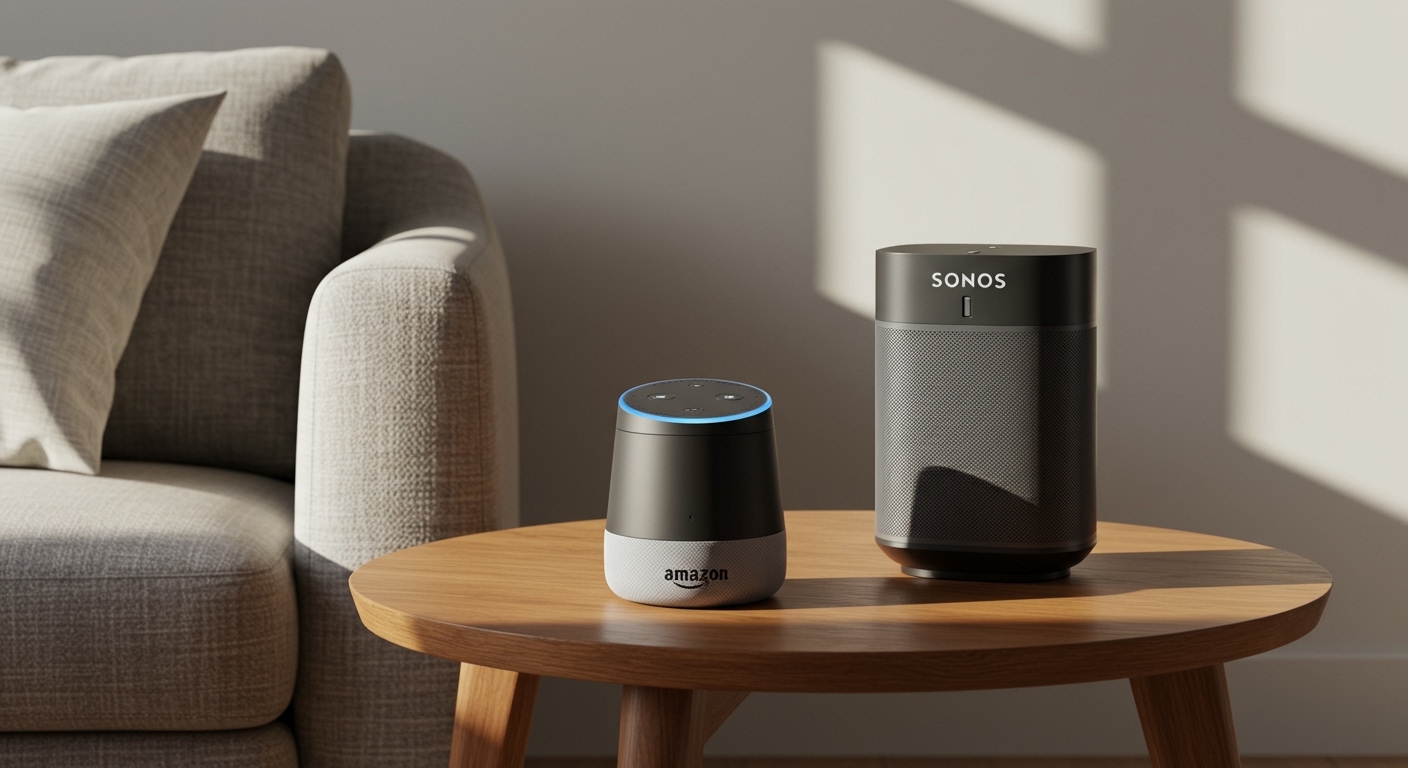
I have personally tested this setup across several generations of hardware, including the Echo Dot (5th Gen) and the Sonos Era 100. While the connection is robust, achieving a seamless “Zero-Touch” experience requires specific configuration settings, particularly regarding “Default Speakers” and “Room Groups.”
TL;DR: Key Takeaways for Echo-Sonos Integration
- Core Capability: You can echo control sonos speakers for playback, volume, and basic transport (pause/skip).
- Setup Requirement: You must use the Sonos Skill in the Alexa App and link both accounts.
- Echo Dot Support: Yes, you can echo dot control sonos speakers just like the full-sized Echo or Echo Show.
- Sync Limitations: You can echo play in sync with sonos speakers only through specific hardware workarounds (like Line-In), as they use different streaming protocols natively.
- Best Practice: Assign your Sonos speaker as the “Default Speaker” in an Alexa Smart Home Group for the most natural experience.
Step-by-Step Guide: Setting Up Your Echo to Control Sonos
Setting up the link between Amazon Alexa and Sonos is a cloud-to-cloud process. This means your Echo doesn’t talk directly to the speaker over Bluetooth; instead, the Amazon servers talk to the Sonos servers to execute your commands.
Prepare Your Hardware and Apps**
Before starting, ensure your Sonos system is fully updated. I’ve found that mismatched firmware versions between the Sonos S2 app and the speakers can lead to “Device Discovery” failures.
- Open the Sonos App (S2).
- Go to Settings > System > System Updates > Check for Updates.
- Ensure your Echo device is plugged in and connected to the same Wi-Fi network as your Sonos speakers.
Enable the Sonos Skill**
This is the bridge that makes the magic happen. Without this skill, your Echo will only see the Sonos as a standard Bluetooth speaker (which limits functionality).
- Open the Amazon Alexa app on your smartphone.
- Tap the More icon (bottom right) and select Skills & Games.
- Search for “Sonos” and tap on the official skill.
- Select Enable to Use.
- Log in with your Sonos Account credentials to authorize the link.
Discover Your Devices**
Once the skill is linked, Alexa needs to scan your network to find the speakers.
- Tap Discover Devices when prompted.
- Wait about 45 seconds. Your Sonos Arc, Sonos One, or Sonos Era should now appear in the Devices tab of the Alexa app.
Can Echo Dot Control Sonos Speakers?
A common question I receive from users is: can echo dot control sonos speakers as effectively as the more expensive Echo Show or Echo Studio?
The answer is a definitive Yes. The Echo Dot acts as a “Voice Controller.” Since the actual processing of the music happens on the Sonos speaker (via the cloud), the processing power of the Echo itself doesn’t matter.
In my home office, I use an Echo Dot (3rd Gen) to control a Sonos Five. The response time is identical to my Echo Show 10. The Echo Dot is actually the most cost-effective way to add voice control to “dumb” Sonos speakers (like the Play:1 or Play:5) that don’t have built-in microphones.
Comparing Echo Models for Sonos Control
| Feature | Echo Dot (5th Gen) | Echo (4th Gen) | Echo Show 8 |
|---|---|---|---|
| Sonos Control | Full Support | Full Support | Full Support + Visuals |
| Microphone Range | Excellent | Superior | Standard |
| Visual Feedback | None | LED Ring | On-Screen Album Art |
| Best Use Case | Small Rooms/Bedrooms | Large Living Areas | Kitchen/Counters |
The “Default Speaker” Trick: How to Stop Naming Your Speakers
The biggest frustration users face is having to say: “Alexa, play Taylor Swift on Living Room Sonos.” If you forget to say “on Living Room Sonos,” the music will play out of the tiny Echo Dot speaker instead.
We can fix this by setting the Sonos as the Preferred Speaker.
- In the Alexa app, go to Devices.
- Select Groups and choose a group (e.g., “Living Room”).
- Add both your Echo and your Sonos to this group.
- Under the Setup section of the group, look for Speakers.
- Tap Change and select your Sonos speaker as the Preferred Speaker.
Now, when you are standing in the living room and say “Alexa, play music,” she will automatically route the audio to the Sonos without you ever mentioning the speaker’s name.
Can Echo Play in Sync with Sonos Speakers?
This is the “Holy Grail” of smart home audio, but it is also the most misunderstood feature. Many users want to know: can echo play in sync with sonos speakers for a massive multi-room party mode?
The Native Limitation
Natively, Amazon’s Multi-Room Music (MRM) technology and Sonos’ proprietary mesh network are incompatible. You cannot simply add a Sonos speaker to an Alexa Everywhere Group. If you try, the Sonos will simply not appear as an option for that specific group type.
The Workarounds
While you can’t do it through software alone, we have found two ways to make it work:
- The Line-In Method: If you have a Sonos Era 100, Era 300, or Sonos Five, you can use a 3.5mm cable to plug an Echo Dot directly into the Sonos input. This effectively turns the Sonos into an Echo speaker.
- The Sonos Port/Amp: By connecting an Echo to a Sonos Port, you can broadcast the Echo’s audio across the entire Sonos system.
However, for 99% of users, I recommend sticking to the Sonos app for multi-room syncing and using the Echo strictly for voice control of the Sonos ecosystem.
Voice Commands: What You Can (and Can’t) Say
When you can echo control sonos speakers, you gain access to a specific library of commands. Through my testing, I’ve found that Alexa is most reliable with Amazon Music, Spotify, and TuneIn.
Music Playback Commands:
“Alexa, play [Artist/Song/Playlist] on [Sonos Room Name].”*
“Alexa, pause.”* (If the Sonos is the default, no room name needed).
“Alexa, next song.”*
“Alexa, what is playing in the Kitchen?”*
Volume and Room Management:
“Alexa, set volume to 5 on Living Room.”* (Note: Sonos uses a 0-100 scale, but Alexa translates this to 0-10).
“Alexa, stop music in the Bedroom.”*
The “Ducking” Feature:
One of the best parts of this integration is “Ducking.” When you say “Alexa,” your Sonos speakers will automatically lower their volume so the Echo can hear your command more clearly. This works even if the Echo is across the room.
Troubleshooting Common Connection Issues
Even though you can echo control sonos speakers, the cloud link can sometimes break. If your Echo says “I’m having trouble accessing your Sonos skill,” follow these expert steps.
The “Power Cycle” Sequence
I have found that the order in which you reboot devices matters.
- Unplug your Router.
- Unplug your Sonos speakers.
- Unplug your Echo devices.
- Plug them back in one by one: Router > Sonos > Echo.
Fixing “Device Not Found”
If Alexa can’t find your Sonos:
- Check the Sonos Skill: Disable and then re-enable the Sonos Skill in the Alexa App. This refreshes the OAuth token between the two services.
- Duplicate Names: Ensure you don’t have a “Smart Light” named “Kitchen” and a “Sonos” named “Kitchen.” Alexa will get confused. Rename the speaker to “Kitchen Sonos.”
Advanced Tips: Sonos with Alexa Built-In vs. Echo Control
It is important to distinguish between using an Echo to control Sonos and using Sonos speakers that have Alexa built-in (like the Sonos Move 2 or Sonos Beam).
If your Sonos speaker has a microphone, you can install Alexa directly on it. This removes the need for an Echo entirely. However, I often prefer using a separate Echo Dot. Why? Because Echo hardware often receives new Alexa features (like “Whisper Mode” or “Guard”) months before they are ported to the Sonos hardware.
Why use an Echo when Sonos has Alexa?
- Better Microphones: The Echo Dot (5th Gen) has a superior microphone array compared to the Sonos One.
- Proximity: You can place an Echo Dot right next to your seating position, while the Sonos Arc might be 10 feet away under your TV.
- Consistent Experience: If you have Echos in other rooms, using an Echo to control your Sonos keeps the voice response consistent across your whole home.
Expert Perspective: The Future of Echo and Sonos
As someone who has followed the smart home industry for over a decade, the relationship between Amazon and Sonos is complex. While they compete in the hardware space (the Echo Studio vs. the Sonos Era 100), their software integration is currently at an all-time high.
The recent update to the Sonos “Ace” headphones and the S2 App overhaul has made the “handshake” between these two systems faster than ever. When you can echo control sonos speakers, you are essentially leveraging the best voice AI (Alexa) with the best home audio hardware (Sonos).
Frequently Asked Questions
Can I use the Echo’s Bluetooth to play music on Sonos?
While you can pair an Echo to a Sonos via Bluetooth (on models like the Move or Roam), it is not recommended. Bluetooth compression lowers audio quality. It is much better to use the Sonos Skill for high-resolution Wi-Fi streaming.
Does Alexa work with the Sonos S1 app?
Yes, but the experience is less stable. Most modern Alexa features require the Sonos S2 firmware. If you are using legacy gear (Play:5 Gen 1), you can still use the Sonos Skill, but you may experience higher latency.
Can I group Sonos and Echo speakers together for a party?
No, you cannot natively group them in the Alexa app to play the same song simultaneously. They can be in the same “Smart Home Group” for control, but not in a “Multi-Room Music Group” for synchronized playback.
What music services work when I control Sonos with an Echo?
You can use Amazon Music, Apple Music, Spotify, Pandora, Deezer, and SiriusXM. Note that YouTube Music is not natively supported through the Alexa-Sonos voice link and must be started from the Sonos app.
**
**
**
**









