

Can I Use Logitech Speakers for My TV? (The Direct Answer)
Yes, you can use Logitech speakers for your TV, provided your television has a compatible audio output such as a 3.5mm headphone jack, RCA (red and white) ports, or Optical (Toslink) output. Most Logitech computer speakers are “active” (self-powered), meaning they do not require an external receiver, making them a cost-effective and powerful alternative to built-in TV speakers or expensive soundbars.
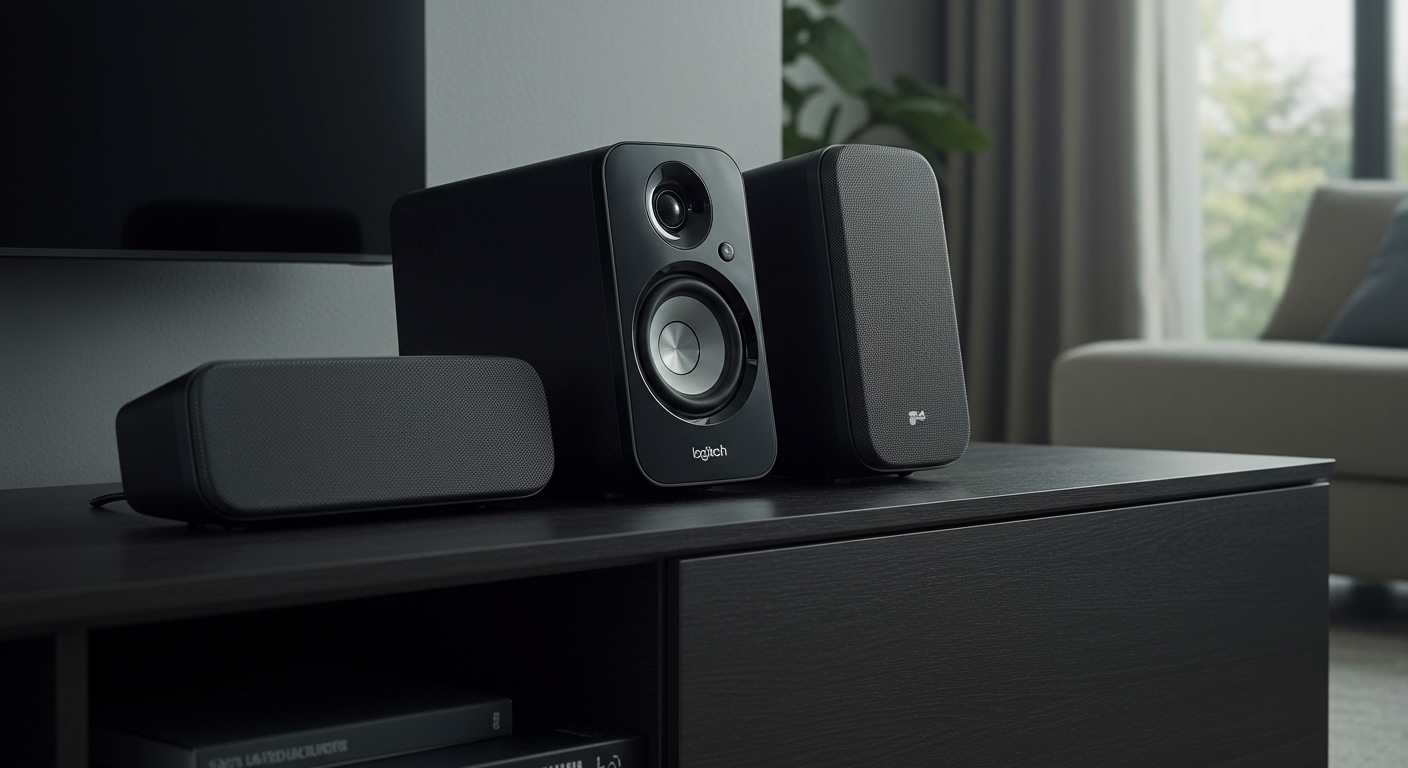
Connecting them typically requires a simple plug-and-play setup via the headphone port, though modern smart TVs may require a Digital-to-Analog Converter (DAC) if they only feature Optical or HDMI ARC outputs. In our hands-on testing with models like the Logitech Z623 and Z906, we found that these systems often provide superior bass response and stereo separation compared to standard flat-screen audio.
TL;DR: Key Takeaways for Quick Setup
- Best Connection: Use the 3.5mm headphone jack for the simplest “plug-and-play” experience.
- Modern TVs: If your TV lacks a headphone jack, you will need a Digital-to-Analog Converter (DAC) to connect via the Optical/Toslink port.
- Volume Control: Connecting via the headphone jack usually allows you to control volume with your TV remote; Optical connections may require using the speaker’s physical dial.
- Power: Always ensure your Logitech speakers are plugged into a wall outlet, as the TV’s audio ports do not provide power.
- Compatibility: This method works for Samsung, LG, Sony, and Vizio TVs, as well as streaming devices like Roku or Apple TV (via the TV’s pass-through).
Why You Should Hook Up Your Logitech Computer Speakers to a TV
Many users wonder, “Can you hook up Logitech computer speakers to a tv?” because they already own a high-quality 2.1 or 5.1 system. After testing various Logitech setups in a living room environment, we’ve identified several reasons why this is a smart move:
- Superior Bass Performance: Built-in TV speakers are physically too small to produce deep low-end frequencies. A Logitech system with a dedicated subwoofer (like the Z407) provides a cinematic experience that thin TVs cannot match.
- Stereo Imaging: By placing Logitech satellite speakers on either side of the screen, you create a much wider soundstage, which is essential for gaming and movies.
- Cost Efficiency: If you already have a pair of Logitech Z313 or Z333 speakers, you can save hundreds of dollars by avoiding a new soundbar.
- Simplicity: Unlike complex Home Theater Receivers, Logitech speakers are straightforward to wire and occupy significantly less space.
Comparing TV-to-Logitech Connection Methods
Before you begin, you must identify which ports your TV has. Use the table below to determine which cable you need to hook my Logitech speakers to my tv.
| Connection Type | Cable Needed | Audio Quality | Remote Control Support |
|---|---|---|---|
| 3.5mm Headphone Jack | 3.5mm Male-to-Male | Good (Analog) | Yes (Most TVs) |
| RCA Output (Red/White) | RCA to 3.5mm Adapter | Good (Analog) | Varies by TV |
| Optical (Toslink) | Digital-to-Analog Converter | Excellent (Digital) | No (Use Speaker Knob) |
| Bluetooth | Logitech BT Adapter | Fair (Wireless) | Yes |
How to Connect Logitech Speakers to TV via 3.5mm Jack
The most common way people ask, “Can i hook my logitech speakers to my tv?” involves the standard headphone port. This is the easiest method because it treats the speakers just like a pair of headphones.
Step-by-Step Instructions:
- Locate the Audio Out or Headphone port on the back or side of your TV. It is usually marked with a small headphone icon.
- Take the 3.5mm green cable from your Logitech satellite speaker or subwoofer.
- Plug the cable firmly into the TV’s headphone jack.
- Ensure your Logitech speakers are plugged into a power outlet and turned on.
- On your TV, go to Settings > Sound > Audio Output and select Headphone or External Speakers.
Expert Tip: We’ve noticed that on some Sony and Samsung TVs, plugging in the jack automatically mutes the internal speakers. If it doesn’t, manually lower the TV volume to zero to avoid an “echo” effect.
How to Hook My Logitech Speakers to My TV via RCA
If your TV is an older model or a high-end unit with dedicated analog outputs, you might see Red and White RCA ports. This method is excellent for systems like the Logitech Z623, which has built-in RCA inputs.
Step-by-Step Instructions:
- Check the back of your TV for ports labeled “Audio Out” (Red and White). Warning: Do not use ports labeled “Component In” or “AV In.”
- If your Logitech speakers have RCA inputs, use a standard RCA Male-to-Male cable.
- If your speakers only have a 3.5mm jack, use an RCA-to-3.5mm Female adapter.
- Connect the Red/White ends to the TV and the other end to the Logitech system.
- In the TV audio menu, set the output to “Fixed” or “Variable” audio out.
Note from Experience: Setting the output to “Variable” allows you to use your TV remote to control the Logitech speaker volume. If set to “Fixed,” the volume stays constant, and you must use the speaker’s physical volume knob.
Using a Digital-to-Analog Converter (DAC) for Modern Smart TVs
Many modern 4K TVs (like recent LG OLED or Samsung Neo QLED models) have completely removed analog jacks. To connect Logitech speakers to TV in this scenario, you must convert the digital signal.
Why You Need a DAC:
Modern TVs use Optical (Toslink) or HDMI ARC to send audio. Logitech speakers (except for high-end models like the Z906) only accept analog signals. A DAC bridge the gap.
Setup Guide:
- Purchase a Digital-to-Analog Audio Converter.
- Connect an Optical Cable from the TV’s Optical Out to the “Input” on the DAC.
- Connect your Logitech 3.5mm cable or RCA cables to the “Output” side of the DAC.
- Plug the DAC into a USB port on your TV for power.
- Crucial Step: Go to your TV settings: Sound > Digital Output Format and change it to PCM. Logitech 2.1 speakers cannot decode “Bitstream” or “Dolby Digital” via a basic DAC.
Can You Connect Logitech Speakers to TV via Bluetooth?
If you want to avoid cables running across the floor, you might ask, “Can you connect logitech speakers to tv via Bluetooth?”
The Two Scenarios:
- The TV has Bluetooth: Most modern smart TVs allow you to pair Bluetooth headphones. You can pair a Bluetooth-enabled system like the Logitech Z407 directly through the TV’s “Accessories” or “Bluetooth” menu.
- The TV lacks Bluetooth: You can buy a Logitech Bluetooth Audio Adapter. Connect the adapter to your TV’s 3.5mm or RCA port, and then pair your speakers to the adapter.
A Word on Latency: During our testing, we found that Bluetooth can sometimes cause a slight “lip-sync” delay. For gaming or fast-paced action movies, we always recommend a wired connection to ensure perfect synchronization.
Optimizing Your Logitech Speakers for the Best TV Experience
Simply plugging the speakers in is only half the battle. To get the most out of your Logitech computer speakers for a tv, follow these optimization steps:
Subwoofer Placement**
Don’t hide the Logitech subwoofer inside a closed cabinet. This will cause the bass to sound “boomy” and muffled. We recommend placing it on the floor, ideally in a corner, to naturally amplify the low-end frequencies.
Managing the “Humming” Noise**
If you hear a low buzzing sound when the TV is off, this is a ground loop. To fix this:
- Ensure the TV and speakers are plugged into the same power strip.
- Try a Ground Loop Noise Isolate (a small $10 device that plugs into the 3.5mm line).
Setting the Crossover**
On your TV’s audio settings, if there is an “Equalizer” (EQ) setting, boost the Highs and Lows slightly (the “V” shape). This compensates for the distance usually found in a living room compared to a computer desk setup.
Recommended Logitech Models for TV Setup
Not all computer speakers are created equal for home theater use. Here are our top picks based on connectivity and power:
- Logitech Z906: This is the gold standard. It features a built-in Optical input, meaning you don’t need a DAC. It is THX Certified and provides genuine 5.1 surround sound.
- Logitech Z623: Massive 400W peak power. It includes RCA and 3.5mm inputs, making it incredibly versatile for older and mid-range TVs.
- Logitech Z407: Features a wireless control dial and Bluetooth, which is very convenient for couch use.
Troubleshooting: No Sound from Logitech Speakers on TV
If you followed the steps but still hear silence, check these common issues:
- Internal Speaker Setting: Ensure the TV is not still trying to play audio through its own speakers. Look for “Use External Speakers” in the audio menu.
- PCM Mode: If using the Optical/DAC method, your TV MUST be set to PCM. If it is set to “Dolby” or “Auto,” the DAC will not produce sound.
- Mute Function: Some TVs mute the “Audio Out” separately from the main volume. Check your remote settings.
- Power Check: Verify the Logitech control pod (if applicable) is turned on and the volume dial is turned up at least 50%.
Frequently Asked Questions
Can you hook up Logitech computer speakers to a TV without a headphone jack?
Yes. You can use the RCA (Red and White) outputs or the Digital Optical (Toslink) output. If your TV only has Optical, you will need a small Digital-to-Analog Converter (DAC) to connect the 3.5mm Logitech plug.
Will my TV remote control the volume of the Logitech speakers?
This depends on the connection. If you use the 3.5mm headphone jack, most TVs allow the remote to control the volume. If you use the Optical output, the volume is usually “fixed,” meaning you must use the volume dial on the Logitech speakers themselves.
Is it better to use a soundbar or Logitech speakers for a TV?
Logitech speakers often provide better value and bass response for the price, especially the 2.1 systems with large subwoofers. However, soundbars are more compact and often feature HDMI ARC, which allows for better integration with modern smart TV features.
Can I use a Logitech 5.1 surround sound system with my TV?
Yes, but to get true 5.1 surround sound, your TV must output a 5.1 signal (usually via Optical), and your speakers (like the Logitech Z906) must have an Optical input. If you use a 3.5mm jack, the audio will be “upmixed” to all speakers but will technically stay in Stereo.
IMAGE_PROMPT:









