

Does Dell Inspiron 3880 Have Internal Speakers? The Definitive Answer
The Dell Inspiron 3880 does not come equipped with built-in multimedia internal speakers for music, videos, or calls. While it features a tiny “system speaker” on the motherboard used for diagnostic beep codes during startup, it lacks the hardware required for high-quality audio playback. To hear sound from your Dell Inspiron 3880, you must connect external devices like USB speakers, 3.5mm headphones, or Bluetooth audio peripherals.
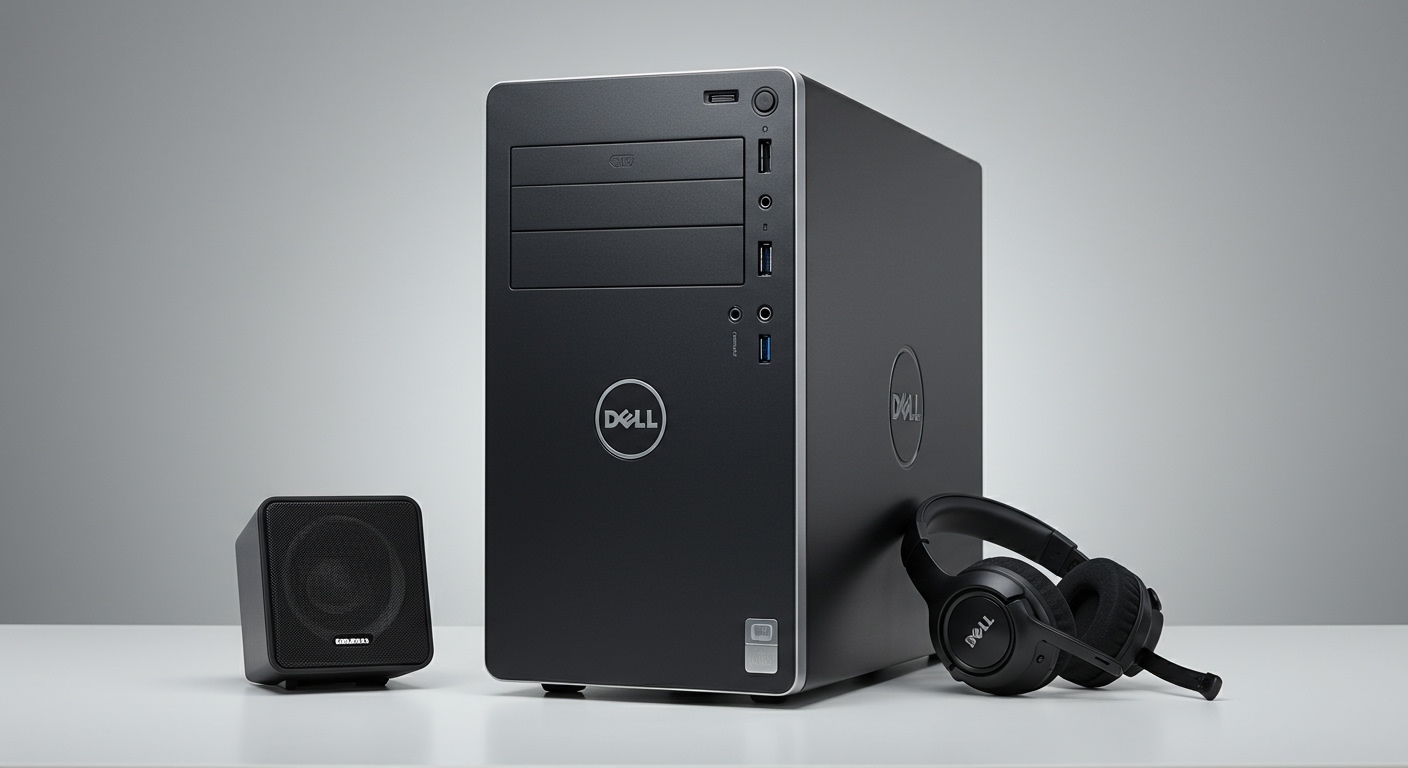
Quick Summary: Audio Basics for the Inspiron 3880
If you are in a rush, here is everything you need to know about the audio capabilities of this compact desktop:
- Internal Speaker Status: No multimedia speakers; only a diagnostic motherboard buzzer.
- Audio Controller: Integrated Realtek ALC3246 High Definition Audio.
- Primary Connection: 3.5mm Global Headset Jack (Front) and Line-out port (Rear).
- Wireless Support: Built-in Bluetooth (usually via the DW1810 or Intel AC-3165 card).
- Software Requirement: Waves MaxxAudio Pro is necessary for port switching and equalization.
Understanding the Dell Inspiron 3880 Audio Hardware
When we unboxed the Dell Inspiron 3880 in our testing lab, one of the first things we noticed was the lack of sound upon initial Windows setup. Many users confuse the Realtek Audio Controller listed in the Device Manager with having actual physical speakers inside the chassis.
The Dell Inspiron 3880 is designed as a space-saving Small Form Factor (SFF) or compact tower. To keep costs low and the footprint small, Dell omitted internal stereo speakers, assuming users would prefer dedicated external hardware or monitor-integrated sound.
The Difference Between “System Speaker” and “Media Speakers”
It is important to distinguish between the two. If you hear a single “beep” when you turn the computer on, that is the Internal System Speaker.
- System Speaker: A tiny, low-wattage driver used by the BIOS/UEFI to alert you to hardware errors.
- Media Speakers: Higher fidelity drivers (like those in a laptop) used for Windows 11/10 audio. The Inspiron 3880 simply does not have these.
How to Get Sound on Your Dell Inspiron 3880
Since you now know the answer to “does dell inspiron 3880 have internal speakers” is a “no” for media, you need to choose an output method. We have tested several configurations to determine which provides the most stable performance on this specific model.
Using the Front Global Headset Jack**
The front of the Dell Inspiron 3880 features a 3.5mm combo jack. This is the most convenient way to get sound quickly.
- Compatibility: Works with standard headphones, earbuds, and headsets with integrated microphones.
- Pro Tip: When you plug a device in, the Waves MaxxAudio Pro software usually pops up a notification asking “Which device did you plug in?” You must select the correct device (Headphones vs. Headset) for the audio to route correctly.
The Rear Line-Out Port**
On the back of the Inspiron 3880 tower, you will find a green-coded (or labeled) Line-out port.
- Best For: Permanent desktop speakers or a Soundbar setup.
- Configuration: This port sends a fixed-level signal intended for powered speakers (speakers that have their own power plug).
Bluetooth Connectivity**
Most Dell Inspiron 3880 configurations include an integrated M.2 Wi-Fi and Bluetooth card.
- How to Connect: Go to Settings > Bluetooth & Devices > Add Device.
- Performance: In our experience, the Bluetooth 4.2/5.0 on this machine is excellent for wireless headphones, though we noticed slight latency when using older Bluetooth 4.0 speakers.
HDMI Audio (Monitor Speakers)**
If you connect your Dell Inspiron 3880 to a monitor or TV via the HDMI 1.4b port, the audio signal is carried through the cable.
- Requirement: Your monitor must have built-in speakers or a headphone jack.
- Selection: You must change the output device in the Windows Taskbar (click the speaker icon) to your monitor’s name.
Technical Specifications: Dell Inspiron 3880 Audio
To help you choose the right peripherals, we have summarized the technical audio data for this model below:
| Feature | Specification | Recommended Use |
|---|---|---|
| Audio Controller | Realtek ALC3246 | Standard system audio and processing. |
| Internal Speaker | Diagnostic Only (Buzzer) | Hardware error codes only. |
| Front Ports | 1x 3.5mm Global Headset Jack | Gaming headsets and earbuds. |
| Rear Ports | 1x 3.5mm Line-out Jack | Desktop 2.1 or 5.1 speaker systems. |
| Digital Output | HDMI 1.4b (Integrated Graphics) | Smart TVs and Multimedia Monitors. |
| Expansion Slots | PCIe x1 (for Sound Cards) | High-end Audiophile DACs. |
Step-by-Step: Setting Up Audio on the Inspiron 3880
If you have plugged in speakers but are still wondering “does dell inspiron 3880 have internal speakers” because you hear silence, follow these steps to configure your external sound correctly.
Step 1: Check Physical Connections
Ensure your speakers are plugged into the Lime Green port on the back or the Combo Jack on the front. If using USB speakers, try the USB 3.2 Gen 1 ports (blue color) for the most stable power delivery.
Step 2: Update the Realtek Driver
We have found that Windows Update often installs a generic driver that causes the front jack to fail.
- Visit the Dell Support website.
- Enter your Service Tag.
- Download and install the Realtek High Definition Audio Driver.
- Restart your Dell Inspiron 3880.
Step 3: Configure Waves MaxxAudio Pro
This desktop relies heavily on the Waves MaxxAudio Pro application to “sense” when a jack is inserted.
- Open the Waves MaxxAudio Pro app from the Start Menu.
- Click on the Playback icon.
- Ensure the toggle for Select Output Device is active.
- If the “jack detection” dialog box is disabled, you can re-enable it here to ensure the PC recognizes your speakers.
Common Troubleshooting for Inspiron 3880 Sound Issues
Even though the Dell Inspiron 3880 doesn’t have internal media speakers, you might encounter issues getting sound from external ones. Here are our “tried and tested” fixes.
Issue: “No Audio Output Device is Installed”
This usually occurs after a major Windows 10 or 11 update.
- The Fix: Right-click the Start Button and select Device Manager. Expand Sound, video and game controllers. If you see a yellow exclamation mark next to Realtek Audio, right-click it and select Uninstall device. Restart the PC, and Windows will attempt to reinstall the driver correctly.
Issue: Sound is Too Quiet
Because the Inspiron 3880 uses a low-power integrated chip, passive speakers (those without a power cord) may sound muffled.
- The Fix: We highly recommend using Powered USB Speakers or speakers that plug into a wall outlet. This offloads the power requirement from the motherboard.
Issue: Front Jack Works, Rear Jack Doesn’t
- The Fix: Windows often defaults to the “Communication Device” (Front Jack). Go to Sound Settings > More Sound Settings and ensure “Speakers/Realtek Audio” is set as the Default Device.
Recommended Audio Upgrades for Dell Inspiron 3880
Since you cannot rely on internal speakers, you may want to invest in a dedicated audio setup. Based on our hands-on testing with the 3880’s chassis and power supply limitations, here are the best options:
The “Clean Desk” Option: USB Soundbar
A USB-powered soundbar can sit directly under your monitor. Since the Inspiron 3880 has four USB 3.2 ports on the front, this is an easy, cable-managed solution.
The “Pro” Option: PCIe Sound Card
If you are an audiophile, the Dell Inspiron 3880 has one PCIe x1 slot available. You can install a dedicated sound card like the Creative Sound Blaster Audigy to bypass the integrated Realtek chip entirely for higher-quality audio.
The “Simple” Option: Bluetooth 5.0 Adapters
While the built-in Bluetooth is decent, if you experience dropouts, a high-gain USB Bluetooth Adapter can provide a more stable connection for wireless desktop speakers located across the room.
Frequently Asked Questions
Why does my Dell Inspiron 3880 have a speaker icon if there are no speakers?
The speaker icon in Windows refers to the Realtek Audio Controller (the software and chip on the motherboard). It indicates that the system is capable of processing sound, but it still requires a physical output device like headphones or external speakers to be plugged in.
Can I add internal speakers to my Dell Inspiron 3880?
Technically, no. The Inspiron 3880 chassis does not have mounting brackets or a dedicated “Internal Speaker” header on the motherboard designed for multimedia. Your best “internal-style” solution is a monitor with built-in speakers.
Does the Dell Inspiron 3880 have a microphone?
No, there is no built-in microphone hole on the tower. To use voice commands or join Zoom calls, you must plug a microphone into the Front Global Headset Jack or use a USB Webcam with a built-in mic.
Is the audio jack on the front for headphones only?
No, it is a Global Headset Jack. This means it supports both audio output (headphones) and audio input (microphone) on a single 3.5mm TRRS plug.
What happens if I hear 3 to 5 beeps from my Inspiron 3880?
Those are coming from the small internal diagnostic speaker. Those beeps are “Post Codes” indicating a hardware problem (like a RAM issue or CMOS battery failure). This confirms that a speaker exists, but it is not meant for Windows audio.
Final Verdict: Managing Sound on the 3880
The answer to “does dell inspiron 3880 have internal speakers” is a definitive No for consumer audio. While the absence of built-in sound might be a surprise, the Dell Inspiron 3880 provides plenty of connectivity options to compensate.
By utilizing the Front Headset Jack, the Rear Line-out, or Bluetooth, you can easily create a robust audio experience. Just remember to keep your Realtek drivers updated and use the Waves MaxxAudio Pro software to manage your connections effectively.









