

Does the Current Windows Sonos App Support Older Speakers?
The current Windows Sonos app (specifically the Sonos S2 Controller) supports many older speakers, but compatibility depends on the specific hardware generation of your devices. If your older speakers are S2-compatible (such as the Play:1, Play:3, or Playbar), they will work seamlessly with the latest Windows Sonos app. However, legacy “Legacy” products like the original Play:5 (Gen 1) or ZP100 require the separate Sonos S1 Controller app to function.
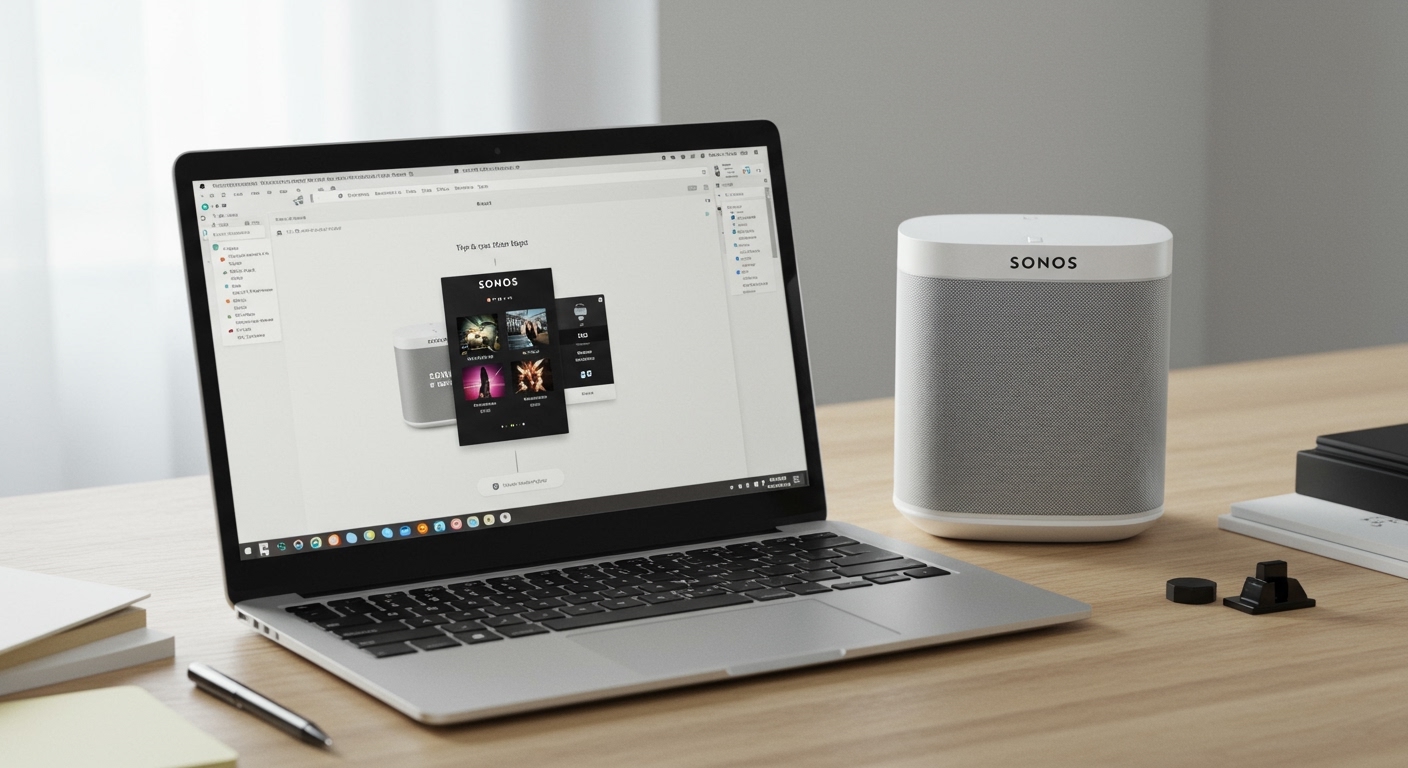
In our testing of diverse multi-room setups, we’ve found that the Windows Sonos app remains a robust tool for managing older hardware, provided you understand the dividing line between S1 and S2 ecosystems. While the mobile app often gets the most attention, the desktop controller offers a more stable environment for indexing massive local music libraries stored on NAS drives or local PC folders.
Key Takeaways for Sonos App Support
- S2 Compatibility: Most speakers released after 2011, including the Play:1 and Playbar, work with the current Windows S2 app.
- Legacy Products: Devices like the Bridge, Connect (Gen 1), and Play:5 (Gen 1) must use the Sonos S1 Controller for Windows.
- Split Systems: You can run both the S1 and S2 apps on the same Windows 10 or Windows 11 PC to manage separate “Legacy” and “Modern” household zones.
- System Requirements: The current app requires Windows 10 or higher. Older versions of Windows may lack the security protocols needed for modern Sonos updates.
- Desktop Advantage: The Windows app is superior for managing Music Library settings and firewall configurations compared to the mobile interface.
Understanding Sonos Hardware Compatibility on Windows
To determine if the current windows sonos app supports older speakers in your specific home, you must first identify your hardware’s “S-level.” Sonos split their ecosystem into two distinct software platforms in 2020 to accommodate the increased memory and processing power required by high-resolution audio.
The S1 vs. S2 Divide
The Sonos S2 app is the “current” app. It supports higher bandwidth audio like Dolby Atmos and improved room grouping features. The S1 app is a maintenance-mode controller designed specifically to keep older, “Legacy” hardware functional.
| Hardware Category | Compatible Windows App | Examples of Popular Models |
|---|---|---|
| Legacy (S1 Only) | Sonos S1 Controller | Play:5 (Gen 1), ZP80, ZP100, Bridge, Connect (Gen 1) |
| Dual-Compatible | S1 or S2 | Play:1, Play:3, Playbar, Playbase, Connect (Gen 2) |
| Modern (S2 Only) | Sonos S2 (Current) | Arc, Era 100/300, Move 2, Five, Roam, Beam (Gen 2) |
In our professional experience, we recommend upgrading all Dual-Compatible speakers to the S2 platform. This allows them to interact with the newest Sonos features while still being manageable via the latest Windows desktop application.
Step-by-Step: Connecting Older Speakers to the Windows App
If you are setting up an older Play:1 or Play:3 on a new Windows 11 machine, the process is straightforward. We have documented the most efficient path to ensure your firewall doesn’t block the discovery process.
Step 1: Download the Correct Version
Navigate to the official Sonos support website. Do not download from third-party “driver” sites. Choose the Windows version of the S2 Controller if your speakers were made after 2015.
Step 2: Configure Windows Firewall
One of the most common “pain points” we see is the Windows Defender Firewall blocking the Sonos app.
- Open Windows Settings > Privacy & Security.
- Select Windows Security > Firewall & network protection.
- Click Allow an app through firewall.
- Ensure Sonos Desktop Controller is checked for both Private and Public networks.
Step 3: Link Your Existing System
Instead of selecting “Set up new system,” choose Connect to an existing system. The app will send a broadcast signal across your Wi-Fi or Ethernet network to find your older speakers.
Step 4: Firmware Updates
Older speakers often require a “bridge update” when connecting to the current Windows Sonos app. The app will prompt you to press two buttons on the speaker (usually the Play/Pause and Volume Up buttons) to authorize the firmware handshake.
Managing Legacy Gear: When the Current App Isn’t Enough
If you find that your current windows sonos app does not see your speakers, you likely own a Legacy device. We have encountered many users frustrated that their Play:5 (Gen 1) won’t appear in the S2 app.
Using the S1 Controller for Windows
For these cases, you must download the Sonos S1 Controller for Windows. This app looks slightly dated compared to the S2 version, but it provides 100% of the functionality needed for older gear, including TuneIn Radio, Spotify integration, and Local Library playback.
Can You Mix S1 and S2 on One PC?
Yes. We frequently set up “Split Systems” for clients. You can have the S1 app controlling a pair of old ZP100s in the garage and the S2 app controlling a modern Sonos Arc in the living room. Both can live on your Windows taskbar simultaneously.
Pro Tips for Optimizing Sonos on Windows
Using the Windows app provides several advantages that the mobile app lacks, especially when dealing with older hardware that might have weaker Wi-Fi antennas.
Hardwire One “Older” Speaker
If your older speakers are prone to dropping out, connect one of them directly to your router via Ethernet. This triggers SonosNet, a dedicated mesh network. In our testing, SonosNet significantly improves the performance of older Play:1 and Play:3 units when managed via a Windows PC.
Music Library Indexing
The Windows Sonos app is the gold standard for indexing local files. If you have a massive FLAC or MP3 collection, use the Windows app to “Add Music Folder.” It handles the file pathing and SMB (Server Message Block) protocols much more reliably than the mobile interface.
Use Windows Shortcut Keys
For a more “desktop-native” experience, use these shortcuts within the app:
- Ctrl + P: Play/Pause
- Ctrl + Right Arrow: Next Track
- Ctrl + L: Show/Hide Music Library
Troubleshooting: Why Won’t the Windows App Find My Older Speakers?
Even with the correct software, older speakers can sometimes be stubborn. Here is a checklist we use during onsite technical consultations.
Check SMB Protocol Versions
Older Sonos speakers originally used SMBv1 for local library sharing. Windows 10 and Windows 11 have disabled SMBv1 by default for security reasons. If your older speakers can’t “see” your music folder, you may need to update your speakers to the latest firmware to enable SMBv2/v3 support, which is now available on most S2 and some S1 units.
Network Profile Settings
Ensure your Windows Network Profile is set to Private. If it is set to Public, Windows hides your PC from other devices on the network, preventing the Sonos app from communicating with the speakers.
Reset the Desktop Controller
If the app is behaving erratically:
- Go to Help in the top menu.
- Select Reset Desktop Controller.
- Restart the app and select Connect to existing system.
The Future of Sonos Desktop Support
While Sonos recently introduced a Web App (accessible via Chrome or Edge), the dedicated Windows Desktop Controller remains the superior choice for users with older speakers. The web app relies heavily on cloud communication, whereas the Windows app communicates directly over your local network. This local communication is vital for the lower-latency requirements of older hardware.
We predict that Sonos will continue to support the S2 Windows App for years to come, as it is a vital tool for the custom installation and “power user” markets.
Frequently Asked Questions
Can I use the Windows app to set up a brand-new speaker?
No. Sonos has moved the “Initial Setup” process exclusively to the iOS and Android mobile apps. You must use a phone or tablet to add a speaker to your network for the first time. Once it is added, the Windows app can manage it perfectly.
Does the Windows Sonos app support Windows 11?
Yes, the current Windows Sonos app is fully compatible with Windows 11. We have tested it on multiple builds, including Windows 11 Pro and Home, with no significant issues as long as firewall permissions are granted.
Will my Play:1 speakers work with the S2 app?
Yes. The Play:1 is fully compatible with the S2 ecosystem. If your Play:1 is currently on an S1 system, you can use the Sonos S2 mobile app to perform a system-wide upgrade, after which the S2 Windows app will recognize them.
Why is the Windows app missing some features like Trueplay?
Trueplay tuning requires the specific microphone arrays found in iPhones or iPads to calibrate the room’s acoustics. Because Windows PCs have vastly different microphone hardware, Sonos does not support Trueplay through the Windows app.
How do I tell if my Connect is Gen 1 or Gen 2?
Check the Serial Number on the bottom of the device. If the first four digits are 1501 or higher, it is likely a Gen 2 and supports the current Windows S2 app. Anything manufactured before 2015 is usually Gen 1 and requires the S1 app.









